Receiving e-invoices
A supplier e-invoice, whether an XML file (eSLOG or UBL), a PDF or an image, has one front door in VegaERP: the Uvozi page under Prejeti računi. The same door takes all three kinds of file at once. An XML is read structurally; a PDF or image is read with AI. Either way the invoice is created as a draft that you review and book, as described in Booking supplier invoices.
PDF invoices keep working exactly as before, nothing changes for them. The obligation to accept B2B e-invoices starts on 1 January 2028; until then you can carry on with PDF.
Import an e-invoice
- In the left menu open Računovodstvo → Stroški in sredstva → Prejeti računi.
- At the top of the list click Uvozi.
- Drag the files into the box, or click the box and pick them. XML, PDF and images can be mixed. Each file is processed independently.
- Wait for the row to show the Pripravljeno badge.
- Click Uvozi on the row. To import every ready file at once, use the green button at the bottom right.
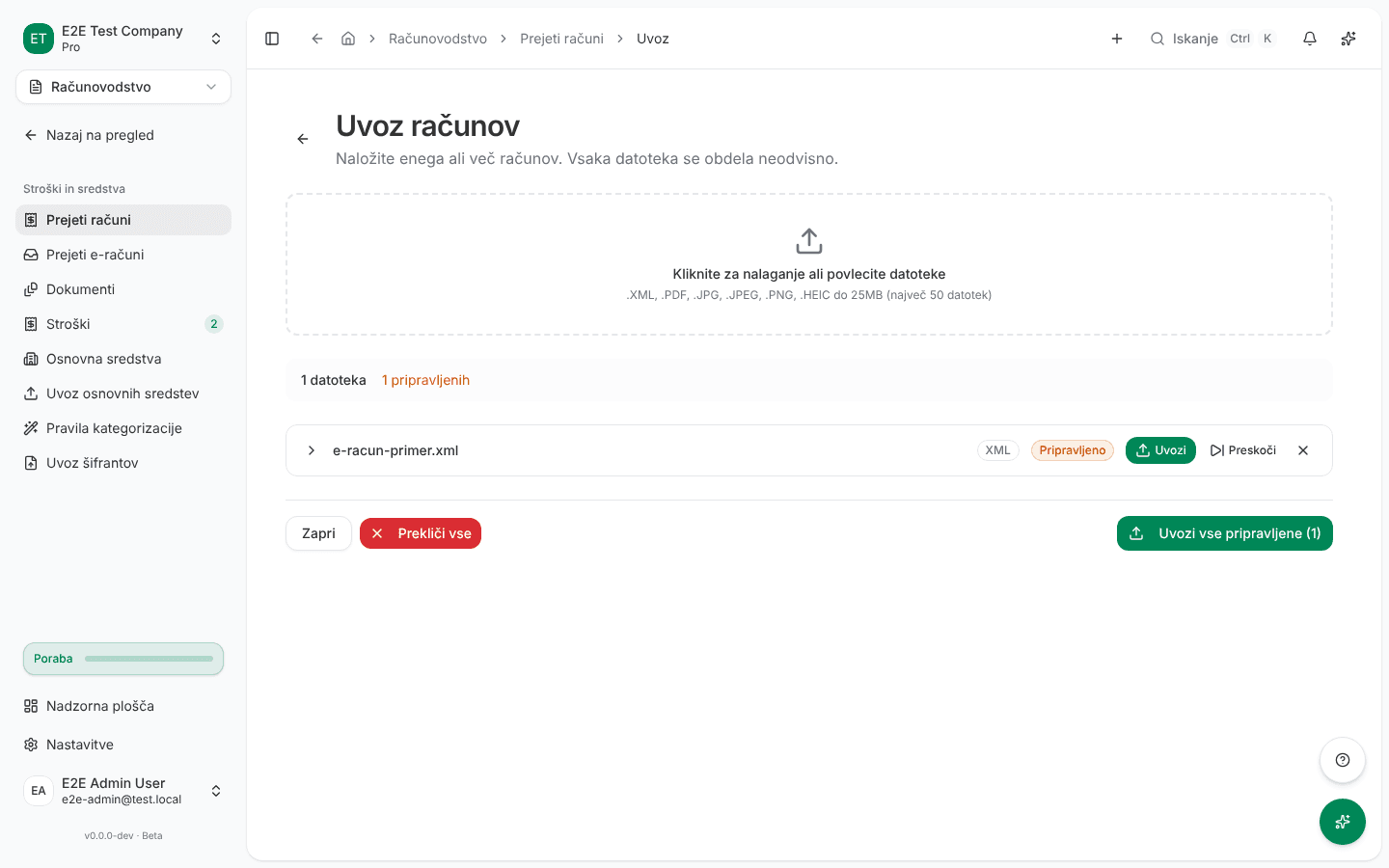
When the import finishes, the invoice is in the Prejeti računi list with the status Osnutek. It follows the same rules as any other draft: you review it and book it.
Where the invoice came from
The original XML is kept with the received e-invoices. In the Prejeti računi list, the Prispelo kot column shows how the invoice reached the program:
- E-račun: an XML was imported.
- PDF (OCR): the invoice was read from a PDF or image.
The same badge appears next to the title on the invoice’s page.
The same invoice twice
If you drop the same XML again, the row gets the Že knjižen badge with a note that the document was already imported. Nothing is added. An invoice that arrives as a PDF after the XML (or the other way round) is flagged as a duplicate too.
What arrived on its own
Open Računovodstvo → Stroški in sredstva → Prejeti e-računi. This list is the queue of what arrives by UJP, bizBox or e-mail, together with the XML files you imported above. An imported XML has the status Osnutek ustvarjen. The Naloži e-račun ali PDF link leads to the import page described above.
What success looks like
- The invoice is in the Prejeti računi list with the status Osnutek.
- An invoice from an XML shows E-račun in the Prispelo kot column; one from a PDF shows PDF (OCR).
- The Prejeti e-računi list has a row with the status Osnutek ustvarjen.
Common issues
- Že knjižen. This file was already imported and was not added again. Open the existing invoice with the Prikaži obstoječega button. If you need a better original, attach it with the Pripni k obstoječemu računu button instead of importing a new invoice.
Single invoices and PDFs are uploaded on the Uvozi page; the Prejeti e-računi list shows what arrived and what came of it. The Naloži XML button on that list is for bank e-invoice packages that hold several invoices at once.