Opening balances and open items
When a company moves into VegaERP from another system, the general ledger must not start empty, it must start where the previous system left off. VegaERP captures that starting point two ways that depend on each other: the otvoritvena bilanca (opening balance, one journal entry with every account’s balance) and odprte postavke (open items, the individual unpaid invoices that make up the receivables and payables inside that balance). This page describes the general procedure for both. If you are migrating from Minimax, detailed export instructions for each data type are in Importing data from Minimax; this page covers what an opening balance actually is, in what order you enter it, and why the order is not arbitrary.
Why the order is not arbitrary
VegaERP posts receivables and payables automatically whenever you create an invoice or post the opening balance. If both paths were imported independently, those two amounts would be double-counted, once from the opening balance and once from every imported open invoice. So once you have recorded the migration (see below), VegaERP does NOT auto-post imported open items into the ledger, instead it reconciles them after import against the amount you already posted in the opening balance, and shows any difference as a warning.
That comparison only works if the opening balance was posted FIRST. Import in this order:
- Record the migration.
- Import the chart of accounts and contacts.
- Import the opening balance.
- Import the open items (open invoices).
Each step assumes the one before it: accounts must exist before you post opening balances onto them. Contacts are the softer of the two. An open item naming a contact you have not imported yet offers to create it during the import, so a missing contact costs you a review click rather than a lost row.
Record the migration first
- Open Nastavitve → Nastavitve modulov → Uvoz podatkov (Settings → Module settings → Data import), and on that page find the Podatki o selitvi (Migration data) card.
- Choose the system you are moving from (Prehod iz / Migrating from), set Kdaj prehajate? (When are you switching?) to Start of this year, Mid-year, or No history, and pick a Datum prehoda (Cutover date) if needed.
- Click Shrani podatke o selitvi (Save migration data).
This step is one-time and cannot be cleared afterward; a recorded migration permanently switches on the behavior described above for this tenant. If you skip it, VegaERP treats imported open items as ordinary new invoices and auto-posts a receivable or payable for each one, doubling the amounts you then post again in the opening balance.
If the business is starting fresh and is not moving from another system, choose Brez / nov začetek (None / fresh start) under Prehod iz and click Shrani podatke o selitvi; this records the answer and does not switch on the behavior above.
Import the chart of accounts and contacts next
The opening balance needs an existing chart of accounts. Open items do not strictly need their contacts imported first, because an unmatched one can be created during the import. Importing them first still leaves fewer rows to review. Import both under Nastavitve → Nastavitve modulov → Uvoz podatkov (Settings → Module settings → Import data) before starting on the opening balance. The process is the same regardless of source system and is described for Minimax in Importing data from Minimax.
An account missing from the chart of accounts is simply skipped when you import the opening balance (its row shows as unmatched, see below), so the sequence matters in both directions: a missing account means a lost balance line.
Importing the opening balance
- On the Uvoz podatkov (Import data) page, click Naloži (Upload) on the Začetna stanja (Opening balance) card.
- Upload a CSV or Excel file with one row per account and both a Breme (Debit) and Dobro (Credit) amount. If you do not have a template, download one with Prenesi predlogo (Download template).
- Click Analiziraj (Analyze). VegaERP tries to match each row to an existing account by number.
- On the Pregled (Review) step, set Datum otvoritvene bilance (Opening balance date), the day after your last day in the old system; if you recorded a cutover date in step 1, the field is pre-filled with the day after it (1 January for a 31 December cutover). Reports show the opening balance in the opening column, not as that period’s turnover.
- Check the Skupaj breme (Total debits) and Skupaj dobro (Total credits) figures, they must match (a Uravnoteženo / Balanced badge). Accounts VegaERP could not find in the chart of accounts are shown separately as unmatched; they are NOT imported until you add them to the chart of accounts. Click Uvozi manjkajoče konte (odpre se v novem zavihku) (Import missing accounts, opens in new tab) to import them from the same file on the Uvoz kontnega načrta (Import Chart of Accounts) page, then come back here and click Analiziraj (Analyze) again. Accounts that close at zero are also reported separately and are not posted, because they carry no opening balance. A real trial balance usually has several of them, and they stay in your chart of accounts either way, so there is nothing to fix.
- Click Uvozi otvoritveno bilanco (Import opening balance). The button stays disabled until the balance is balanced and you have at least two matched accounts.
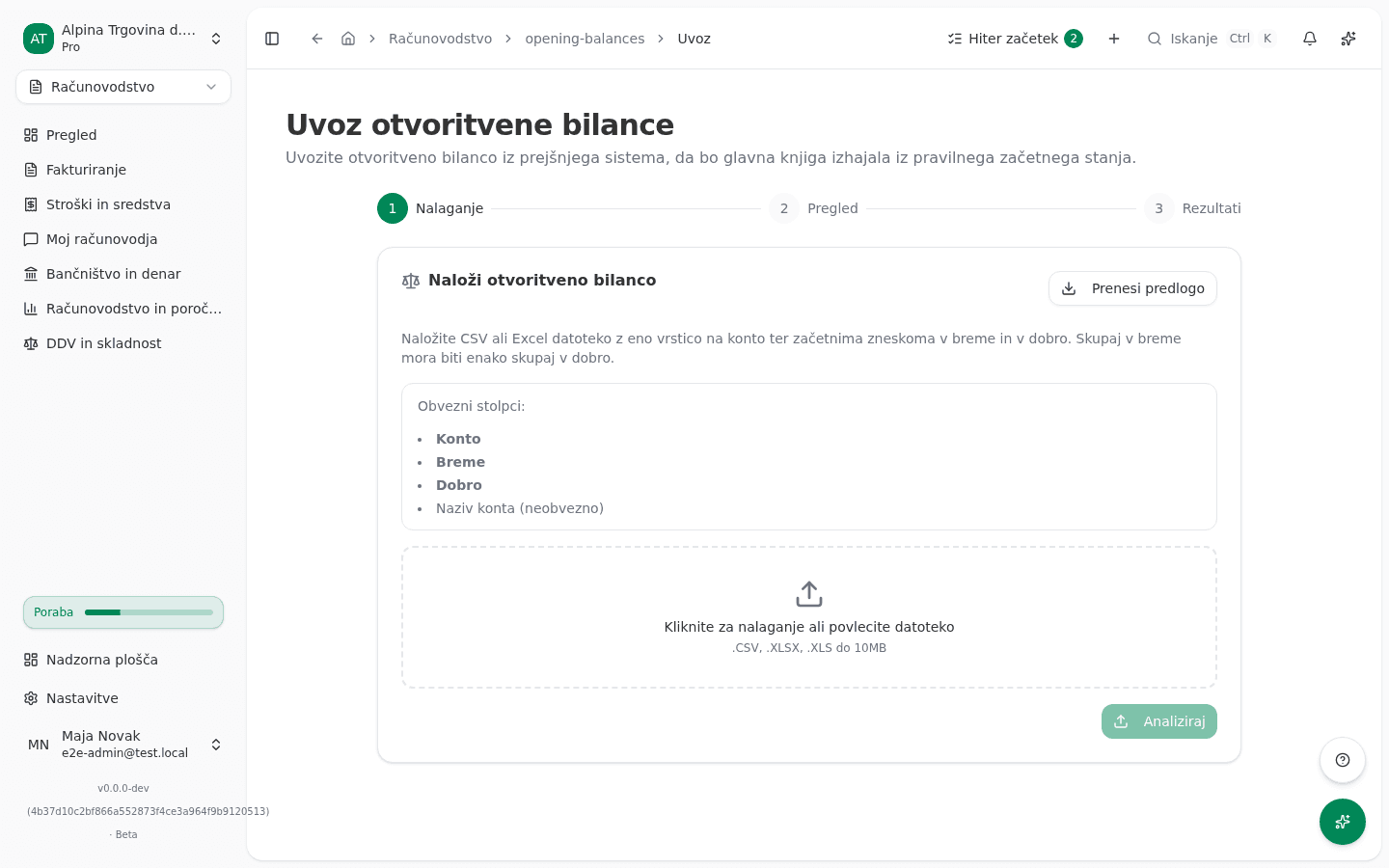
The import creates one posted journal entry. If you try to import again, VegaERP detects that and asks whether to replace the existing opening balance; without that confirmation it does not create a second opening entry, so the import cannot be duplicated by accident.
A revenue or expense account cannot carry an opening balance; enter activity from before the cutover for the current year as part of this same entry (class 4 and 7 accounts), not as a value stored on the account. If VegaERP refuses this, see Why does VegaERP refuse this account code?.
If the company transitioned mid-fiscal-year, the file must also include class 4 and 7 accounts (expenses and revenue from the start of the fiscal year to the cutover date), otherwise the profit-and-loss statement will not cover the full year and must not be used for the annual report or the tax return until it is completed. VegaERP checks this and warns after import.
If the company transitioned at the start of the fiscal year, the file must NOT include balances on class 4 and 7 accounts: they open the new year at zero. Export the trial balance after the old system’s year-end closing entry. VegaERP refuses the import otherwise.
Importing open items
- On the Uvoz podatkov page, click Naloži on the Neplačani računi (Open invoices) card.
- Upload a CSV or Excel file with unpaid issued (receivables) and received (payables) invoices.
- Review the unmatched contacts. Each one offers to create the contact named on that row, which is the default, and lists any similar existing contacts underneath in case the party is one you already have under a different spelling. VegaERP never picks a different existing contact for you. A row that names no contact at all is refused and reported by its invoice number, so you can find it in your file.
- Click the import button, which shows how many invoices are ready.
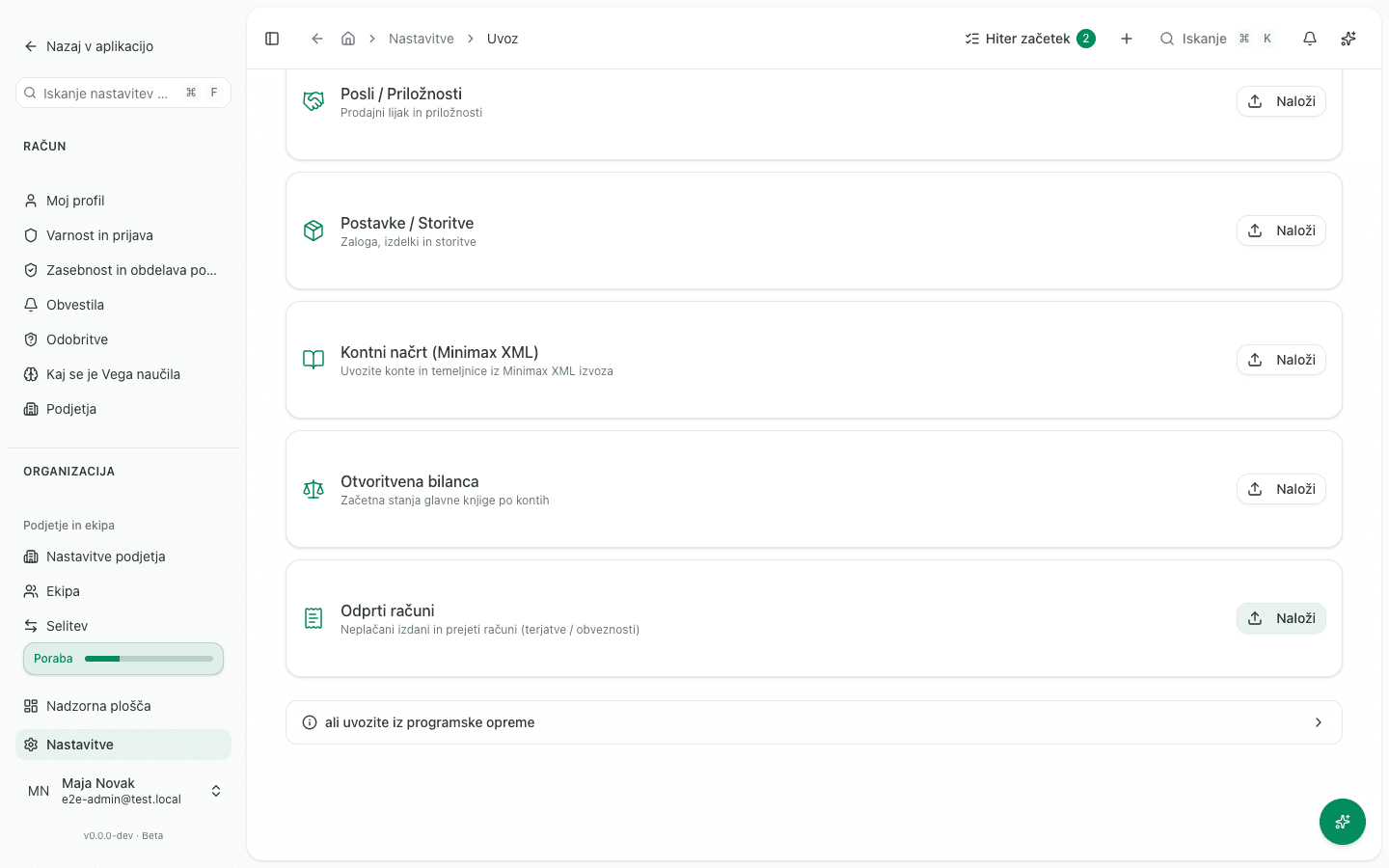
If you recorded the migration (step 1), VegaERP does NOT post any new receivable or payable for this import, because those already come from the opening balance. Instead it shows a Uskladitev terjatev in obveznosti (Receivables and payables reconciliation) section that compares the total of the open items you just imported against the opening balance’s control accounts. When they match, it reads “Uvožene odprte postavke se ujemajo s kontrolnimi konti otvoritvene bilance” (the imported open items match the opening balance’s control accounts). When they do not, VegaERP shows the difference and a message that it must be resolved before going live, most often a sign that the opening balance was imported after the open items, or that the two files carry different cutoff dates.
What success looks like
- Migration: on the Uvoz podatkov page, each subsequent row shows Uvozi znova (Import again) instead of Uvozi, meaning VegaERP recognizes your source and the order.
- Opening balance: the result names the number of the journal entry created, which you can check under Temeljnice (Journal entries).
- Open items: the Uskladitev terjatev in obveznosti section reports that the imported amounts match the opening balance.
Common issues
- The opening balance cannot be imported because total debits and credits are not equal. Reconcile the export file against the previous system before uploading again, VegaERP will not balance the amounts for you.
- Some accounts show as unmatched. Those accounts do not exist (yet) in your chart of accounts and will not be imported. Click Uvozi manjkajoče konte (odpre se v novem zavihku) (Import missing accounts, opens in new tab) to import them from the same file on the Uvoz kontnega načrta (Import Chart of Accounts) page, then come back here and click Analiziraj (Analyze) again.
- The opening balance already exists. You are trying to import again. Click Zamenjaj obstoječo otvoritveno bilanco (Replace existing opening balance) if the previous one was wrong, otherwise move on to importing open items instead of re-importing the balance.
- The receivables and payables reconciliation does not match. Most likely you are importing open items before the opening balance, or the two files do not share a cutoff date. Import (or fix) the opening balance first.
- VegaERP refuses an account with an opening balance. It is a revenue or expense account, see Why does VegaERP refuse this account code?.