REK-O and OPSVL
These are two separate statutory payroll filings. REK-O (“Odtegljaji dohodnine in prispevkov od plač”, the income-tax and contributions form) and OPSVL (contributions for company owners) are filed straight to FURS eDavki from the app.
Both share one guard: before you can create the first filing of a form, the app needs to know, from Settings, whether that form was ever filed for this company by a previous provider. That check is covered below in When the handover from a previous provider is missing.
REK-O
REK-O isn’t created from its own page. It’s created from a single payroll run.
- Go to Plače → Obračuni plač → Obračuni (“Payroll → Payroll runs → Runs”) and open a run with status Oddan (“Filed”). REK-O isn’t available for a run that hasn’t been filed yet. Approving and filing a run is covered in Monthly payroll run.
- At the bottom of the run page, find the REK-O section. Before a filing exists it reads “REK-O oddaje še ni. Ustvarite jo za pripravo XML-a.” (“There is no REK-O filing yet. Create it to prepare the XML.”)
- Click Ustvari REK-O XML (“Create REK-O XML”). The app builds the REK-O form from that run’s own figures.
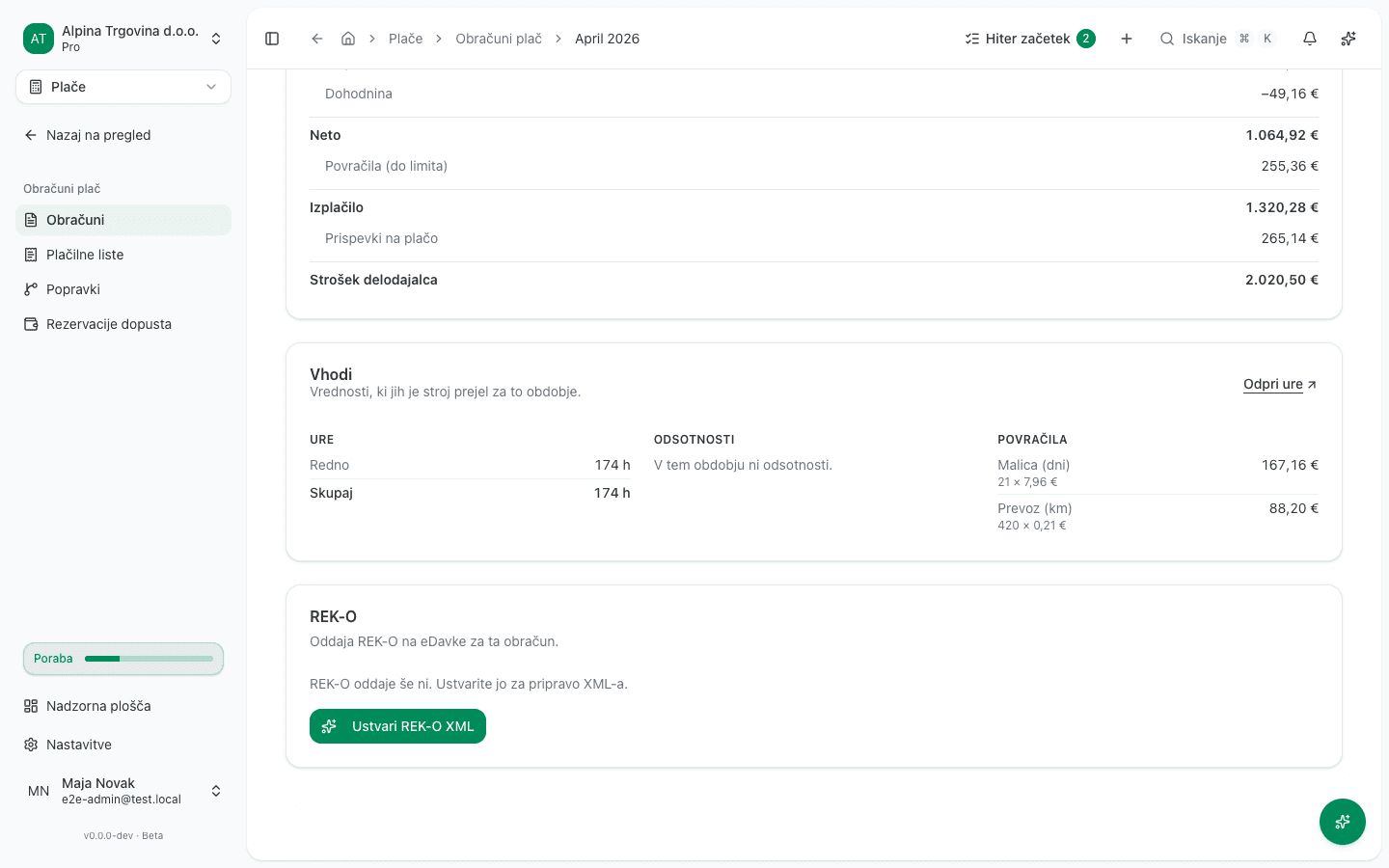
Once created, the filing also appears on the shared list at Plače → Oddaje in povračila → REK-O (“Payroll → Filings & claims → REK-O”). From there you check it against eDavki and submit it, and it stays linked to the run it came from.
When the run pays an odpravnina or unused vacation
FURS instructions file severance pay (odpravnina) and the payout for unused annual leave (ZDR-1, Article 164) each on a REK-O of its own, not on the same form as the wage. For a run that pays one or both of them, the app therefore prepares two or three forms:
- REK-O za odpravnino (“Severance pay (odpravnina) REK-O”) declares only the odpravnina, with its own contributions and its share of the income-tax advance.
- REK-O za izplačilo neizrabljenega dopusta (“Unused vacation payout REK-O”) declares only the unused-vacation payout, likewise with its own contributions and tax share.
- REK-O za plačo (“Wage REK-O”) declares everything else the run pays.
Together the forms declare exactly the run’s amounts; none declares anything twice.
- Click Ustvari REK-O XML (“Create REK-O XML”). The app prepares every form of the run at once.
- In the REK-O section each form has its own status and buttons. REK-O za odpravnino and REK-O za izplačilo neizrabljenega dopusta come first, REK-O za plačo last.
- File the odpravnina and unused-vacation forms first: click Oddaj na eDavke (“Submit to eDavki”) on each, or download it with Prenesi XML (“Download XML”) and upload it at eDavki. The highlighted button always belongs to the form that is next in line.
- Then file REK-O za plačo the same way. Until both other forms are filed, the app neither submits nor downloads the wage form.
Each form is filed, checked and corrected on its own. The odpravnina form’s downloaded
file carries -odpravnina in its name and the unused-vacation form’s -neizrabljen-dopust,
so they cannot be mixed up at upload. The month’s status in the deadline calendar and the
monthly close follows REK-O za plačo. If eDavki rejects or cancels the odpravnina or the
unused-vacation form, the app prepares no new original for it and files no form of the run:
file them by hand in the eDavki portal, that form first, then REK-O za plačo.
A firm’s batch prepares every form of the run; the accountant submits them in their own eDavki session. A filing through the assistant submits the odpravnina and unused-vacation forms before the wage form. If eDavki cancelled either of them, none is submitted: file them by hand at eDavki, the odpravnina or unused-vacation form first, then the wage form.
A run calculated or filed before the app filed the odpravnina or the unused-vacation payout on its own form still carries that amount on the wage form. The app does not split it afterwards, because it could only guess the amounts. File that form as it is. A correction of such a month keeps it on the wage form too, just like the original.
When you upload the REK-O to eDavki yourself
If you download the REK-O with Prenesi XML (“Download XML”) and upload it at eDavki under Dokumenti → Uvoz dokumenta, the app has no way of knowing you uploaded it. So record it yourself once it’s uploaded:
- On the filing page, click Zabeleži oddajo v eDavkih (“Record eDavki upload”). The button is available once the XML has been downloaded at least once.
- Under Naložena datoteka (“Uploaded file”), choose the download you actually uploaded. Every download is kept, so pick the right one.
- Enter the Številka dokumenta v eDavkih (“eDavki document number”) exactly as eDavki shows it. A later correction refers to this number.
- Click Zabeleži kot oddano (“Record as filed”). The REK-O becomes Submitted, and the file you chose is kept as the filed document.
The app can’t check a REK-O you uploaded yourself against eDavki, so record eDavki’s answer too. Open the document at eDavki, then on the filing page click Zabeleži odgovor eDavkov (“Record eDavki’s answer”), choose Sprejet (“Accepted”) or Zavrnjen (“Rejected”), and click Shrani odgovor (“Save answer”). For a rejection, copy the reason eDavki gave. Until the answer is recorded, no correction can be created for that month.
OPSVL
OPSVL isn’t tied to a payroll run. It’s tied to a taxpayer (a company owner or partner), so you generate it directly from its own filing list.
- Go to Plače → Oddaje in povračila → OPSVL (“Payroll → Filings & claims → OPSVL”).
- If the taxpayer isn’t in the register yet, add them first via Upravljanje članov (“Manage members”).
- Click Pripravi (“Prepare”). In the Nova oddaja (“New filing”) dialog, pick the Zavezanec (“Taxpayer”) and the Začetek obdobja (“Period start”) and Konec obdobja (“Period end”), then click Pripravi.
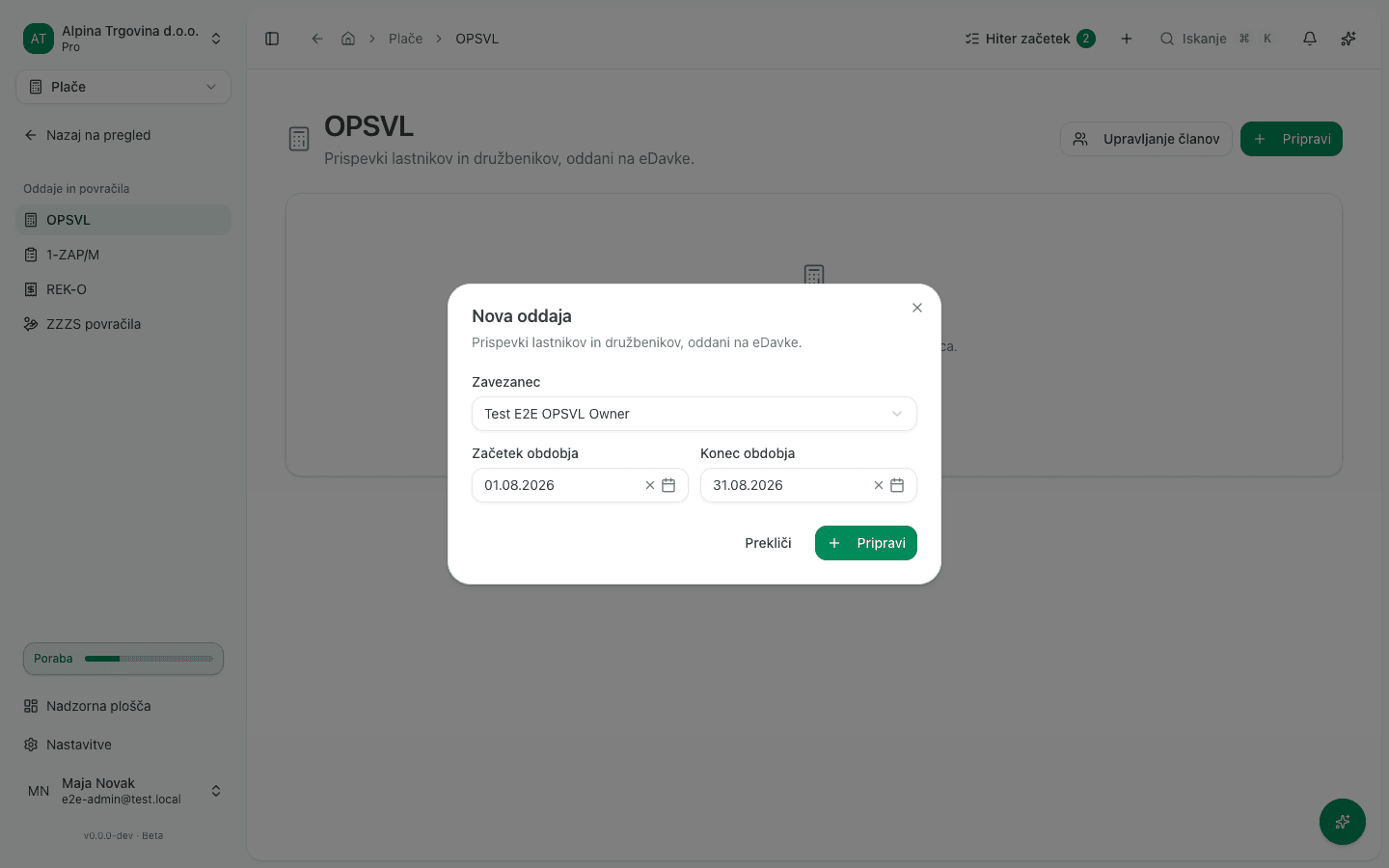
If the register has no taxpayer yet, the app shows a message instead of the picker: “Še ni članov. Pred pripravo obračuna dodajte družbenika v register.” (“No members yet. Add a partner to the register before preparing a filing.”)
When the handover from a previous provider is missing
If it hasn’t been recorded whether a previous provider ever filed a given form for this company, the app refuses to create a new filing for it. The same check applies to both forms.
For example, clicking Ustvari REK-O XML without that record shows “Najprej zabeležite prenos od prejšnjega izvajalca za REK-O.” (“First record the handover from the previous provider for REK-O.”) with a Zabeleži zdaj (“Record now”) button.
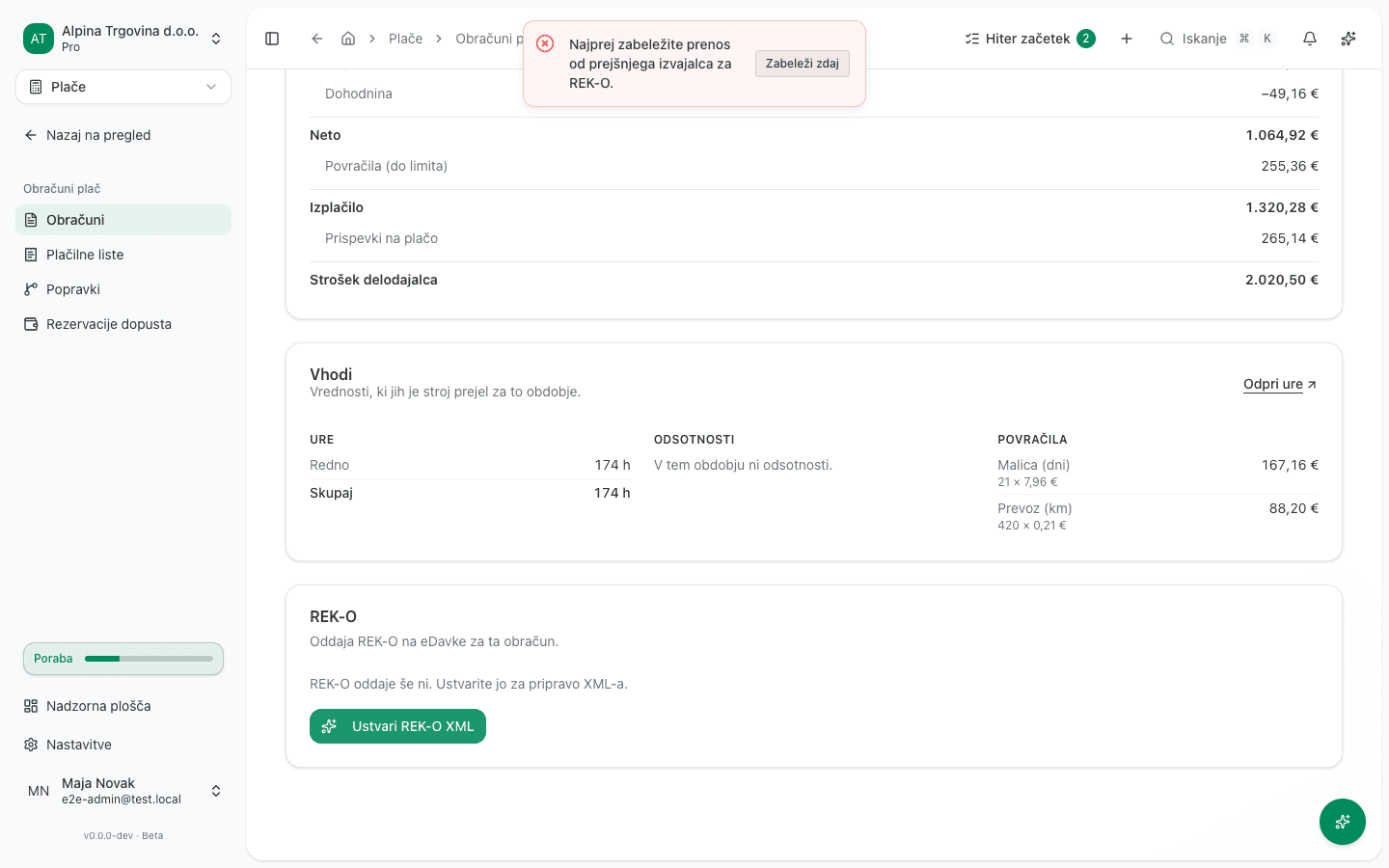
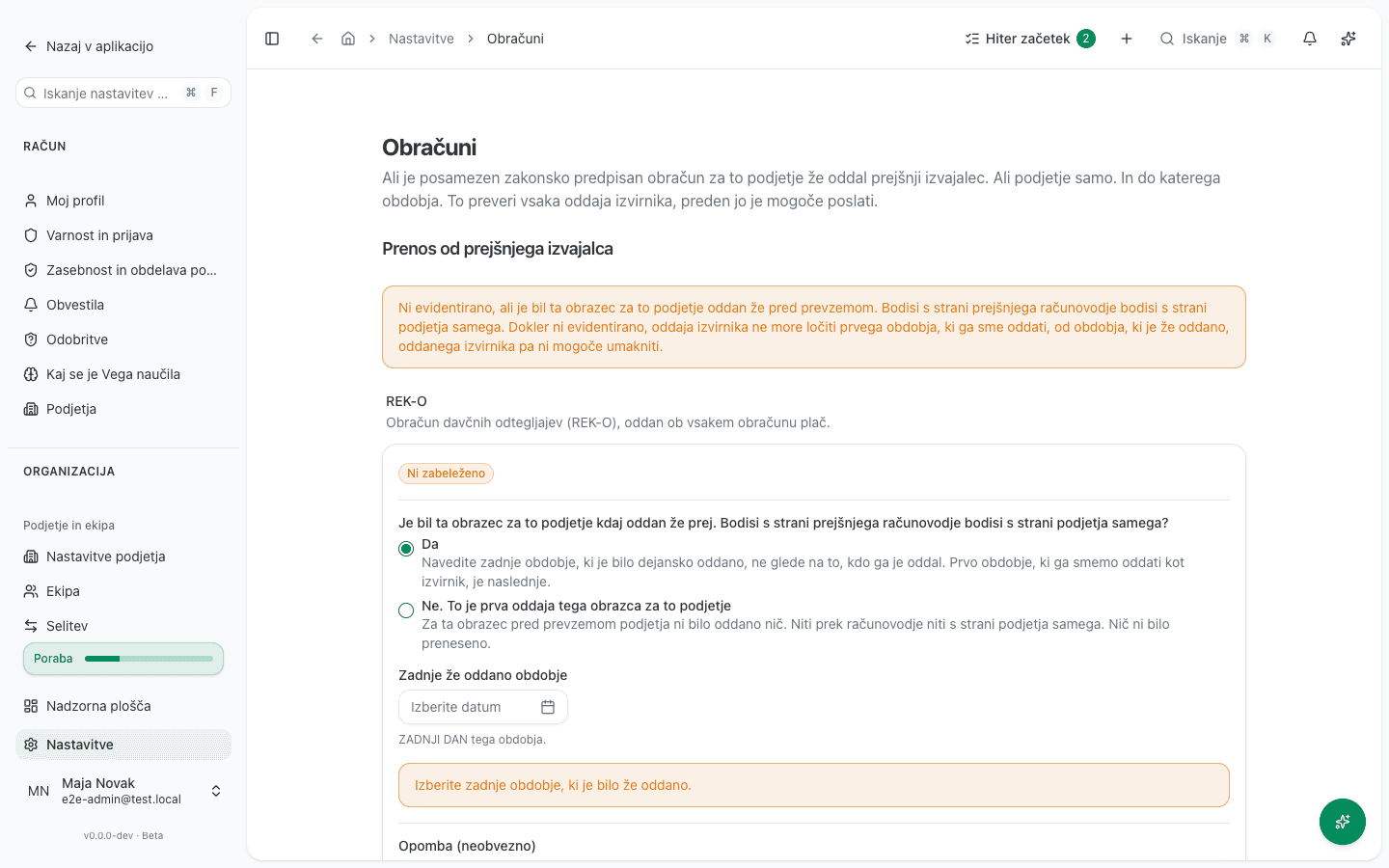
Zabeleži zdaj opens Nastavitve → Obračuni (“Settings → Filings”), on the Prenos od prejšnjega izvajalca (“Handover from previous provider”) section. There, for each form (REK-O, RP-O, OPSVL, KIR/KPR, DDPO) you record separately whether a previous provider ever filed it, and if so, up to which period. While a form still reads “Ni zabeleženo” (“Not recorded”), that form can’t be created as an original.
How a correction differs from an original
A correction isn’t a new filing for the same period. It’s a new revision that refers back to the original that was already filed. That’s why Ustvari popravek (“Create correction”) isn’t available right away: the original has to have been accepted by eDavki first. A correction refers back to the eDavki document number of the original, so a filing that is still awaiting a response has nothing to refer to.
A rejected REK-O is not fixed with a correction: eDavki never accepted it, so there is no original to correct. You replace it with a new original.
On the REK-O card of the payroll run, a red alert reads eDavki so oddajo zavrnili (“eDavki rejected this filing”). Workspace administrators also get an email subject-lined “REK-O zavrnjen” (“REK-O rejected”) with the period, and the reason eDavki returned is listed in it under Napake (“Errors”).
- Fix the cause of the rejection: wrong company or employee details in the settings, wrong amounts in a correction of the payroll run.
- Create a correction of the payroll run, approve it and file it with the original payment date. A correction is needed even if you only changed company or employee details.
- On the REK-O card, click Pripravi nov original (“Prepare a new original”).
- On the rejected submission’s page, choose the filed correction, confirm that you read the rejection reason, and click Pripravi nov original.
- Validate and submit the new original to eDavki, or download it with Prenesi XML (“Download XML”).
The app does not prepare a new original that is identical to the rejected one, and it prepares at most three replacements for one month; after that, file the new original by hand in the eDavki portal. When an accounting firm prepares the new original, the company’s administrators are notified.
If the period you’re trying to file as an original was in fact already filed (either by you or by a previous provider), the app detects this from the recorded handover period in Settings and refuses the original, pointing you to the matching correction instead.
Common errors
- “Obračun mora biti oddan, preden lahko ustvarite REK-O.” (“The payroll run must be filed before you can create a REK-O.”) The run is still Osnutek (“Draft”) or Odobreno (“Approved”). Approve and file it first, as covered in Monthly payroll run.
- “Še ni članov. Pred pripravo obračuna dodajte družbenika v register.” OPSVL needs a taxpayer before you can create its first filing. Add one via Upravljanje članov.
- “Najprej zabeležite prenos od prejšnjega izvajalca za [form].” See When the handover from a previous provider is missing above.