Getting started
This is not a tour of every feature. It’s the shortest path from an empty company to a first useful result. The order below is not arbitrary: some steps genuinely block others until you complete them, so do them in this sequence.
Do this, in this order
-
Create your company. At sign-up you pick Vrsta organizacije (“Organization type”): Podjetje (“Company”) or Računovodski servis (“Accounting firm”). Then you enter your tax number; the app looks the company up in the AJPES business register and shows the name, address, Vrsta podjetja (“Company type”: LLC, sole proprietor, or association, which the app sets from the register’s legal form) and registration number as a summary. If anything is wrong, open the details with Uredi (“Edit”); fields the register filled are marked iz Poslovnega registra (AJPES) (“from the business register”), and anything you typed yourself is kept. If the register does not find the company, fill the fields in yourself. For a sole proprietor, also choose Davčni režim (“Tax regime”: standard or flat-rate) if it applies, then click Naprej (“Next”). An accounting firm enters only its name and tax number; it can add the address and registration number later in the company settings. The app then asks a few questions about how you do business (do you hold stock, do you have employees); the answers decide which modules show up in your sidebar. Last, it asks whether you are switching from another program: if you choose Prehajam iz drugega sistema (“I am switching from another system”), you pick the system and the switch date on the same screen. An accounting firm is then asked for its default monthly fee and hourly rate before it adds its first client (the Cenik in privzete nastavitve step, “Set your prices”). The fee is copied onto every client you add, and the rate is used to bill logged time. You can skip the step with Preskoči za zdaj (“Skip for now”) and set both later.
-
Fill in Company settings. Go to Nastavitve (“Settings”) → Podjetje in ekipa (“Company & team”) → Nastavitve podjetja (“Company settings”). Check the Zavezanec za DDV (“VAT registered”) box, since it decides whether your invoices charge VAT at all. Under ZZZS in AJPES identifikatorji (“ZZZS and AJPES identifiers”) fill in Šifra kolektivne pogodbe (“Collective agreement code”, REK-O field S02) and Odgovorna oseba za REK obrazce (“Person responsible for REK forms”, field F008) with their contact.
Without these two fields the app cannot file your payroll as a REK-O, so fill them in now rather than at your first payroll run.
-
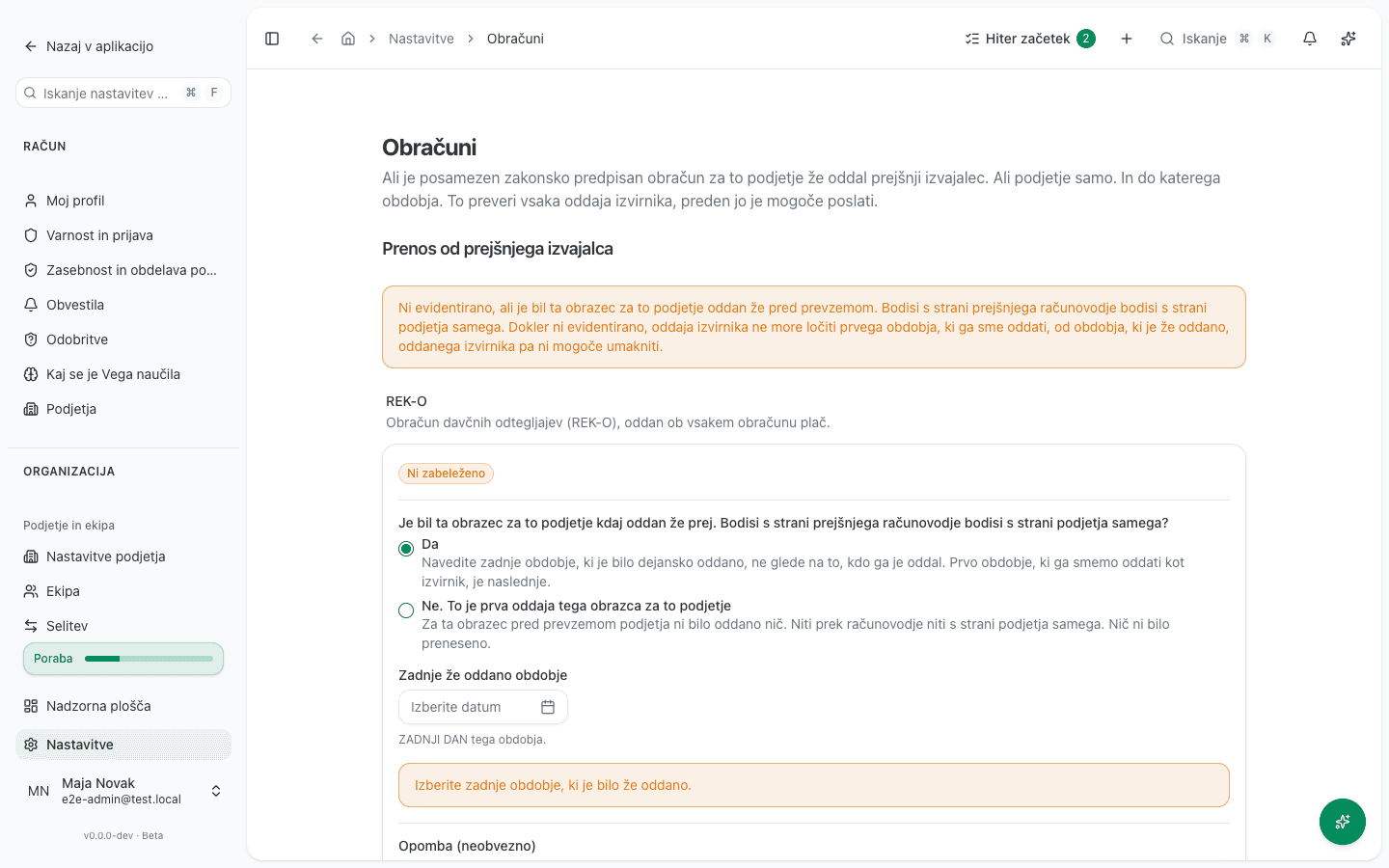
Record the handover from your previous provider. Under Nastavitve → Obračuni (“Filings”) → Prenos od prejšnjega izvajalca (“Handover from a previous provider”), answer, separately for each filing (REK-O, RP-O, OPSVL, KIR/KPR, DDPO), whether a previous provider ever filed it for your company.
Until you do this, the app refuses every submission of that filing, even your very first payroll run or VAT return. The full walkthrough is in Why can’t I file this period?.
-
Invite your team, if you’re not the only user. On the Ekipa (“Team”) page (Nastavitve → Podjetje in ekipa → Ekipa), click Povabi uporabnika (“Invite user”), enter their email, and pick a role. An accounting firm serving several clients should read Accounting firms & multi-client access first, since the access model there is different.
-
Issue your first document. Once the steps above are done, you’re ready to issue your first invoice or quote. B2B customers who require electronic invoicing should read Invoicing & e-Račun for the eSlog format details.
If you’re migrating from another system mid-year
Enter opening balances from your previous system before you start booking new documents, or your VAT books and journal will be missing history. See Importing from Minimax if you’re coming from Minimax specifically, which covers most Slovenian migrations.
Your first days after a handover
The list above prepares the company. This one is the path that gets your actual data into VegaERP over the first few days. The order is not arbitrary, because each step references the one before it:
- Importing data from Minimax brings across the chart of accounts, partners, and items. Do this first, because everything else references them.
- Your item catalogue is what your invoice lines are drawn from. If you imported it from Minimax, just check the prices and VAT rates here; otherwise enter it now, before you get to balances.
- Opening balances and open items sets the balances and unpaid invoices as at the handover date. Without them your trial balance will not compare against the old system.
- Bank accounts and your first statement import adds the account and loads the first statement, then Bank statement matching ties those lines to open items.
- Booking supplier invoices and Invoicing & e-Račun are the first new documents you post yourself.
If you are taking a company over from another system, do steps 1 to 3 before you post the first new document. Booking into a period with no opening balances leaves the balances wrong, and correcting it afterwards costs far more than getting the order right.
If you have employees
Payroll setup is its own multi-step flow: employees, contracts, and statutory parameters all need to exist before you can run your first payroll. See Setting up payroll.
Connect banking & email
Not required before your first document, but it saves manual work later:
- Add your bank account and load the first statement. See Bank accounts and your first statement import.
- Connect Gmail or Outlook if you want incoming invoices and documents to land in the unified inbox automatically.
Order matters
- The handover from your previous provider must be recorded for each filing before its first submission, or the app refuses the submission.
- Opening balances should exist before you book new documents in the current period, otherwise your VAT books and journal will be missing history.
- Employees and their contracts must exist before the first payroll run.
- The VAT-registered flag (Zavezanec za DDV) should be correct before you issue your first invoice, since it determines whether VAT is calculated on the document at all.