Accounting firms & multi-client access
If you’re an accounting firm (računovodski servis) serving multiple client companies, VegaERP is built for that model directly, not as a workaround on top of single-company accounts.
The tenant model
Every client company is its own isolated tenant. Its data, documents, and financial records never mix with another client’s, even though you access them from one firm account. This isolation is absolute at the data layer, not just a UI filter.
Viewing your client roster
-
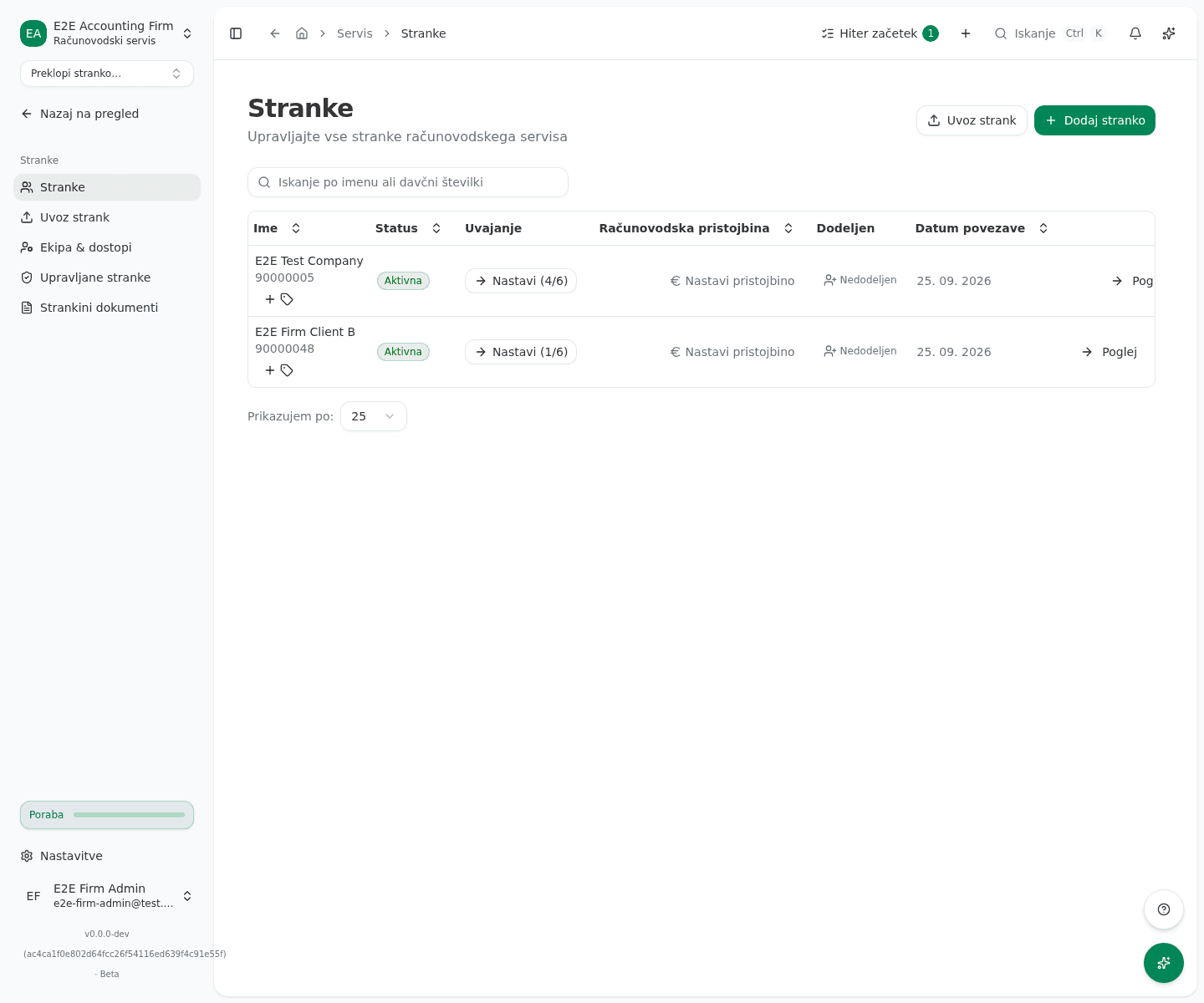
In the left sidebar, go to Servis → Stranke (“Firm → Clients”).
-
The list shows every connected client: Ime (name and tax number), Status (Aktivna/Čakajoča/V odjavi do datuma/Prekinjena, Active/Pending/Offboarding until a date/Disconnected), Uvajanje (onboarding progress, e.g. “Nastavi (4/6)”), Računovodska pristojbina (accounting fee), Vodja (the lead accountant), and Datum povezave (connection date).
-
The Računovodska pristojbina (accounting fee) column shows the monthly amount. A client without a fee shows Nastavi pristojbino (set fee), and a fee that is not being charged right now is marked Zaustavljena (paused). The Nezaračunan čas (unbilled time) column shows the hours you logged for the client and have not billed yet, with their value at the client’s or the firm’s hourly rate. Without an hourly rate it says brez postavke (no rate). Click the hours to open the Zaračunavanje (billing) section of the Sledenje časa (time tracking) page, where you bill them.
-
Add a new client with Dodaj stranko (“Add client”), or link one already registered in the system with Poveži obstoječo (“Link existing”). The client must confirm the link on their side before you get access.
Importing several clients at once
If you are taking over several clients, you do not have to add them one by one.
- On the client list, click Uvoz strank (“Import clients”). The firm onboarding leads to the same screen through Uvozi več strank (“Import several clients”).
- Paste tax numbers (one per line or comma-separated) or a CSV table with a header row. You can also upload a file with Naloži datoteko (.csv, .txt) (“Upload file”). From a table we read the tax number, name and email, and optionally the monthly fee, accountant, tags, VAT period and migration source (see Client import, setup profiles and pre-filing facts); other columns are ignored.
- Below the box you see which columns were recognised and the state of every row before anything is imported: new client, link request, Ni v registru FURS (“Not in FURS registry”), already your client, duplicate or invalid tax number. Only rows that can be imported are sent.
- Click the import button. For every created client you can set the fee straight away (Nastavi tarifo, “Set fee”), invite the owner, assign an accountant or open Uvajanje (“Setup”).
- For a row that FURS does not know, click Ustvari ročno (“Create manually”): the new client form opens with the tax number and name filled in. Download the failed rows with Prenesi napake (CSV) (“Download failed rows”), fix them and paste them back in.
Engagement letter with a client
You can send a client the monthly fee as a proposal. The client accepts or declines it in the app, and the fee only takes effect once they accept.
- In the client list, click the client’s entry in the Ponudba (“Proposal”) column. A client with no proposal yet shows Pošlji ponudbo (“Send a proposal”) there. The link opens the Pogodba o storitvah (“Engagement letter”) card at the bottom of the client’s setup page. Only firm administrators see the link and the card.
- Click Pošlji ponudbo (“Send a proposal”), enter the Mesečna pristojbina (EUR) (“Monthly fee”), tick the Vključene storitve (“Services included”) and optionally add Pogoji (“Terms”).
- Click Pošlji stranki (“Send to client”). The proposal is marked Čaka na stranko (“Waiting for the client”) until the client answers. If you change your mind, take it back with Umakni (“Withdraw”).
- The client’s administrator sees the proposal in their organization settings, on the Računovodski servis (“Accounting firm”) page, and answers with Sprejmi (“Accept”) or Zavrni (“Decline”). Before accepting, the app shows the amount the firm will charge.
- Once the client accepts, the agreement is marked Velja (“In force”), the fee in the client list updates, and the previous agreement is marked Nadomeščena (“Replaced”).
- The Ponudba column shows where each client stands: Čaka na stranko while a proposal waits, Velja once the newest one is accepted, and Zavrnjena (“Declined”) when the client declined it.
Filters, sorting, and saved views
You can narrow the list to the clients that need work right now. Filters apply to the whole list, not just the current page, so the result count and the pages agree.
- Above the list, switch on one or more filters: Moje stranke (clients you lead), Čaka na pregled (at least one document waiting for review), Nedokončana nastavitev (setup incomplete), Brez honorarja (no fee), and Brez vodje (no lead). Filters combine.
- Pick a link status under Status and an order under Razvrsti (sort). Največ za pregled puts the clients with the most documents to review first.
- The Za pregled, Naslednji rok, and Odprte izjeme columns show how many documents wait for review, the client’s next unfiled return (a late one is marked), and how many of the client’s items wait in the exception inbox.
- Save a combination you use often with Shrani pogled (save view), type a name, and confirm with Shrani. Pick it later under Shranjeni pogledi (saved views). Views are stored in this browser for this firm.
- Počisti filtre (clear filters) returns to the full list.
The filters are part of the page address, so you can send a colleague a link to the filtered list.
Bulk actions
A firm admin can apply one change to several clients at once.
- Tick the clients in the first column of the list.
- In the bar that appears, choose Dodeli vodjo (assign lead), Nastavi pristojbino (set fee), Dodaj oznake (add tags), or Uporabi predlogo nastavitev (apply a setup template).
- If some clients could not be updated, they are listed with the reason; the others are updated.
The migration source (where a client comes from) is not set in bulk, because it decides the opening balances in the general ledger. Set it on each client.
A client that is leaving
When you disconnect a client, your firm keeps access to its books for 30 more days. During that window the client’s due work stays on your screens so you can still file it.
- A leaving client carries the V odjavi (“Offboarding”) marker, with the date your access ends, in the client list and on Evidenca obračunov (filings), Koledar rokov (deadline calendar) and Mesečno zaključevanje (month-end close).
- To file a due return (for example last month’s DDV-O), open the client with Poglej (“View”) and file it on the client’s own screen, as for any other client.
- Batch filing with the client’s own digital certificate is not available for a leaving client. The firm unlocks a client’s certificate on its behalf only while the engagement is active.
- When the window ends, the link is disconnected and the client disappears from every firm screen.
Getting access to a client’s tenant
Access to a client tenant is explicit and auditable. A firm doesn’t get silent, automatic access just by association. Access is granted through the connect/approval flow above, and access changes (granting, revoking) are scoped to specific people, not blanket role assignments. This matters if staff turnover happens on either side: removing a person from the firm doesn’t imply they should still see client data, and vice versa.
Client confidentiality
By default every member of the firm can reach every client. If individual accountants should see only their own clients, a firm admin turns this on:
- Open Nastavitve firme (“Firm settings”).
- In the Zaupnost strank (“Client confidentiality”) section, turn on Dostop do stranke le za dodeljene računovodje (“Only assigned accountants can access a client”). The change is saved immediately.
When on, staff see only the clients explicitly assigned to them; firm admins still see every client. Existing assignments stay in place, so no one loses access they already have when you turn it on. The restriction applies to new clients and new staff. When you give a client a new lead or backup, the accountant replaced who no longer leads or backs it up loses access to it.
A new accountant on the team
A firm admin invites a new colleague. An invitation is valid for seven days.
- Open Team & access and choose Invite accountant.
- Enter the colleague’s Email. Under Role keep Accountant, or choose Firm Admin if they should manage the firm.
- Choose Send Invitation. The colleague appears in the team list as Pending.
The colleague opens the link from the e-mail and signs in, or creates an account, with the same e-mail address the invitation went to. Once they accept, the firm dashboard opens. An invitation can be used once; a cancelled invitation no longer works.
The notice in the invitation sheet says which clients the colleague will reach. With Client confidentiality off, they get access to every client of the firm. With it on, a new accountant gets access to no client until you assign them one.
If the colleague does not accept in time, the team list shows Invitation expired. Choose Resend Invitation in the row’s menu to send them a new link.
Two-factor sign-in for the team
An admin can require two-factor sign-in for everyone in the firm: in Security & sign-in, turn on Require 2FA for all users. The requirement covers work in the firm and opening the firm’s clients. A member without a second factor gets a screen where Set Up 2FA connects an authenticator app, and then the firm dashboard opens.
Cover and client transfer
On the Team & access page a firm admin moves clients from one accountant to another, and every member records their own absence.
Transferring clients to another accountant
Use a transfer when a colleague leaves or when work is handed over for good.
- Open Team & access and choose Transfer clients.
- Under From accountant pick the person handing the clients over, and under To accountant the person taking them.
- Under What moves keep Lead, Backup or both ticked.
- Read the preview: for every accountant the transfer touches it shows how many clients they lead and back up before and after.
- Confirm with the button, which states how many clients will move.
A transfer covers every active client of the chosen accountant. Where the new lead used to be the client’s backup, the client is left without a backup, and the preview says so beforehand. A client that has a backup but no lead is left unchanged until you give it a lead. The accountant who hands a client over and no longer leads or backs it up loses access to that client when Zaupnost strank is on. Every transfer is written to the firm’s audit trail.
Absence and backup
While a client’s lead is away, notifications and reminders for their clients go to the backup. The backup’s work lists already include the clients they cover.
- On Team & access, in the Absences card, choose the Type (Holiday, Sick leave or Other).
- Pick the first and the last day away. An admin also picks the Member.
- Choose Save absence.
A member records and removes only their own absence; an admin records anyone’s. Colleagues see who is away and when, while the type of absence is visible only to the admin and the absent person.
In the Uncovered clients card the admin sees the clients whose lead is away today and who have no backup, or whose backup is away too. Set a backup opens the client list, where the backup is set on the client’s row.
Switching between clients
Once you have access to multiple client tenants, use Preklopi stranko… (“Switch client…”) at the top of the sidebar to jump between them without re-authenticating. Type to filter and pick a client from the list.
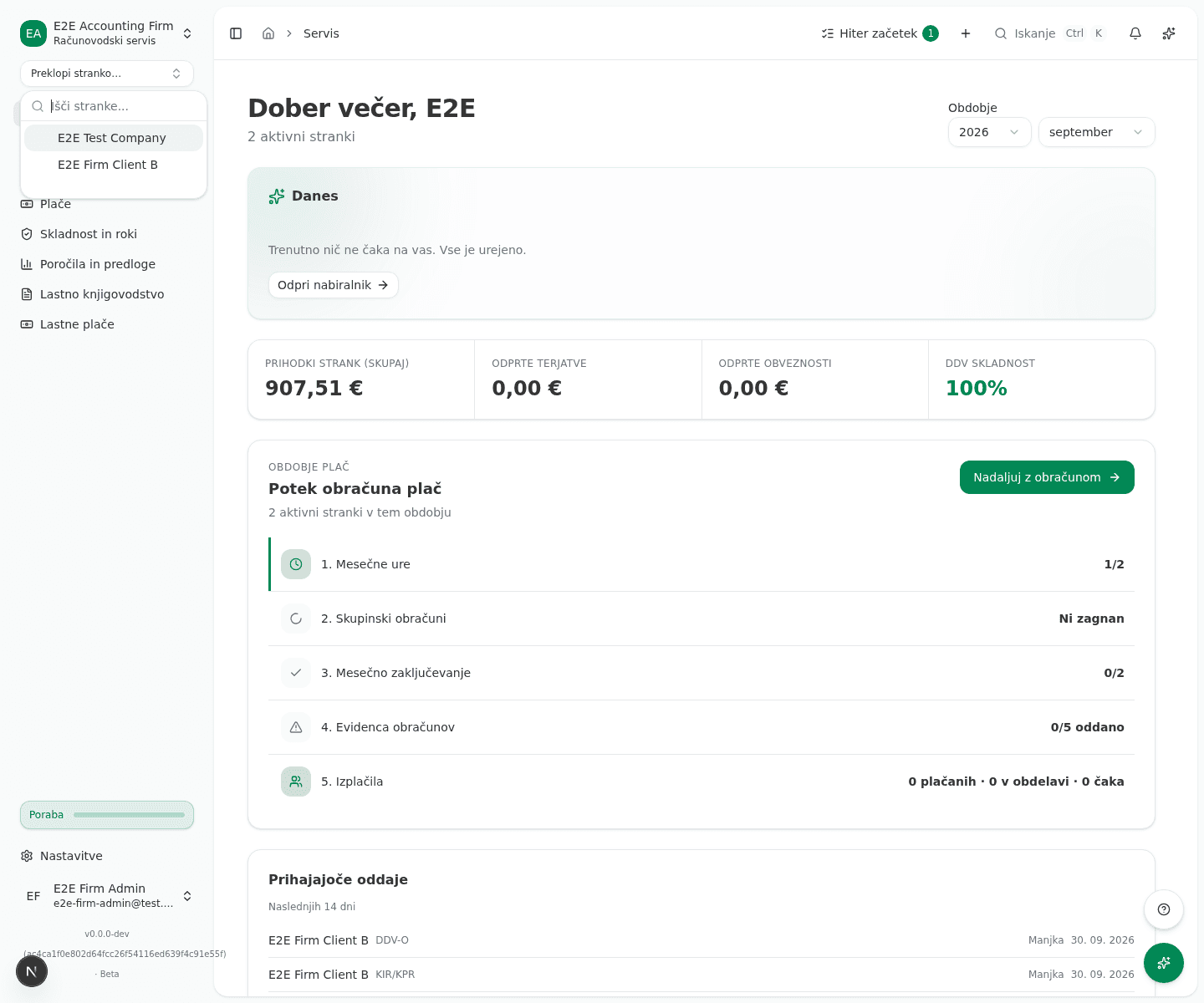
Each switch is a clean context change. Cached data from one client’s tenant is never carried into another’s view.
Good practice
- Grant access per person, not per role blanket. When someone leaves the firm, revoke their specific access rather than relying on a role change to cascade correctly.
- Periodically review which staff have access to which clients, especially after a client offboards or a staff member changes teams.
Common issues
- “No client is assigned to you yet”. Client confidentiality is on and the admin has not assigned you a client yet. Ask your firm admin to make you the lead or backup of the clients you will work on.
- A client shows “Brez vodje” (No lead). Nobody at the firm is set as their lead accountant
yet. Assign one from the client row so tasks and notifications route to the right person.
Until then only firm admins see the client; their dashboard shows a “Stranke brez vodje”
(“Clients without a lead”) link that opens the list of those clients.
Can’t send an invite / send a request. The client’s tax-number registration must match what they use in their own VegaERP account for a link request to resolve. A typo’d tax number leaves the request pending indefinitely on your side, with no error: nothing cancels or resolves it until the number is corrected.