Closing and locking periods
Every accounting period is in one of three states: Odprto (open), Zaprto (closed) or Zaklenjeno (locked). A closed or locked period accepts no new journal entries, no invoices dated inside it, and no payments dated inside it. The difference between Zaprto and Zaklenjeno matters: a closed period can be reopened, a locked one never can, not ever.
Periods are managed on the Upravljanje obdobij page, under Računovodstvo in the left menu. If your company is a flat-rate sole trader (normirani s.p.), you won’t see this page at all: flat-rate companies don’t keep double-entry books, so there is no period to lock.
What can happen to a period
The difference between Zaprto (closed) and Zaklenjeno (locked) is the one thing on this page that cannot be undone later, so it is drawn out separately.
An administrator or accountant can reopen a closed period. A locked period is final: the app will not unlock it, and that path does not exist. So lock only once you are sure you will not need to touch the period again.
If the app refuses a posting because of the period, see Period is locked.
Closing (sealing) a period
- On Upravljanje obdobij, in the row of an open period, click Zapri (the button’s name includes the period, for example “Zapri January 2026”).
- In the dialog with the same title, review the Odprte postavke v obdobju list. It names what is still unresolved in the period, for example issued invoices still in draft, supplier invoices not yet received or not yet posted to the ledger, unmatched bank lines, or a DDV-O return that was never filed.
- Click the confirm button, which carries the same name as the dialog (for example “Zapri January 2026”).
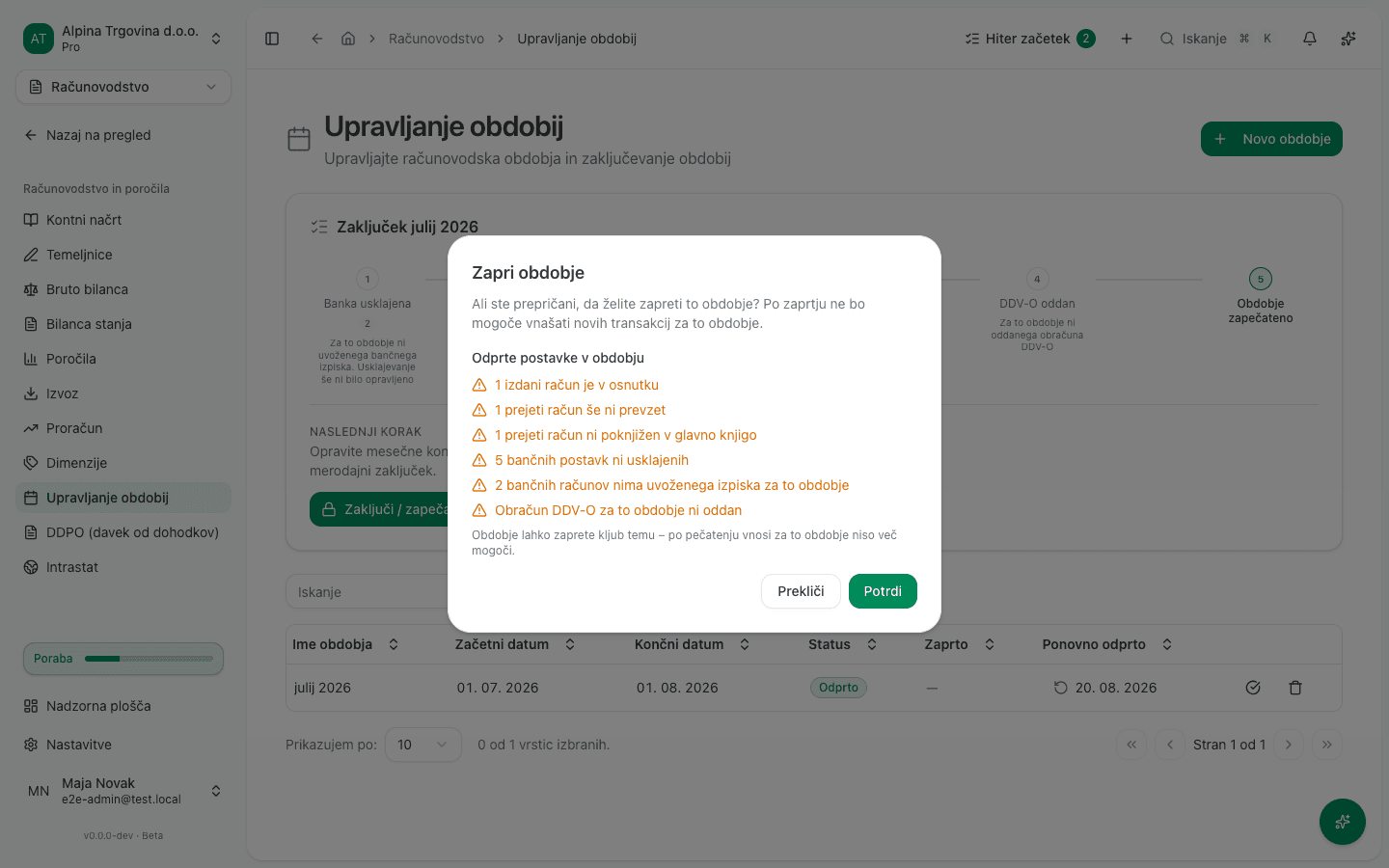
Items on this list don’t block the close, you can close the period despite them. The one thing that genuinely blocks a close is a journal entry sitting in Osnutek (draft) status inside the period, see Common issues below.
Once the period closes, the Status column reads Zaprto and the Zaprto column gets the close date.
Locking a closed period
Locking is a further, permanent step on top of an already-closed period. Use it once you’re certain the period will never need touching again, for example after the DDV-O return has been filed and the annual review is done.
- In the row of a closed period, click Zakleni (the button’s name includes the period, for example “Zakleni January 2026”).
- In the dialog with the same title, click the confirm button, which carries that same name.
Once locked, the Status column reads Zaklenjeno. From then on the row carries no action buttons at all, only the close date and any earlier reopen it went through.
Reopening a closed period
Only a period in Zaprto status can be reopened. A Zaklenjeno period can no longer be reopened, the app warns about this directly in the lock dialog.
Closing, locking and reopening actually take effect only for users with the Administrator or Računovodja role. The buttons for these actions are still visible to any user with edit access to the Accounting module, even without one of those two roles, but clicking returns Nimate dovoljenja za izvedbo tega dejanja. (you don’t have permission to perform this action) and nothing happens.
- In the row of a closed period, click Ponovno odpri (the button’s name includes the period, for example “Ponovno odpri January 2026”).
- Fill in the Razlog za ponovno odprtje (reason for reopening) field. The confirm button stays disabled until it’s filled in, a reason is mandatory and gets recorded in the audit trail.
- Click the confirm button, which carries the same name as the dialog.
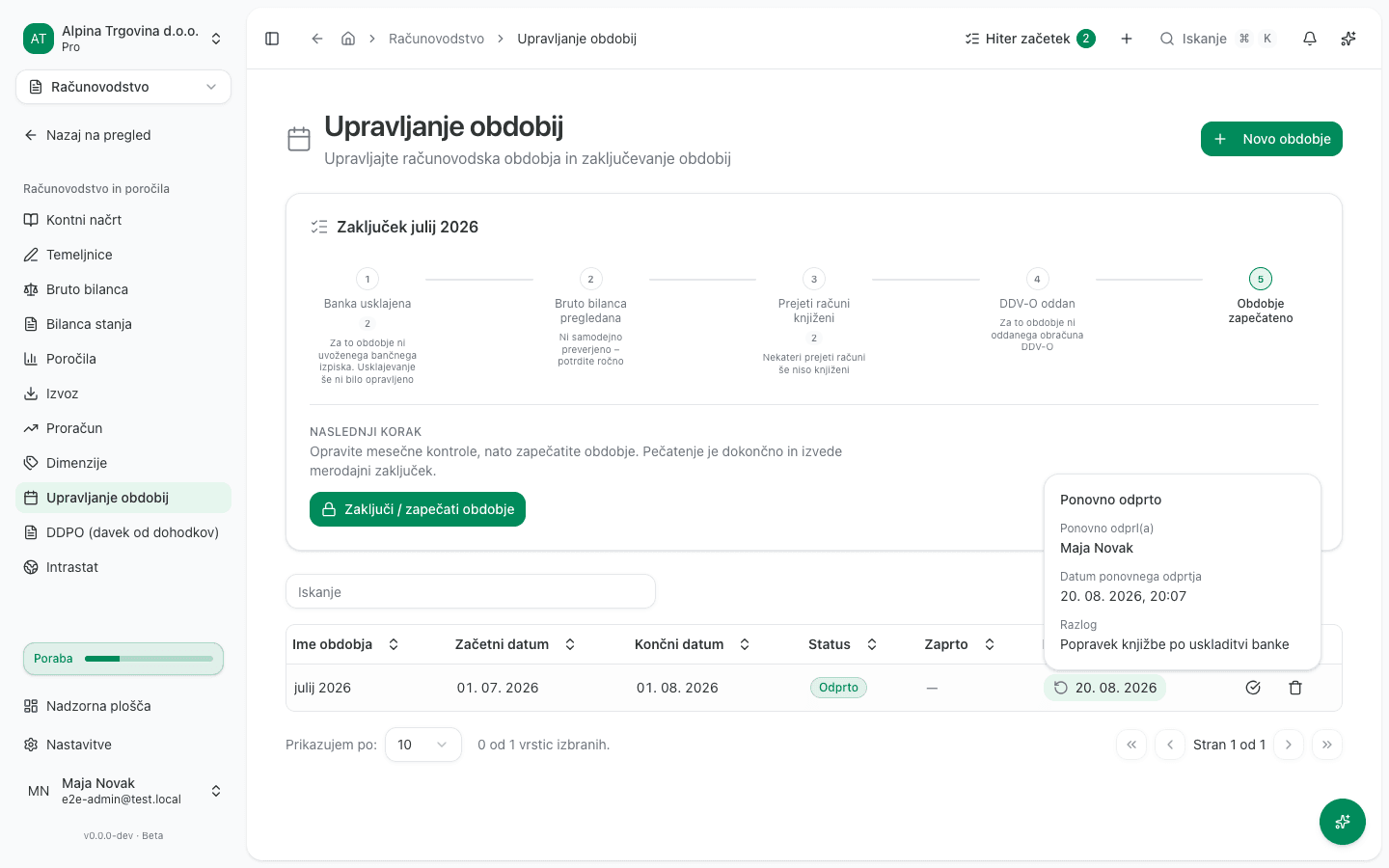
The period’s status returns to Odprto. A date appears in the Ponovno odprto column, clicking it opens the details: Ponovno odprl(a), Datum ponovnega odprtja and Razlog.
What success looks like
| Action | What changes |
|---|---|
| Closing | The Status column reads Zaprto, the Zaprto column gets a date, and journal entries, invoices and payments dated inside the period can no longer be posted. |
| Locking | The Status column reads Zaklenjeno, and the row stays without any action buttons, since the period can no longer be either reopened or edited. |
| Reopening | The Status column reads Odprto again, posting into the period is possible once more, and the Ponovno odprto column keeps a trail of who did it and why. |
Common issues
- Posting a journal entry dated inside a closed or locked period is refused. Verified
on a journal entry: clicking Knjiži returns an error message that is in English
today, regardless of the rest of the interface being in Slovenian. It reads exactly:
Cannot post to closed accounting period "julij 2026" (value date 2026-07-15). Reopen the period or post the entry into the current open period.The message names the period and the disputed date. The journal entry itself stays saved as a draft, only the posting is refused. The same lock also covers posting payments, supplier invoices and issued invoices dated inside a closed or locked period. - The period can’t be closed even though the open-items list didn’t show anything blocking.
There is a journal entry sitting in Osnutek status inside the period. The error is
again in English:
Cannot close period with draft journal entries. Please post or delete draft entries first.Before closing the period, either post that entry (Knjiži) or delete it. - The close, lock and reopen buttons do nothing but show a warning. The logged-in user doesn’t have the Administrator or Računovodja role. The Nimate dovoljenja za izvedbo tega dejanja. message confirms this, and the period’s status doesn’t change.
- A locked period can’t be reopened. That’s deliberate and permanent. If the period was locked by mistake, or an entry inside it needs correcting, make the correction with a reversing journal entry or a credit note posted into an open period instead, see General ledger.