Fixing an invoice you already issued
A mistake on an already-issued invoice is common, and in VegaERP it has exactly one correct answer: you don’t edit an issued invoice, you issue a credit note. This page explains when you can still edit, when you can’t, and how to issue the credit note.
First: what state is the invoice in?
| Invoice state | What you can do |
|---|---|
| Osnutek (draft) | Edit or delete it; nothing has been posted yet. |
| Izdano (issued) | The tax-relevant fields are locked. Correct with a dobropis. |
| Plačano (paid) | The editor won’t even open. Correct with a dobropis. |
| Dobropisano (credited) | An applied credit note covers the whole total, for example after a refund. Nothing is left to credit. |
Draft is the only state in which editing is still editing. Everything else means a new document.
Why an issued invoice can’t be edited
If you open an issued invoice with Uredi (Edit), the form does open, but the fields are greyed out. The reason is stated at the top:
Zaklenjeno. Račun je izdan. Kupec, datumi in postavke so bili ob izdaji knjiženi v glavno knjigo in DDV evidenco, zato jih ni več mogoče spreminjati. Za popravek izdajte dobropis (storno) in izstavite nov račun. Rok plačila, opombe in »Sestavil« lahko še vedno urejate.
(Locked. The invoice has been issued. The customer, the dates and the line items were posted to the general ledger and the VAT records when it was issued, so they can no longer be changed. To correct it, issue a credit note (storno) and raise a new invoice. The payment term, the notes and “Prepared by” can still be edited.)
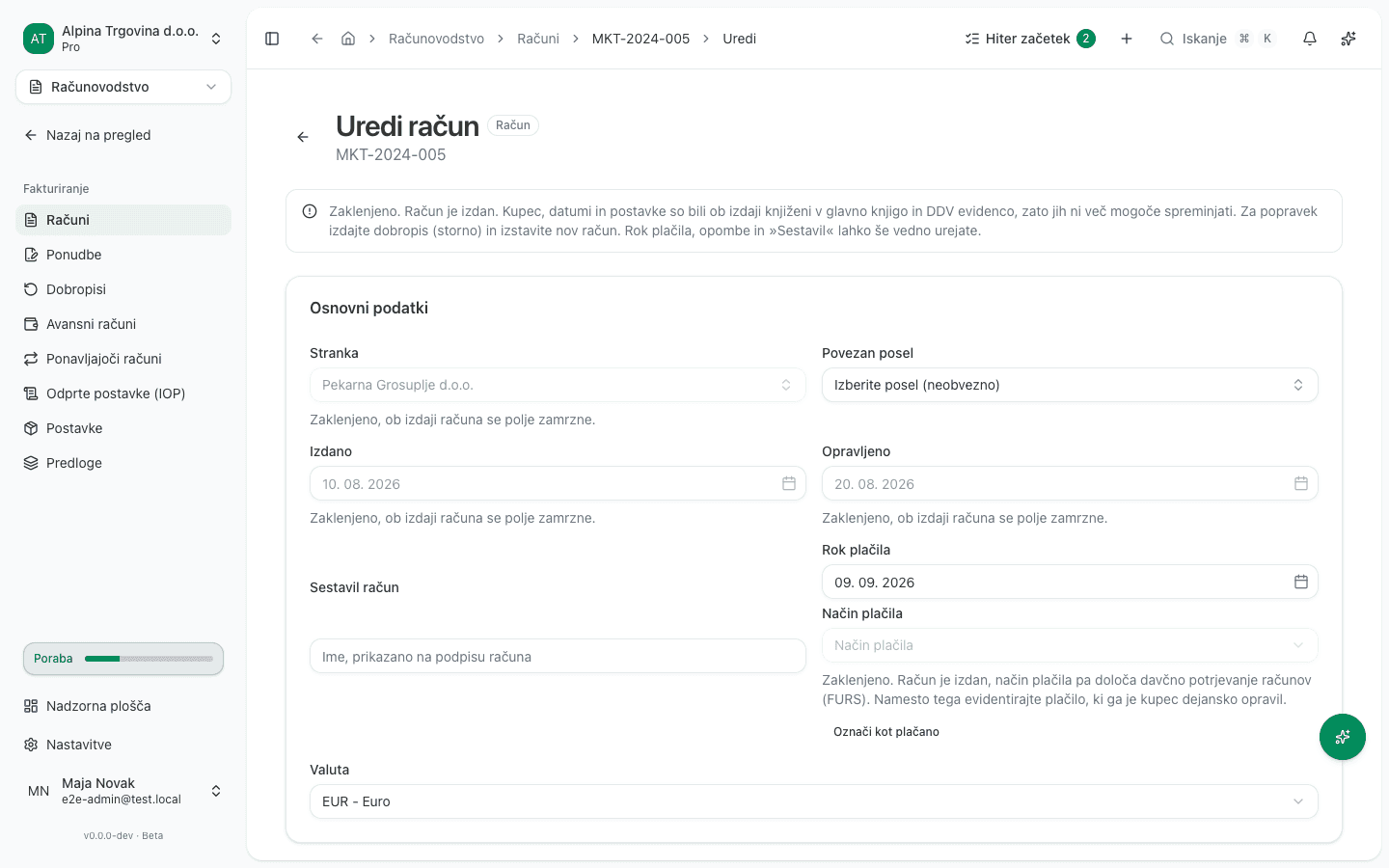
Locked are Stranka (Customer), Izdano (Issued), Opravljeno (Service date), Način plačila (Payment method) and the entire Postavke section (Dodaj postavko and Počisti vse are disabled too). Each field carries its own note: “Zaklenjeno, ob izdaji računa se polje zamrzne.”
Rok plačila (payment term), Opombe (notes) and Sestavil račun (prepared by) stay editable, since none of them determines the posting. Povezan posel (linked deal) and Valuta (currency) remain editable too.
The payment method has its own reason
On Način plačila, the app says something different from the other fields:
Zaklenjeno. Račun je izdan, način plačila pa določa davčno potrjevanje računov (FURS). Namesto tega evidentirajte plačilo, ki ga je kupec dejansko opravil.
(Locked. The invoice has been issued, and the payment method determines fiscal verification (FURS). Record the payment the customer actually made instead.)
The payment method is what decides whether an invoice goes through fiscal verification. Changing it after the fact would put it out of step with what was, or wasn’t, reported to FURS. If the customer paid differently from what the invoice assumed, record that as a payment: the method belongs on the payment, not on the invoice.
The exception: an imported invoice with the wrong customer
An invoice that VegaERP did not issue, but that you only imported (smart import or the open-items import), was always right. Only its link to a customer can be wrong, so a credit note would be wrong here. On such an invoice the Customer field stays unlocked:
- Open the invoice and click Edit Invoice.
- Under Customer, pick the right customer and click Save.
- In the confirmation window, check which customer the invoice moves from and to, and click Change customer.
Only the customer and the customer details on the invoice change. The amounts, line items, journal entries and payments stay as they are. Unsent automatic reminders to the old customer are removed. The customer cannot be changed if:
- the period is closed, or the KIR for that period was already filed;
- a credit note, an advance, a recovery-cost claim or a payment reminder (opomin) is linked to the invoice;
- VegaERP already e-mailed the invoice;
- the new customer is in another country;
- it is a zero-rated or reverse-charged supply to a customer outside Slovenia;
- the invoice is reverse-charged and the new customer has no VAT ID (ID za DDV).
This also works on an imported invoice that is already paid.
Dobropis and storno: which is which
These are two different words for two different things, and the app uses them consistently:
- A dobropis is the document. That is its name in the menu, in the list and on the buttons: Dobropisi, Nov dobropis, Izdaj dobropis.
- A storno is the effect of that document: the opposite entry that reverses the original. The app mentions it in explanations (“Storno prihodka in obračunanega DDV se knjiži …”).
So what you are looking for is a dobropis; the storno is what it does.
Issuing a credit note
There is one builder for a credit note (Nov dobropis), and it always shows the invoice’s line items with editable quantities. Leave them as they are to reverse the whole invoice, or lower one to reverse only part of it. You can open it two ways, and both land on the same form:
- From the issued invoice. Open it (Računovodstvo → Fakturiranje → Računi) and, in Potek računa under NASLEDNJI KORAK, click Ustvari dobropis (Create credit note). This opens Nov dobropis with the invoice already selected.
- From the credit notes list. Open Računovodstvo → Dobropisi, click Nov dobropis (New credit note), then click Izberi račun (Select invoice) and pick the invoice in the Izberi račun dialog.
Either way, finish the same steps:
- A Postavke (kopirane iz računa) section appears, with line items copied from the invoice, editable quantities and this hint: “Prilagodite količine za delni dobropis. Nastavite na 0, da izključite postavko.” (adjust the quantities for a partial credit note; set one to 0 to exclude that line). Leave the quantities as they are for a full credit note, lower them for a partial one, and fill in Opombe if needed.
- Click Shrani. The credit note is created in status Osnutek.
- On the credit note’s page, click Izdaj dobropis under NASLEDNJI KORAK.
- Read the Izdam dobropis? confirmation dialog, and only then confirm with Izdaj dobropis.
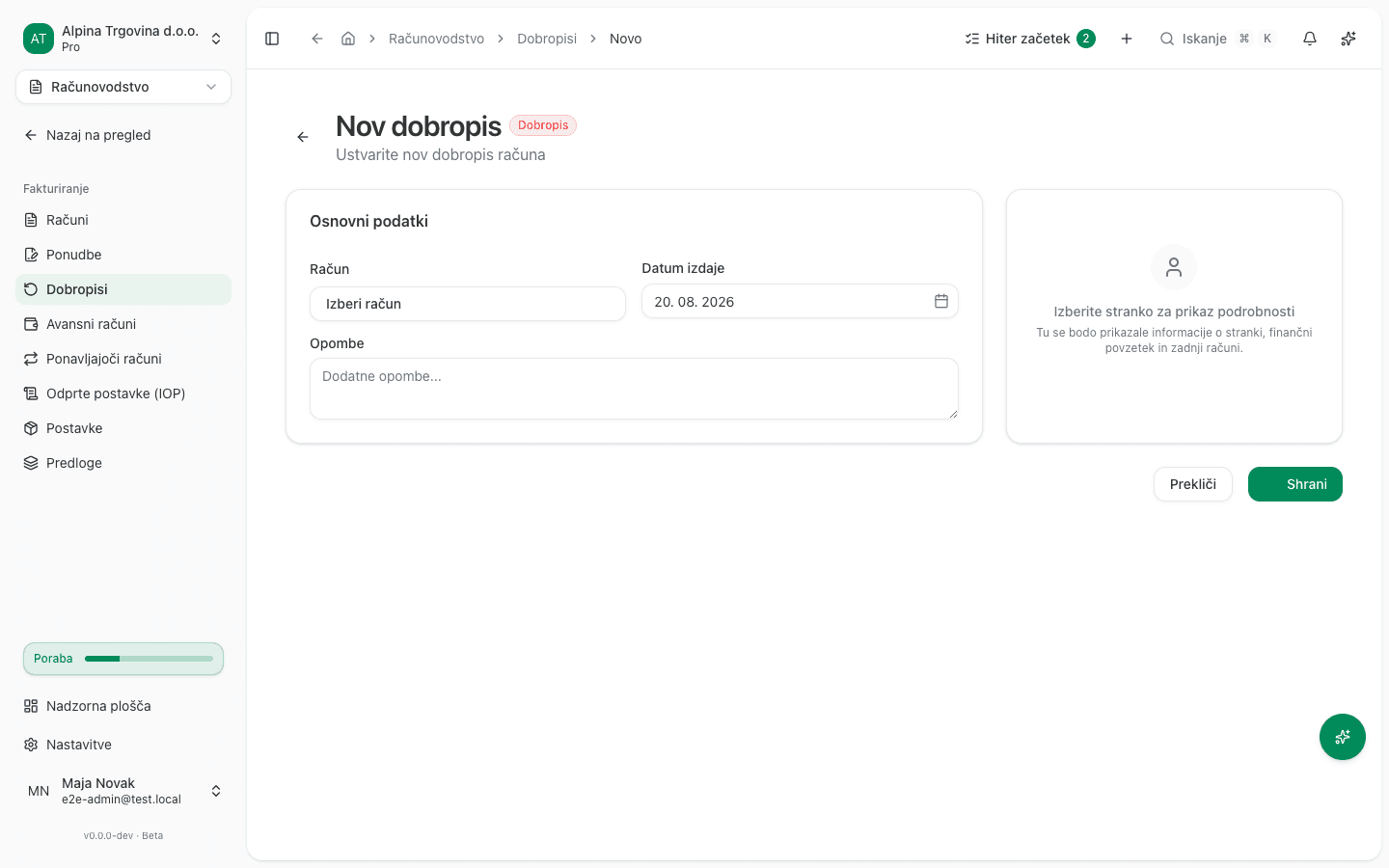
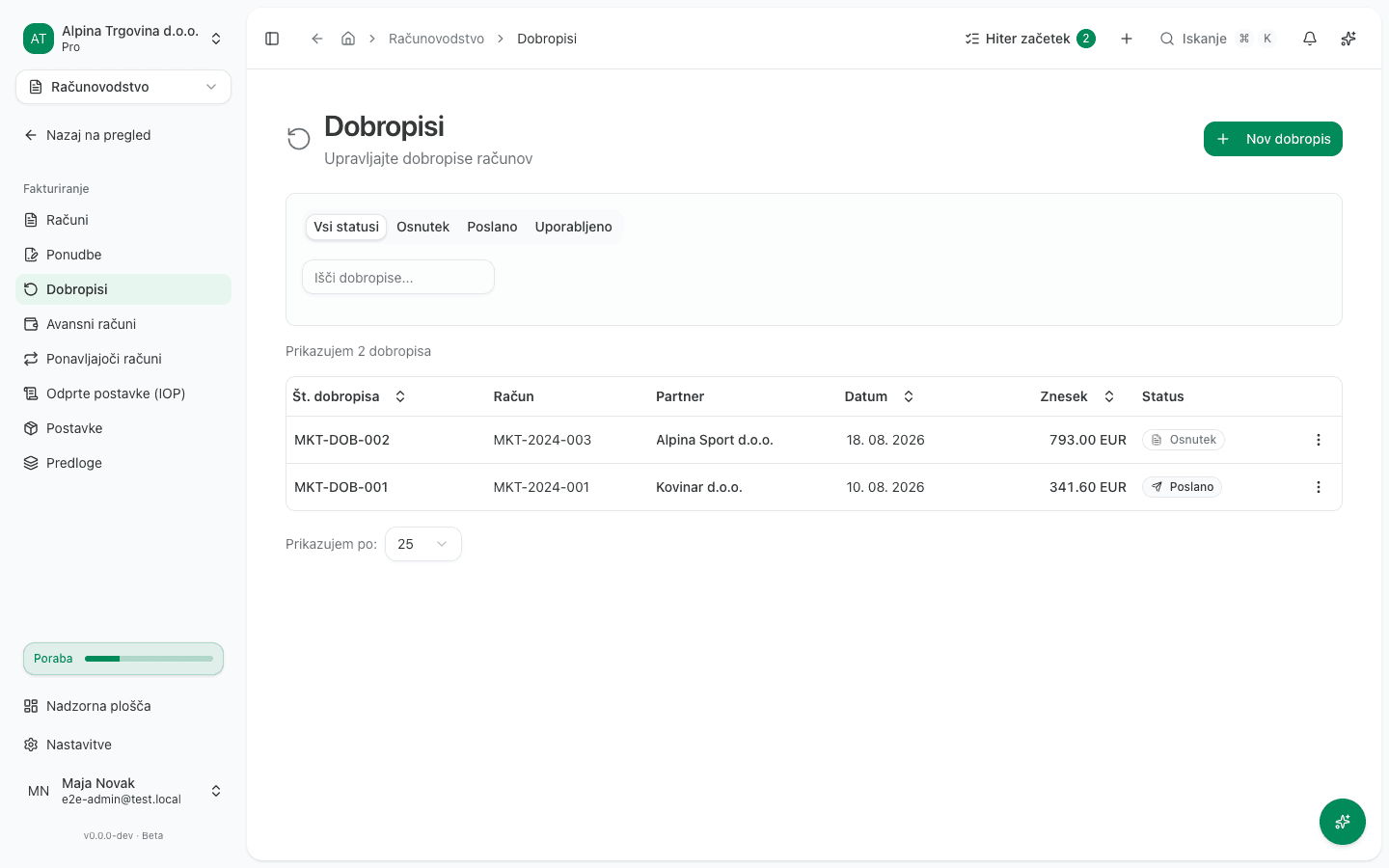
The Dobropisi list has Št. dobropisa, Račun, Partner, Datum, Znesek and Status columns, and the tabs filter by status (Vsi statusi, Osnutek, Izdano, Uporabljeno).
Read the confirmation: this cannot be undone
Before the credit note is issued, the app spells out exactly what will happen:
Izdam dobropis? Osnutek boste izdali kot dobropis. S tem se zgodi naslednje:
- Dobropis dobi zaporedno številko iz uradnega zaporedja dobropisov. Številke ni mogoče sprostiti ali dodeliti drugemu dokumentu.
- Storno prihodka in obračunanega DDV se knjiži v glavno knjigo in DDV evidence.
- Če je bil izvirni račun davčno potrjen pri FURS, se pri FURS vloži tudi stornirni račun.
Tega ni mogoče razveljaviti.
In English: the credit note takes a number from the official credit-note sequence and that number can never be released or reassigned; the reversal of the revenue and the charged VAT is posted to the general ledger and the VAT records; and if the original invoice was fiscally verified with FURS, a storno receipt is filed with FURS too. None of it can be undone.
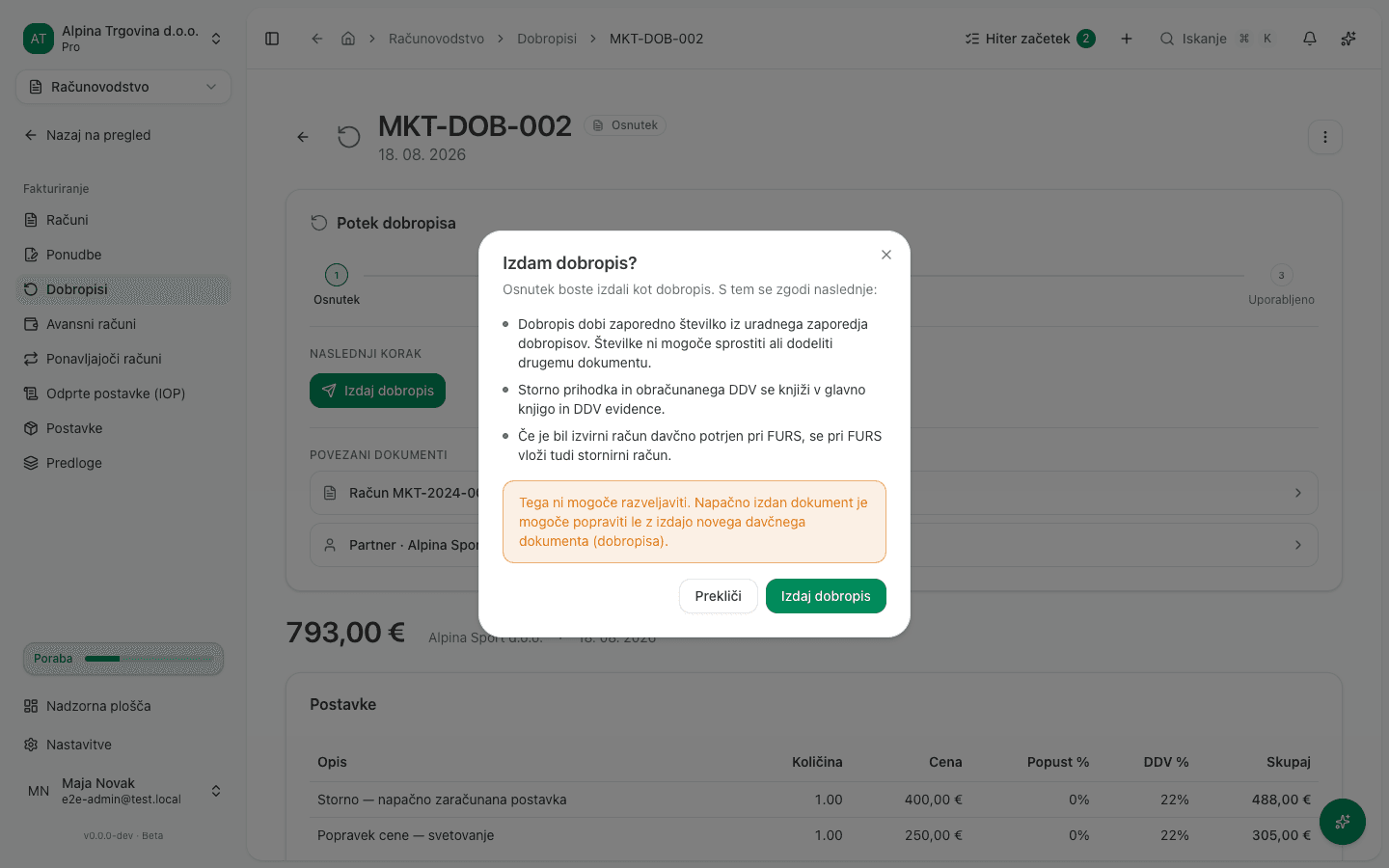
Press Izdaj dobropis exactly once. If the page doesn’t look like it changed, refresh it and check the state. Do not click again. Issuing twice would file a second storno with FURS, and that cannot be recalled.
The app will say so if you try:
Ta dobropis je bil z drugim dejanjem že izdan (ali izbrisan), zato ga ni mogoče izdati znova. Dvojna izdaja bi pri FURS vložila drugi storno, česar ni mogoče razveljaviti. Ponovno naložite stran, da vidite trenutno stanje.
What success looks like
The credit note gets its number and moves in Potek dobropisa from Osnutek to Izdano (the spine is Osnutek → Izdano → Uporabljeno). On the original invoice, a Dobropis row carrying the credit note’s number appears under POVEZANI DOKUMENTI with the amount and a Dobropisano marker; on the credit note you get a Račun row carrying the original invoice’s number. From then on the two documents are linked in both directions.
An issued credit note does not yet reduce what is still open on the invoice. The next step, Uporabi na računu (apply to invoice), does that: the invoice’s open balance drops by the credit note’s amount and the credit note moves to Uporabljeno. The invoice’s own total stays the same, because the credit note itself is the correction.
You then don’t correct the original invoice at all: you raise a new invoice with the right details.
A cash invoice verified with FURS
An invoice that went through fiscal verification has a permanent record at FURS (its ZOI and EOR). Cancelling it in the app does not erase that record, so cancelling isn’t offered at all. You get this instead:
Tega računa ni mogoče preklicati, ker je bil davčno potrjen pri FURS in bi tam ostal potrjen tudi po preklicu. Namesto tega izdajte dobropis (storno), ki pri FURS vloži stornirni račun.
(This invoice cannot be cancelled, because it was fiscally verified with FURS and would remain verified there even after cancellation. Issue a credit note (storno) instead, which files a storno receipt with FURS.)
For such an invoice the credit note is the only route. That’s exactly why it matters that you issue it once.
An invoice that already has a credit note
Once a credit note is issued, that invoice has been corrected. The credit note is a numbered tax document in its own right, and it sits in the sales VAT book for its own month. Cancelling the original on top of it would correct the same sale twice, so cancelling is no longer possible. That holds even when the credit note covered only part of the amount, and even if you have not yet applied it to the invoice. You get this instead:
Tega računa ni mogoče preklicati: zanj je bil že izdan dobropis DOB-2026-0003, ki je sam po sebi popravek izvirnega računa, zato bi preklic isti promet popravil dvakrat. Dobropis uporabite na računu, da se terjatev zapre, morebitni preostali znesek pa popravite z dodatnim dobropisom.
(This invoice cannot be cancelled: credit note DOB-2026-0003 was already issued against it, and an issued credit note is itself the correction of the original, so cancelling on top of it would correct the same sale twice. Apply the credit note to settle what’s outstanding, and issue another credit note for any remaining amount.)
There are two things to do from here, and which one you need depends on the amount:
- The credit note covers the whole invoice. Apply it to the invoice. That closes the receivable, so the invoice stops counting as money owed to you. The invoice itself stays marked as issued, which is correct: an issued invoice is a permanent document, and the credit note is its correction.
- The credit note covered only part of the amount. Issue another credit note against the same invoice for the rest. The app adds up every issued credit note against the original amount, so together they can never write off more than was invoiced.
The same applies to supplier invoices
A supplier invoice that has already been posted is not deleted either. When you confirm the deletion you get a Ta račun je že vknjižen dialog with a Storniraj račun button. The full walkthrough is in Booking supplier invoices.
Common issues
- The invoice can’t be deleted. An issued invoice is posted to your books; the app refuses the deletion and points you to a credit note.
- Cancelling is refused because payments are recorded. Reverse the payments first, or issue a credit note.
- The invoice changed in the meantime. If the page has been open a while, the document may already have been issued, cancelled or deleted in another tab. Refresh and check the state before repeating the action.
- A credit note isn’t possible because the invoice isn’t issued. Credit notes only apply to sent or paid invoices; drafts and proformas can’t be reversed with one. Simply edit or delete the draft.
- A credit note can’t be edited after it’s issued. Only credit notes in draft status are editable.