Connecting bizBox for e-invoices
VegaERP sends and receives B2B electronic invoices in the eSlog format through a connection to bizBox (ZZI eStoritve). bizBox has to be connected before you can send your first e-invoice.
VegaERP cannot open a bizBox account for you. Your company must first open its own bizBox account with ZZI. Without one, e-invoices cannot be sent at all.
Connecting bizBox
Open the connection settings
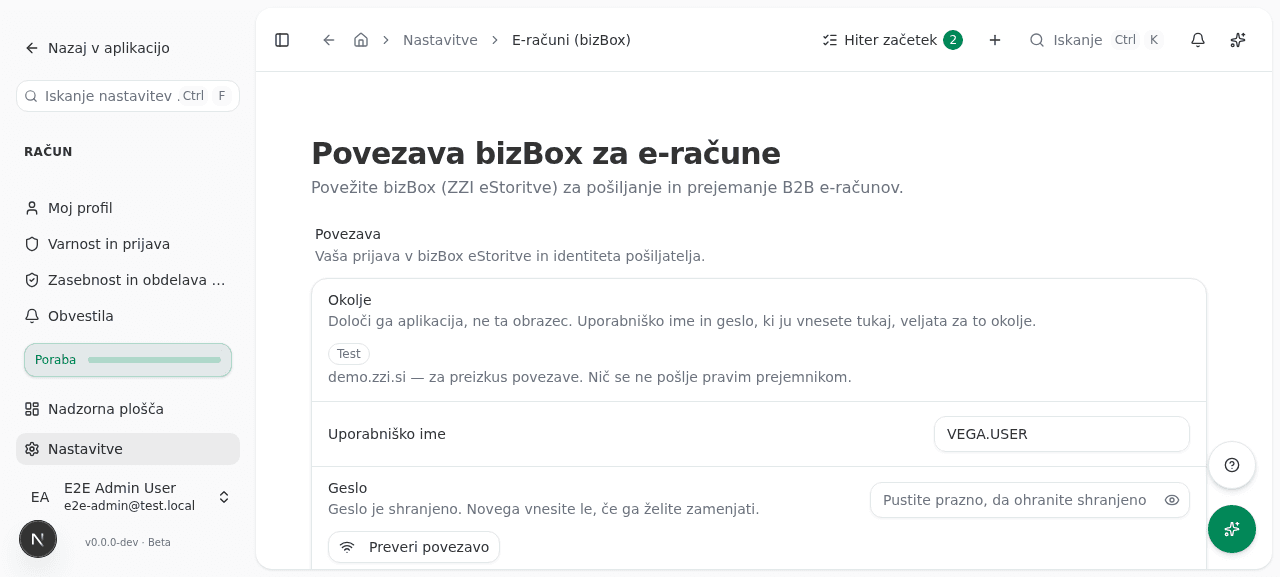
In the left-hand menu go to Settings → E-invoicing (bizBox).
Check the environment
Environment shows which bizBox server your company uses: Production (ws.zzi.si, where real e-invoices reach real recipients) or Test (demo.zzi.si, where nothing reaches real recipients). You cannot change it on this page. VegaERP sets it, and if you need a test connection, ask VegaERP support.
Enter your credentials
Enter the Username and Password you use to sign in to bizBox eStoritve. They must be for the environment shown in the previous step: a demo login does not work on the production server, and a production login does not work on the demo server.
Test the connection and choose the sender
Click Test connection. On success VegaERP lists the companies your login may send for, and you pick the right one under Sending as. This is the recommended route. Do not type the tax number by hand.
Optionally switch on the extras
Archive documents keeps an archive copy of every document sent and received at bizBox. This is a chargeable ZZI service. Inbound polling automatically checks bizBox for new incoming e-invoices.
Save
Click Save. The password is stored encrypted and is never shown again. Leave the field blank and VegaERP keeps the password it already has.
How to tell it worked
In the Status section below the form, Status shows Active and Last verified gets a fresh date and time. If you switched inbound polling on, Last polled fills in as well.
Sending e-invoices
On the detail page of an issued invoice, the E-račun (E-invoice) section shows whether the customer is reachable on the bizBox network and then offers Send e-invoice.
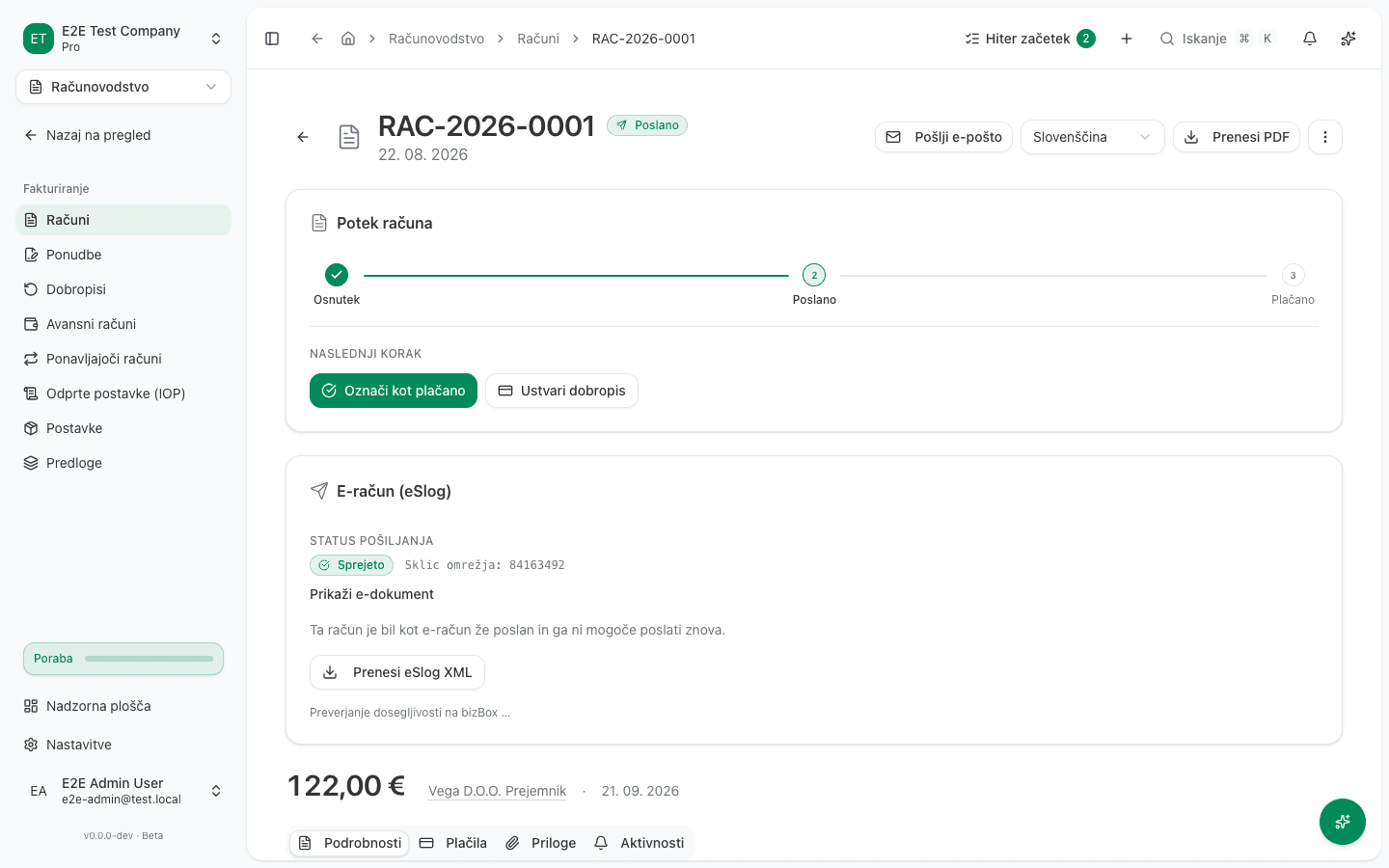
Before you send, a bizBox: … line under the button tells you how reliably that customer accepts e-invoices (5 = actively accepting, 0 = cannot accept). The rating is advisory only and does not block sending.
Once the bizBox network accepts an e-invoice, the send cannot be undone. The only way to correct it is a credit note, never by recalling the send. The full procedure is in Correcting an issued invoice.
Instead of sending, you can click Download eSlog XML at any time and pass the structured eSlog XML to the customer yourself, without going through bizBox.
Receiving e-invoices
Incoming supplier e-invoices land under Inbound e-invoices (Accounting → Inbound e-invoices) and are parsed automatically into a supplier-invoice draft, exactly as a manually uploaded eSlog XML is.
Limitations
Public-sector buyers served by the UJP network cannot currently be reached through bizBox. VegaERP refuses the send with a clear message. Some public-sector bodies (individual municipalities, for example) are reachable directly through bizBox, and the application tells you which. For UJP-served recipients, send the invoice through the UJP portal, or e-mail the customer the downloaded eSlog XML.
If a customer is not on the bizBox network, invite them to join, or send the invoice by e-mail instead.
Common issues
- bizBox is not connected. Connect it under Settings → E-invoicing (bizBox) using the steps above before you can send an e-invoice.
- The saved credentials are for a different bizBox environment. The environment your company uses changed after you saved your login (for example, from Test to Production). Enter the username and password for the environment shown on the settings page and save.
- The customer cannot receive e-invoices through bizBox. Ask them to join the bizBox network, or send the invoice by e-mail instead.
- The e-invoice is missing the customer’s VAT ID. bizBox needs it to address the document on the network. Add the VAT ID to the customer’s contact and regenerate the document.
- The e-invoice names a different issuer than the connected bizBox sender. Correct either the company’s VAT ID or the chosen sender under Settings → E-invoicing (bizBox), then regenerate the document.
- The recipient is in the public sector. See Limitations above. Sending through UJP is not supported yet.
- The invoice has already been sent. A sent e-invoice cannot be sent again or recalled. The correction is always a credit note. See Correcting an issued invoice.