Customer orders
A customer order is an incoming request you record and then process into a target document. You can import one as a PDF or image, where AI extracts the data, or enter it by hand.
Open the list
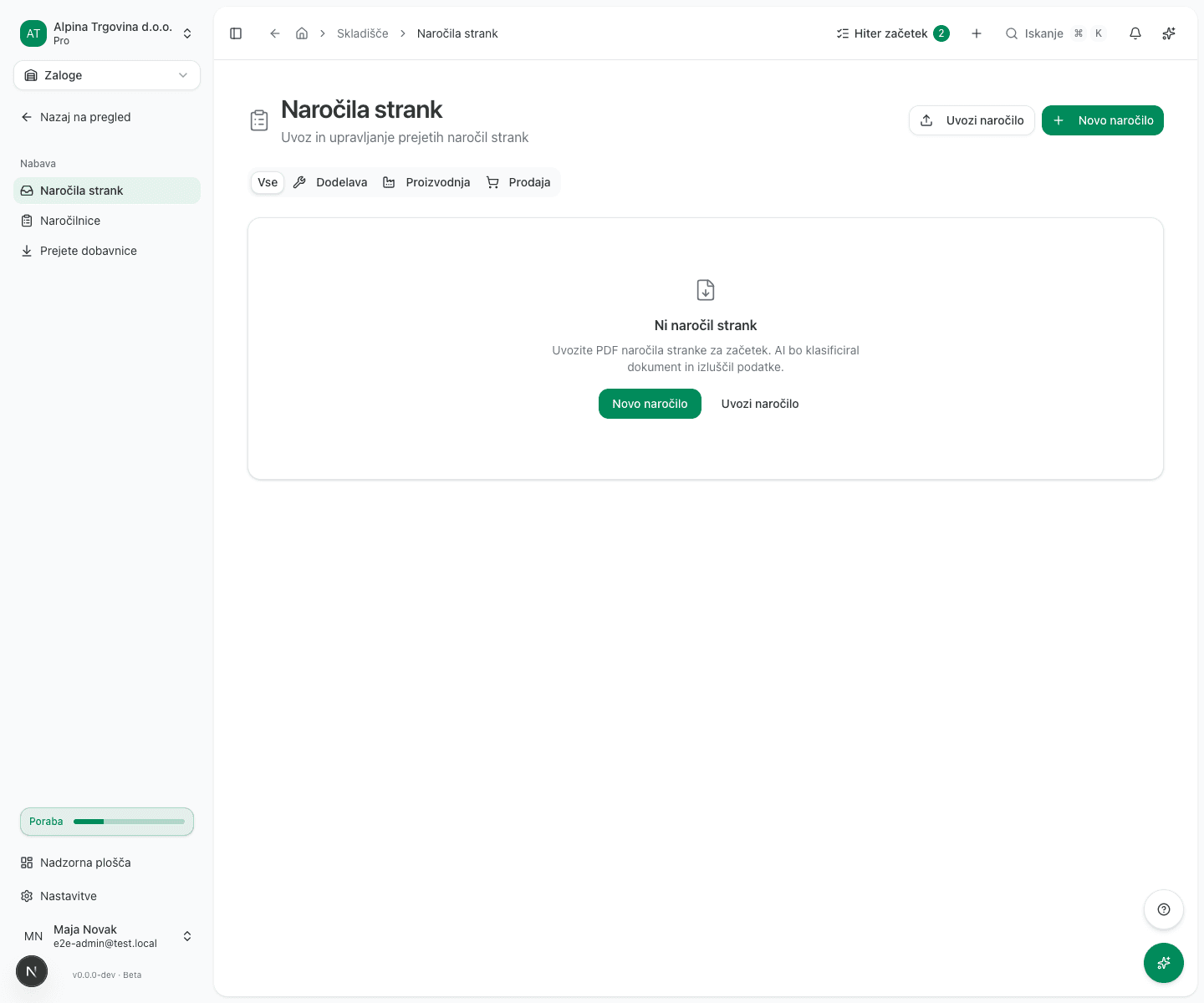
In the left menu choose Inventory, then Customer Orders under purchasing.
Import an order from a document
- Click Import Order.
- Upload one or more documents (PDF or image).
- Click Import & classify.
Each document is classified in the background. You are notified when it finishes, so there is no need to wait on the page.
While it runs the order shows Classifying…, then Classified. If classification fails you can trigger Classify with AI manually on the order.
The AI only suggests the order type. It does not set it, so a classified order is waiting for you: open it and pick the right type in the Confirm the order type card. The suggestion is shown with the AI’s confidence and reasoning so you can judge it yourself. Until you confirm a type, Process Order stays unavailable.
The buyer’s own order number
If the document names the buyer’s own order or PO number, it is read automatically into Buyer’s order number on the order’s Order Details card. Check and correct it there: it stays editable for as long as the order itself does (while it is still Pending or Classified), even when the AI read it correctly, so you always have the last word before the order is processed. Leave it empty if the document states none.
Enter an order by hand
For an order taken by phone or email, click New Order, choose the customer and the order type, and add the lines. Leave the order number empty and one is generated.
Order types
The type decides which document processing creates:
- Sale: you sell goods from stock. A delivery note is created.
- Production: you manufacture the item. A production order is created.
- Service Work: you perform a service on the customer’s material. A work order is created.
A production order cannot be processed until its lines are matched to a finished good in your catalogue and a warehouse exists. If you are really selling a finished product from stock, change the type to Sale.
Process the order
Open the order, confirm the type (see above) and click Process Order. The target document is created according to the type you confirmed, not according to what the AI suggested.
On a Sale order this produces a delivery note. You raise the invoice from it later.
When stock is relieved is decided by the Ship conversion delivery notes immediately setting under Settings → Inventory. It is on by default, so the delivery note ships as soon as the order is processed: stock is relieved and cost of goods sold is posted at that moment, not at a later manual dispatch. Turn the setting off if you want to pick and pack by hand; the delivery note then stays in the status Draft until you ship it yourself.
An invoice is created instead of a delivery note only when one of the lines is not matched to a catalogue item and so cannot be shipped. An order containing only services is the usual case.
The order’s status then follows fulfilment: Partially delivered, Delivered, Partially invoiced and Invoiced. An order can be delivered or invoiced in parts.
An order assembled from an imported document has no catalogue items linked until you match them. Only matched lines can relieve stock.
Common issues
Processing a production order is blocked. The lines are not yet matched to a finished good, or you have no warehouse. Match the lines, or change the type to Sale.
Process Order is greyed out on a classified order. The order type is not confirmed yet. The AI only suggested one. Open the Confirm the order type card and pick a type; the button then unlocks.
An order stays in Classifying for a long time. Classification runs in the background and can take up to a minute. If it stalls, use Classify with AI.