Invoicing & e-Račun
VegaERP handles both regular PDF invoicing and electronic B2B invoicing (e-Račun) for customers that require it.
Issuing an invoice
- In the left sidebar, go to Računovodstvo → Fakturiranje → Računi (“Accounting → Invoicing → Invoices”).
- Click Dodaj račun (“Add invoice”) in the top right.
- Under Stranka (“Customer”), pick the contact you’re invoicing. The system uses their VAT-payer status and country to apply the correct VAT treatment automatically. Set Izdano (issue date) and Rok plačila (payment due date); both default sensibly but can be changed.
- Under Postavke (“Line items”), click Dodaj postavko (“Add item”) for each line. For every item, fill in Opis (description), Vrsta (Blago/Storitev, goods/service), Količina (quantity), Cena (unit price), and DDV % (VAT rate). Check Obrnjeni DDV (“Reverse charge”) only for the specific cross-border B2B cases where reverse charge applies. For goods to a buyer in another EU member state, an export or a triangular transaction the tick does not change the treatment: the invoice states the matching exemption (for example Article 46 ZDDV-1) and the VAT books file it exactly as a 0 % line. See VAT books & the DDV-O form. If you are VAT-registered and a line for a Slovenian buyer has DDV % 0, it is an exempt supply (for example letting property, insurance, financial, health or education services). Podlaga za oprostitev DDV (“VAT exemption basis”) then appears under the rate: choose the point of Article 42 or 44 ZDDV-1 that exempts the supply. If your basis is not in the list, choose Druga podlaga (vpišite jo) (“Other basis”) and type it. The invoice and the e-invoice state that basis, as Article 82(1)(12) ZDDV-1 requires.
- Click Shrani (“Save”). The invoice is created as a Osnutek (“Draft”). Nothing is booked or sent yet.
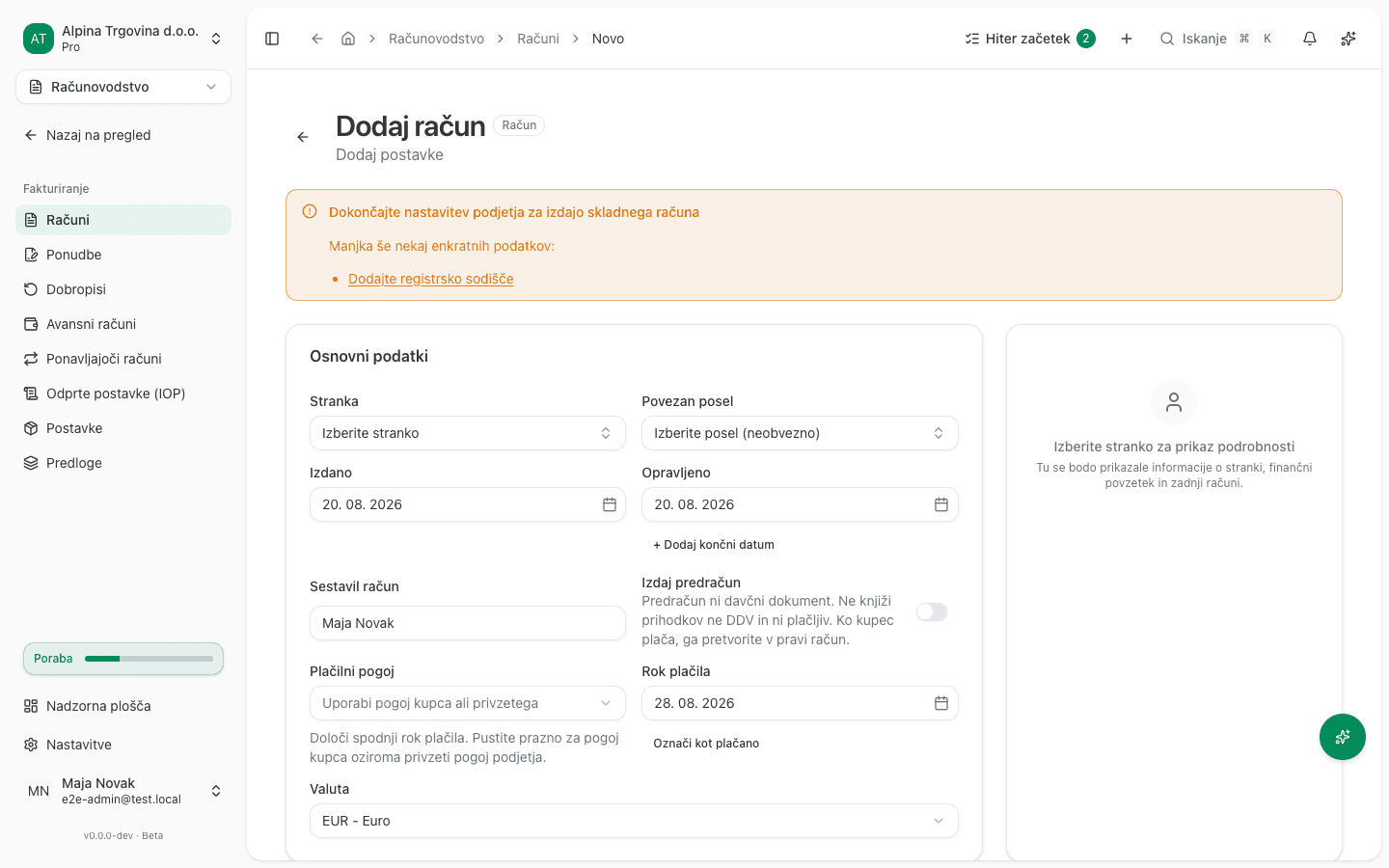
What success looks like
A saved invoice shows Osnutek in the workflow progress at the top of its detail page (Potek računa, “Invoice progress”: Osnutek → Poslano → Plačano). The totals under the line-item table (Znesek brez DDV / DDV / Skupaj, net / VAT / total) recalculate live as you add items.
An invoice from draft to paid
This diagram shows what can happen to an invoice and when. A missing arrow means a missing action.
An issued invoice cannot go back to draft, and a fiscalised receipt cannot be cancelled. Neither state has a way back: the correction is a credit note, not an edit.
A draft carries no sequence number and can be deleted. Once you issue the invoice it takes a number and becomes a receivable, so from then on you correct it with a credit note. The full walkthrough is in Correcting issued invoices, and the messages you meet along the way are in The invoice is issued and needs correcting.
Quotes and credit notes
Quotes (Ponudbe) can be converted directly into an invoice once accepted. Credit notes (Dobropisi) reference the original invoice they correct. Create one from an issued invoice’s Ustvari dobropis (“Create credit note”) action, not from scratch.
Electronic invoicing (e-Račun / eSlog)
Many Slovenian public-sector and larger B2B customers require electronic invoices in the eSlog format, transmitted through UJP (the government’s e-invoice clearing point) for public-sector recipients. VegaERP generates the eSlog XML from the same invoice data you’d use for a regular PDF invoice, so you don’t maintain the document twice.
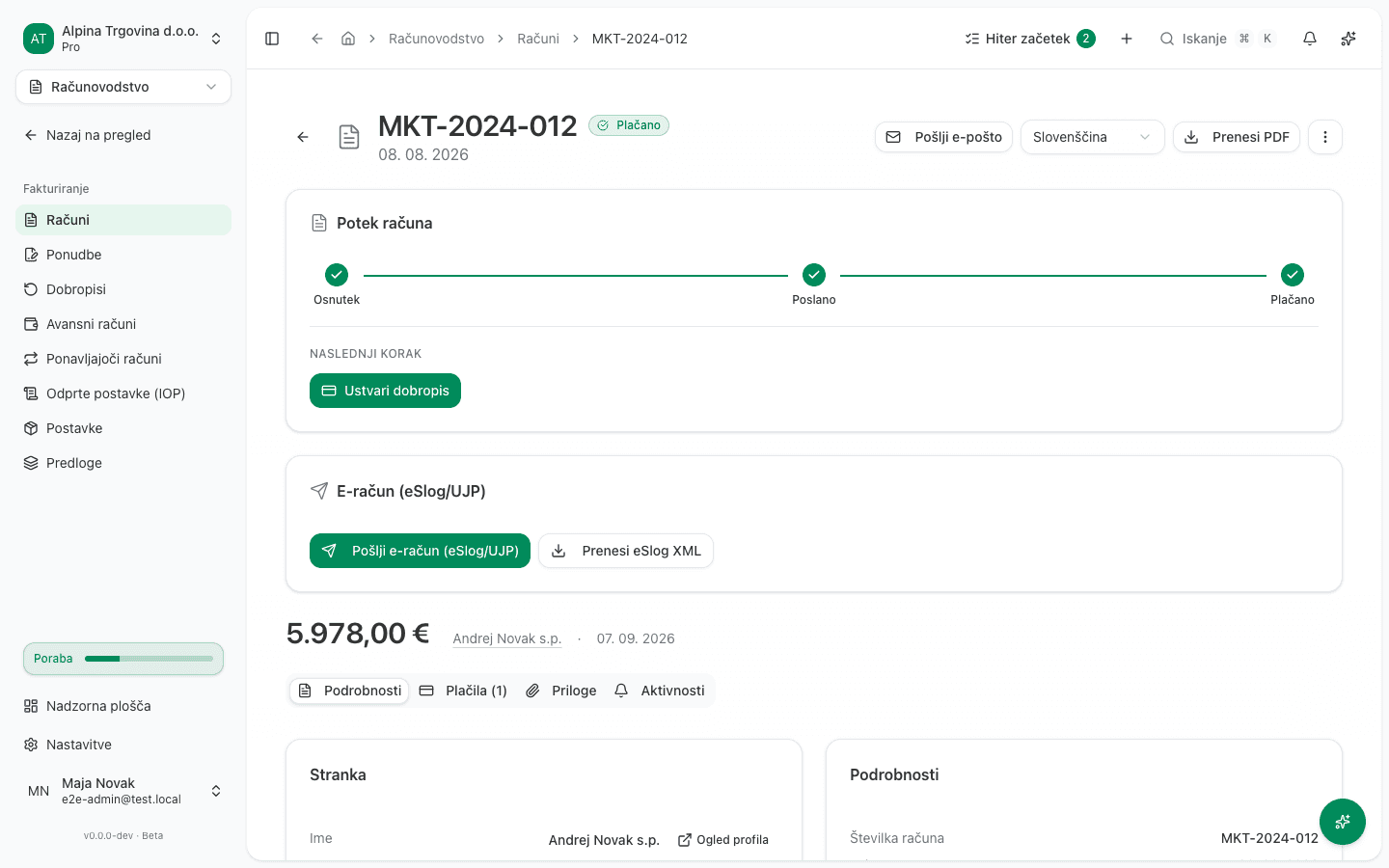
The E-račun (“E-invoice”) row appears on an issued invoice’s detail page only once the invoice has moved past draft, and it offers two separate actions:
- Pošlji e-račun (“Send e-invoice”): transmits the invoice over the e-invoice network the company is connected to. Confirming warns that, once accepted, the e-invoice cannot be cancelled. It can only be corrected with a credit note or a storno.
- Prenesi eSlog XML (“Download eSlog XML”): downloads the structured eSlog 2.0 XML so you can hand it to a B2B customer directly, without going through UJP.
Pošlji e-račun appears only once the company is connected to an e-invoice network, so connect bizBox first. Until then only Prenesi eSlog XML is offered.
For B2B recipients on the broader European PEPPOL network, invoices are exchanged through PEPPOL access points using the Slovenian participant identifier scheme, rather than direct UJP transmission.
Fiscal (cash) receipts
If you issue receipts for cash or card payments to consumers (B2C), those go through fiscal verification instead of e-Račun. A draft invoice’s detail page shows a Pošlji na FURS (“Send to FURS”) step for this instead of the eSlog panel above (the two never appear together: one is draft-only, the other only shows once issued).
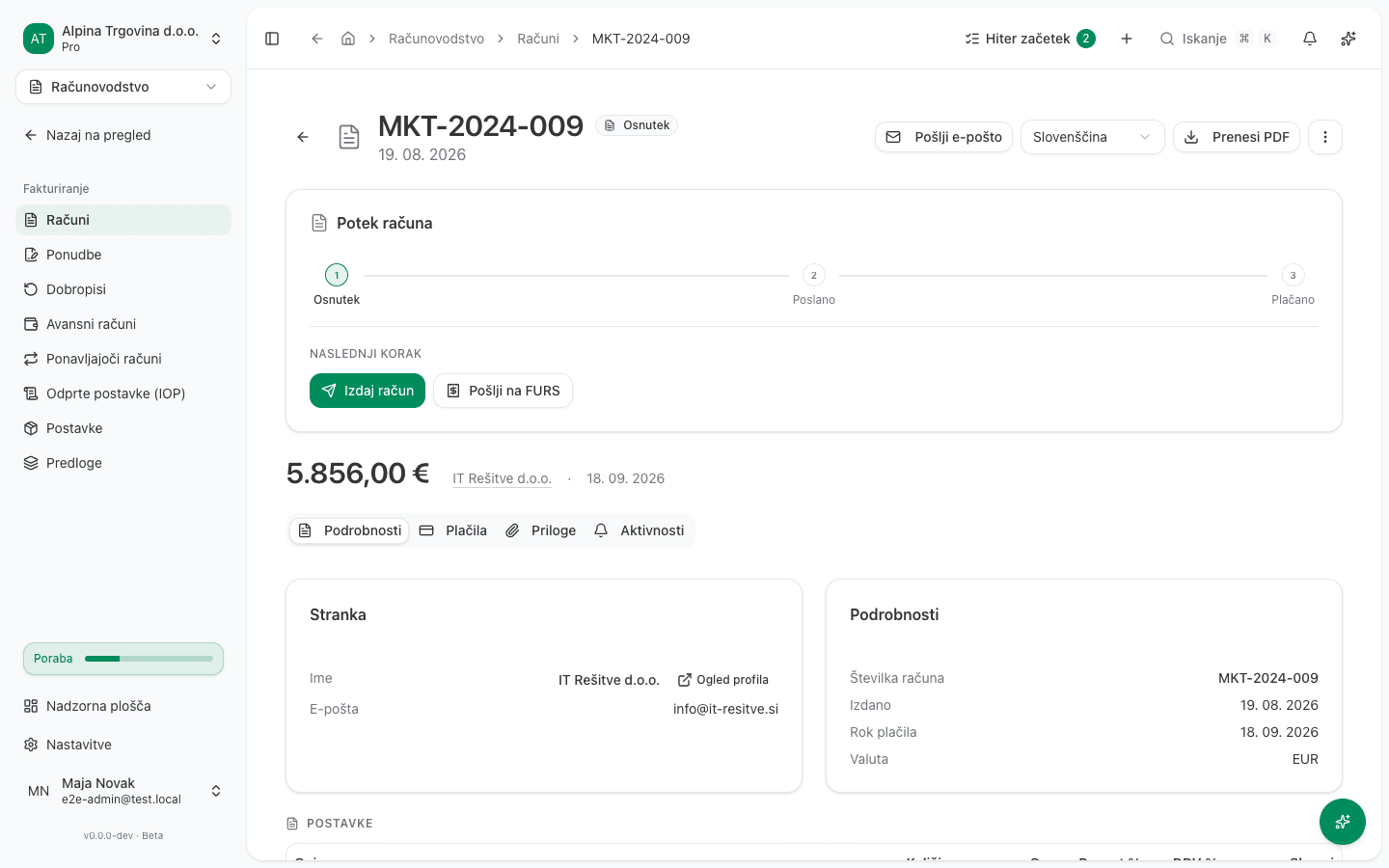
See Fiscal verification (FURS) for the full flow. E-Račun and eSlog apply to B2B/public-sector invoicing; fiscal verification applies to B2C cash transactions. Don’t confuse the two. They’re separate FURS requirements with different triggers, and the app never asks you to do both for the same invoice.
Common issues
- “Pošlji na FURS” prompts for a certificate instead of sending. Fiscal verification needs the fiscalization certificate uploaded first, under Nastavitve → FURS Certifikat. DDV-O submission needs the separate Server certificate for eDavki and SPOT card on that same page. One does not stand in for the other. Upload each once, and every subsequent send works normally.
- Invoice rejected by UJP or a PEPPOL access point. This is almost always a data problem on the invoice or the recipient’s registered participant details, not a VegaERP bug. Check the recipient’s tax number and registered e-invoice identifier are correct before re-sending.
- Wrong VAT on an invoice. Trace back to the contact’s VAT-payer flag and country. See VAT books & the DDV-O form.
- The invoice cannot be issued because a line has no exemption basis. Open the draft, choose Podlaga za oprostitev DDV (“VAT exemption basis”) on that line and issue the invoice again. An invoice already issued without a basis cannot be sent as an e-invoice: cancel it with a credit note and issue it again with the basis chosen.