Absences
Absences are an input to payroll. Wage compensation, vacation usage and ZZZS reimbursement claims are all derived from them, so record them before you run payroll.
Open the calendar
In the left menu choose Payroll, then Absences under time and absences.
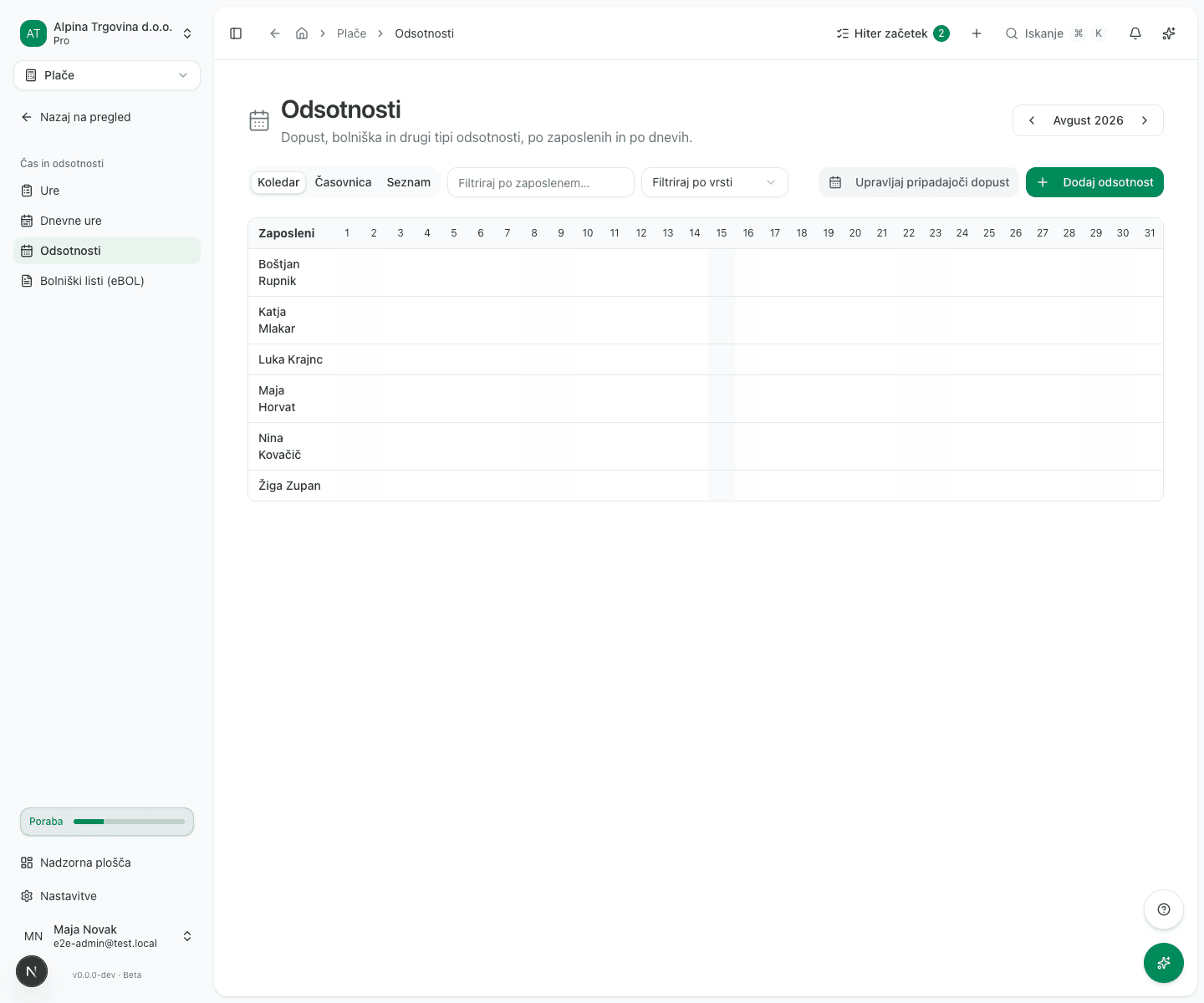
The same data is available in three views: Calendar (employees × days of the month), Timeline (a longer period with team coverage) and List (a table for filtering and bulk edits).
Record an absence
- Click Add absence.
- Choose the Employee and the Kind:
- Vacation
- Sick (own)
- Sick (work)
- Unpaid
- Parental leave
- Special paid leave
- Enter the Start date and End date. For half a day tick Half-day; it must start and end on the same date.
- Add Notes if you want.
Sick leave: the ZZZS reason
The ZZZS reason (razlog) field only appears on sick absence kinds. Fill in the Sick certificate number (bolNumber) alongside it.
The ZZZS reason drives the reimbursement rate. On absences that arrive via eBOL it is filled in automatically. On ones you enter by hand it starts on Automatic (from kind), which means the app derives it from the absence kind you picked. Where the real reason differs, choose it yourself, or the reimbursement will be wrong.
The field offers the ZZZS code list, with the code shown before the name:
| Code | Reason | Code | Reason |
|---|---|---|---|
01 | illness | 09 | accompaniment |
02 | injury outside work | 11 | injury under Article 18 |
03 | occupational disease | 12 | blood donation |
04 | injury at work | 13 | illness up to 3 days |
05 | injury caused by a third party | 15 | illness under Article 46 |
06 | care of a family member | ||
07 | transplant donor | ||
08 | isolation |
If you receive sick certificates electronically, you mostly do not enter sick absences by hand. They are created from the incoming eBOL. See ZZZS: sick leave and registrations.
What happens once payroll is filed
An absence that falls inside an already-filed payroll run is locked and marked Filed, read-only. It can no longer be edited.
To change something in a filed period, use a payroll correction rather than editing the absence. See Correcting a filed payroll run.
On a bulk delete, locked rows are skipped and the app reports how many.
Common issues
The absence will not save because of an overlap. An absence already covers those days for the same employee. Edit or delete the existing one first.
A half-day will not save. A half-day absence must start and end on the same date; for a longer period enter an ordinary absence.
A sick absence will not save because it starts before the employment began. ZZZS treats each employer as a separate case, so the sick leave starts with you on the first day of employment. Enter the date the message names as the first day of absence; see ZZZS: sick leave and registrations.
The ZZZS reimbursement is wrong. Check the ZZZS reason (razlog). On a hand-entered absence it stays on Automatic (from kind) until you choose a reason, and the derived reason is not necessarily the one that actually applies.