Invoice numbering
Invoice numbers are generated automatically from the pattern you set here. Decide the pattern before you issue your first invoice: a number is assigned only when an invoice is issued and the sequence then runs on unbroken, so a later change shows up as a change of format in the middle of the sequence.
A draft invoice has no number yet. It gets one only when you issue it. That is what stops a gap appearing in the sequence when a draft is deleted or never issued.
Open the settings
- In the left menu choose Settings.
- Open Invoice Settings. The page contains the Invoice Numbering section.
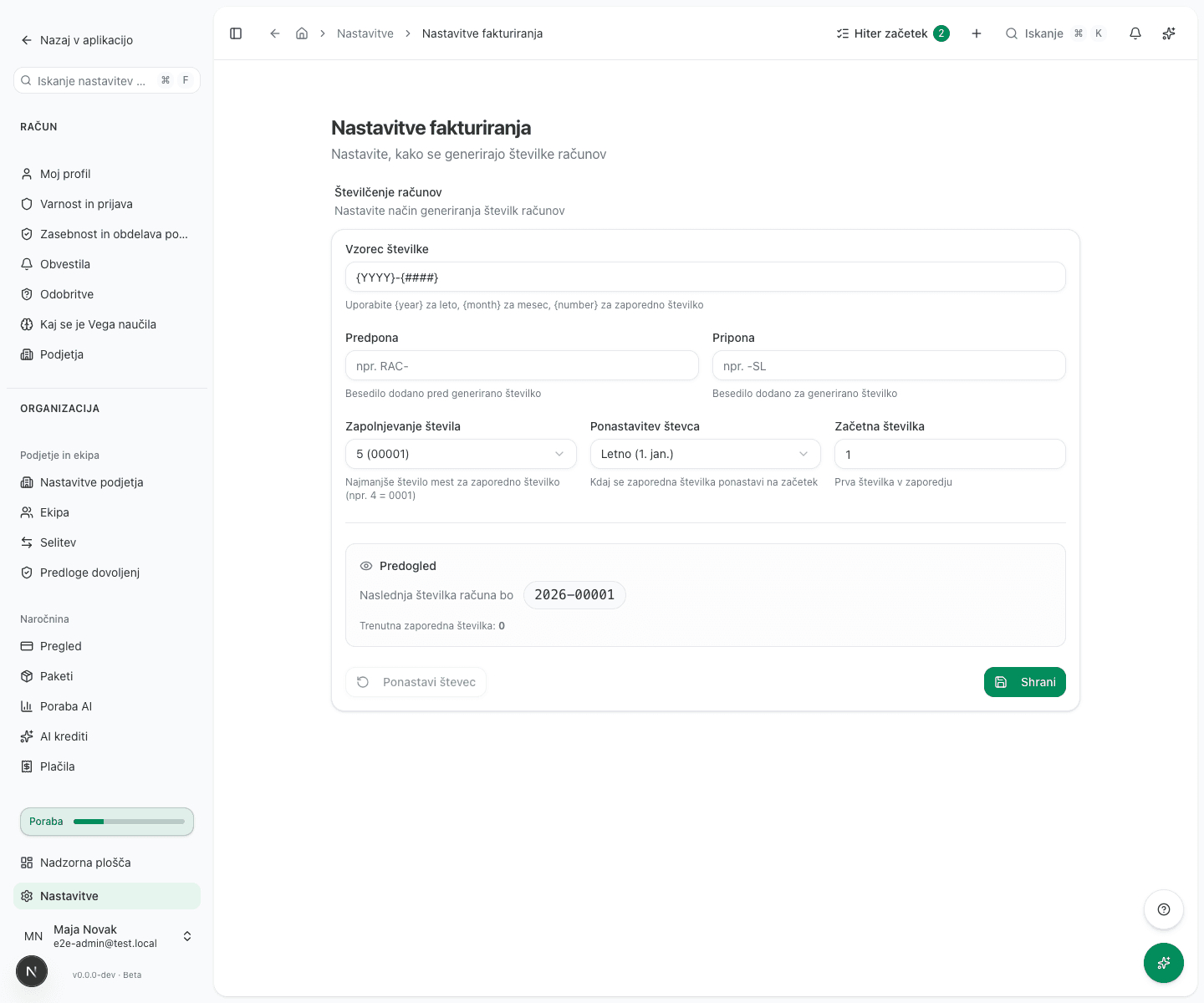
The page can be edited by an administrator or an accountant.
Build the pattern
The Number Pattern field holds the shape of the number. The default is {YYYY}-{####},
which produces 2026-00001.
You can use:
| Token | Meaning | Example |
|---|---|---|
{YYYY} or {year} | full year | 2026 |
{YY} | short year | 26 |
{MM} or {month} | month, zero-padded | 02 |
{number} or {####} | sequential number | 00001 |
Everything else in the pattern is printed literally, for example a hyphen or a slash.
The hint under the field lists only {year}, {month} and {number}, but the shorter
{YYYY}, {YY}, {MM} and {####} forms used by the default value work as well.
Set the remaining fields
- Prefix is text placed before the generated number, for example
RAC-. Leave it empty if you do not want one. - Suffix is text placed after the generated number.
- Number Padding is the minimum width of the sequential number. At 5, the first number
prints as
00001. - The Reset Counter dropdown decides when the sequence returns to the start: Never, Yearly (Jan 1) or Monthly (1st of month). If you choose yearly or monthly, the pattern must also contain the year or the month. Otherwise, after a reset, the sequence offers numbers that are already used and issuing an invoice fails.
- Start Number is the first number in the sequence. If you moved to VegaERP part-way through the year, enter the number following the last invoice you issued in your previous program.
Check and save
The Preview section shows what the next number will look like, with the current sequence number below it. When the preview matches what you want, click Save.
Resetting the counter
The Reset Counter button returns the sequence to the starting number. Use it only if you got the first setup wrong and have not issued any invoice yet.
A reset cannot be undone. Invoices already issued keep their numbers. If any number in the sequence is already used, issuing the next invoice fails: the app refuses it and reports that an invoice with that number already exists. You then have to move the sequence forward by hand with the Start Number field.
Common issues
The next number is not what I expect. Check the preview: the prefix and suffix wrap around
the generated part, so RAC- with the pattern {YYYY}-{####} gives RAC-2026-00001.
An invoice will not issue because the number already exists. The sequence points at a number that is already used. This happens after a counter reset, or when Reset Counter is set to yearly or monthly while the pattern contains no year or month. Fix the pattern, or enter the first unused number in Start Number.
Two issued invoices cannot carry the same number. The app prevents it at issue time, so the error always surfaces there rather than later in your books.