Paying suppliers with SEPA and UPN
A supplier invoice that is Prejeto (Received, meaning it is already posted, see Booking supplier invoices) can be paid two ways: in a batch, via a SEPA file you upload to your online bank, or one at a time, via a printable UPN QR payment slip. This page covers both, and how the payment finds its way back to the invoice once your bank has executed it.
Building a SEPA payment batch
Select invoices
- On the Prejeti računi (Supplier invoices) list (Računovodstvo → Stroški in sredstva → Prejeti računi, Accounting → Costs and assets → Supplier invoices), check the boxes next to the invoices you want to pay, then click Pripravi SEPA plačila (Prepare SEPA payments) in the toolbar above the list. VegaERP carries your selection to the new SEPA export page. Only unpaid, posted invoices qualify (not Osnutek/Draft and not Preklicano/Cancelled); if any selected row does not qualify, a warning names how many were dropped before you move on.
- Or open Računovodstvo → Bančništvo in denar → SEPA plačila (Accounting → Banking and cash → SEPA payments) directly and click Nov SEPA izvoz (New SEPA export); you then select invoices with checkboxes on that page itself. The search box filters by supplier or invoice number, and the Zapadli (Overdue) button, which also shows their count, narrows the list to overdue invoices; Izberi vse zapadle (Select all overdue) checks every one of them at once.
Fill in the batch
- Under Plačajte z računa (Pay from), choose your bank account. If you have exactly one active bank account on file in VegaERP, it is selected automatically.
- Optionally set Datum izvršitve (Execution date, left empty means today) and your bank’s BIC; the BIC is not required for domestic SEPA transfers.
- The Povzetek (Summary) card on the right updates live with the number of selected invoices and the total per currency.
- Click the Ustvari (Generate) button, which also counts the invoices you selected.
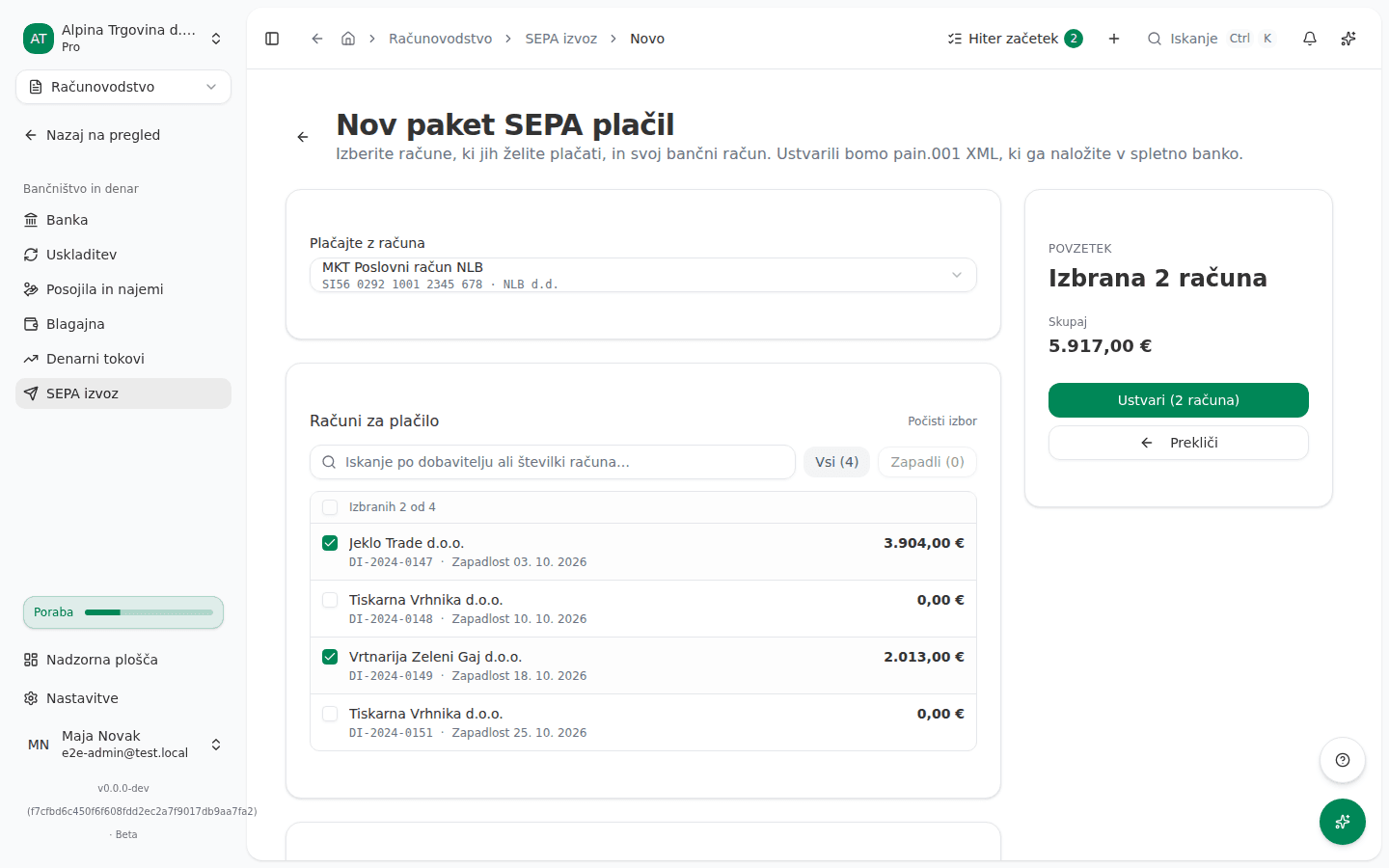
What success looks like
If every selected invoice was included, you see a SEPA izvoz ustvarjen (SEPA export generated) toast and land on the SEPA plačila (SEPA payments) page with a new row in status Pripravljeno za prenos (Ready to download). If some invoices were dropped (for example, for a missing supplier IBAN), the toast names how many were skipped, and the page keeps the list of skipped invoices visible so you know which ones to fix.
Uploading the file to your online bank
- On the SEPA plačila (SEPA payments) list (Računovodstvo → Bančništvo in denar → SEPA plačila), click Prenesi (Download) on the relevant row. VegaERP produces an XML file in the pain.001 format, the standard shape for batch SEPA credit transfers.
- Sign in to your company’s online bank and look for its payment-file import feature. The exact name varies by bank, for example “Uvoz naloga” or “Uvoz plačil” (Import order or Import payments). The bank parses the uploaded file into a list of individual payments, which you then confirm inside the bank’s own online banking before it executes them.
- Once the bank accepts the file and executes the payments, the export’s status in VegaERP does not change on its own: VegaERP receives no feedback from the online bank. You know the file itself was actually downloaded by its status, which flips to Preneseno (Downloaded) the first time you download it.
Your bank can reject the file if it does not match its own import format; if that happens, check your bank’s own instructions for importing SEPA payments or contact its support.
A UPN payment slip for a single invoice
To pay one invoice on its own, without building a batch, use the UPN payment slip with its scannable QR code.
Generate the slip
- Open a supplier invoice that is Prejeto (Received) or Plačano (Paid) and click Plačilni nalog UPN (UPN payment slip) in the additional-actions menu.
- In the dialog, check Znesek za plačilo (Amount due, computed automatically and not editable) and IBAN dobavitelja (Supplier IBAN). If the supplier’s contact record already carries an IBAN, the field is pre-filled; if not, VegaERP tries a single unambiguous account from the business register. Otherwise enter it by hand from the invoice. Adjust Sklic (Reference) if needed; it defaults to an SI00 reference derived from the invoice number.
- Click Ustvari nalog (Generate slip). VegaERP downloads a printable PDF with the payment details and a UPN QR code you can scan directly in your bank’s app.
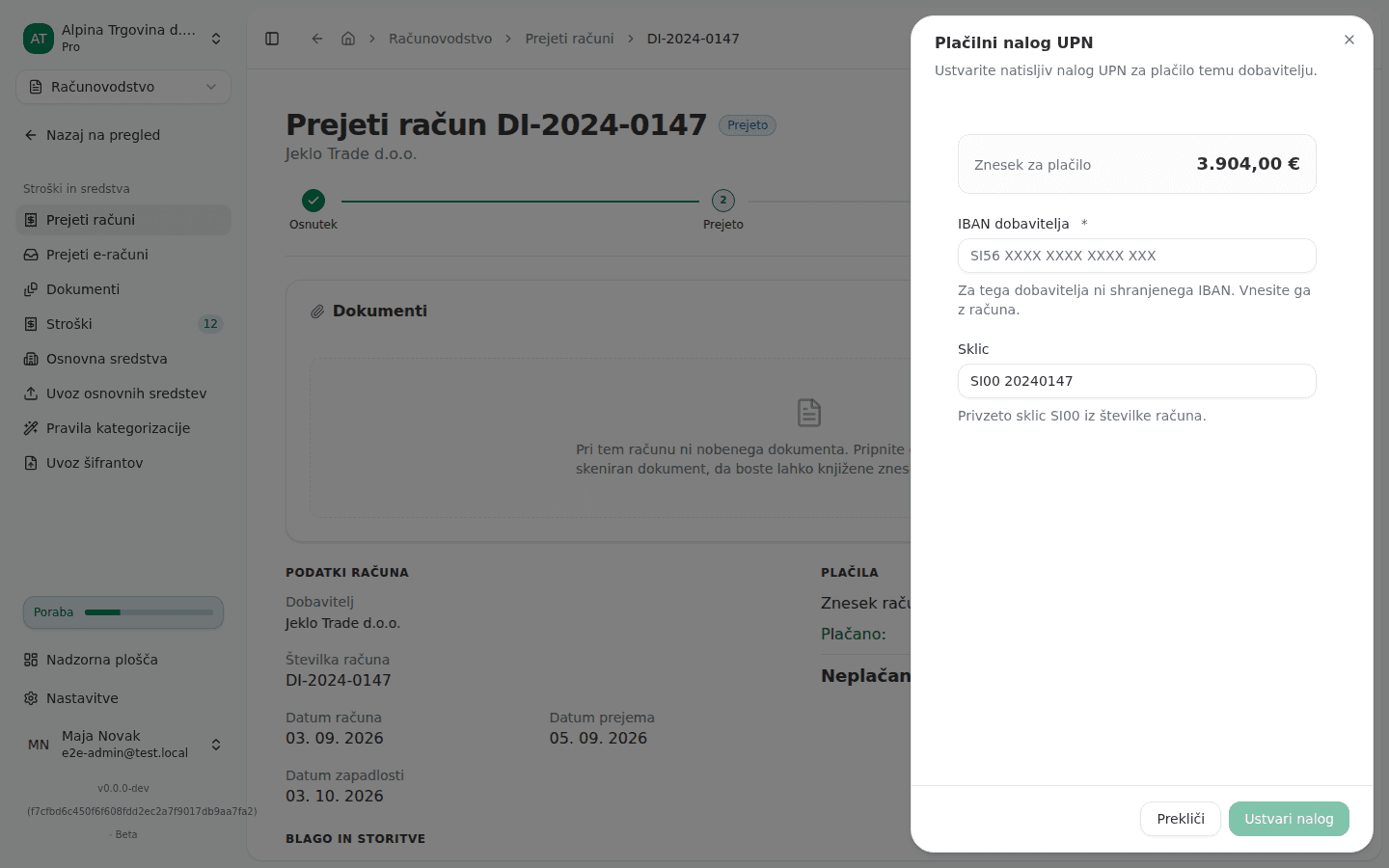
Ustvari nalog stays disabled until an IBAN is entered. A UPN slip is only available for invoices in EUR; for other currencies, and for an invoice that is already fully paid, the dialog explains why a slip cannot be generated instead.
How the payment finds its way back to the invoice
Once your bank executes the SEPA payment or the UPN slip, the payment eventually appears on the bank statement you import into VegaERP (see Bank statement matching). A UPN payment carries the invoice’s reference, so VegaERP normally proposes it by reference match. A SEPA file carries no reference, only the invoice number in the payment description, so for a SEPA payment the proposal relies on the amount, the invoice number and the payee’s name. Once you confirm the match, the payment is recorded and the invoice’s status changes to Plačano (Paid). Until you confirm it, the transaction stays in the reconciliation inbox and the invoice stays unpaid, even though the money has already left your account.
Common issues
- The supplier has no bank account on record. VegaERP deliberately does not guess where the money should go. Open the partner record (Stranke in dobavitelji, Customers and suppliers) and enter their IBAN from the invoice into Transakcijski račun (IBAN), then build the SEPA batch again. For a single payment, you can instead type the IBAN directly into the Plačilni nalog UPN dialog.
- Some invoices were skipped from the SEPA batch. The toast only says how many. The reason for each invoice is listed on the page under the skipped invoices: a missing, invalid or ambiguous IBAN, an invoice not in EUR, or one that is no longer open. The remaining invoices in the batch still export normally.
- An invoice is already in another payment file. VegaERP refuses to export the same invoice into two SEPA batches, because that would instruct the bank to pay the same supplier twice. Open the earlier file and check whether the bank accepted it; if it was rejected, confirm the re-export of those invoices on the new export page, otherwise deselect them.
- A UPN payment slip cannot be generated. The dialog names the reason: the invoice is in a foreign currency (UPN slips are EUR-only) or it is already fully paid.
- The payment on the statement does not match the invoice automatically. For a UPN slip the most common cause is a missing or altered reference on the order; a SEPA payment carries no reference and matches on amount and invoice number instead; see Troubleshooting a missed match in the bank statement matching guide.