Client migrations from Minimax
The Prehodi strank (Client migrations) page shows, for each client, the software it is moving from, how many checklist steps are done, where an import stopped, and whether what was imported matches the books. It reads the same facts the client’s own import settings show, so the two never disagree.
The page shows only the clients you have access to. Importing files stays with the client: from this page you open the selected client’s import.
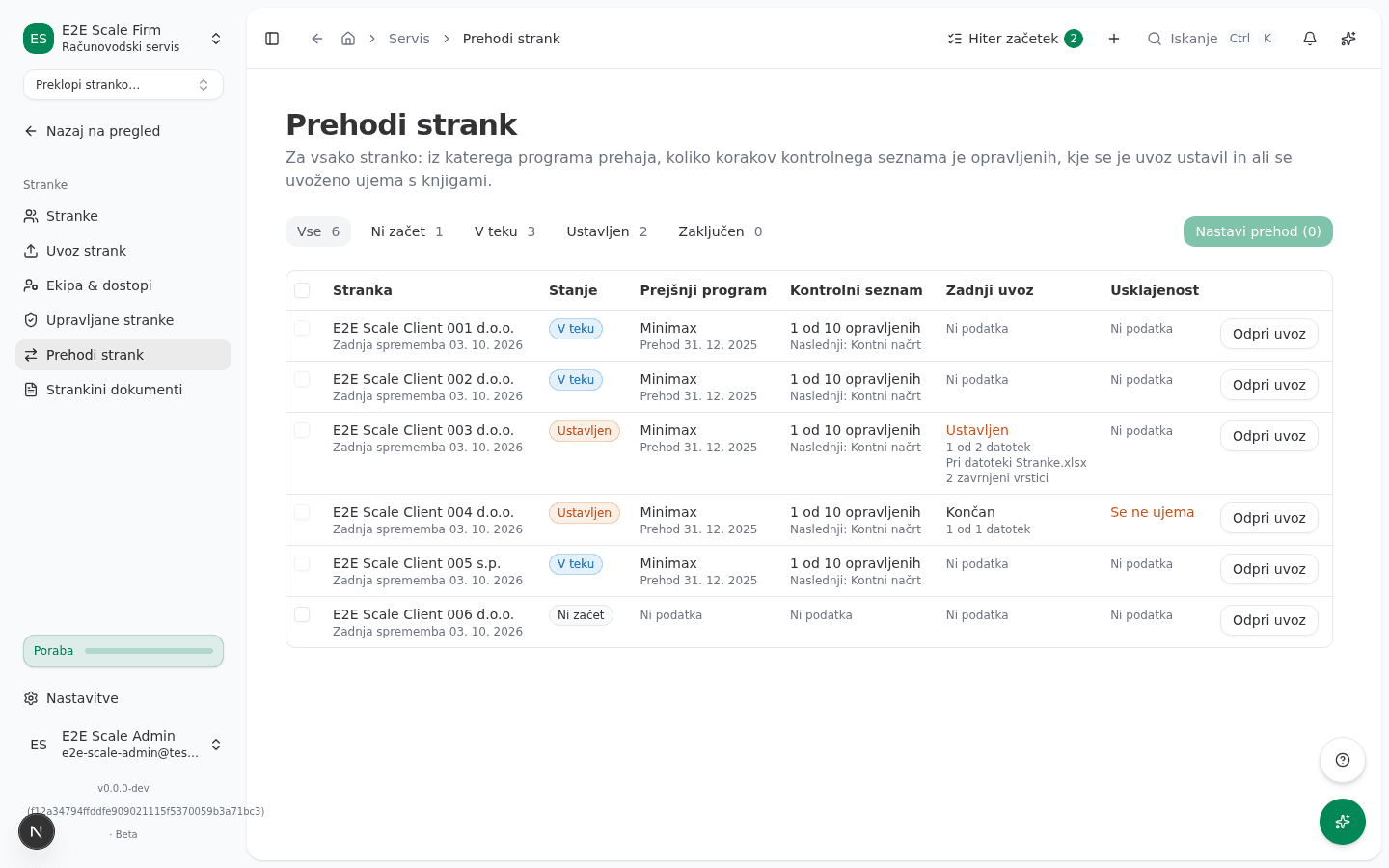
Open the console
In the firm sidebar, under Clients, choose Prehodi strank (Client migrations).
Read the state per client
Each row is one client. The State column shows one of these:
- Ni začet (Not started): no migration is set up for the client yet.
- V teku (In progress): the migration is set up and some steps are not done yet.
- Ustavljen (Stopped): the last import stopped at a file, or what was imported does not match the books.
- Zaključen (Complete): every checklist step is done and the last import matches the books.
- Brez prehoda (No migration): the client recorded that it used no previous software.
The buttons above the table filter by state, for example Ustavljen (Stopped) to see only the clients that are waiting for you.
Set up the migration for several clients at once
- Tick the box at the start of each row marked Ni začet (Not started).
- Click the Nastavi prehod (Set up migration) button, which shows how many clients are selected.
- Choose the previous software, when the clients move, and the cutover date if asked.
- Read the notice: for these clients, opening stock and open receivables and payables are not posted automatically, because the opening balance comes from the import from the previous software.
- Click Nastavi prehod (Set up migration).
A client that already has a migration set up is not changed. Clients that could not be set up stay listed in the dialog, each with its reason.
Import the files at the client
On a client’s row, click Odpri uvoz (Open import). This opens that client’s import page with its checklist, where you upload the exports from the previous software.
What success looks like
- Clients you set up show V teku (In progress) and the chosen software in the Previous software column.
- Once every step is done and the import matches the books, the client shows Zaključen (Complete).
Common issues
- A client row says its checklist could not be read. Reading failed for that client only; the other clients show normally. Refresh the page, and if it repeats, open the client’s import.
- The state is Stopped and the import column says At file. The import of that file rejected rows. Open the client’s import, review the rejected rows and import the file again.
- The reconciliation column says Does not match. The imported postings do not match the files from the previous software. The reconciliation report at the client says which amounts differ.
- A row cannot be ticked. A migration can be set up here only for a client marked Ni začet (Not started). For any other client, change it in the client’s import settings.