VAT books & the DDV-O form
VegaERP builds your VAT books (knjiga izdanih računov / knjiga prejetih računov, KIR / KPR) and the DDV-O return directly from booked documents. You don’t maintain them as a separate ledger.
Who this applies to
VAT books and the DDV-O form only apply to companies registered as VAT payers (zavezanci za DDV).
What decides this is VAT registration, not the tax regime. A flat-rate taxpayer (normirani s.p.) who is registered for VAT keeps the VAT books and files the DDV-O return exactly like anyone else. The only difference is that VAT is not posted to the general ledger for them, because a flat-rate taxpayer does not keep one. If your company is not registered for VAT, these screens are absent from the menu whatever the regime.
Make sure your VAT-payer status is set correctly on the company profile before you start booking documents (see Getting started).
Viewing the VAT books (KIR/KPR)
- In the left sidebar, go to Računovodstvo → DDV in skladnost → DDV knjige (“Accounting → VAT & compliance → VAT books”).
- Under Filtri (“Filters”), pick which book to view: DDV knjiga izdanih računov (KIR, sales/issued invoices) or DDV knjiga prejetih računov (KPR, purchases/received invoices), and set the date range.
- The page shows the period totals: Skupna osnova (“Total taxable”), Skupni DDV (“Total VAT”), Skupni znesek (“Total amount”) and Število vnosov (“Entry count”). Below them sits a Povzetek po davčnih stopnjah (“Summary by VAT rate”) breakdown. Use Prenesi PDF (izdani) / Prenesi PDF (prejeti) to export either book as a PDF.
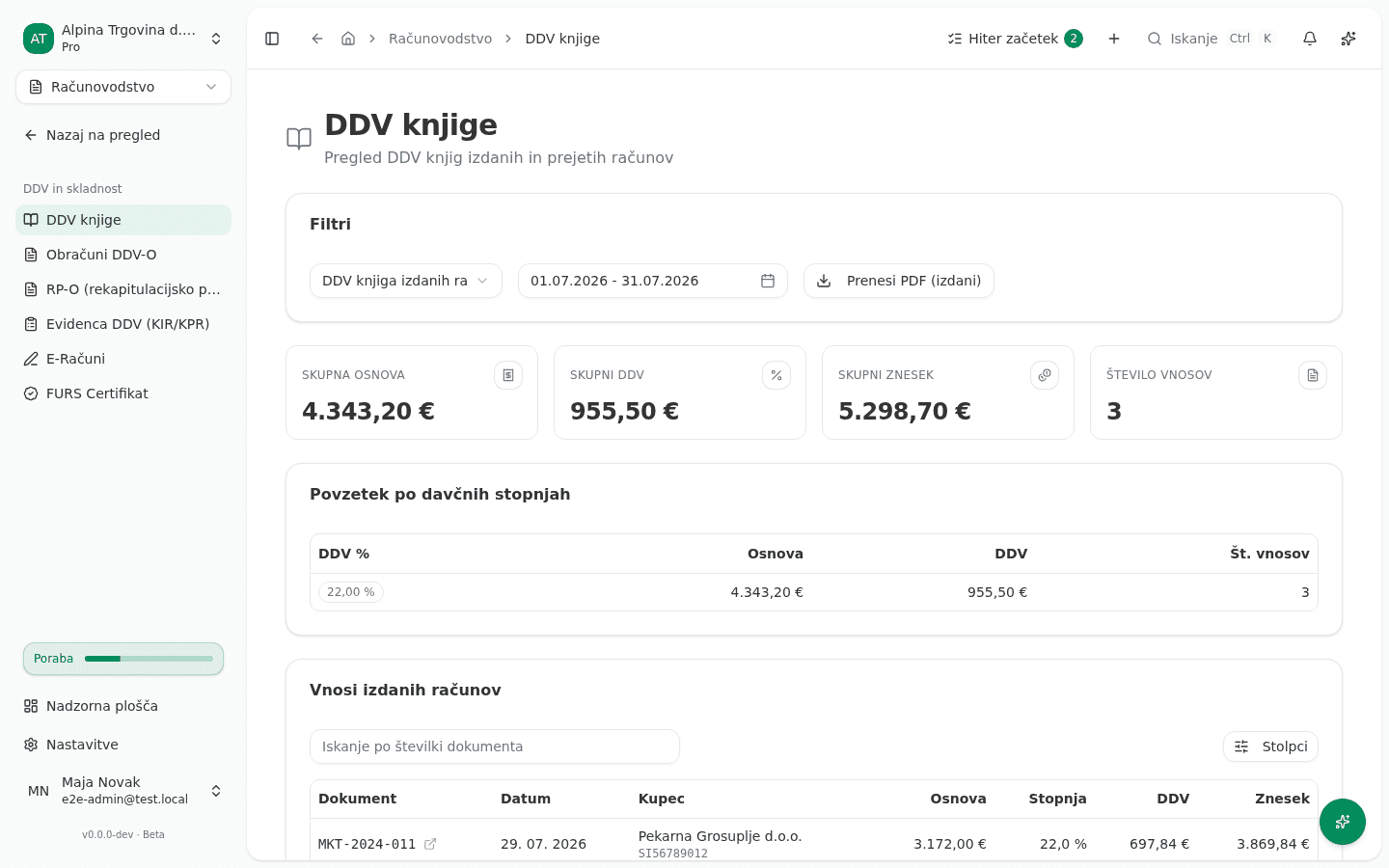
Every invoice, credit note, and eligible expense you book is automatically classified onto the correct VAT book line based on the transaction type, the VAT rate, and whether the counterparty is domestic, EU, or third-country. This classification happens at booking time, not at report time. A document booked with the wrong VAT treatment needs to be corrected at the source, not patched into the VAT book directly.
Cross-border transactions
Cross-border B2B transactions with EU counterparties get special DDV-O treatment (reverse charge, intra-community supply/acquisition), and this is where an incorrect foreign VAT number on a contact causes the most visible problems. See Importing from Minimax for why getting contact VAT numbers right during migration matters.
The program classifies a purchase reverse charge by the VAT ID the supplier invoices under. If the supplier’s tax number field holds a VAT ID of another EU country, its supplies are filed in the EU boxes (23 and 32 for goods, 23a and 32a for services), whatever country its address is in. Without such a VAT ID, the supplier’s country decides: outside the EU, its services go to the third-country boxes (25 and 31). A return you have already filed is never changed. The next return you prepare with Pripravi also carries the move for the earlier filed periods, as a correction in the same boxes, and a note above it names those periods and invoices. The VAT you pay does not change. Check the boxes before you file.
Generating the DDV-O return
-
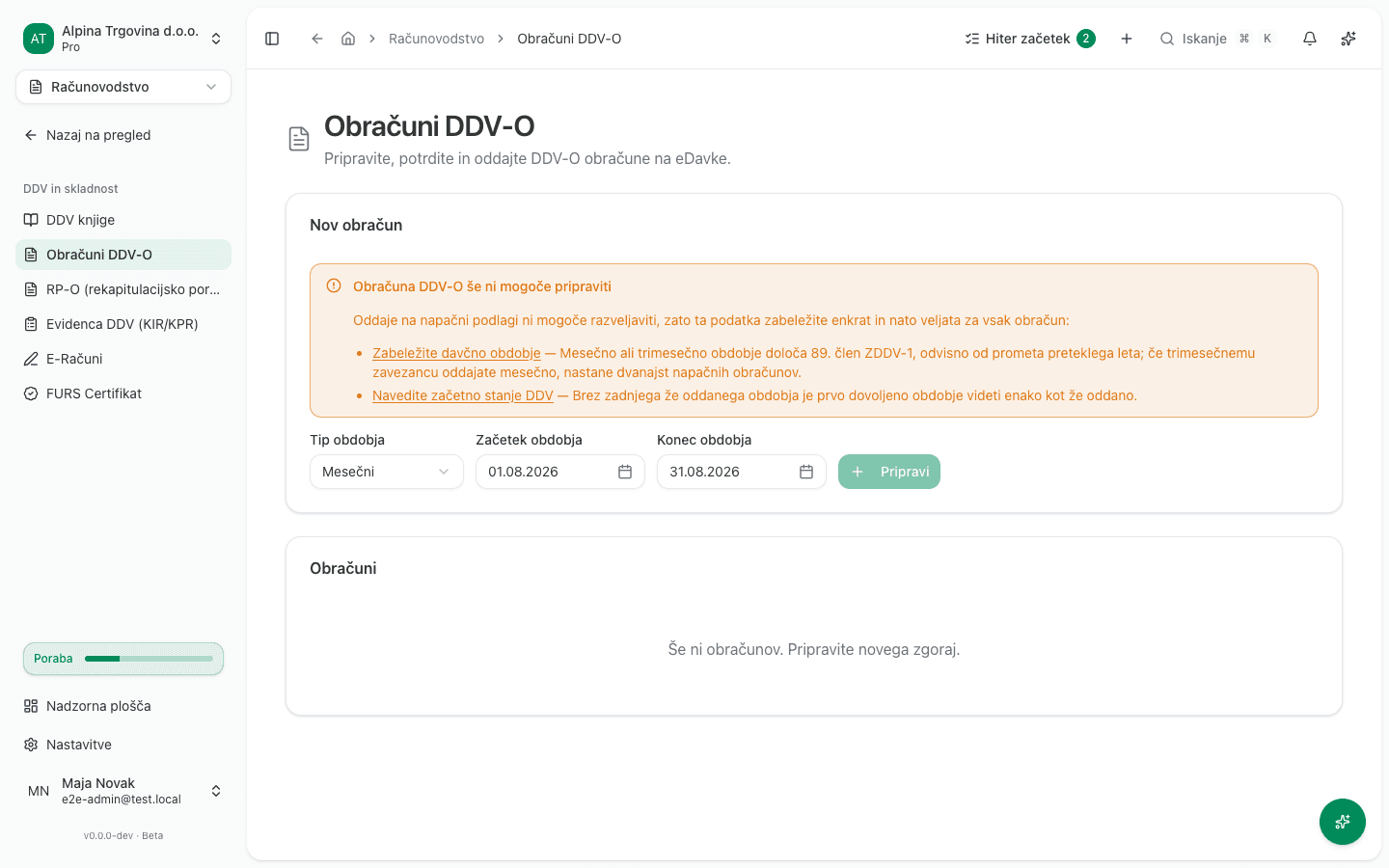
Go to Računovodstvo → DDV in skladnost → Obračuni DDV-O (“VAT returns”).
-
Under Nov obračun (“New return”), pick the Tip obdobja (Mesečni/Trimesečni, monthly/quarterly, set by FURS for your company), then set Obdobje (“Period”). The shortcuts offer whole months and whole quarters, because that is the only shape a davčno obdobje can have. The period has to match the type: picking a quarter under the monthly type is refused when you prepare the return.
-
Click Pripravi (“Prepare”). The return appears in the Obračuni list below as Osnutek (“Draft”). Every line is pre-filled from the VAT book; you review before submission rather than re-entering totals by hand. Only a user with the Administrator or Računovodja (“Accountant”) role can prepare a return, because only they can also correct or delete it.
-
Open the draft to review the summary: Obračunani DDV (f21–f26) (output VAT), Odbitni DDV (f41–f43) (deductible VAT), and the resulting Za plačilo (f51) / Za vračilo (f52) (payable / refundable).
-
Click Potrdi (“Validate”) to check the return, then Oddaj na eDavke (“Submit to eDavki”) to file it. Both require an active Server certificate for eDavki and SPOT, see Common issues below.
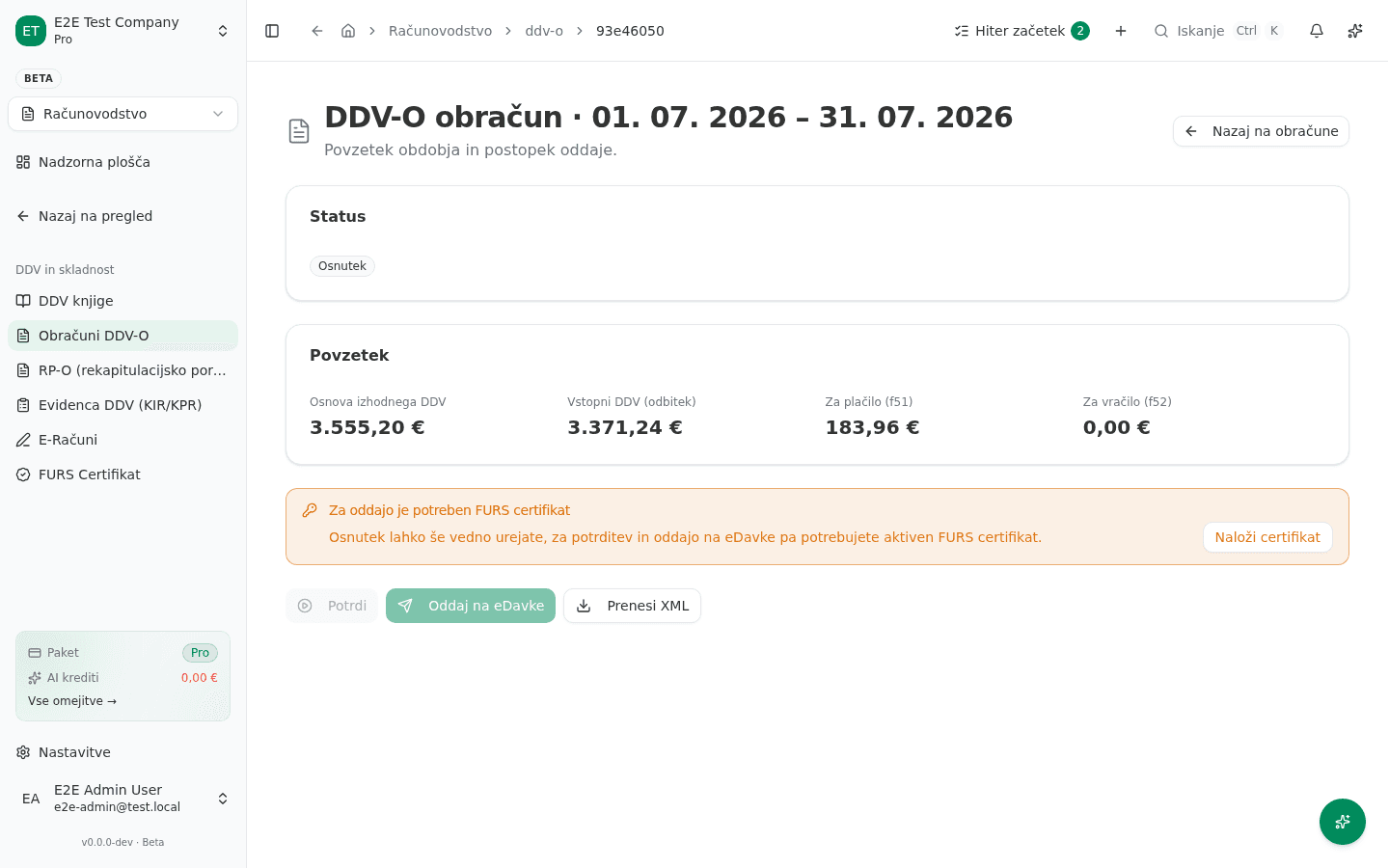
Until a return is submitted you can still correct it, even after it has been validated. If the books changed after you prepared it, click Preračunaj (“Regenerate”) to recompute the figures, or Uredi zneske (“Edit figures”) to correct a box by hand. Izbriši osnutek (“Delete draft”) removes the return and frees its period for a new one. A validated return goes back to Osnutek (“Draft”) after a recompute or an edit, so validate it again before you submit it. A submitted return can no longer be corrected this way.
Filing the KIR/KPR evidence at eDavki
The KIR/KPR evidence (the VAT charged and VAT deducted books under ZDDV-1 article 85.b) is filed separately from the DDV-O return, and the filing is manual: you prepare it in the app and download a ZIP archive, then upload that archive yourself at eDavki under Uvoz evidenc.
- Open Računovodstvo → DDV in skladnost → Evidenca DDV (KIR/KPR).
- Prepare the period and open the prepared evidence.
- Click Potrdi. The document is checked against the schema; don’t download it before that passes.
- Click Prenesi ZIP za eDavke. You get the archive the portal accepts. A bare XML file cannot be imported under Uvoz evidenc.
- Sign in to eDavki and upload the archive under Uvoz evidenc.
- Come back to the evidence in the app and click Označi kot oddano na eDavkih.
Step 6 is not paperwork. Because you perform the upload yourself at the portal, without that record the app does not know the period was filed and would offer you the same original archive again on your next visit. A second original for one period is the wrong document type as far as FURS is concerned. A filed evidence is changed by lodging a correction (samoprijava) at eDavki, which the app cannot prepare for a hand-filed evidence because it did not file the original.
Once a period is marked as filed, clicking the ZIP download again opens a confirmation naming the date you recorded. If the upload at the portal did not actually go through, confirm it with Vseeno prenesi. If you marked the wrong period, remove the record with Razveljavi ročno oddajo. While the record stands, Oddaj na eDavke is disabled, so the same period cannot also be filed down the automated route.
The evidence keeps its Osnutek or Potrjeno status after a manual filing. The Submitted and Accepted statuses are written only by the automated submission over a digital certificate, which is not available for this evidence yet. What shows the period was filed is the date on the Oddano ročno line.
Checking the documents before filing
Under the summary, the evidence page lists every document the evidence contains. Check it before you file:
- Open the evidence.
- Choose KIR (issued invoices) or KPR (received invoices).
- If needed, search by document number, partner or tax number, or narrow the list by VAT rate or by evidence column (P7, P14 …).
- Click a document number to open the invoice, credit note, advance invoice, received invoice or expense the row was built from.
The list shows the documents as the evidence’s stored XML file records them, not the current state of the books. If you corrected an invoice since, regenerate the evidence. Totals per column are shown under the list. If the XML file does not match the data it was prepared from, the page says which column differs and by how much. Do not file such an evidence until the difference is explained.
Regenerating or deleting an evidence that is not filed yet
If you correct an issued or received invoice in the same period after preparing the evidence, don’t prepare it again, regenerate it:
- Open the evidence.
- Click Preračunaj (“Regenerate”) and confirm. The KIR and KPR entries are rebuilt from the period’s invoices as they are now, and the evidence returns to Osnutek (“Draft”), so validate it again.
- If you don’t need the evidence, click Izbriši (“Delete”) and confirm. The period is freed, so you can prepare a new evidence for it.
Both buttons are disabled, with the reason shown below them, once the evidence is marked as filed at eDavki or was sent from the app. If you marked it as filed by mistake, click Razveljavi ročno oddajo first. A correction (samoprijava) cannot be regenerated: delete it and create it again.
If a number looks wrong
Don’t edit the DDV-O total directly. Trace it back to the underlying VAT book line, then to the source document.
The most common causes of a wrong total are:
- A document booked with the wrong VAT rate.
- A cross-border document where the counterparty’s VAT-payer flag or country wasn’t set correctly.
- A document booked in the wrong period (VAT books are period-scoped, same as journal entries).
Common issues
- Potrdi / Oddaj na eDavke is disabled. Submitting a DDV-O to eDavki requires an active Server certificate for eDavki and SPOT on the company profile (Nastavitve → FURS Certifikat, below the fiscalization wizard). The fiscalization certificate does not stand in for it. You can still prepare and review a draft without one, only validation and submission are gated.
- A period has no data / totals look empty. Check documents for that period were actually booked (not left as drafts) before generating the return. A draft invoice or expense doesn’t appear in the VAT book until it’s issued/approved.