Documents and OCR
VegaERP stores documents centrally and can automatically capture structured data from them. That way a scanned supplier invoice becomes a draft document instead of manual entry of every field.
What you can upload
- Supplier invoices and receipts: a supplier’s invoice, a receipt, or another accounting document, as .XML, .PDF, .JPG, .JPEG, .PNG or .HEIC.
- Delivery notes and other stock documents: follow the same upload → capture → review flow, and trigger stock movements on confirmation instead of a separate manual stock entry.
Upload a document directly, forward it by email (if you’ve connected your inbox), or receive it automatically through a connected Gmail/Outlook account. Anything that lands in the unified inbox and looks like an invoice or a receipt is handled the same way.
How a document becomes a draft
Using a supplier invoice as the most common example:
- Go to Računovodstvo → Stroški in sredstva (Expenses & assets) → Prejeti računi (Supplier invoices) and click Uvozi (Import).
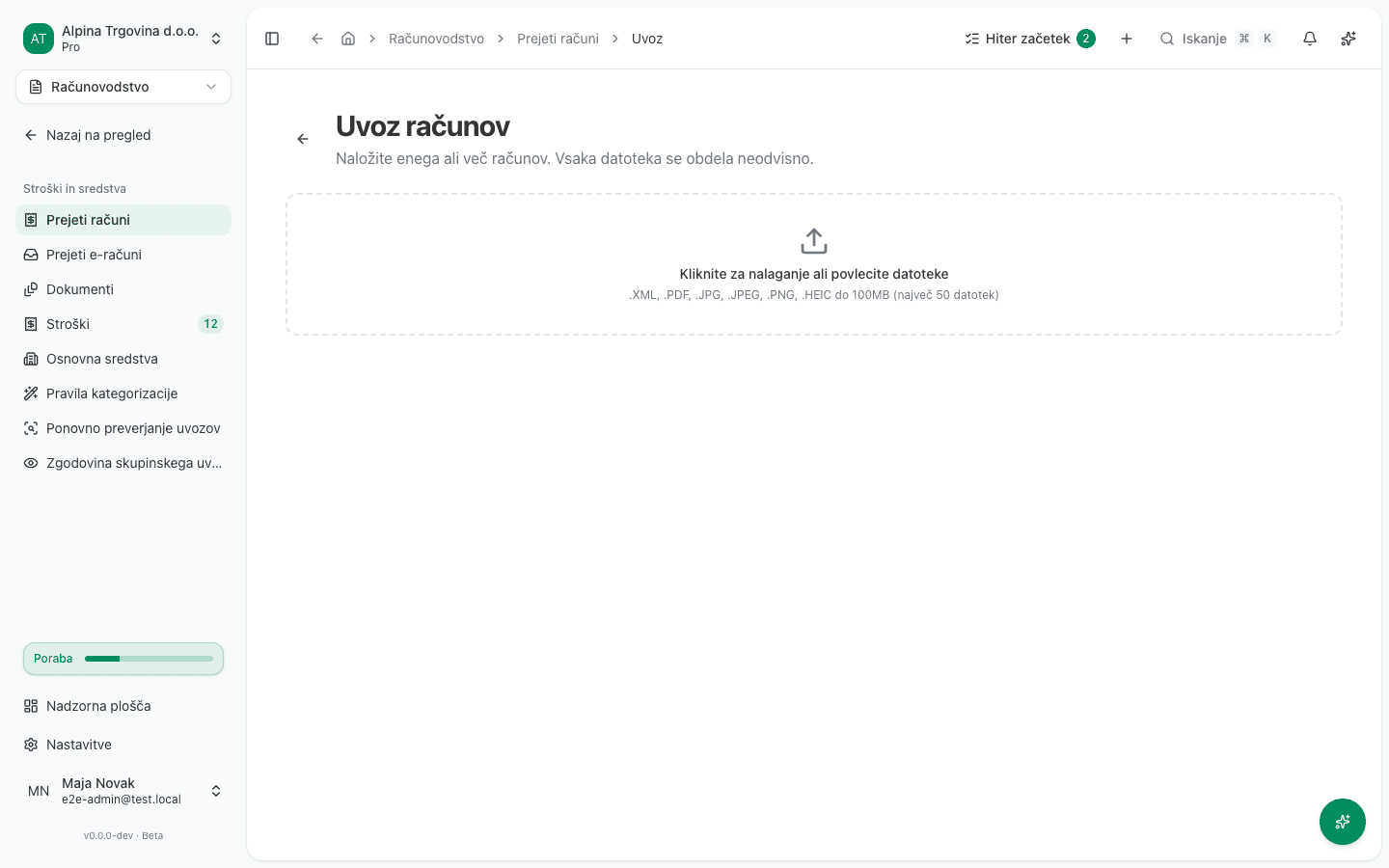
- On the Uvoz računov (Import invoices) page, upload one or more files. Each is processed independently, so one unreadable document doesn’t stop the others.
- OCR captures the supplier’s identity (name, tax number, matched to existing contacts where possible), the invoice number, the dates, the line and total amounts, and the VAT rate where it’s legible.
- The result is a document in Osnutek (Draft) status. None of this has been posted yet.
Before you confirm: this is a draft, not a posting
This is the most important step. OCR capture can misread a scan, and in an accounting product an automatically posted wrong amount or VAT rate isn’t an inconvenience, it’s an error in the books. Once it is posted and picked up by a VAT return, an edit no longer fixes it; a correction posting does.
So always review the draft before confirming it:
- Whether the matched supplier is really the right contact (a similar company name can match the wrong existing contact).
- Whether the amounts and VAT rate match the source document, especially on lower-quality scans or photos.
- Whether the document date and the accounting period are correct.
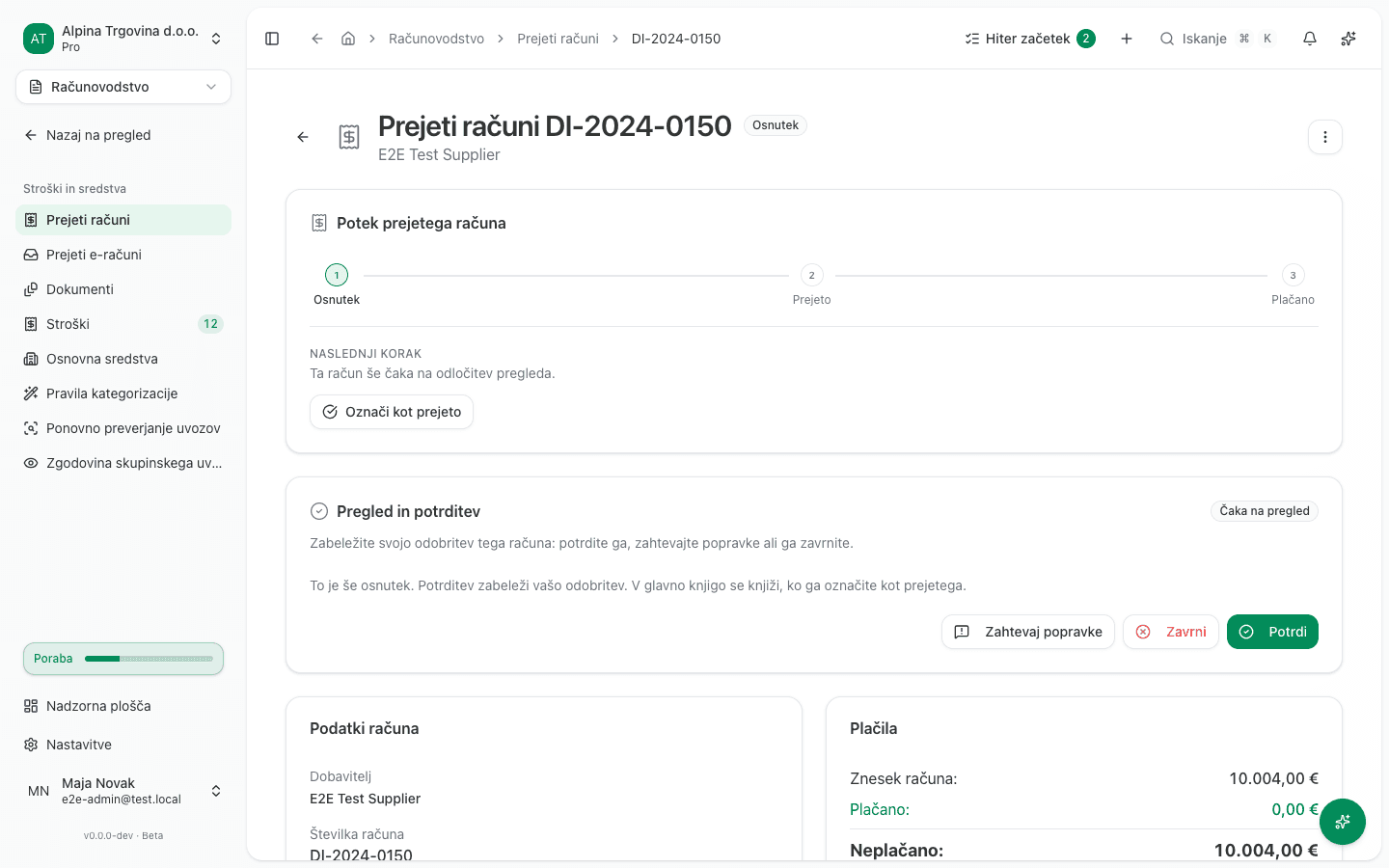
Only once it’s reviewed do you actually post the document, see Posting supplier invoices.
An invoice that is already in Documents
If a supplier invoice is already uploaded under Documents, use Create supplier invoice in its row menu to turn it into a supplier invoice. If the document has not been read yet, click Process with AI first.
Link to… with the Contact target only tags the document with the supplier. It does not create a supplier invoice, so the document does not appear under supplier invoices.
If the reading looks wrong or was made under older rules
When you create a supplier invoice from a document in Documents, or from an email attachment you already imported earlier, the review offers a Re-run extraction button. It re-reads the document with the latest model and extraction rules, no re-upload needed. If the document was read before a newer fix to the extraction rules shipped, a warning next to the button says it was read with an older version.
The button is only offered while no supplier invoice has been created from the document yet. Once one exists, the dialog shows a View Invoice link instead, since re-reading must never change figures that are already booked.
If OCR can’t read the text
Low-resolution scans, skewed photos and poorly saved PDFs reduce OCR accuracy. When no text at all can be read from a document, the app says so and leaves the fields empty.
What that message means and what you can do about it is covered in The document could not be read.