Signing up an accounting firm
An accounting firm registers in VegaERP like any company, but picks the accounting firm as its organisation type. That gives it a firm account with a client dashboard, not a company with its own books. The screens are in Slovenian when you use the app in Slovenian, so the labels below are quoted as they appear there.
Create the user account
- Open the sign-up page (
/sl/auth/signup). - Fill in Polno ime (full name), E-pošta (e-mail), Geslo (password) and Potrdite novo geslo (confirm password).
- Click Ustvari račun. The heading “Potrdite svoj e-poštni naslov” appears.
- Open the confirmation link in the e-mail, then sign in.
Pick the organisation type
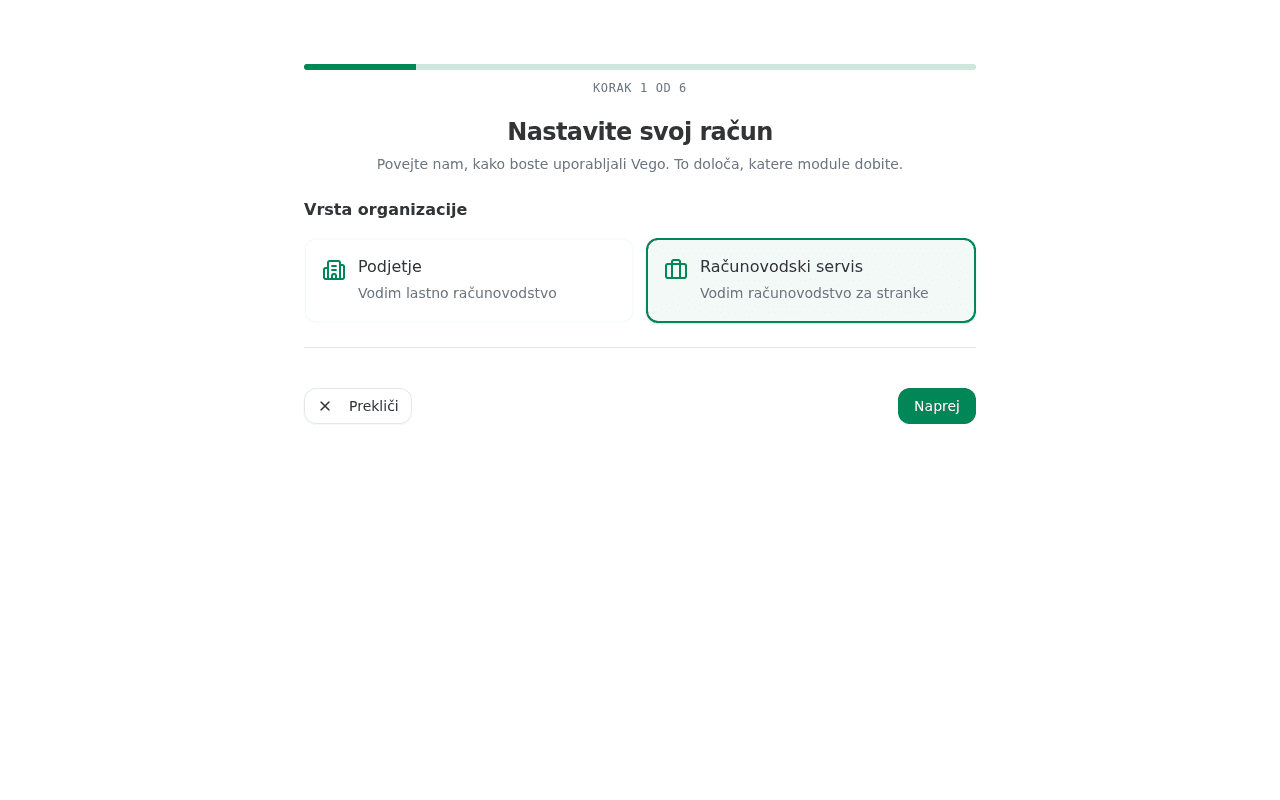
After you sign in, the wizard opens with “Nastavite svoj račun” (step 1 of 6).
- Under Vrsta organizacije choose the Računovodski servis card. The chosen card gets a green border.
- Click Naprej (next).
Enter the company details
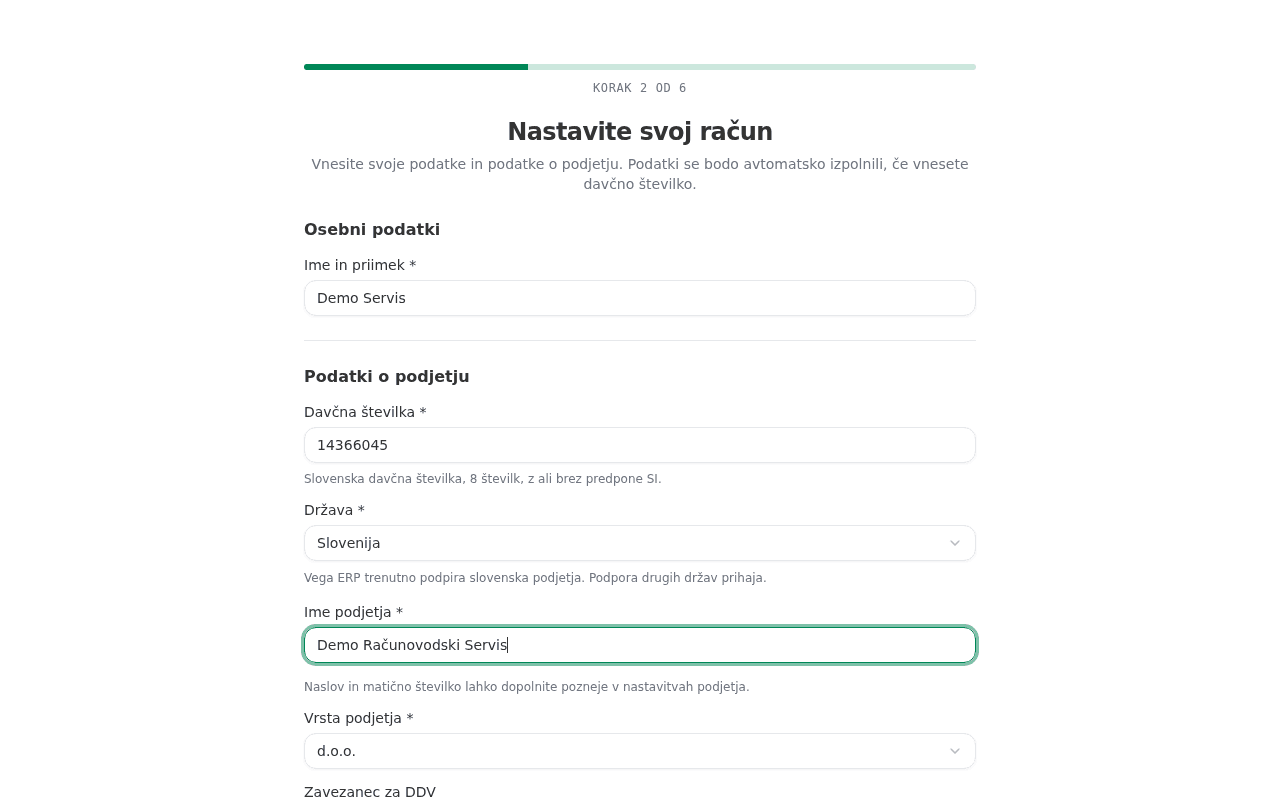
- In Davčna številka (tax number) enter the firm’s tax number.
- Fill in Ime in priimek (full name) and, if it stays empty, Ime podjetja (company name).
- For Zavezanec za DDV (VAT payer) click Da (yes) or Ne (no). The question appears when FURS has no VAT status for the tax number. Naprej stays locked until you answer.
- Click Naprej.
Create the firm account
The “Ustvarite svoj račun” step summarises the company name and tax number. Check them and click Ustvari račun. No credit card is needed. The message “Račun servisa je ustvarjen” appears.
Set the price list or skip it
In the “Cenik in privzete nastavitve” step enter the default monthly fee and hourly rate and click Shrani in nadaljuj (save and continue). If you do not know them yet, click Preskoči za zdaj (skip for now). You can change both later in the firm settings.
Add the first client or skip
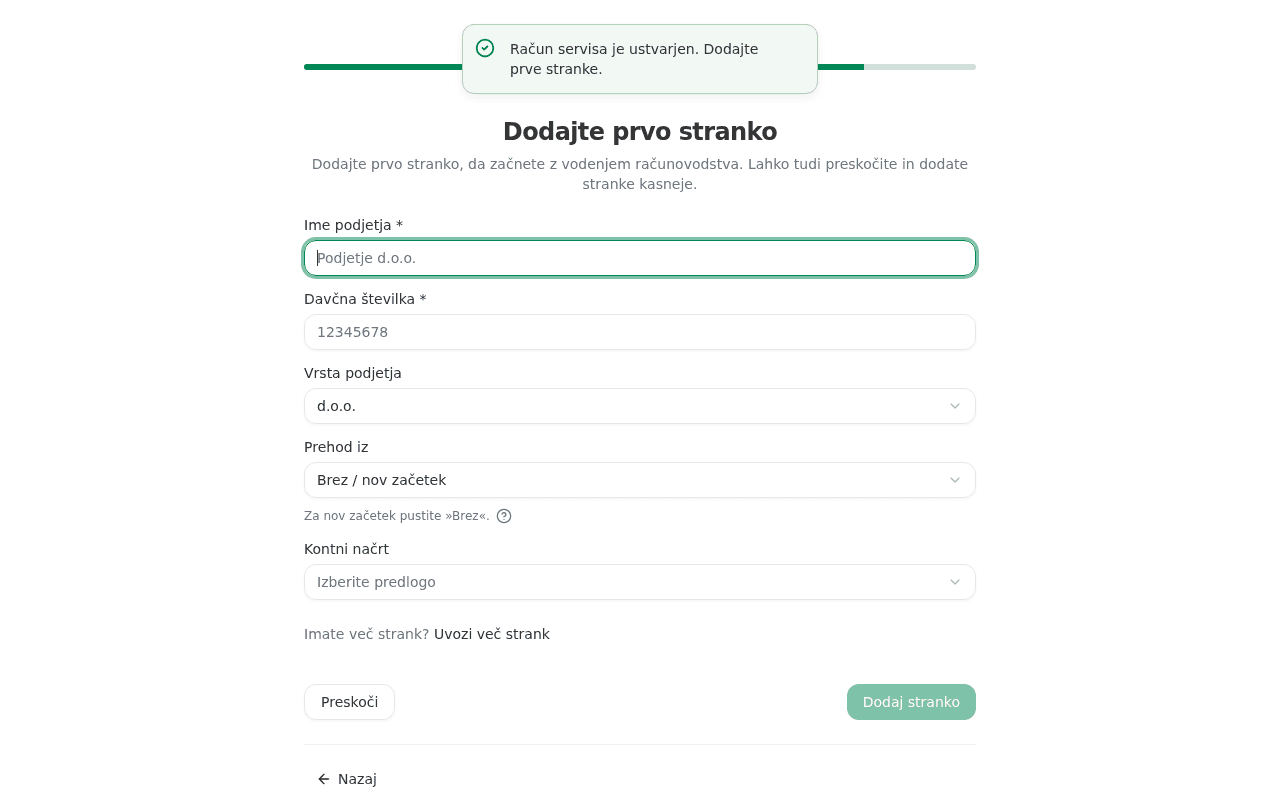
The “Dodajte prvo stranko” step is optional.
- Enter the client’s company name and tax number, then click Dodaj stranko (add client).
- Or click Preskoči (skip). You can add clients later.
Invite the team or skip
The “Povabite ekipo” step is also optional. Enter your colleagues’ e-mail addresses and click Pošlji povabila (send invitations), or click Zaenkrat preskoči (skip for now).
Finish setup
The last screen says everything is ready. Click Raje raziščem sam (I would rather explore on my own) to open the firm dashboard.
What success looks like
- The page address ends in
/servis, not in the company dashboard’s address. - The side menu shows Nadzorna plošča servisa (firm dashboard), with your firm’s name at the top of the menu.
- The dashboard shows 0 active clients until you add the first one.
Common issues
- The Naprej button is locked. The company details step has no answer to Zavezanec za DDV. Choose Da or Ne.
- To podjetje je že registrirano. A company with this tax number already exists and is verified. Change the tax number or contact support.