Client documents
This page collects the documents your clients submitted through their own portal (see Client portal), or that arrived by e-mail. Here you review them, confirm the document type when needed, and book them into the right client’s books, or reject one with a reason the client can see.
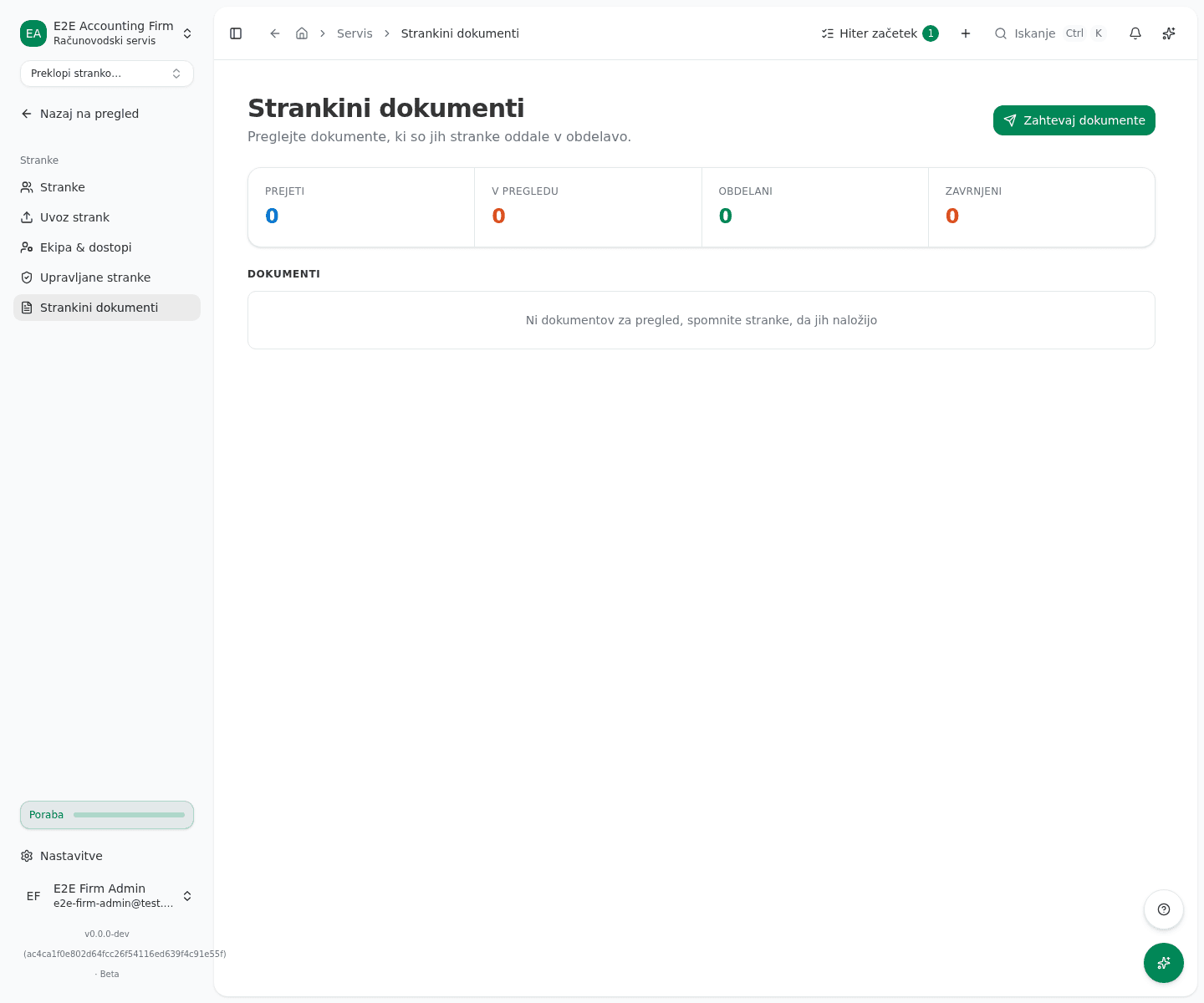
You’ll find it in the left menu under Servis → Stranke → Strankini dokumenti (Firm dashboard → Clients → Client Documents). How many documents are waiting to be booked also shows on the firm dashboard, in the Danes (Today) card, and on the Nabiralnik izjem (Exception inbox) page: Odpri vrsto (Open queue) opens this page, and clicking a client’s name opens it already narrowed to that client.
Review the queue
At the top of the page are four metrics: Prejeti (received), V pregledu (under review), Obdelani (processed) and Zavrnjeni (rejected). Below them is a list of documents, each showing the client’s name, the document type (for example Račun dobavitelja, supplier invoice, Bančni izpisek, bank statement, Blagajniški račun, receipt, or Pogodba, contract) and its status (Prejeto, received, or V pregledu, under review).
For a document you can:
- Click Prenos (download) to view or save the document.
- Click Označi v pregledu (mark under review) if you only want to flag that you’re already looking at it, without booking.
- Click the main action button: Knjiži v stranki (book to client) for a supplier invoice the OCR has already read, Uvozi v stranki (import to client) for a bank statement, otherwise Označi obdelano (mark processed).
- Click Zavrni (reject) if the document is not suitable.
While the OCR is still reading a supplier invoice, the document shows Branje dokumenta; knjiženje bo mogoče, ko se konča (reading the document; booking will be possible once it finishes). A document that arrived by e-mail with no chosen type shows Branje dokumenta, da ugotovimo, za kaj gre; če ne uspe, vrsto določite sami (reading the document to tell what it is; set the type yourself if it cannot). If the OCR fails to read it, that changes to Dokumenta ni bilo mogoče prebrati; vrsto določite sami (the document could not be read; set the type yourself); if it is read but not recognised as an invoice, to Prebrano, a ni prepoznano kot račun; vrsto določite sami (read, but not recognised as an invoice; set the type yourself). In all these cases you pick the document type yourself from the dropdown beside the title on the review page below, and for an e-mailed document you additionally confirm it with the Potrdi vrsto (confirm type) button.
Narrow the list and work from the keyboard
- Above the list, pick Stranka (Client), Vrsta (Type), Zanesljivost branja (Read confidence) or Računovodja (Accountant) to see only the documents you want to work on. Počisti filtre (Clear filters) brings back the full list.
- Documents that are not processed yet have a checkbox. Select several and click Izbrane označi v pregledu (Mark selected under review) or Preglej izbrane (Review selected). Počisti izbor (Clear selection) drops the selection.
- Press J and K to move through the list, Enter to open a document, X to select it.
When you book, import or reject a document on its review page, the next document in the list opens on its own (or the next one in your selection, if you clicked Preglej izbrane), so you do not have to go back to the list.
The Knjiženo brez popravkov (Booked without corrections) section above the list shows what share of received invoices from the queue were booked with every line keeping the suggested account: overall, per client and per accountant. Pick the period in the section’s dropdown.
Book supplier invoices one after another
Open Miza za knjiženje (Booking desk) in the left menu under Servis → Nabiralnik (Inbox) when you have a pile of supplier invoices to book. Each waiting invoice is a card on the left; the selected one shows the document beside the booking data and, for every line, the account Vega proposes and why. Pick a client above the list to work through one client’s documents only.
- Press J and K to move between the cards.
- Press Enter to book the selected invoice with the proposed accounts. If a line has neither an account nor a proposal, nothing is booked: the cursor moves to that line’s account field so you can choose one, and then Enter books.
- Press E to move into the booking data and correct a field.
After a successful booking the desk opens the next card by itself. The same checks as on the review page apply: a document that does not add up or falls in a closed period is refused, and you see the reason. Keys typed into a field never move the desk.
Moj dan (My day), the first entry in the same menu group, lists everything that waits for you across your clients, overdue first: documents to book, deadlines and open exceptions. Opening a client’s workspace shows that client’s part of the same list.
Review and book one document
Clicking the main action button (Knjiži v stranki, Uvozi v stranki or Označi obdelano) opens that document’s review page, with the document on the left and the decision on the right.
- For a supplier invoice, check the data under Podatki za knjiženje (booking data): Dobavitelj (supplier), Številka računa (invoice number), the amounts, and the Konto (GL account) for each line. Leaving the account empty means the app classifies the line automatically; a chosen account is remembered for this supplier. Under each line is a suggested account with its confidence and the reason it was suggested; Uporabi (Use) copies it into the line. Below the lines, Zadnja knjiženja tega dobavitelja (Last bookings from this supplier) lists the accounts the client booked this supplier’s recent invoices to.
- For a bank statement, under Uvozi na račun (import to account) pick the client’s bank account.
- Optionally add Opombe (neobvezno) (notes, optional).
- Click Knjiži v stranki or Uvozi v stranki. To finish the document without booking it, click Samo označi kot obdelano (mark processed only).
If the app detects a possible duplicate, it shows a warning and a Vseeno knjiži (book anyway) button to confirm the booking regardless. If an invoice with the exact same number is already booked for this supplier, the app refuses to book it again.
To reject a document, enter a Razlog zavrnitve (obvezno) (reason for rejection, required), since the client sees it, then click Zavrni.
Request a missing document from a client
- Click Zahtevaj dokumente (request documents) at the top right of the list.
- Pick Stranka (client), enter Zadeva (subject) and Sporočilo (message), and optionally set a Rok (due date).
- Click Pošlji (send).
Open requests the client has not yet answered appear above the document list, under Odprte zahteve za dokumente (open document requests).
Set up a recurring request
For documents you need every month (a bank statement, for example), you don’t have to send the request by hand.
- Click Zahtevaj dokumente and fill in Stranka (client), Zadeva (subject) and Sporočilo (message).
- Turn on Ponavljaj vsak mesec (repeat every month) and enter a day from 1 to 28 under Rok do dne v mesecu (due by day of the month).
- Click Pošlji.
The app sends a new request every month on its own, due on that day. If this month’s due day has already passed, the first request goes out on the 1st of next month. The client is reminded 3 days before the due day and 1 day after it; if they still haven’t answered 3 days after the due day, the app notifies the client’s lead accountant (the primary accountant, otherwise the secondary; if there is none, the firm’s admins). The client uploads the document as for any request, and the answer shows up among the client’s documents.
You see a client’s recurring requests under Ponavljajoče zahteve (recurring requests) on the client’s review page. Začasno ustavi (pause) halts sending, reminders and notifications for a while, and Nadaljuj (resume) turns them back on. Ustavi (stop), confirmed with Ustavi ponavljanje (stop recurring), ends the request for good; requests already sent stay open, but they get no further reminders or escalation.
What success looks like
- Reviewing a document: it disappears from the Received and Under review rows, and its status changes to Processed or Rejected.
- Booking: the message Prejeti račun je bil knjižen v poslovne knjige stranke. (the received invoice was booked into the client’s books) appears, and the document is no longer waiting in the client’s row.
- Requesting a document: the message Zahteva poslana (request sent) appears, and the request shows up under Odprte zahteve za dokumente until the client answers.
Common issues
- The list is empty. The message Ni dokumentov za pregled, spomnite stranke, da jih naložijo (no documents to review, remind your clients to upload them) appears. No client has currently submitted a new document for processing.
- There’s no Knjiži v stranki button, only Označi obdelano. The OCR on this supplier invoice has not finished reading yet, or the document was not recognised as a supplier invoice. Wait for it to finish, or set the document type yourself.
- The app reports a possible duplicate even though it’s a different document. Confirm with the Vseeno knjiži button. If it really is the same invoice, the app will not let you book it twice.