Monthly close
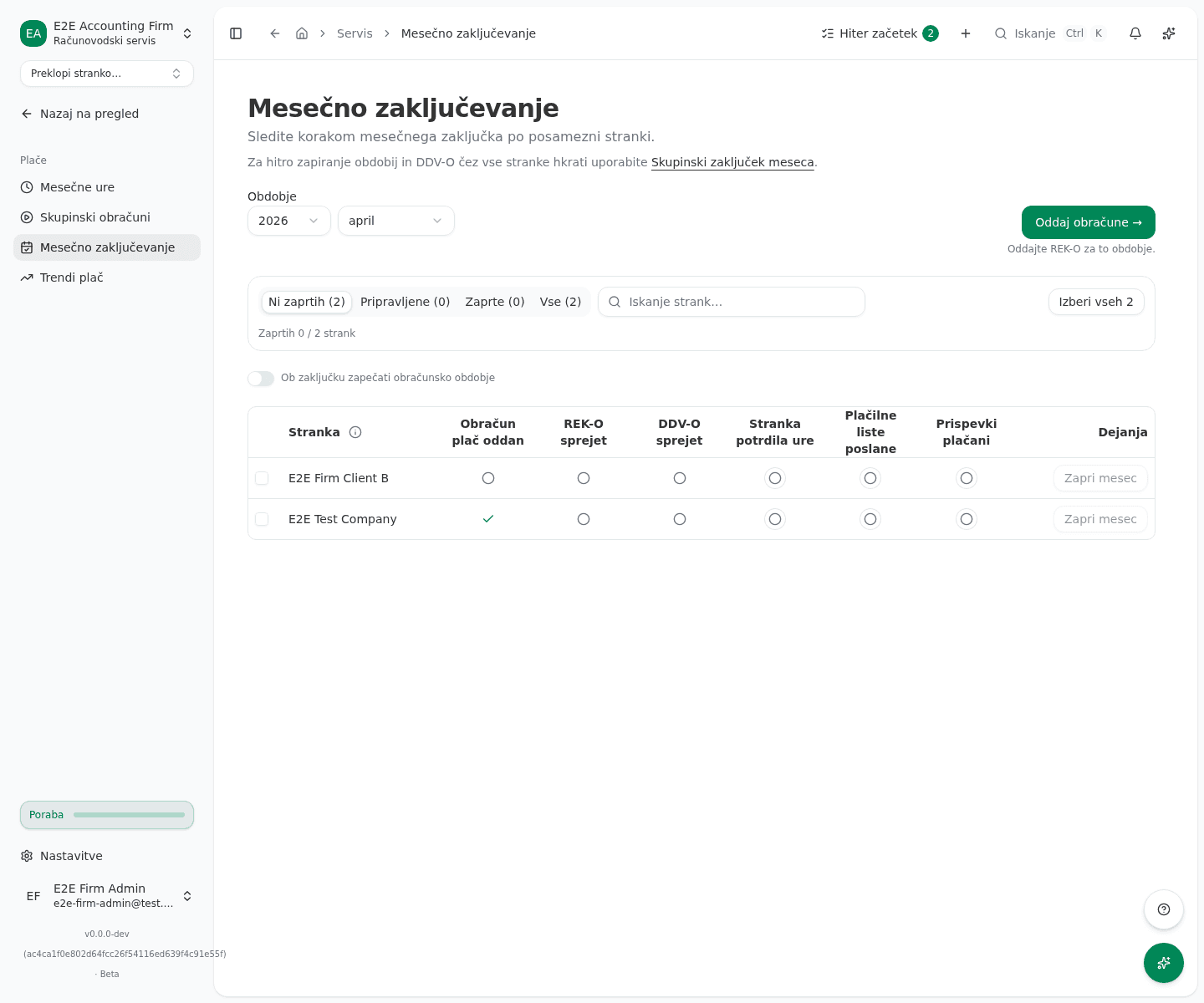
Mesečno zaključevanje (monthly close) is a page for accounting firms that shows one board with the monthly close status for every linked client at once. For each client it tracks six steps (payroll run, REK-O, DDV-O, hours approval, payslips, contributions) and lets you close the month once they’re all satisfied.
You’ll find the page in the left menu under Servis → Plače → Mesečno zaključevanje (Firm dashboard → Payroll → Monthly close).
Pick the period
- In the Obdobje (period) field, pick a year and month. If you don’t pick anything, VegaERP shows the latest month that has an actual filed payroll run by default.
Find clients in the queue
- Use the Ni zaprtih (not closed), Pripravljene (ready to close), Zaprte (closed) and Vse (all) tabs to filter the list. Each tab shows how many clients are in that group in parentheses.
- To search by name, use the search box with the placeholder Iskanje strank… (search clients).
Check each client’s steps
Every row has six close-step columns:
| Column | Meaning while pending |
|---|---|
| Obračun plač oddan | No filed payroll run for this period. |
| REK-O sprejet | No ACCEPTED REK-O submission. |
| DDV-O sprejet | No ACCEPTED DDV-O for this period. |
| Stranka potrdila ure | Hours not yet approved by the client. |
| Plačilne liste poslane | Payslips not yet emailed. |
| Prispevki plačani | Contributions not yet paid. |
A checkmark means done, an empty circle means pending, a dash means the step doesn’t apply to this client. A ringed circle is a manual step the accountant confirms themselves, an unringed circle is detected automatically from a run, filing or payment. Click the ℹ icon next to the Stranka (client) column header for the legend.
Mark a manual step
- Click the icon of the manual step (the ringed one) you want to mark.
- Confirm in the dialog with Označi opravljeno (mark done). It’s recorded with your name and time, so only mark it once it’s actually done.
Close the month for a client
- Once every step for a client is done or marked not applicable, click Zapri mesec (close month) in the Dejanja (actions) column. While any step isn’t met, the button stays disabled and shows which steps are missing.
Close several clients at once
- Check the boxes on several clients, or click the Izberi vseh button (select all, followed by the number of clients) above the table to select the whole displayed queue.
- Click the Potrdi (confirm) button with the chevron next to the selection, then pick an action: Označi kot potrjeno (mark client-approved), Označi kot poslano (mark payslips emailed), Označi kot plačano (mark contributions paid) or Zapri mesec (close month).
- Confirm in the dialog with Potrdi. If a client doesn’t meet the conditions, VegaERP reports afterward which clients succeeded and why the others were refused.
Reopen a closed month
You can reopen a client’s closed month at any time to make a correction.
- In the row of a closed client, click Ponovno odpri obdobje (reopen period).
- In the Razlog (reason) field, enter why you’re reopening the month. A reason is required and is recorded on the audit trail.
- Click Ponovno odpri obdobje to confirm.
Sealing the accounting period
Under the toolbar is a switch labeled Ob zaključku zapečati obračunsko obdobje (seal the accounting period on close). When on, closing a client’s month also seals their matching monthly accounting period on the Upravljanje obdobij page, which locks the general ledger for that month. An annual period is never touched by it.
Filing submissions for the period
Above the table is a Oddaj obračune → (file submissions) button that takes you to the filings register, filtered to the selected period, so you can file REK-O or DDV-O for that month.
What success looks like
- After picking a period, you see the board with one row per client and the current state of all six columns.
- After marking a manual step, its column icon turns into a checkmark.
- After closing the month, the Zapri mesec button in the client’s row is replaced by Ponovno odpri obdobje.
Common issues
- The Zapri mesec button is disabled. At least one of the six steps for this client isn’t done or marked not applicable yet. The line under the button names the first missing step and how many more there are; the button’s tooltip lists them all.
- A bulk action succeeded for some clients but not others. Some steps have a prerequisite (for example filing the payroll run before you can mark payslips as emailed). The toast shown afterward names the missing prerequisite and which clients it affected.
- A client with no payroll still appears on the board. This is expected: payroll-related steps are automatically marked not applicable for them, while other steps (such as DDV-O) are still tracked.