Organization settings
This page is for a new company that is still setting up its workspace: where to edit the basic company details, how to invite coworkers and assign them roles, and what you will run into when filing your first returns. Some of this has to be in place before the product works correctly, so it’s better to read it now than to be stopped right before a deadline.
Company details
- Go to Nastavitve (Settings) → Podjetje in ekipa (Company & team) → Nastavitve podjetja (Company settings).
- In the Podatki o podjetju (Company information) section, edit Naziv podjetja (Company name) and Naslov (Address). Both print on every document you issue. If the name was imported from the FURS registry in ALL CAPS at registration, fix it here; a manual edit is never overwritten by a later registry import.
- To compare your details with the AJPES Business Register, click Posodobi iz Poslovnega registra (Update from the Business Register). The app shows what you have on record next to what the register states (name, registration number, registering body and address). Tick the details you want to take over and click Prevzemi označeno (Apply ticked). Unticked details stay as they are.
- Check the Zavezanec za DDV (VAT registered) checkbox. This decides whether your invoices charge VAT.
For the filings ZZZS and FURS require (employee registrations, REK-O), there is a dedicated ZZZS in AJPES identifikatorji (ZZZS and AJPES identifiers) section on the same page.
- Click Prenesi iz registra (Pull from registry). The app fills in fields like the registry number and activity code automatically from the public AJPES registry.
- Enter Šifra kolektivne pogodbe (Collective agreement code, REK-O field S02) and Odgovorna oseba za REK obrazce (Person responsible for REK forms, field F008) with their contact (field F009) by hand. The registry doesn’t know either of these. Until both are filled in, the app will not file a REK-O for payroll.
Companies that keep double-entry books also manage Davčni režim (Tax regime, standard or flat-rate/normiranec) on the same page. Which regime is selected decides whether a given tax year keeps a general ledger at all. Only a sole trader (s.p.) can be a normiranec, so a d.o.o., an association or an accounting firm is offered the standard regime alone. Limited-liability companies (d.o.o.) have an additional Sodni register (ZGD-1) (Court register) section (registration court, Srg registration number, share capital), and sole traders a Poslovni register (ZGD-1) (Business register) section (registering body). The data is printed in the footer of every business document per ZGD-1 čl. 45 for a company and čl. 72(5) for a sole trader. The legal form and the registration court or registering body are filled from the AJPES business register while the field is empty; a value you typed is kept. Below the section, Predogled noge dokumenta (Document footer preview) shows the footer as it prints on the next invoice you issue.
The register’s open data has no share capital, so a capital company (d.o.o., d.d.) records it itself. Until it does, invoices cannot be issued: the invoice stays a draft and takes no sequence number. If the share capital is not fully paid in, also fill in the unpaid contributions; the footer prints them only when the field is set.
Users and roles
Users are managed on the Ekipa (Team) page, reached via Nastavitve → Podjetje in ekipa → Ekipa.
- Click Povabi uporabnika (Invite user).
- Enter the E-pošta (Email) of the invitee and choose a Vloga (Role).
- Click Pošlji povabilo (Send invitation).
When inviting, or later editing a member, these roles are offered:
- Administrator: full access to everything, including managing users, the subscription, security settings, and the e-filing environment (test/production for eDavki, ZZZS and similar). These are settings that must not be open to anyone.
- Uporabnik (User): access is set per module (CRM, Računovodstvo, Skladišče, Potovanja, eSlog, Vega AI), each one individually set to Polni dostop (Full access), Samo ogled (View only) or Brez dostopa (No access). This is set in the Uredi člana (Edit member) dialog.
- Samo ogled (View only): access to the client portal only (submitting documents and messages to the accounting firm). The role is only offered when the company is linked to an accounting firm. See Client portal.
The Računovodja (Accountant) role exists in the product and carries broad access to posting, periods and filing returns, but it cannot be assigned by hand on this page. A coworker gets it automatically once your company connects to an external accounting firm through the product; from there, access is granted either to the firm’s whole team or only to assigned accountants, depending on the firm’s own settings.
Before you file your first return
Two conditions apply only to the FIRST filing of a given form for a new company; later returns don’t check them again.
Prior-provider handover
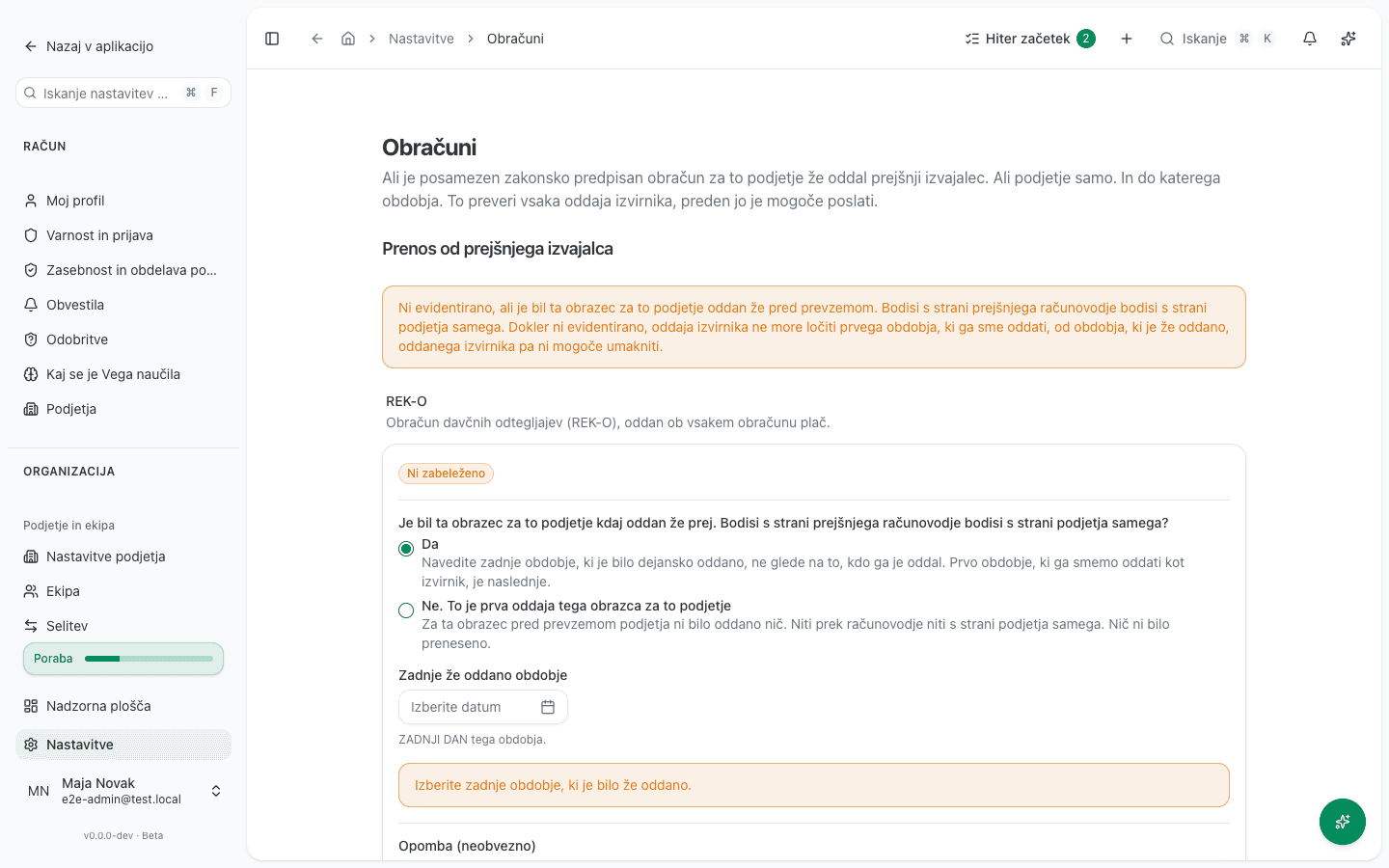
For each form separately (REK-O, RP-O, OPSVL, KIR/KPR, DDPO), it must be recorded whether a previous provider ever filed it for your company. The app checks this separately per form, so you may run into it more than once, once per form. Set it under Nastavitve → Obračuni (Filings), section Prenos od prejšnjega izvajalca (Prior-provider handover). The full walkthrough and a sample of the message you get if this isn’t set yet is in Why can’t I file a return for this period?.
Fiscal-year confirmation
Generating the first DDPO return, and exporting the annual financial statements for AJPES, both require confirming whether your company’s fiscal year (poslovno leto) is the calendar year. The app defaults to assuming the calendar year, but won’t allow the first filing without an explicit confirmation, because a wrong filing at FURS or AJPES cannot be undone. You prepare and download the AJPES file itself on the AJPES annual financial statements page.
If your company’s fiscal year is the calendar year (the common case), an administrator or the accountant of record can confirm it in one click: open Nastavitve podjetja (“Company settings”), find the Poslovno leto (“Financial year”) card, and click Potrdi (“Confirm”). Success looks like the card showing “Potrjeno” (“Confirmed”) with the confirmation date.
If your company’s fiscal year is NOT the calendar year, the card lets you pick a different first month, but that alone doesn’t unlock filing: the annual returns don’t support a non-calendar fiscal year yet, so contact support in that case. More detail in DDPO return.
If nobody at the company holds the administrator role, for instance a client of an accounting firm who has not accepted the invitation yet, the firm’s accountant confirms it. You do not need to write to support for this.
Common issues
- A REK-O return can’t be filed even though the payroll figures are correct. The ZZZS in AJPES identifikatorji section is missing the field Šifra kolektivne pogodbe (Collective agreement code, REK-O field S02) or Odgovorna oseba za REK obrazce (Responsible person for REK forms, field F008). The app won’t even build the XML without both fields.
- The Prenesi iz registra button doesn’t fill in every field. The AJPES registry only answers publicly available data (registry number, activity code and similar). You enter the collective agreement code and the responsible person yourself.
- You can’t invite someone as Računovodja (Accountant). That role is only granted by connecting to an accounting firm, not by a manual invite, see Users and roles above.