Meetings, tasks and reminders on a deal
Every deal in the pipeline has its own Načrtovanje (Schedule) section. It shows the meetings, tasks and reminders attached to that deal, and it is where you add them. You no longer have to open the general calendar and hunt for the right deal among everything else.
Adding a reminder to a deal
- In the left menu choose CRM → Posli (Deals) and open the deal.
- Scroll to the Načrtovanje section.
- In the small calendar on the left, click the day you want the reminder on.
- Click Dodaj (Add) to the right of the date.
- Enter the reminder Naslov (Title) and, optionally, a Opis (Description).
- If the reminder is for a particular time, switch off Cel dan (All day) and enter it.
- Click Ustvari (Create).
The reminder appears under the selected day. The tick marks it done; the bin deletes it.
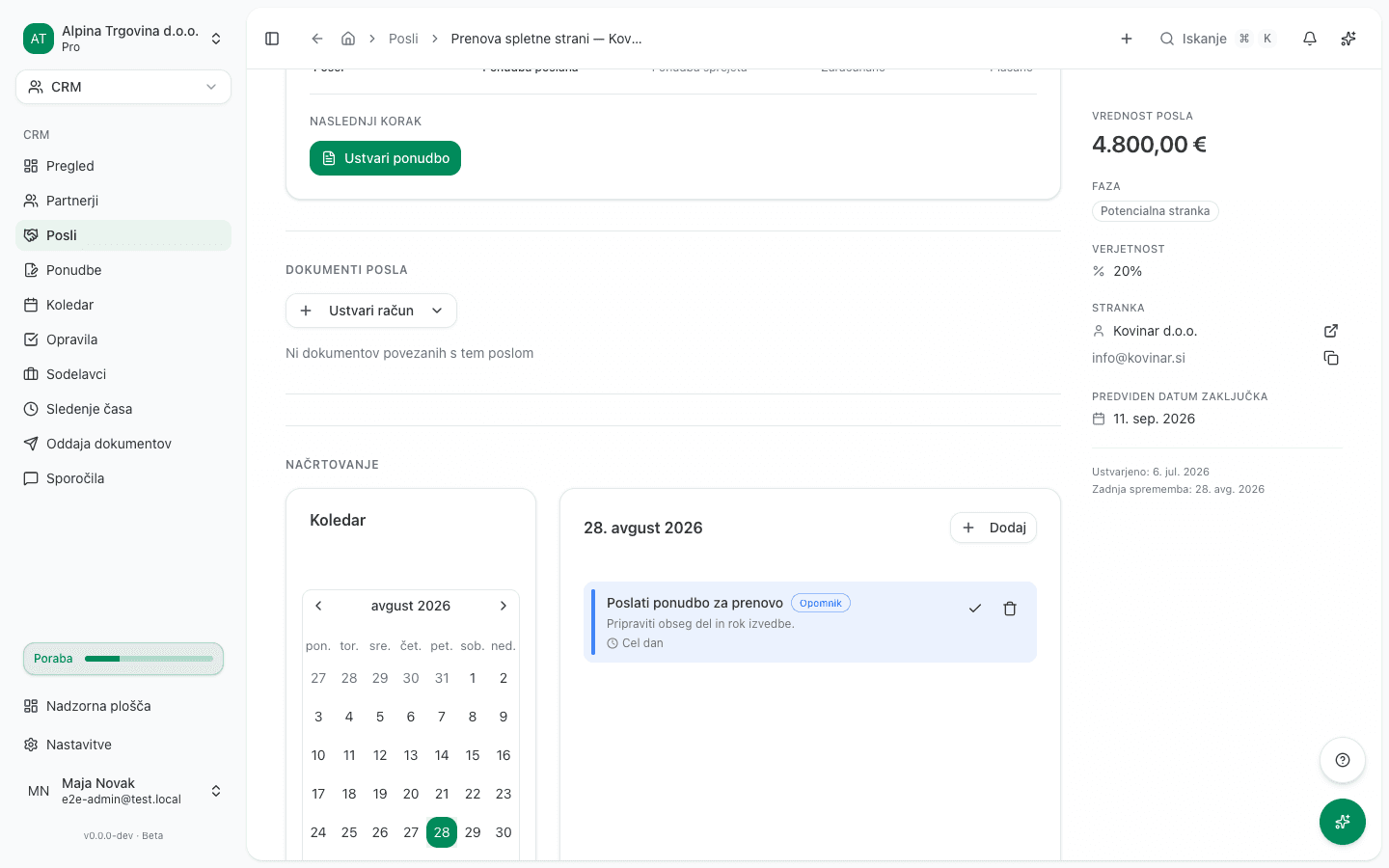
A reminder added here belongs to the DEAL, not to the partner. When it falls due, the notification takes you straight to that deal.
The deal’s calendar
For a monthly view click Celoten Koledar (Full calendar) under the small calendar, or choose Koledar posla (Deal calendar) from the three-dot menu at the top right. It opens a calendar showing only this deal’s events.
When you create an event from the deal’s calendar, Stik (Contact) and Posel (Deal) are already filled in and cannot be changed. The event belongs to the deal you opened the calendar from.
Where else the events show up
- CRM → Koledar shows all of your events together, whichever deal they belong to.
- The Časovnica aktivnosti (Activity timeline) section on the deal keeps the record of what has happened on it.
Common issue
- The reminder is missing from the deal’s calendar. Check whether you added it to the partner instead of the deal. A partner reminder appears in the partner’s calendar, not in the deal’s.