Filings
Evidenca obračunov (filings register) shows DDV-O and KIR/KPR status for every linked client on one page, for a chosen period. From here you can also prepare filings in a batch for several clients at once.
You’ll find the page in the left menu under Servis → Skladnost in roki → Evidenca obračunov (Firm dashboard → Compliance and deadlines → Filings).
Set the period and filters
- In the Obdobje (period) field, enter a month or a quarter, matching the chosen Pogostost (granularity: Mesečno for monthly or Četrtletno for quarterly). The page opens on the latest period that has ended, the one whose return is due, not on the month still in progress.
- Narrow the list with the Status and Obračun (filing) fields as needed.
- Check Prikaži tudi ne-VAT stranke (also show non-VAT clients) to include clients who aren’t VAT-registered.
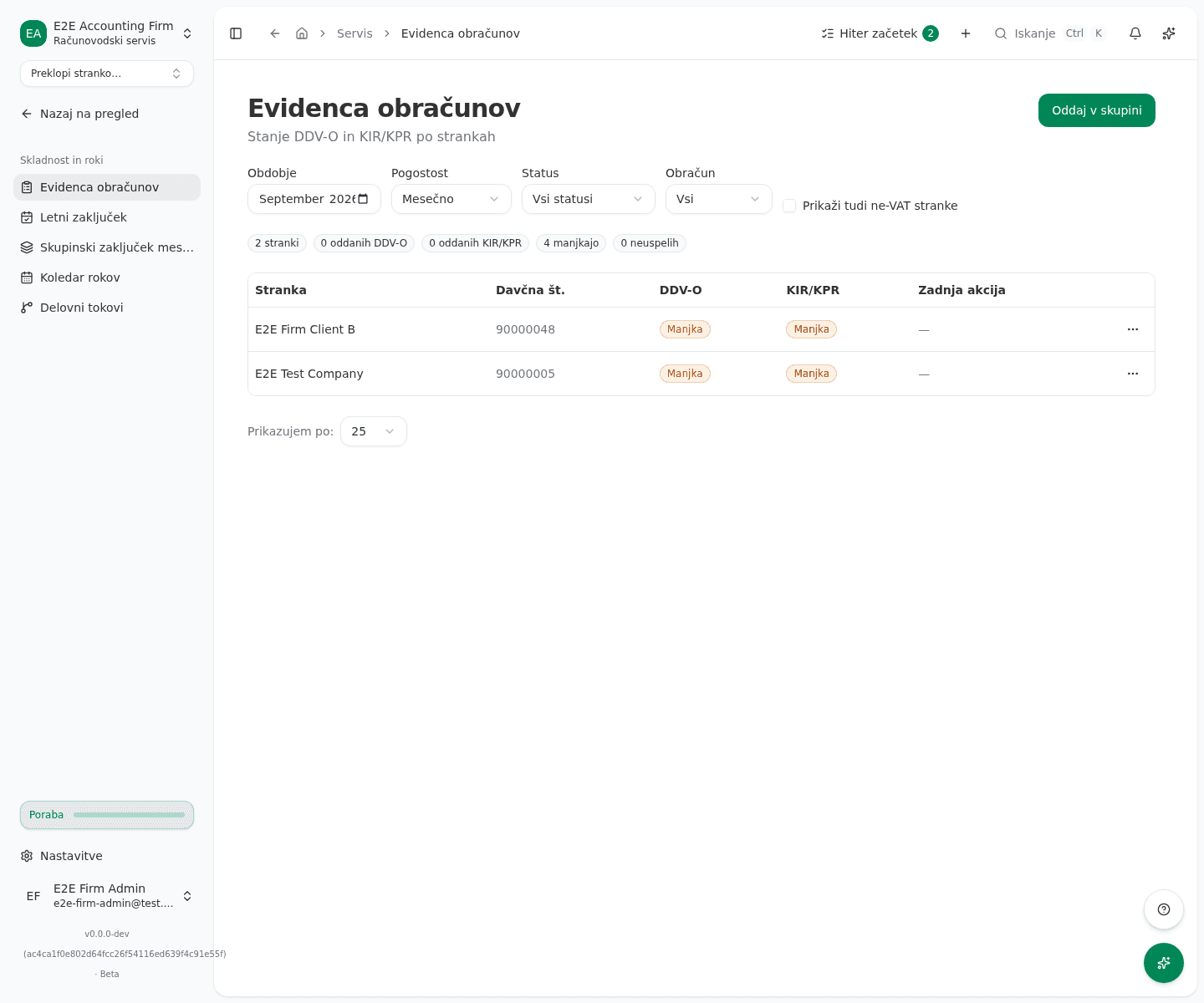
Review status per client
The table shows the Stranka (client), Davčna št. (tax number), DDV-O, KIR/KPR and Zadnja akcija (last action) columns. The badge in the DDV-O or KIR/KPR column names the status: Manjka (missing), Osnutek (draft), Preverjeno (validated), Oddano (submitted), Sprejeto (accepted), Zavrnjeno (rejected) or Osnutek samoprijave (correction draft).
- Click directly on the badge in the DDV-O or KIR/KPR column to switch to that client and open their submission.
- Clicking anywhere else in the row also switches to the client, onto their VAT returns page.
File a correction on an accepted DDV-O
- In the row of a client with an Sprejeto DDV-O, open the three-dot menu at the end of the row.
- Click Vloži popravek (samoprijava) (file correction). It’s only available when the client has an accepted DDV-O submission for this period. You file the correction without switching to the client.
Prepare filings in a batch
A batch only prepares the filings. It submits nothing to eDavki: you submit each form yourself, in your own eDavki session, with your own certificate. Under the eDavki terms of use a person’s certificate may only be used by that person, so the app cannot use it for you.
Only a firm admin sees the batch button, because only an admin can start a batch.
- Click Pripravi v skupini (batch prepare) in the top right and pick a filing kind: REK-O or DDV-O. OPSVL isn’t available yet.
- The page switches into selection mode. Check the boxes on the clients you want to include.
- At the bottom, click the prepare-batch button, which counts your current selection.
- In the preview, check how many clients are eligible and how many are skipped and why. Click the button to prepare the eligible clients, or Prekliči (cancel).
Review a batch’s result
After you confirm, the batch page opens, showing each client’s own state: V čakanju (pending), V teku (running), Pripravljeno za oddajo (ready to file) or Neuspešno (failed).
Pripravljeno za oddajo means the form is prepared, not filed. You file it on the client’s own screen: download the REK-O and upload it to eDavki, or review and submit the DDV-O.
- On a failed client, click the arrow next to Napaka (error) to expand the explanation (for example an expired digital certificate or a FURS rejection).
- If any client failed, click the retry-failed-clients button to prepare only those again. The retry is recorded under your name, and it submits nothing either.
At the bottom of the batch page is a Nazaj (back) button to the filings register, plus links back to the deadline calendar and to view payouts.
What success looks like
- After setting your filters, the table shows every client’s status for the chosen period.
- After filing a correction, the client’s DDV-O status changes to Osnutek samoprijave.
- After a batch, the batch page shows Pripravljeno za oddajo or the reason for failure for each client.
Common issues
- Vloži popravek (samoprijava) is disabled. A correction is only possible for a DDV-O in the Sprejeto state that already has a filed submission. There’s nothing to correct on a period where the DDV-O is missing or still a draft.
- A batch failed for one client. Expand the error explanation in that client’s row on the batch page. The most common causes are an expired client certificate, missing data the filing needs, or a FURS rejection.
- A client doesn’t show up in the batch preview. The preview skips clients who aren’t VAT-registered, have no eligible run for this period, or already have a return filed for this period. The reason for each skipped client is listed in the preview table.
- DDV-O can’t be picked under Pripravi v skupini. The chosen period hasn’t ended yet, so no VAT return is due for it. Pick the latest period that has ended. The server applies the same rule: a batch for a period still in progress is refused and nothing is queued.
- Pripravi v skupini can’t be clicked. A batch is filed for one month, so it’s only available with the Mesečno (monthly) granularity. For a quarterly filer, pick the quarter’s last month.