Moving stock between warehouses (stock transfers)
A prenosnica (“stock transfer”) moves stock from one of your warehouses to another. It’s an internal document and posts no journal entry. It’s only a physical movement of goods, not a purchase or a sale.
Create a stock transfer
- In the left sidebar, go to Skladišče → Prenosnice (“Warehouse → Stock transfers”).
- Click Nova prenosnica (“New stock transfer”).
- Choose the Iz skladišča (From warehouse) and V skladišče (To warehouse). The two warehouses have to be different.
- Enter the Datum prenosa (Transfer date) and, optionally, Opombe (Notes).
- In the Postavke (Line items) section, choose the Izdelek (Product) and enter the Količina (Quantity). The stock available in the source warehouse is shown under the chosen product. If the product isn’t stocked in that warehouse (a service, for example), a warning is shown instead.
- Click Shrani prenosnico (“Save stock transfer”).
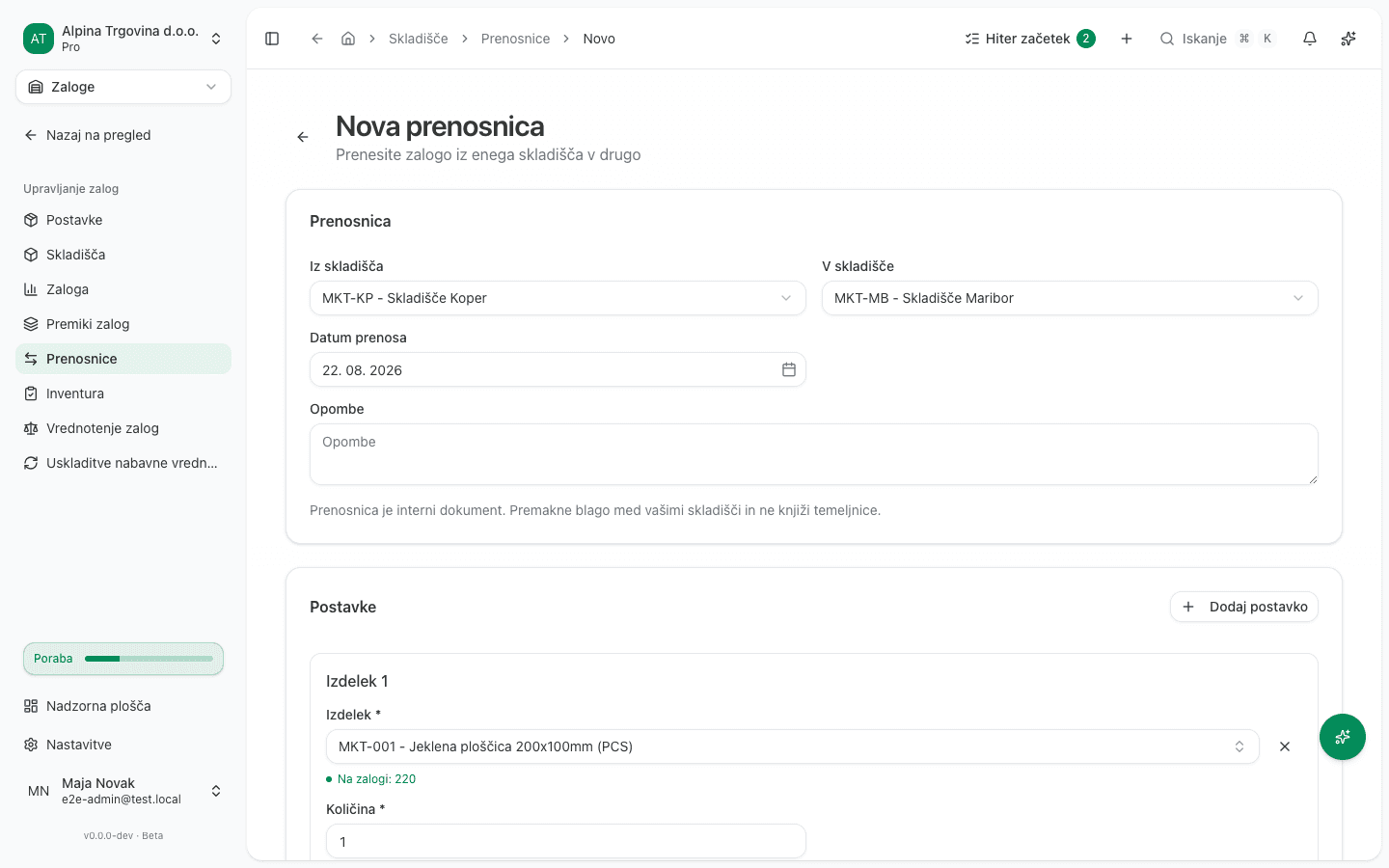
The transfer is saved in Osnutek (“Draft”) status, and no stock has moved yet.
Confirm the transfer
- Open the stock transfer and click Potrdi (“Confirm”).
- Check the data in the dialog and click Potrdi again.
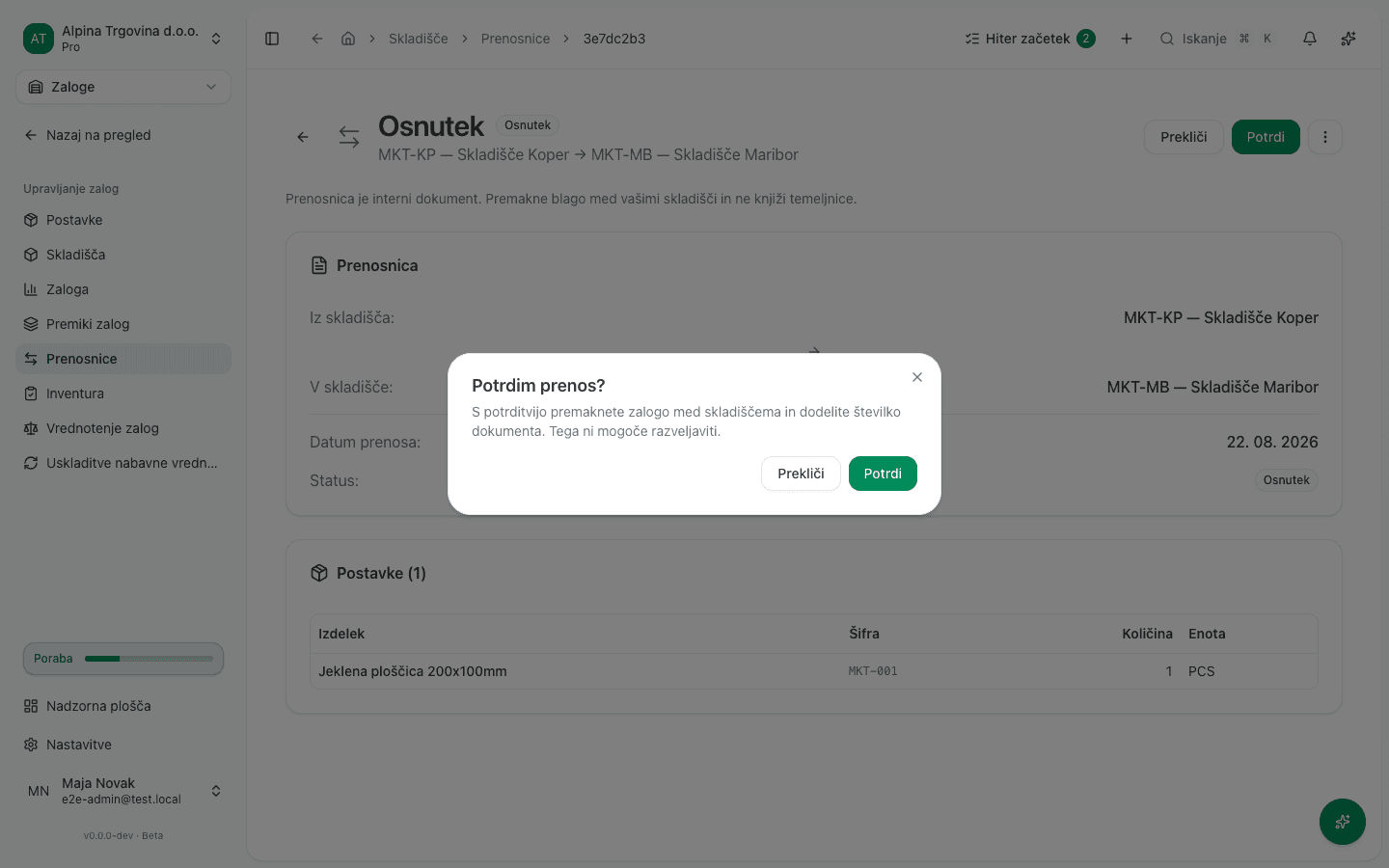
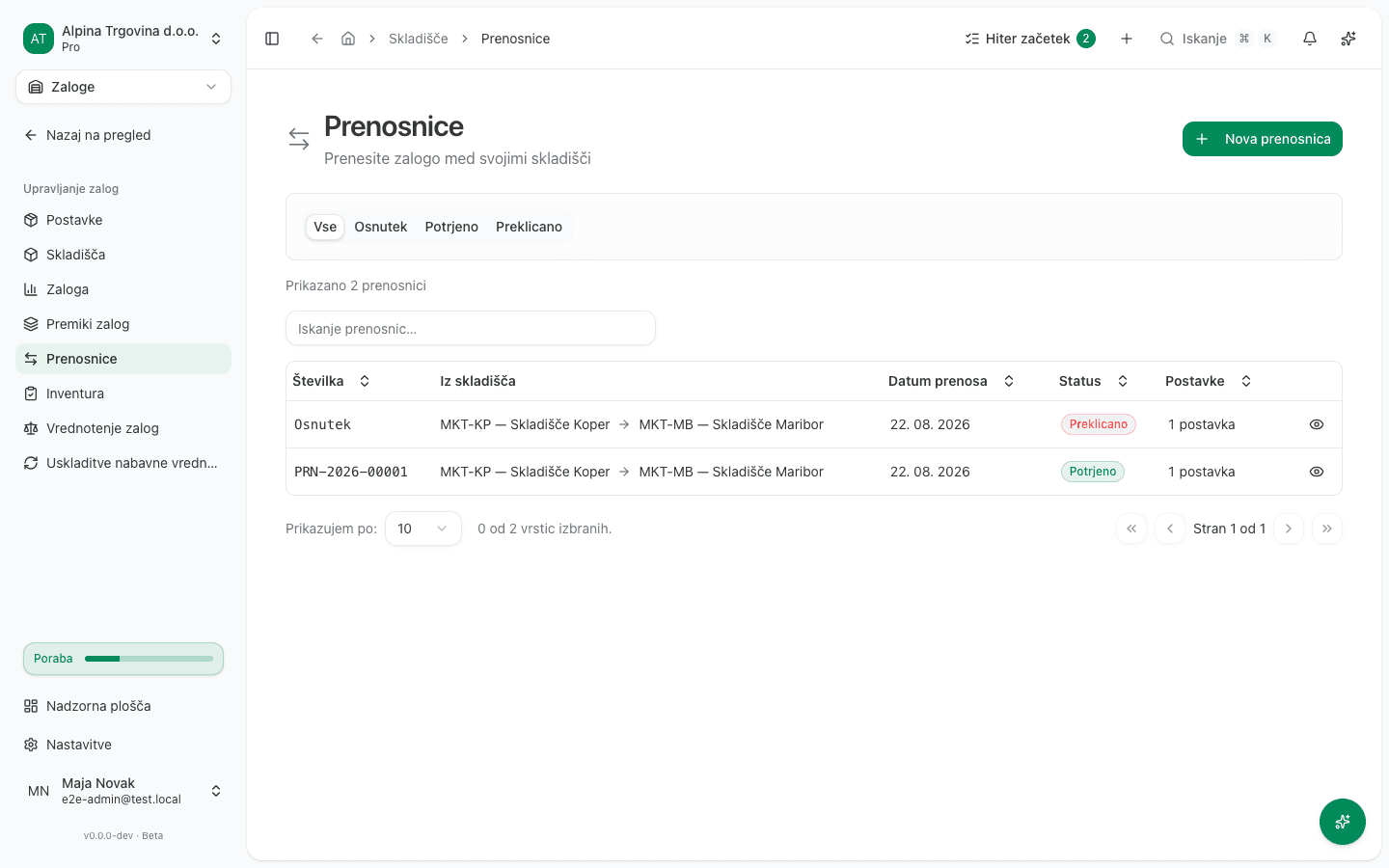
Confirming moves the stock between the two warehouses and gives the transfer a sequential number (PRN-2026-00001, for example). This action cannot be undone.
Common issue
- The transfer won’t save, there’s a warning that the product isn’t stocked in that warehouse. The chosen product has no stock record in the source warehouse (it’s a service, for example). Choose a product that actually has stock in that warehouse.
- You created the transfer by mistake. As long as it’s in Osnutek (Draft) status you can cancel it: click Prekliči (“Cancel”) and then Prekliči again in the confirmation dialog. No stock moves.
Last updated on