Doing a stock count
Inventura (“stock count”) compares the actual, physically counted stock in a warehouse against the quantity the system has on record from past stock movements. You run a count session for one warehouse at a time.
Start a new count
- In the left sidebar, go to Skladišče → Inventura (“Warehouse → Inventory count”).
- Click Nova inventura (“New count”).
- Choose the Skladišče (Warehouse) you’re counting.
- Choose the Tip inventure (Count type): Polna inventura (“Full count”) includes every product that has stock in that warehouse, Delna inventura (“Partial count”) covers only part of the assortment.
- Optionally fill in Predviden datum (Scheduled date), Stanje na dan (Count as of) and Opombe (Notes), then click Nova inventura again.
Stanje na dan is the day the count describes: the day you physically counted the stock. Stock and the general-ledger entry are booked at this date, not on the day you finalize the count. If you leave it blank, the scheduled date is used, or today. The date can’t be in the future, and you can change it on the count page until the count is finalized.
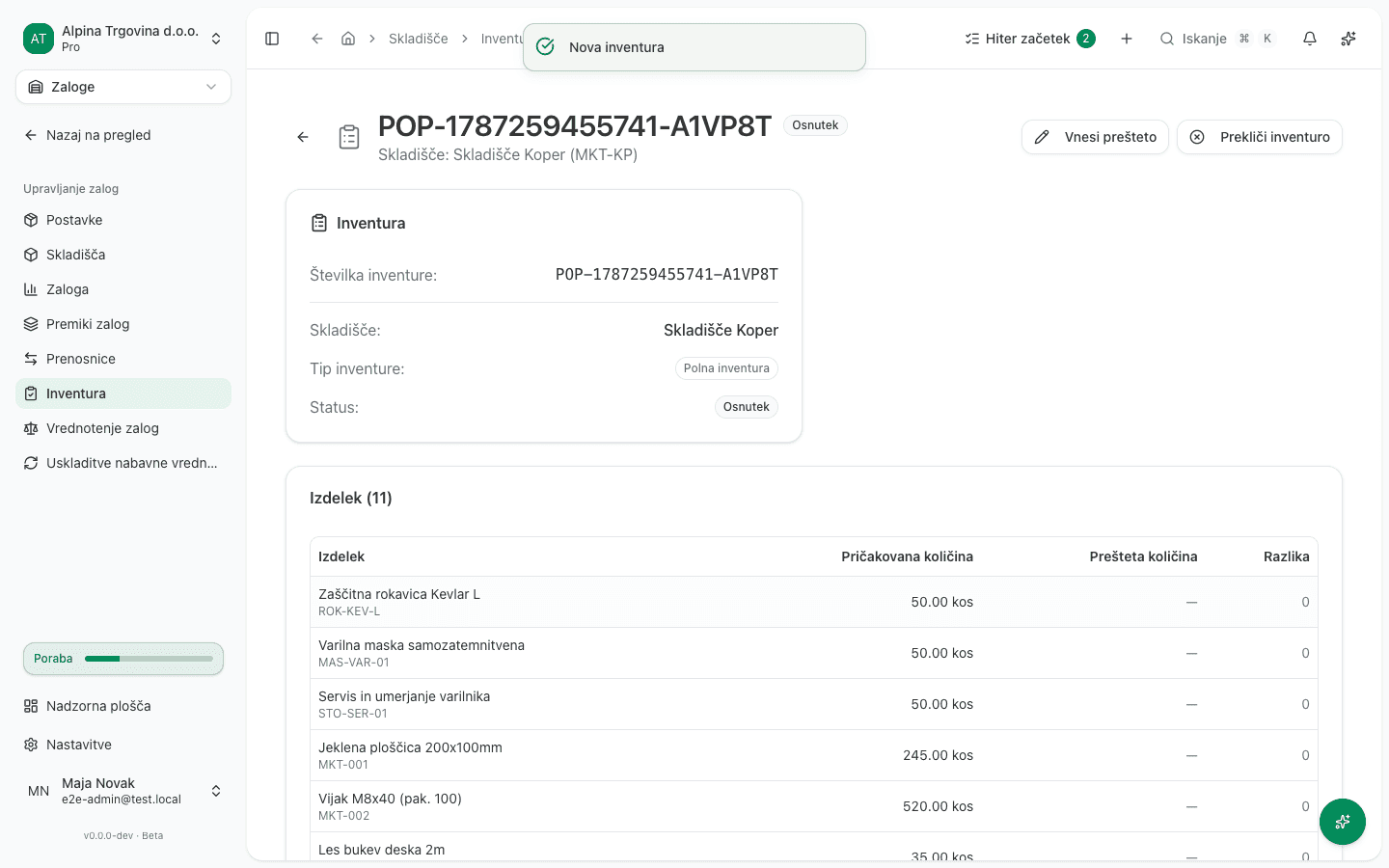
The app opens a new session in Osnutek (“Draft”) status and automatically lists every product currently in stock in that warehouse, together with its book quantity, the pričakovano količino (expected quantity).
Enter the counted quantities
- On the count session, click Vnesi prešteto (“Enter count”).
- For each product, type the actual, physically counted quantity into the Prešteta količina (Counted quantity) column.
- Once every value is entered, click Shrani štetje (“Save count”).
The first time you save a count, the session moves from Osnutek (Draft) to V teku (In progress). After saving, the Razlika (Variance) column shows the gap against the Pričakovana količina (Expected quantity) column: a positive value is a surplus, a negative one a shortage. A blank line is not the same as 0: a product you haven’t counted yet isn’t treated as a variance, so you can’t finalize the count until every product with an expected quantity has a value. Enter 0 for a product that isn’t on the shelf.
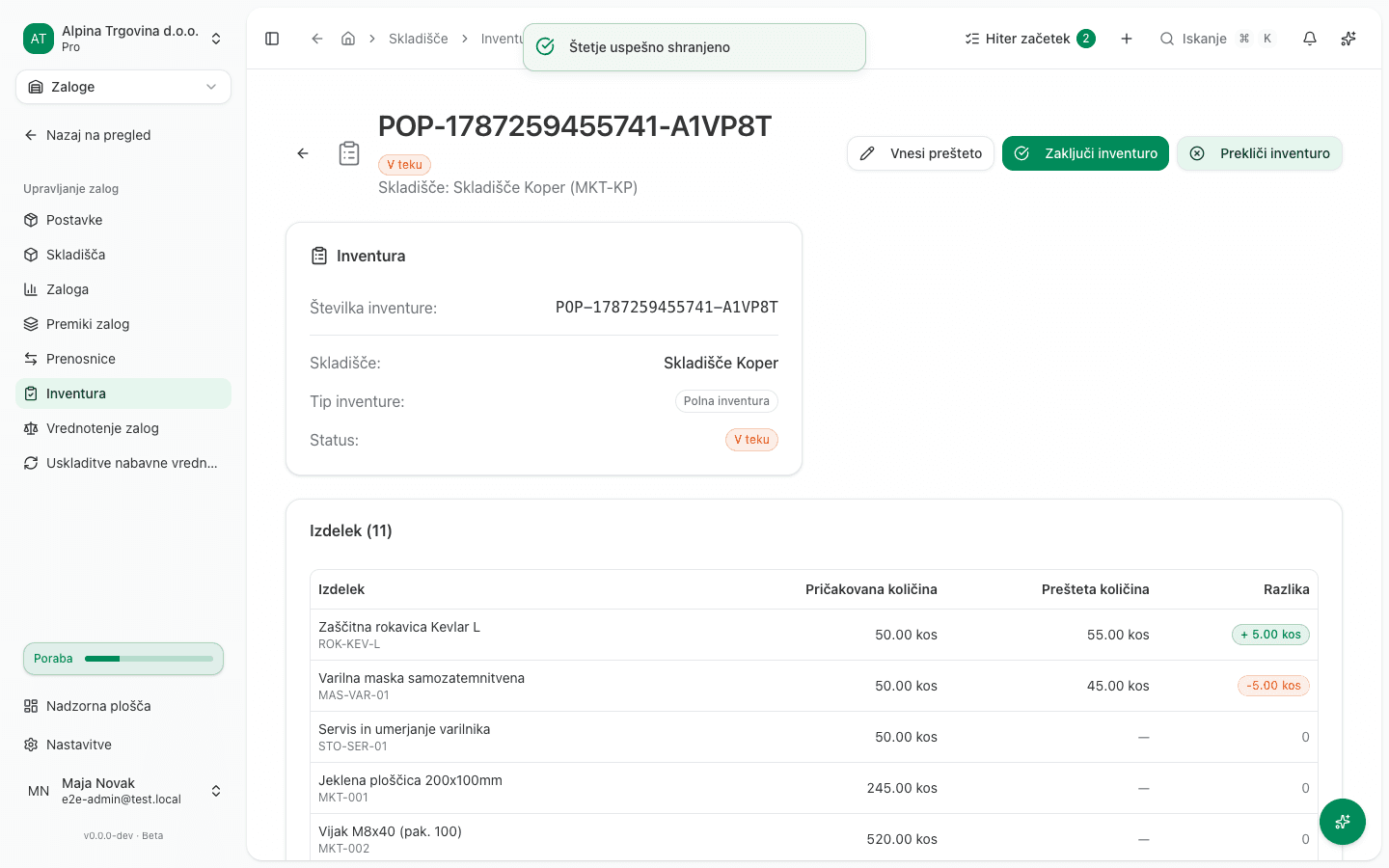
You can save your count more than once and correct values as you go, until you finalize the session.
Finalize the count
Once every variance has been checked and you’re confident in the entered values, click Zaključi inventuro (“Finalize count”). The app warns you, in a confirmation dialog, that this finalizes the count and applies the stock adjustments. For every product the app works out the difference between the counted quantity and the book quantity on the count date, and adds it to today’s stock. Movements after the count date (for example a January sale after a count on 31 December) are kept. The stock movement and the journal entry are both dated on the count date.
If the accounting period the count date falls in is already closed or locked, the count is not finalized and nothing changes. Reopen a closed period first; a locked one can no longer be reopened. A count is never booked into a later period.
This action cannot be undone. Double-check the counted quantities before confirming in the dialog, because once the count is finalized the entered quantities can no longer be edited.
Count sheet and posted difference
Counts are numbered per year, for example POP-2026-0001. At any time, even before counting, click Popisni list (PDF) (“Count sheet (PDF)”) on the count’s page to get a printable count sheet: a header with the company, warehouse, count number and count date; lines with SKU, name, variant, unit, expected and counted quantity, difference and value; and signature lines for the inventory commission. The value of the difference is filled in once the count is finalized.
On a finalized count, the Knjižena razlika (“Posted difference”) row shows the net amount the count posted to inventory (surpluses and first-time opening stock, minus shortages), the same figure as on the count sheet. Presežek (“Surplus”), Primanjkljaj (“Shortage”) and, when the count recognised an item’s stock for the first time, Začetna zaloga (“Opening stock”) are shown separately below it.
Common issue
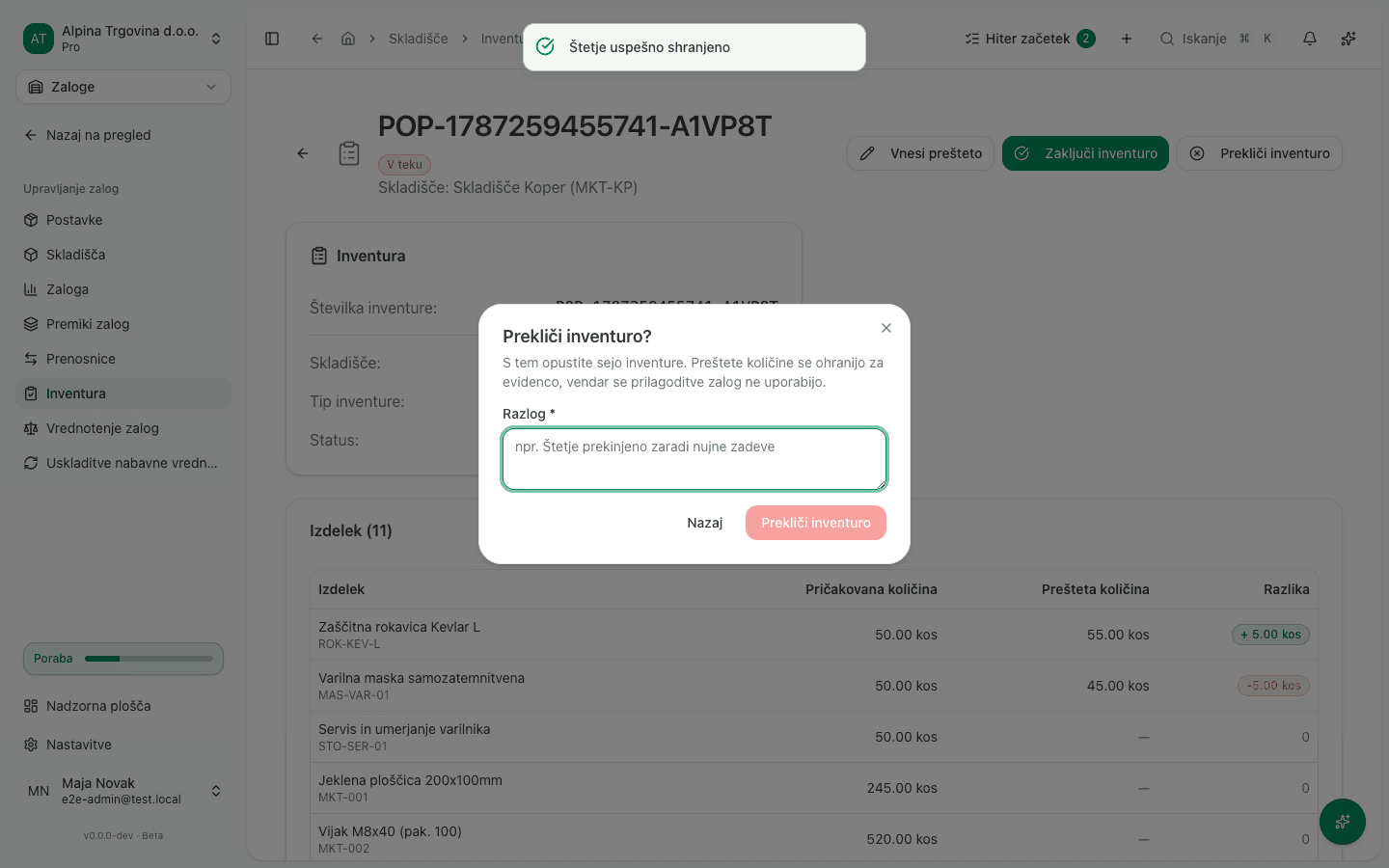
You started a count by mistake, or the count got interrupted. As long as the session isn’t finalized, you can cancel it instead. Click Prekliči inventuro (“Cancel count”), enter a reason, and confirm. The counted values stay saved for the record, but the stock adjustments are not applied, so stock levels are unchanged.