Monthly payroll run
This guide covers the routine monthly payroll cycle (obračun plač): from entered hours to payslips issued to employees. It assumes you already have employees and their contracts set up. If you don’t yet, read Setting up payroll first.
Step by step
- Go to Plače → Čas in odsotnosti → Ure (“Payroll → Time and absence → Hours”). For the selected month, enter or check hours and reimbursements for each employee, then click Shrani (“Save”). Until the grid has a saved change, the Ustvari osnutke iz ur (“Create drafts from hours”) button stays disabled.
- Click Ustvari osnutke iz ur (“Create drafts from hours”). The app creates one draft run for that period for every employee who has an active contract.
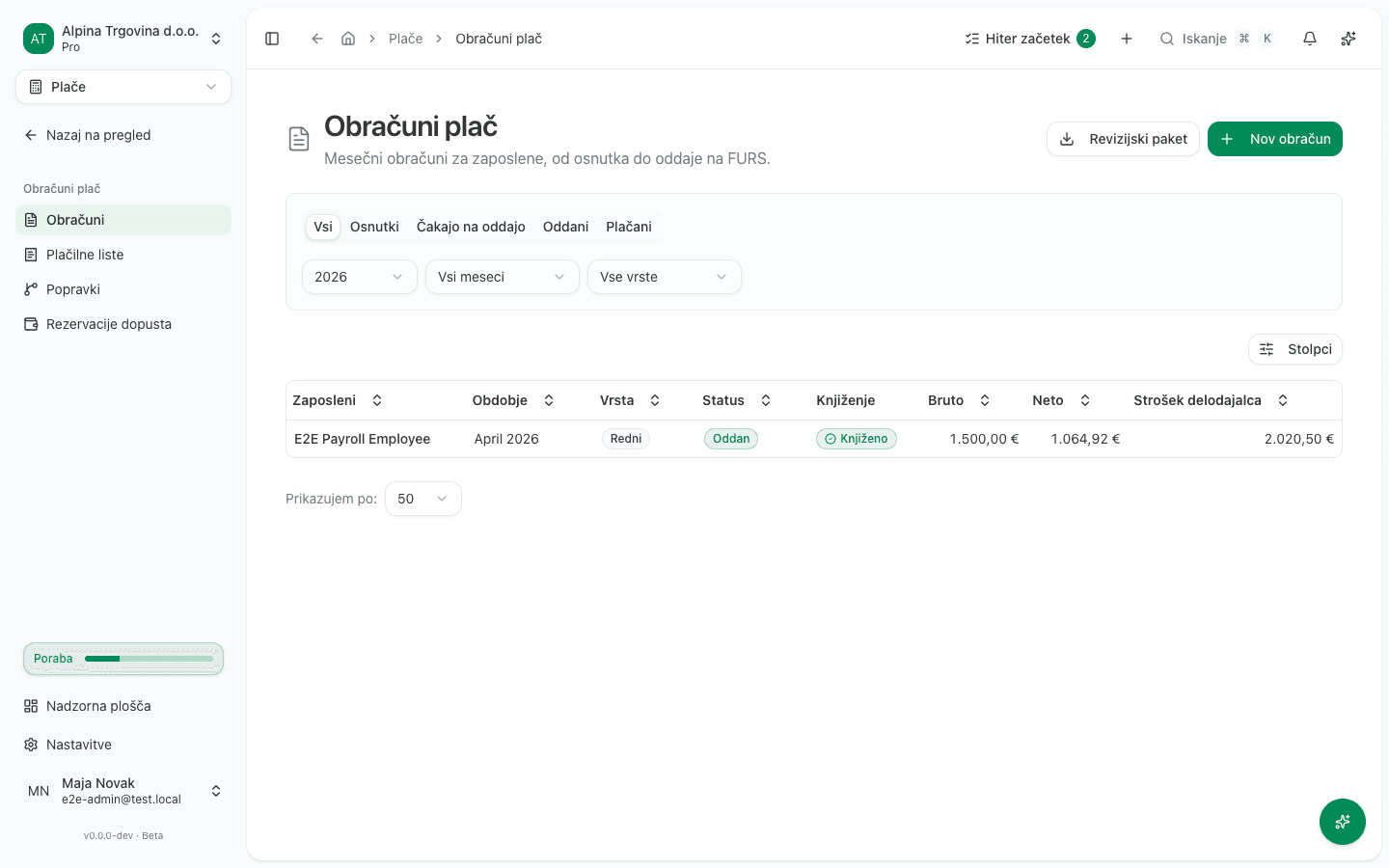
- Go to Plače → Obračuni plač → Obračuni (“Payroll → Payroll runs → Runs”). The new draft appears in the list, which you can filter by the Osnutki (“Drafts”), Čakajo na oddajo (“Awaiting filing”), Oddani (“Filed”), Plačani (“Paid”) and Zavrženi (“Discarded”) tabs.
- Click the run’s row to open its details. The Izračun (“Calculation”) section shows gross, net, and employer cost; the Vhodi (“Inputs”) section shows the hours, absences, and reimbursements the run was calculated from.
- Once the figures are correct, click Odobri (“Approve”). In the Odobri obračun (“Approve run”) dialog, click Potrdi (“Confirm”). Once approved, a run can no longer be edited.
- Click Oddaj (“File”). In the Oddaj obračun (“File run”) dialog, pick a Datum izplačila (“Payment date”), the actual date you’ll transfer the wages, and click Potrdi (“Confirm”). Filing locks the run, posts its journal entry to the general ledger, and prepares the REK-O form. This does not yet submit the REK-O. Do that separately on the run’s REK-O tab, where Ustvari REK-O XML (“Create REK-O XML”) only builds the file. The filing itself is Oddaj na eDavke (“Submit to eDavki”).
- Go to Plače → Obračuni plač → Plačilne liste (“Payroll → Payroll runs → Payslips”). The filed run appears here with status Oddan (“Filed”). In the Dejanja plačilnega lista (“Payslip actions”) column, choose Prenesi (“Download”) to get the payslip as a PDF, or Pošlji po e-pošti (“Send by email”) to send it straight to the employee.
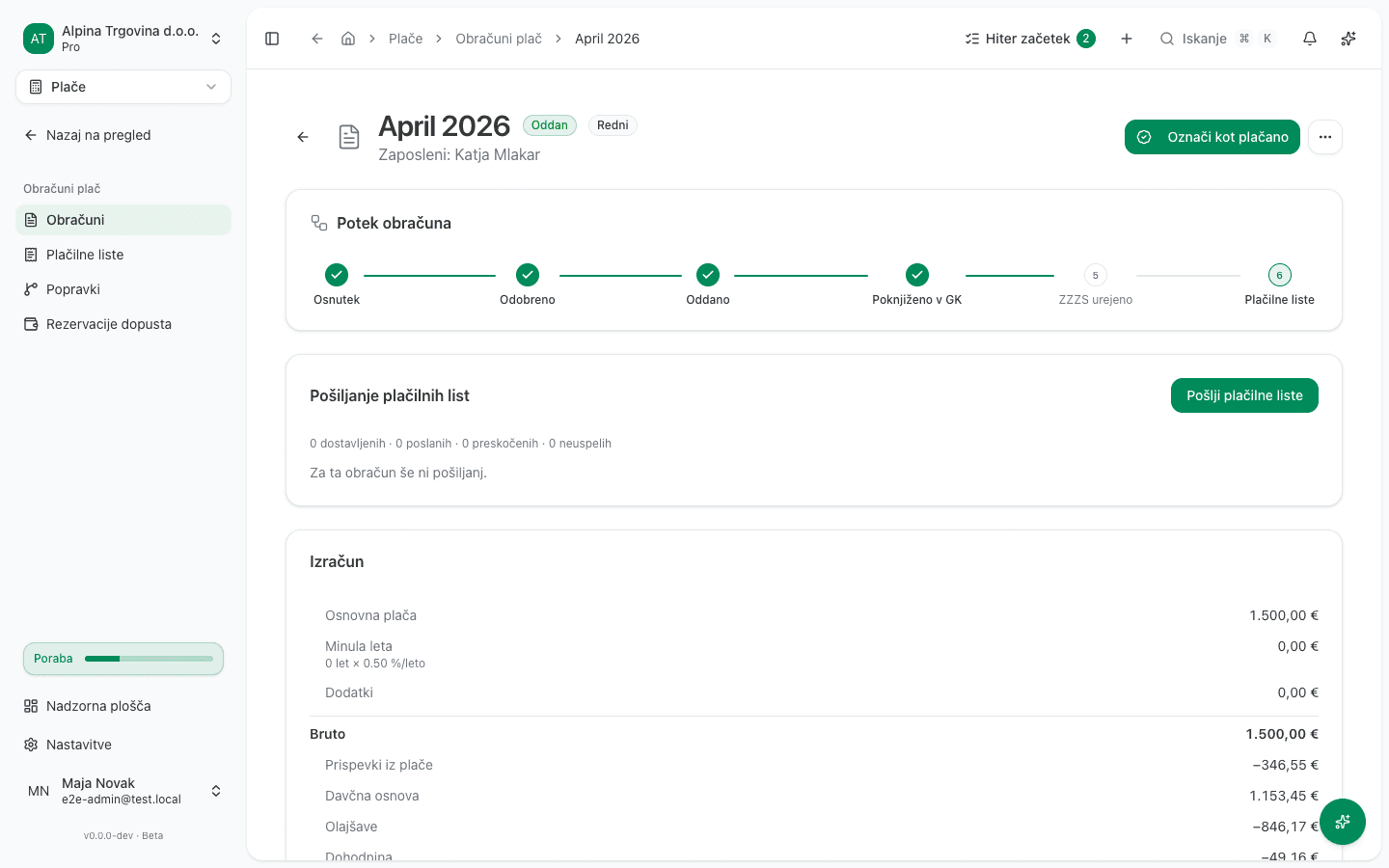
What a successfully filed run looks like
On the run’s detail page, the Potek obračuna (“Run progress”) section shows the steps Osnutek (“Draft”), Odobreno (“Approved”), Oddano (“Filed”), Poknjiženo v GK (“Posted to GL”), ZZZS urejeno (“ZZZS handled”), and Plačilne liste (“Payslips”). Once filed, every step up to Plačilne liste is checked off automatically, and the run gains Označi kot plačano (“Mark as paid”) and Pošlji plačilne liste (“Send payslips”) buttons. The app confirms filing with the notice “Obračun zaključen, REK-O pripravljen za oddajo” (“Run completed, REK-O ready to file”).
Common mistakes
- The “Ustvari osnutke iz ur” button is disabled. You must save changes on the Hours page with Shrani (“Save”) first. Only then does Ustvari osnutke iz ur (“Create drafts from hours”) unlock.
- An employee is missing from the new drafts. If an employee has no active contract for
the selected period, draft creation skips them. The notice tells you how many employees
weren’t ready for a run and why (for example, that they have no active contract), along
with their names. Fix or extend the employee’s contract and re-run draft creation.
You can’t edit a run after it’s approved. If you spot a mistake in hours or reimbursements after approval, you do not fix it on the run itself. Fix it on the Hours page and re-create the draft for that period, or use Ustvari popravek (“Create correction”) from the Več dejanj (“More actions”) menu on an already-filed run.
- A draft was created by mistake. For example a draft for the wrong employee, or of the wrong kind, such as a performance-related payment. On the draft’s page open the Več dejanj (“More actions”) menu, choose Zavrzi osnutek (“Discard draft”), optionally enter a reason, and confirm. A discarded draft no longer holds its payroll month, so you can create the correct one, and it no longer counts toward the two performance-related payments allowed in a year. It stays on record under the Zavrženi (“Discarded”) tab. Only a draft can be discarded: an approved, filed or paid run stays, and a filed one is fixed with a correction.
- The routine monthly run is not “Nov obračun”. The Nov obračun (“New run”) button on the Runs list warns you itself: “Za rutinski mesečni obračun uporabi Mesečne ure in »Ustvari osnutke iz ur«. Ta obrazec ustvari en sam, enkratni obračun.” (“For a routine monthly run, use Monthly hours and ‘Create drafts from hours’. This form creates a single, one-off run.”) For a regular month, always use the process above via the Hours page.