VegaERP has its own unified inbox (E-pošta, “Email”), where you connect your existing email address. Messages sync both ways, and without switching apps you can also link a message to a contact, a deal, or an invoice.
How the inbox is organized
In the left sidebar under E-pošta (“Email”) there are seven folders: Prejeto (“Inbox”), Poslano (“Sent”), Osnutki (“Drafts”), Označeno (“Starred”), Arhiv (“Archive”), Preloženo (“Snoozed”), and Koš (“Trash”). You manage the account and templates/signatures under Nastavitve (“Settings”) in the same menu.
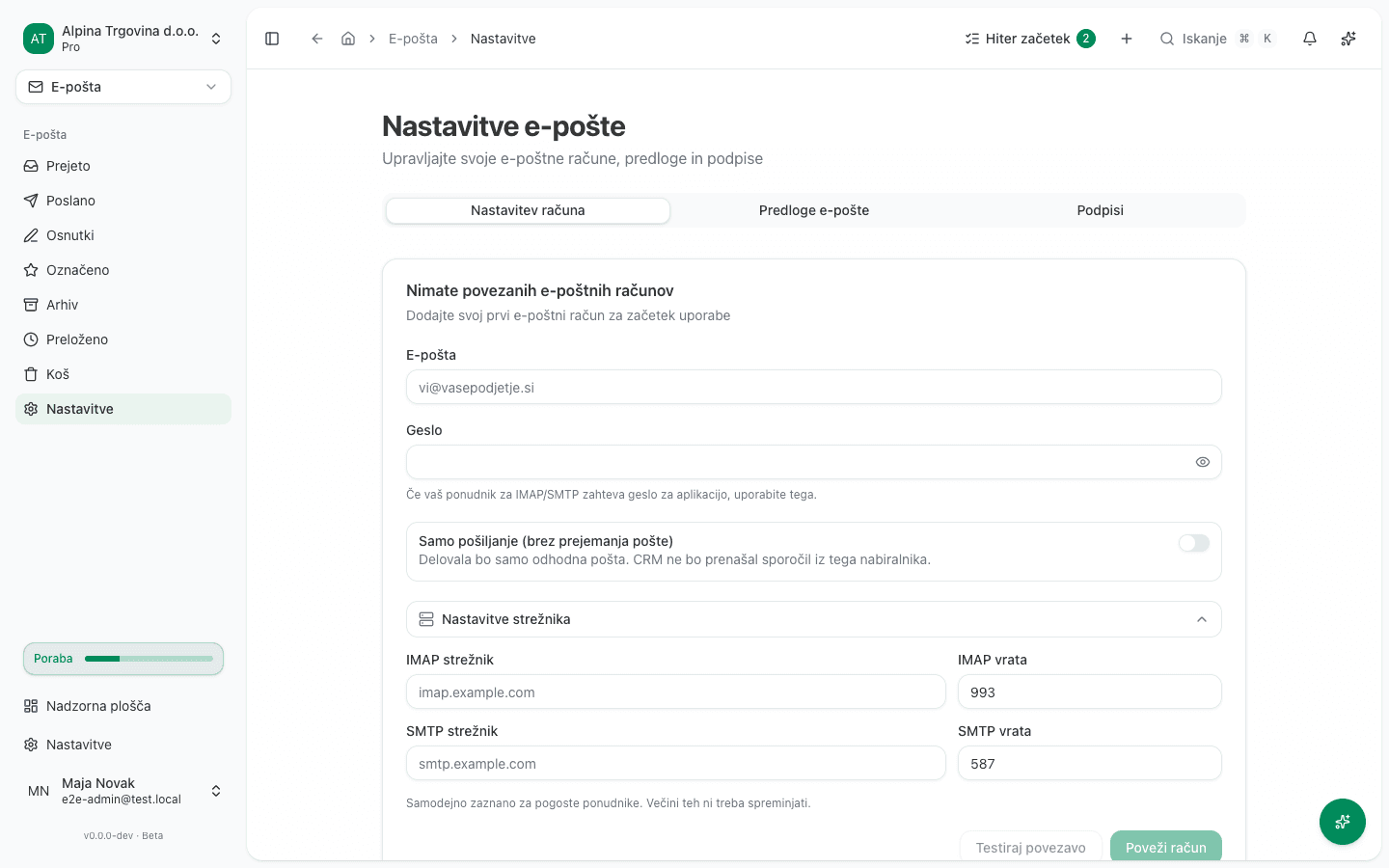
Connecting your mailbox
VegaERP connects to your mail server via IMAP/SMTP, and works with any provider: Google Workspace, Microsoft 365, cPanel, Plesk, or your own mail server. This is NOT a sign-in-with-Google or sign-in-with-Microsoft connection; you enter the password (or an app password) directly into VegaERP.
- Go to E-pošta → Nastavitve (“Email → Settings”), the Nastavitev računa (“Account Setup”) tab.
- Enter your E-pošta (“Email”) address. For known providers (Gmail, Outlook, Yahoo, iCloud, …) VegaERP auto-detects and fills in Nastavitve strežnika (“Server settings”, the IMAP/SMTP host and port); you can still edit these fields by hand if needed.
- Enter your Geslo (“Password”). If your Gmail or Outlook account has 2-step verification on, VegaERP detects this and warns you that your normal password will not work: you need an app password, created in your provider’s own security settings, not the password you sign in with otherwise. The Kako ustvariti geslo za aplikacijo (“How to create an app password”) link takes you there.
- Click Testiraj povezavo (“Test Connection”) to check that IMAP and SMTP both work before you actually connect the account.
- Click Poveži račun (“Connect Account”).
To add another mailbox for the same company, click Dodaj še en račun (“Add another account”) and repeat the steps; one of the connected accounts can be marked as the default.
What VegaERP does with your mail
A connected mailbox syncs both ways: messages you receive or send through your own mail client also show up here, and messages sent from VegaERP go out through your SMTP server as if you’d sent them yourself. The password (or app password) you enter is stored encrypted in the database, not in readable form.
If your mail server later rejects the password (for example after you changed it with your provider), the account shows a Potrebna posodobitev poverilnic (“Credentials need updating”) warning; click Posodobi poverilnice (“Update credentials”) and enter the new password.
How an emailed document becomes a supplier invoice
Besides a connected mailbox, your company also has its own inbound address for automatic document intake: forward anything (an invoice, a receipt) to it as an email attachment, and it lands in your document intake queue with the data already extracted, no manual upload needed.
- Go to Nastavitve → Dokumenti in prodaja → Prevzem po e-pošti (“Settings → Documents & Sales → Email intake”).
- Copy the displayed Vaš dohodni naslov (“Your inbound address”) with the Kopiraj (“Copy”) button.
- Save that address as a contact or an auto-forwarding rule for yourself, or for a supplier you receive invoices from.
- Once someone emails an invoice attachment to it, the attachment shows up under Dokumenti (“Documents”), tagged Prejeti račun (“Supplier invoice”).
From there, follow the same step as a manually uploaded invoice: the data is already extracted by AI, you review it, and post the document. The exact steps are in Booking supplier invoices.
If your inbound address is no longer private (for example it ended up in the wrong hands), an administrator can replace it with the Ustvari nov naslov (“Generate a new address”) button on the same page; the previous address stops working immediately.
If you can’t fix this yourself
Any member of the company can connect a mailbox or use the document intake address; rotating the inbound address can only be done by an administrator.
If Testiraj povezavo (“Test Connection”) still fails even with an app password, check with your provider whether IMAP access is allowed at all. Some disable it by default, and no setting in VegaERP clears that: while IMAP is closed at the provider, the mailbox cannot be connected. Otherwise contact support.