DDPO return
DDPO, corporate income tax (davek od dohodkov pravnih oseb), is the annual return you file with FURS through eDavki after each tax year closes. VegaERP computes revenue, expenses and the tax base itself from that year’s posted journal entries; you only add the tax-book adjustments (differences between your business books and your tax books), validate the return and file it.
Legal persons file a DDPO return: a d.o.o. and a d.d., but also institutes (zavodi), associations (društva) and cooperatives (zadruge). Sole traders (s.p.), including flat-rate ones (normiranci), do not; they file an income-tax return on business income through eDavki instead, by 31 March for the previous year (ZDavP-2, Article 297, paragraph 2), or within 60 days if the business ceases (same article, paragraph 3). What decides this is the legal form, not the tax regime.
Legal persons can no longer determine their tax base using flat-rate expenses for tax periods beginning on or after 1 January 2025 (the ZDDPO-2U amendment, Uradni list RS 100/24). If your business year isn’t the calendar year, the change doesn’t reach the current period yet. A business year running from 1 July 2024 to 30 June 2025 is still outside it.
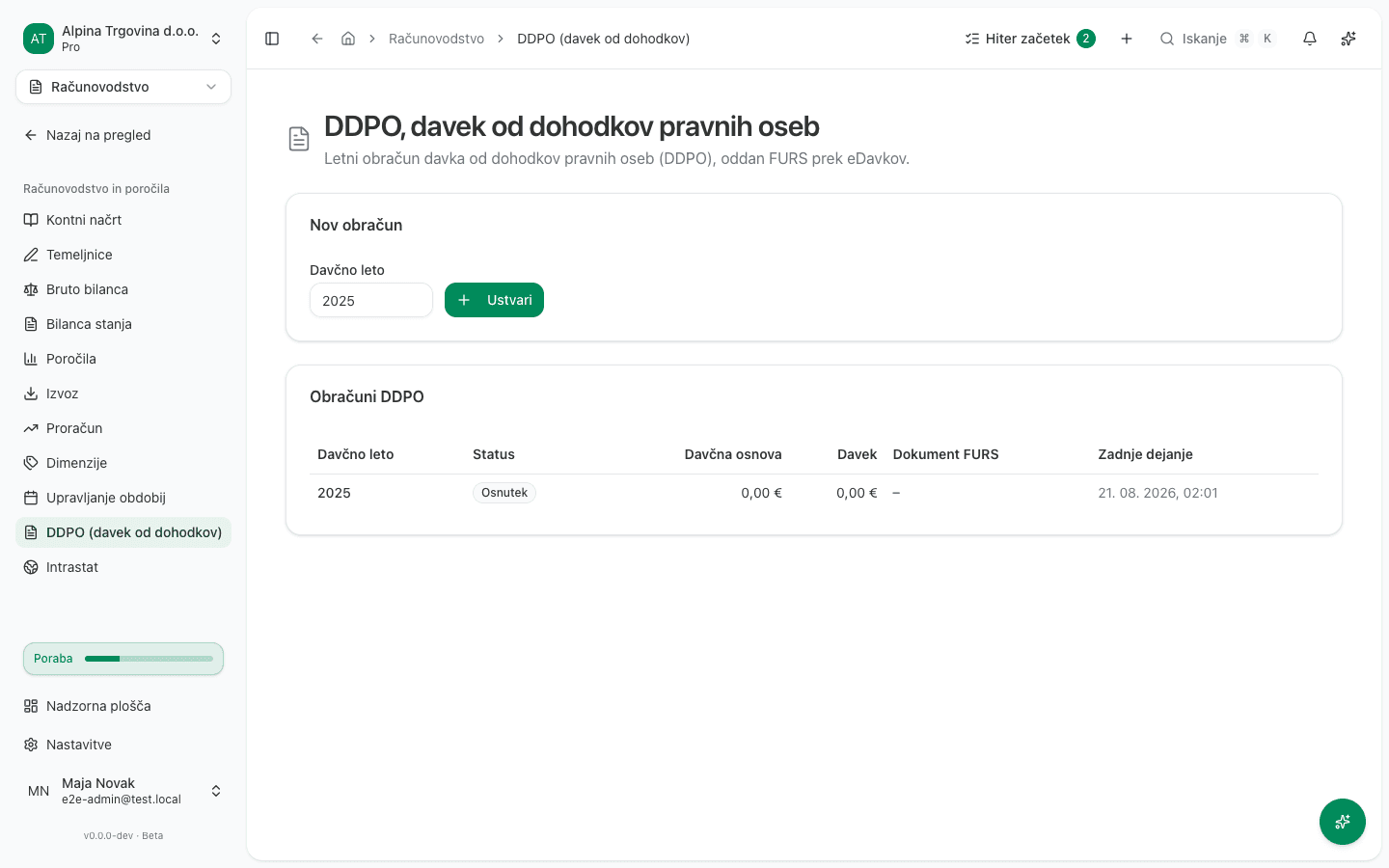
Open it from the sidebar: Accounting → Accounting & Reports → DDPO (Corporate Tax).
If your company is recorded as being on the flat-rate regime, this menu entry is hidden and the whole Računovodstvo in poročila (“Accounting and reports”) group with it. The app hides it by tax regime, whereas the filing duty follows legal form, so a legal person still recorded as flat-rate cannot reach this page even though it does have to file. Check the tax regime under Nastavitve → Podjetje (“Settings → Company”) and correct it if it is wrong; contact support if it is right and the page is still missing.
Before you generate the first return
Generating a company’s very first DDPO return is gated on two conditions that no longer apply to any later return for the same company:
- The carried-over position from the previous provider must be recorded for the DDPO form, the same as for REK-O and the other forms. If the app refuses to generate a draft for this reason, follow the steps in Why can’t I file a return for this period?.
- The fiscal-year start must be confirmed. The app defaults to the calendar year, but it won’t allow the first DDPO filing without an explicit confirmation, since a wrong period deposited with FURS can’t be undone. If your fiscal year is the calendar year, an administrator or the accountant of record can confirm it in one click: open Nastavitve podjetja (“Company settings”), find the Poslovno leto (“Financial year”) card, and click Potrdi (“Confirm”). For a client of an accounting firm with no administrator of its own, the firm’s accountant confirms it. If your fiscal year is not the calendar year, you can’t fix this yourself; contact support instead.
Generate a draft for the fiscal year
- In the Generate new return card, enter the Fiscal year. Use a closed fiscal year; don’t generate a return for a year still in progress.
- Click Generate.
What success looks like
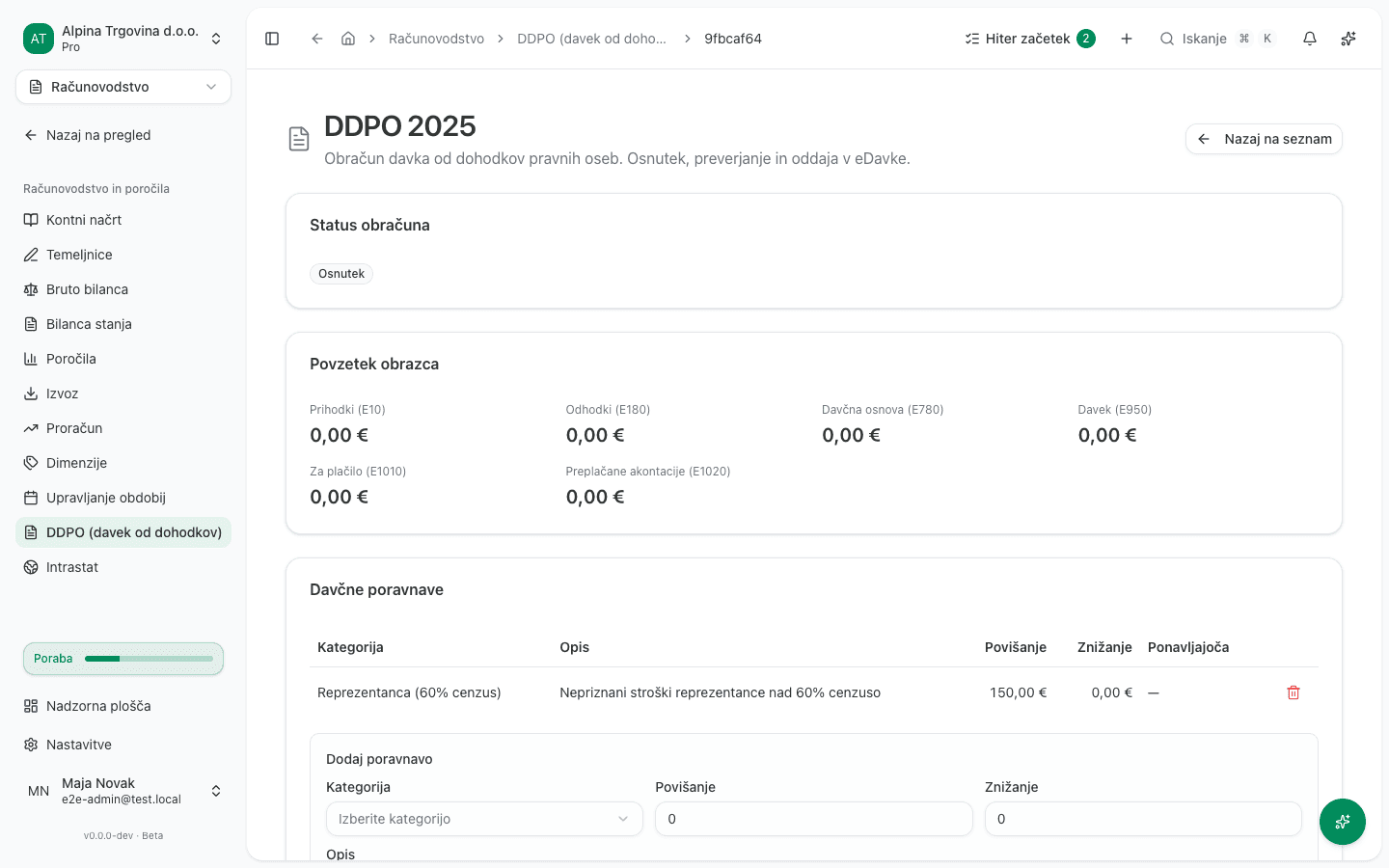
The app opens the new return’s page with status Draft. The Form summary card shows Revenue (E10), Expenses (E180), Tax base (E780) and Tax (E950), computed from every posted journal entry in that fiscal year, before you’ve added any adjustment at all. If that year has no posted journal entries yet, as in the freshly generated 2025 draft below, every field reads 0.00 EUR; the figures update once entries are posted.
Add tax-book adjustments
The tax base from step 1 is computed from your business books. Where the business and tax result for an item differ (for example a portion of depreciation that ZDDPO-2 doesn’t recognize, or entertainment expenses above the 60% cap), record that difference here as an adjustment, and the return adds or subtracts it from the tax base for you.
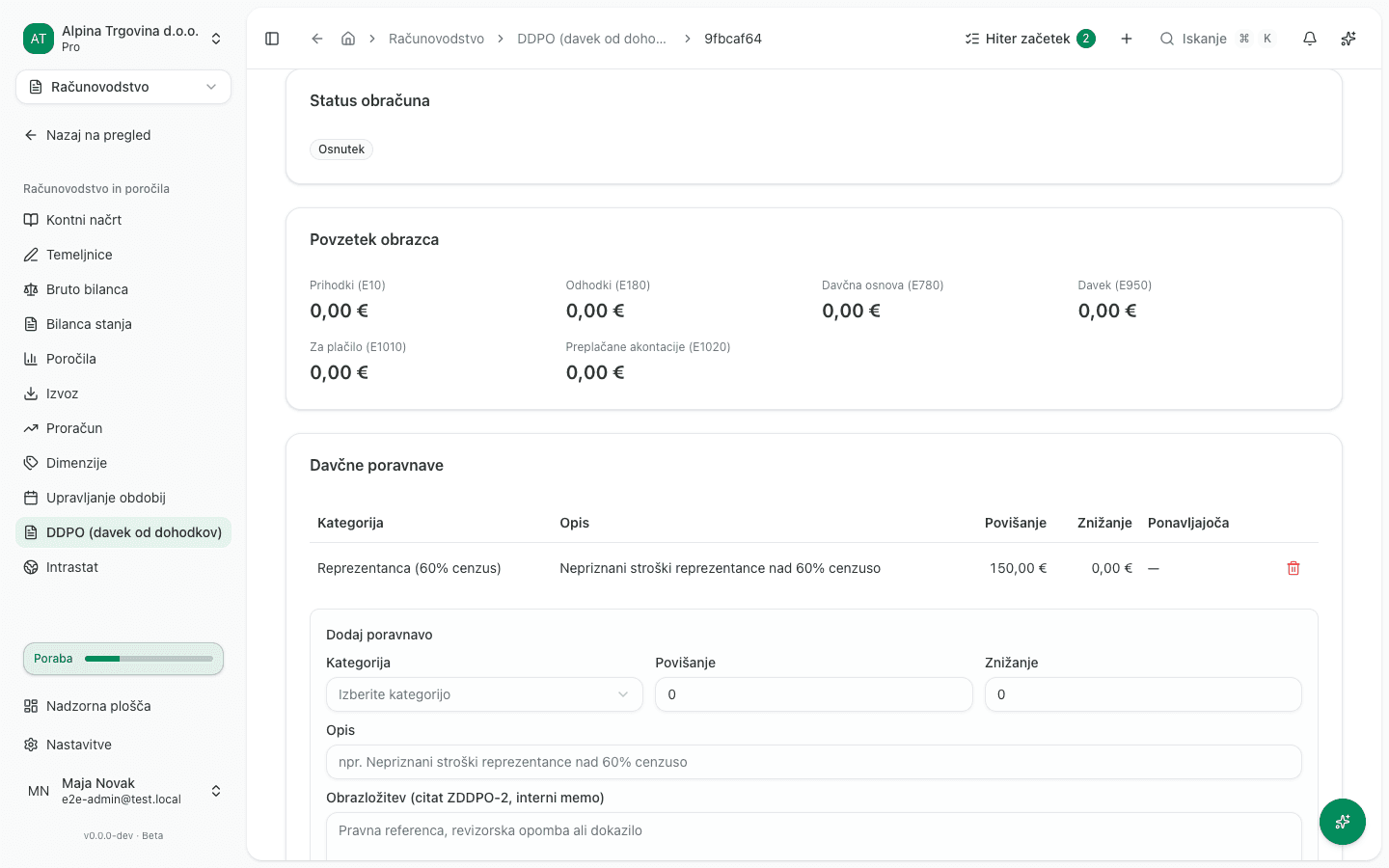
- In the Tax-book adjustments card, choose a Category: Depreciation difference, Non-deductible expense, Non-taxable income, Reserves, Related-party transfer pricing, Donations exceeding cap, Entertainment (60% cap), or Other.
- Enter an Increase or a Decrease (exactly one amount, greater than zero).
- Enter a Description (for example “Non-deductible entertainment above 60% cap”) and, optionally, a Justification (ZDDPO-2 citation, internal memo).
- If the same adjustment repeats every year, check Clone this adjustment into next year’s draft.
- Click Add adjustment.
Only pick Other for something you’re tracking internally, never for an adjustment you intend to file: it has no row of its own on the DDPO form, so filing with an amount in that category is refused (see below).
What success looks like
The app shows the message Adjustment added. The new row appears in the table, and the app automatically recomputes the Form summary so every adjustment’s increase and decrease now feeds the tax base. The same happens if you delete an adjustment: the return recomputes immediately.
Loss carryforward and reliefs
You enter rows 15, 21 and 22 of the form yourself, because no journal entry can supply them. Both cards sit on the return page, above the Validate and Submit buttons.
- If the company’s earlier returns were filed with another provider, record the unused tax loss in the Carried forward from previous years card, one year at a time (year and amount, then Record loss), and any unused research-and-development or investment relief (then Record relief). It goes by year because a loss expires after five periods (ZDDPO-2 §36). Returns filed in VegaERP are carried forward automatically, so you don’t repeat this step for them.
- In the Loss coverage and tax reliefs (row 15) card, type how much loss the return should cover, or click Use maximum. Below the field the app shows how much unused loss this year can draw on.
- For each relief you claim, pick it from the list, click Add relief and type the amount. Remove a relief you no longer claim with the bin icon.
- If needed, fill in the tax withheld (row 21) and the advance payments already made (row 22).
- Click Save and recalculate. If the return was already validated, saving returns it to draft, so validate it again before you file it.
- If the company came from another provider, click Confirm in the Confirmation section. This confirms that the carried-forward amounts are complete and that rows 21 and 22 are correct. The return can’t be filed without it; confirm even when there is nothing to carry forward.
Loss coverage can reduce the tax base by at most 50 % (ZDDPO-2 §36), and row 15 as a whole by at most 63 % (ZDDPO-2 §59.a). The app lowers anything above the limit when you save, and applies reliefs in the order of the form’s rows.
What success looks like
The app shows the message Row 15 saved and the return recalculated. The Form summary shows the new tax base and liability. If any amount was reduced to the statutory limit, the list Some amounts were reduced to the statutory limit appears below the cards with the applied and requested amounts.
Validate and file
- At the bottom of the page, click Validate. The app checks that the figures are internally consistent and that the form doesn’t claim anything it isn’t allowed to, before anything reaches eDavki.
- If eDavki refuses the return, find its objection in the eDavki reported errors card, which lists exactly what eDavki refused, not a local check, or in the on-screen message; see Common issues below.
- Once validation succeeds, the status moves to Validated and the Submit button becomes available. Click Submit.
- The status shows Submitting… while it’s in flight, then Accepted or Rejected, depending on eDavki’s response. If eDavki answers the submission without a document number, the return stays in Submitting… and can’t be submitted again, because a second submission could file the same year twice. The page keeps checking its status with eDavki and updates it once eDavki answers.
- Click Download XML at any time to get a copy of the file that was, or will be, filed.
What success looks like
The return’s status is Accepted, a FURS document no. badge appears next to the status, and the actions bar shows Final, filing accepted by FURS.
Correct an already-filed return
If you discover an amount was wrong after FURS accepted or rejected the return, don’t edit it directly; create a correction instead.
- On the accepted or rejected return’s page, click Create correction.
- The app opens a new draft (revision) that inherits the original return’s last figures. Edit the adjustments as described in step 2 above.
- Above the adjustments, a Samoprijava correction. ZDavP-2 §55(3) notice shows the statutory interest on the underpayment, computed automatically from the number of days since the original deadline.
- Validate and file the corrected draft the same way as in step 4 above.
Common issues
- Validation or filing reports that one or more adjustments have no row on the form. One or more adjustments are categorised as Other, which has no row on the DDPO form. Open each one and give it a real category (step 2 above); once corrected, the return recomputes automatically.
- Filing reports that the return claims regional research-and-development relief (line 15.7) that is no longer allowed. That relief was abolished with effect from 1 January 2012 (ZDDPO-2H), and the transitional right to use up a previously claimed amount expired after the 2016 tax period. For fiscal years from 2017 on, this line can’t carry any amount at all. Remove it with the bin icon in the Loss coverage and tax reliefs (row 15) card. If it is ordinary research-and-development relief, add it on line 15.6 instead and click Save and recalculate.
- Saving reports that the loss to cover is more than the unused tax loss recorded. The app only knows the losses of years it filed itself. Record the others year by year in the Carried forward from previous years card (step 1 above), or lower the amount. A loss older than five periods has expired and the return can’t use it.
- Validation or filing reports that the expense-correction totals (lines 6 and 7) don’t match the sum of the adjustments. This shouldn’t happen in normal use, since the return recomputes its adjustments automatically on every add or delete. If the message still appears, it’s a data inconsistency you need to report to support; it isn’t something you can fix yourself.
- Filing reports that the return couldn’t be built in the format the tax authority requires. This is a fault in the file VegaERP generates, not in your figures. Contact support; you can’t fix this yourself.
- Validation or filing reports that the return is already being submitted or was already filed. Someone else (or another tab of your own) already started filing this return. Reload the page to see the current status, and don’t retry filing until it shows Draft or Validated.
Who can do this
Any user with access to the Accounting module can generate a draft, add, edit or delete adjustments, and edit rows 15, 21 and 22. Record loss, Record relief, Confirm, Validate, Submit and Create correction can only be run by a user with the Administrator or Računovodja (Accountant) role.