A DDV-O filed directly in eDavki
You can file a DDV-O in eDavki yourself: download the XML from VegaERP and import it under Dokumenti → Uvoz dokumenta (“Documents → Import document”), or fill in the form by hand. VegaERP cannot see that. Until you record the filing, the return stays a draft in the app and the period counts as not filed.
Once you record the filing, VegaERP:
- counts the period as filed, so for example it allows the KIR/KPR ledgers to be submitted for a refund month;
- locks the return: it can no longer be regenerated, edited, deleted, validated or submitted from the app;
- allows a correction under ZDDV-1, Article 88.b, which you prepare in the return of a later period.
Recording the filing
- Open Obračuni DDV-O (“DDV-O returns”) and select the return for the period you filed.
- Click Označi kot oddano v eDavkih (“Mark as filed in eDavki”).
- Enter Številka dokumenta v eDavkih (“eDavki document number”). Copy it from the confirmation eDavki shows after filing.
- Choose Datum oddaje (“Filing date”). The date cannot be in the future.
- Optionally, under Potrdilo eDavkov (neobvezno) (“eDavki confirmation (optional)”), upload the filing confirmation as a PDF or XML.
- Click Označi kot oddano (“Mark as filed”).
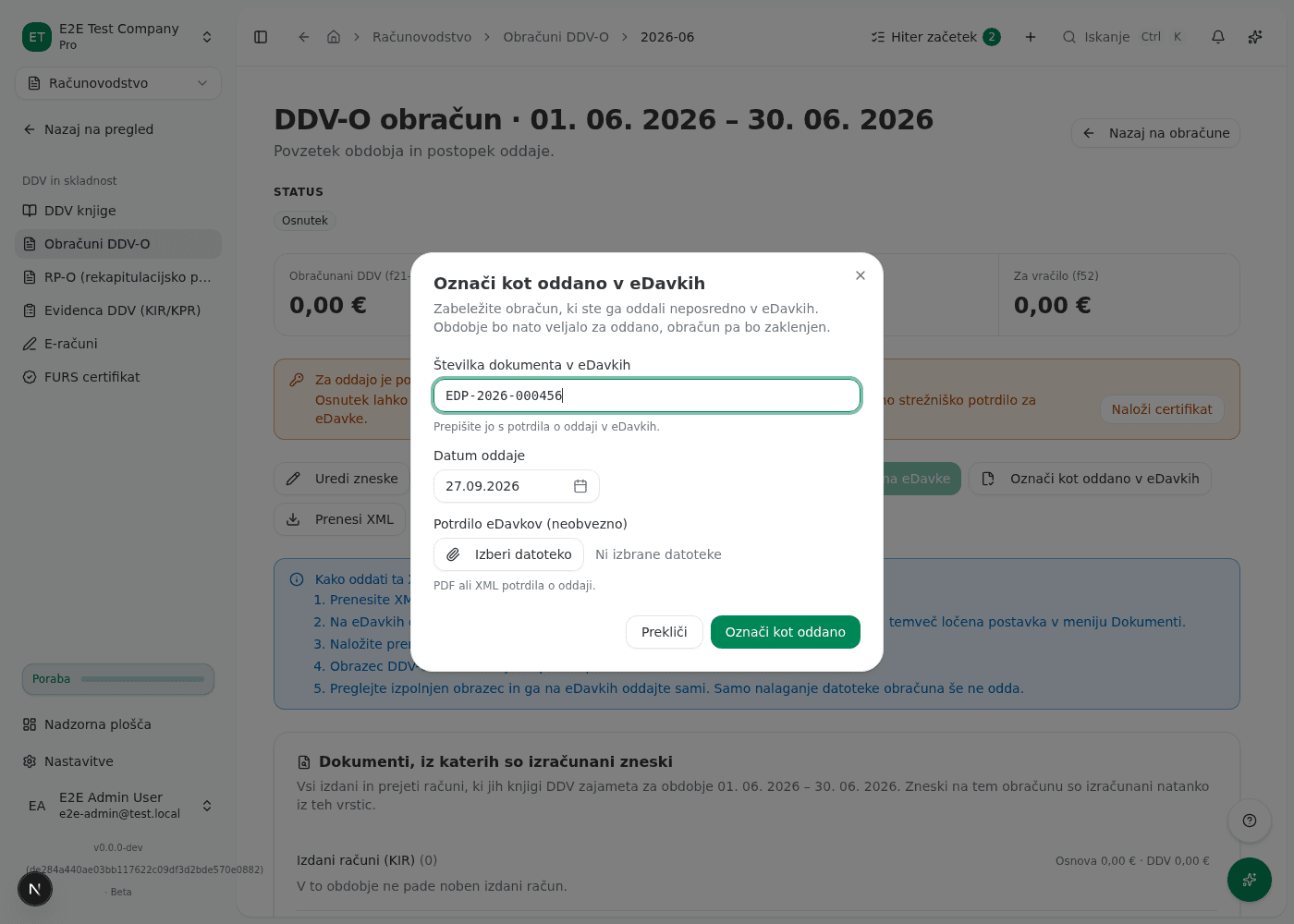
Record the filing only once eDavki shows you a document number. A return the app has already filed cannot be marked a second time.
What success looks like
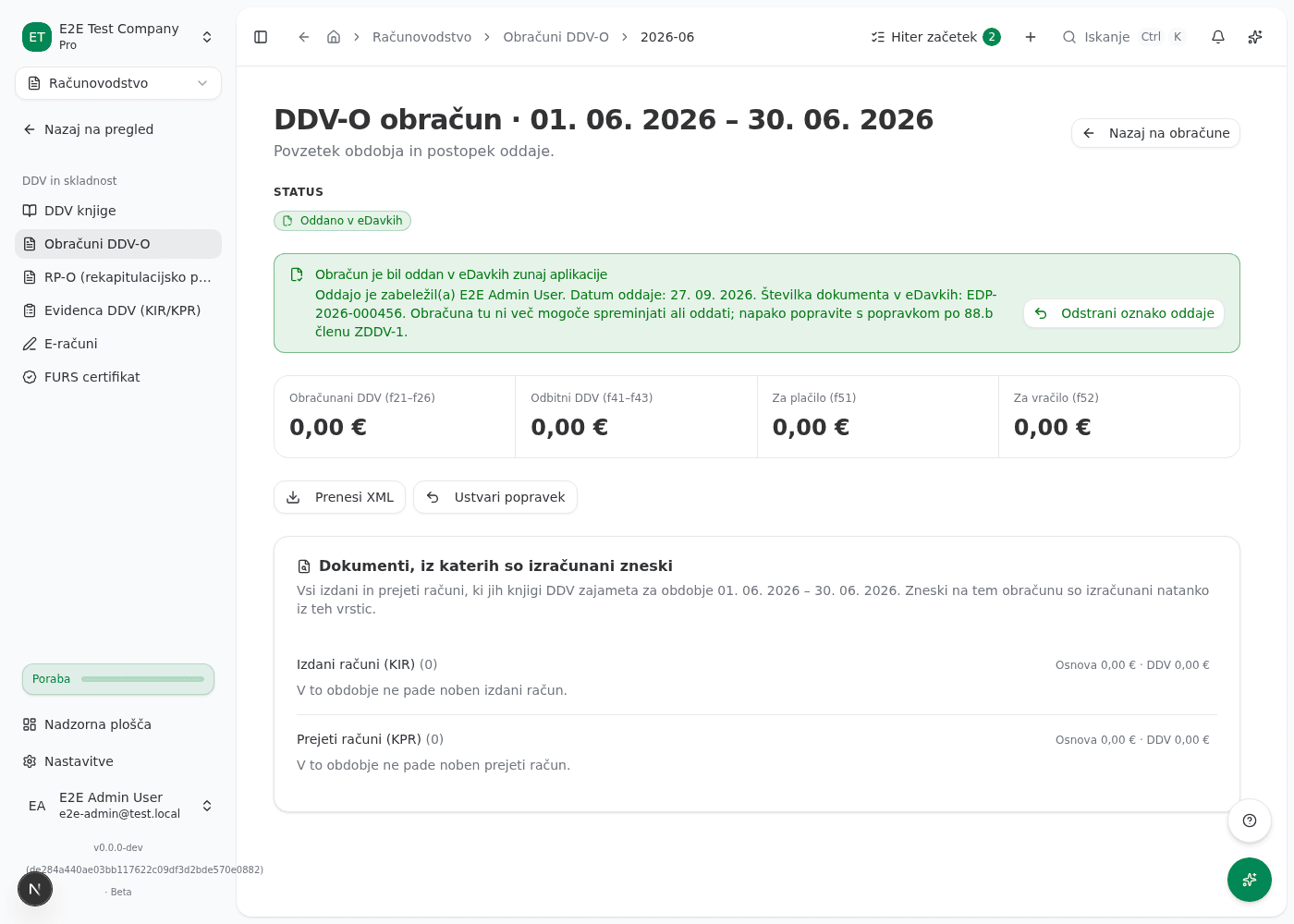
The return’s page shows the Oddano v eDavkih (“Filed in eDavki”) badge and a box with the name of the person who recorded it, the filing date and the document number. In the list of returns its status reads Oddano v eDavkih. The editing, validation and submission buttons are gone, and Ustvari popravek (“Create correction”) is available. In an accounting firm’s batch filing, that client also reads Oddano v eDavkih rather than as filed by the batch.
Downloading the return’s XML again asks you to confirm first, because importing it a second time would file a second original for the period.
Removing the record
If you marked the wrong return, or the eDavki filing did not go through:
- On the return’s page, click Odstrani oznako oddaje (“Remove filing record”).
- Confirm.
The period then counts as not filed again, and the return can be edited and submitted from the app. The record cannot be removed while an 88.b correction refers to it. Delete the correction draft first. It also cannot be removed once VAT ledgers (KIR/KPR) for the period that claim a refund have been sent, because FURS may already treat its pre-filled return as the filed one.
Common issues
- The mark button is not shown. An administrator or accountant of the company can record the filing, and only for a draft or validated return.
- The document number is refused. Enter it exactly as the eDavki confirmation shows it, for example EDP-12345678-18: the prefix EDP (PDP for a paper filing), the tax number and the sequence number, separated by hyphens.
Related pages
If you can’t fix this yourself
If you cannot remove the record, or the return does not show the right state after marking it, contact support and give the return’s period and the eDavki document number.