Payslips
A payslip (plačilna lista) is created automatically when you file a monthly payroll run, there is no separate “generate payslip” button. This page covers where to find already issued payslips, how to download or email them, and how to configure whether they are sent automatically. For filing the run itself, see Monthly payroll run.
If your tenant is a flat-rate sole trader (normirani s.p.), this page shows a notice instead of a list, saying that payroll is not available for flat-rate tenants. They do not keep double-entry books, so payroll runs cannot be created or posted for them. No setting opens this up.
1. The payslips list
- In the left menu, click Plače → Obračuni plač → Plačilne liste (Payroll → Payroll runs → Payslips).
- Use the Leto (Year) and Mesec (Month) filters to find a period. The list only shows runs with status Oddan (Filed) or Plačan (Paid); a draft or approved-but- not-yet-filed run does not appear here.
- For each row, review the Zaposleni (Employee), Obdobje (Period), Status, and Neto izplačilo (Net pay) columns.
- Open the row action menu on the right: Prenesi (Download) to download the payslip as a PDF, Pošlji po e-pošti (Send by email) to email it directly to the employee, or Odpri obračun plače (Open payroll run) for the full run’s details.
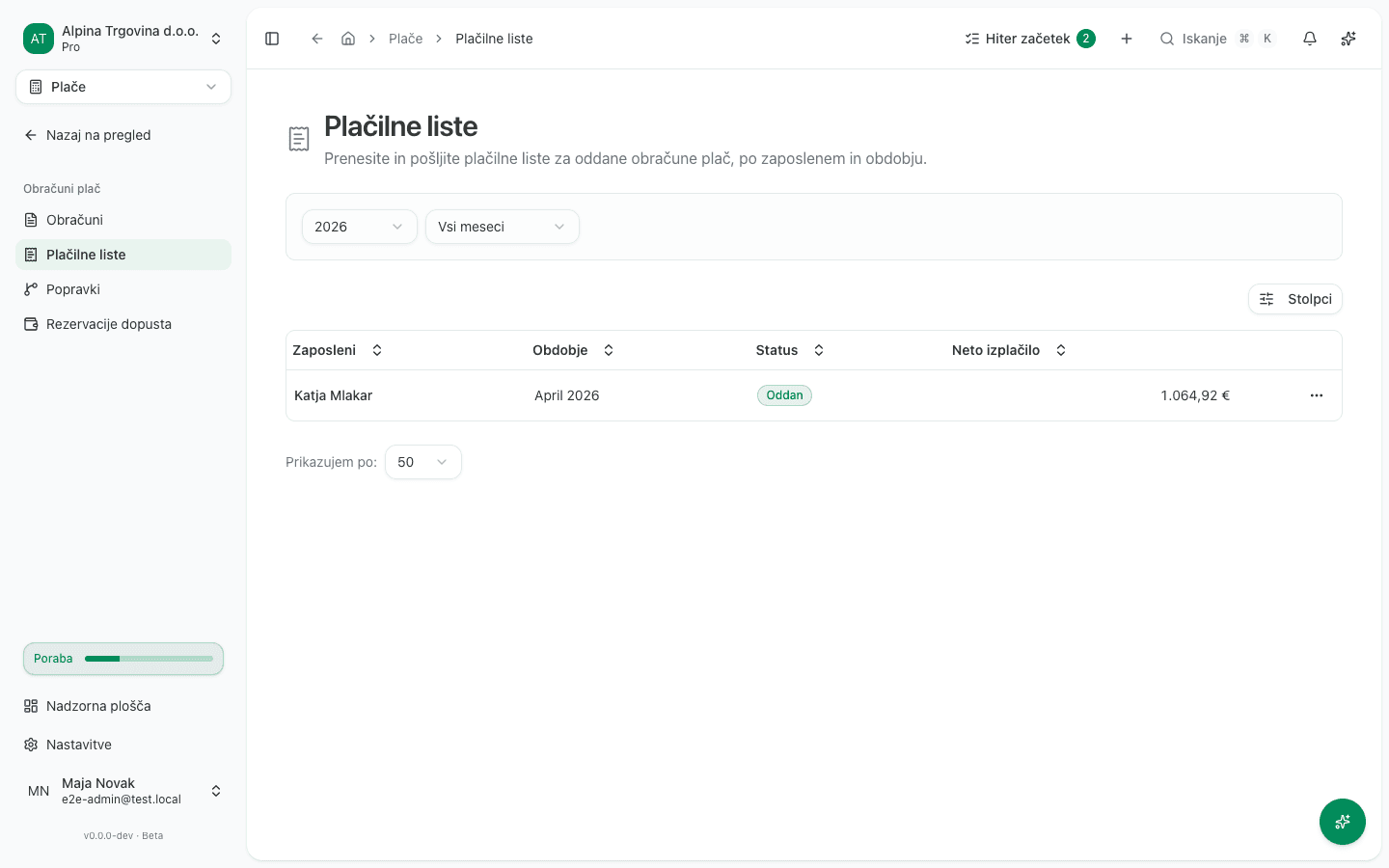
If the run you expect is not on the list, it most likely is not Oddan (Filed) yet. Filing a run is described in Monthly payroll run.
2. Sending every payslip of a run at once
Instead of sending them one at a time, you can send them all from the run’s own page:
- Click Odpri obračun plače on any row, or open the run directly under Plače → Obračuni plač → Obračuni (Payroll → Payroll runs → Runs).
- In the Pošiljanje plačilnih list (Payslip delivery) section, click Pošlji plačilne liste (Send payslips).
- The section shows a status per employee: V čakanju (Queued), Poslano (Sent), Dostavljeno (Delivered), Možen ponovni poskus (Retry possible), Neuspešno (Failed), Brez e-pošte (No email), or Odklonjeno (Opted out). For a row that allows another attempt, click Poskusi znova (Retry).
3. Configuring the delivery mode
Email delivery defaults to Ročno (Manual), meaning you trigger it yourself with Pošlji plačilne liste. Change this under Nastavitve → Integracije plač → Pošiljanje plačilnih list (Settings → Payroll integrations → Payslip delivery):
- Open Nastavitve → Integracije plač → Pošiljanje plačilnih list.
- Pick a Način pošiljanja (Delivery mode): Samodejno (Automatic, every employee is emailed their payslip as soon as the run is filed), Ročno (Manual, the default, you send it yourself with the button on the run page), or Izklopljeno (Off, nothing is emailed, employees can still download their payslip if they have portal access).
- The change saves immediately.
The page also carries a notice that Slovenian labor law (ZDR-1, Article 135, paragraph 2) requires every employee to receive a written statement of pay, and that Izklopljeno should only be used if you deliver payslips another way.
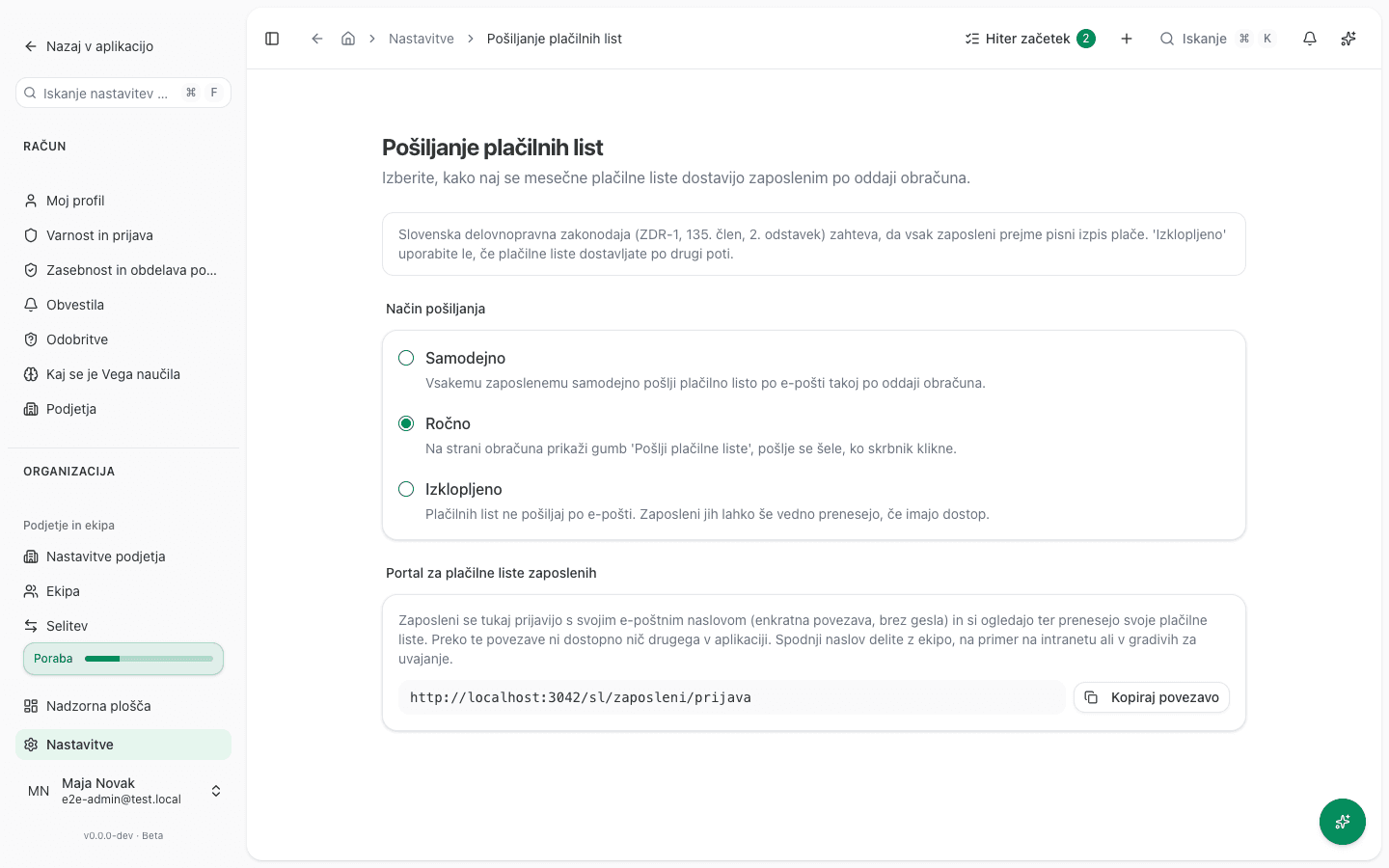
The same page also has a link to the employee portal, which you share with your team, for example on the intranet or in onboarding materials, by clicking Kopiraj povezavo (Copy link).
4. What the employee sees
Employees reach their payslips without a password, through a separate portal, and see nothing else from the application inside it:
- On the portal, the employee enters their email address and clicks Pošlji mi prijavno povezavo (Send me a login link).
- They receive a one-time login link by email, valid for 10 minutes.
- Once logged in, they see Vaše plačilne liste (Your payslips) for the last 12 months, one row per period with the net and gross amount, payout date, and delivery status, and a Prenesi PDF (Download PDF) button for each.
What success looks like
- A filed run appears on the Plačilne liste (Payslips) list with status Oddan (Filed).
- After sending, the delivery status in the Pošiljanje plačilnih list section changes from V čakanju to Poslano or Dostavljeno.
- The employee receives the login-link email and sees their payslip in the portal after logging in.
Common issues
- After sending, the message says no payslip was queued. No employee on this run has an email address on file. Add E-pošta (Email) to the employee’s profile under Zaposleni (Employees) and send again.
- An employee’s delivery status stays at Brez e-pošte (No email). Same cause as above, for that one employee. Add their email and click Poskusi znova (Retry).
- The action menu has no Pošlji po e-pošti (Send by email) option. The delivery mode is set to Izklopljeno (Off). Change it under Nastavitve → Integracije plač → Pošiljanje plačilnih list, or deliver the payslip another way and download the PDF with Prenesi instead.
- The run is not on the Plačilne liste list. The run is still Osnutek (Draft) or Odobren (Approved), meaning it has not been filed yet. Payslips only exist once a run is filed, see Monthly payroll run.
- An employee’s login link expired. Links are valid for 10 minutes. The employee requests a new one on the portal.