Vega AI
Vega AI is the assistant built into VegaERP. It works across the same data you do: contacts, invoices, stock, travel orders, bank transactions, and documents. So instead of clicking through several screens for a routine task, you can describe it in a sentence and review what Vega proposes before it’s saved.
This page covers what Vega does, what happens to your data, where it stops to ask for your approval, and where its limits are. For example prompts you can copy straight into the chat, open Help → Vega AI inside the app. It has a live, tap-to-copy example for every module.
Opening Vega AI
Click the Toggle Vega AI button (the sparkle icon in the top-right corner of any screen) to open the chat panel. It stays available as you navigate. You don’t lose your conversation by switching pages.
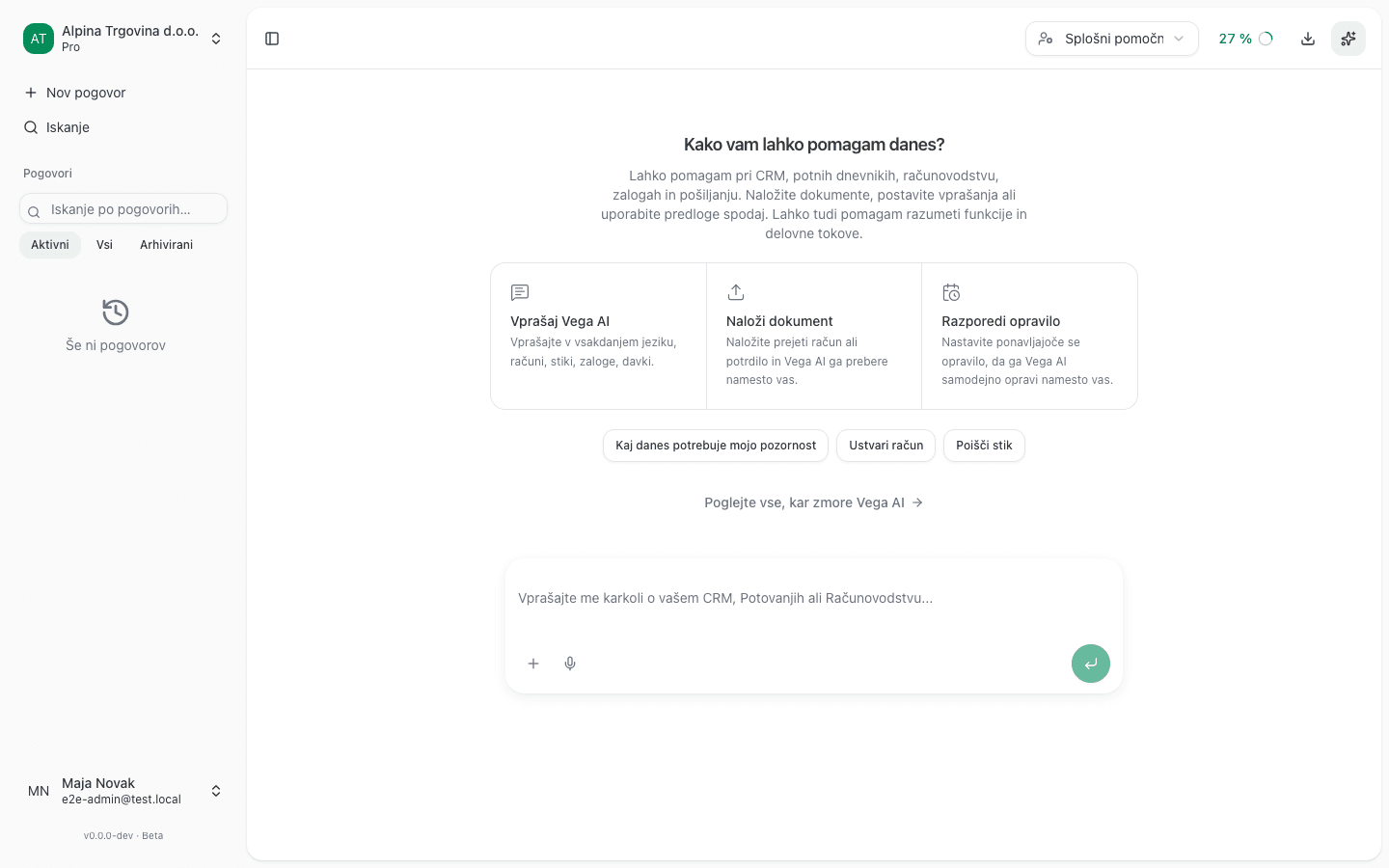
Vega replies in whichever language you write in, Slovenian or English, regardless of your interface language.
What you can ask it to do
Vega isn’t limited to answering questions. It can act on your data, the same way you would by hand:
- CRM: find contacts, open deals, log calls and meetings, set reminders.
- Invoicing: draft and send invoices, record payments, issue credit notes.
- Stock: check stock levels, build a bill of materials, create delivery notes.
- Travel orders: create travel orders, work out per-diems, turn approved trips into invoices.
- Bank: match incoming payments to open invoices, spot what’s still unpaid.
- Documents: drop in a supplier invoice or receipt and Vega reads it and pulls out the data for you to confirm, the same extraction used by Documents & OCR.
You can also switch its assistant persona (top of the chat panel) to bias it toward a role: Bookkeeper, Sales, HR manager, Travel coordinator, or, for accounting firms, Firm accountant. Use this if you mostly ask about one area of the business.
For a recurring job (e.g. “send me a weekly sales summary every Monday”), you can turn a request into a scheduled task instead of asking each time. See the Scheduled tasks tab next to the chat panel.
Where Vega asks before acting
Anything that would create, change, or delete data goes through an approval step first:
- You type a request in the chat, for example “issue an invoice to customer X for yesterday’s delivery”.
- If the action would create, change, or delete data, Vega shows a card in the conversation with the subtitle “Preglejte podrobnosti spodaj. Nič se ne izvede, dokler ne odobrite.” (Review the details below. Nothing runs until you approve.)
- If needed, click Uredi (Edit) to correct the details before approving.
- Click Odobri (Approve) to actually run the action, or Prekliči (Cancel) if you don’t want it to.
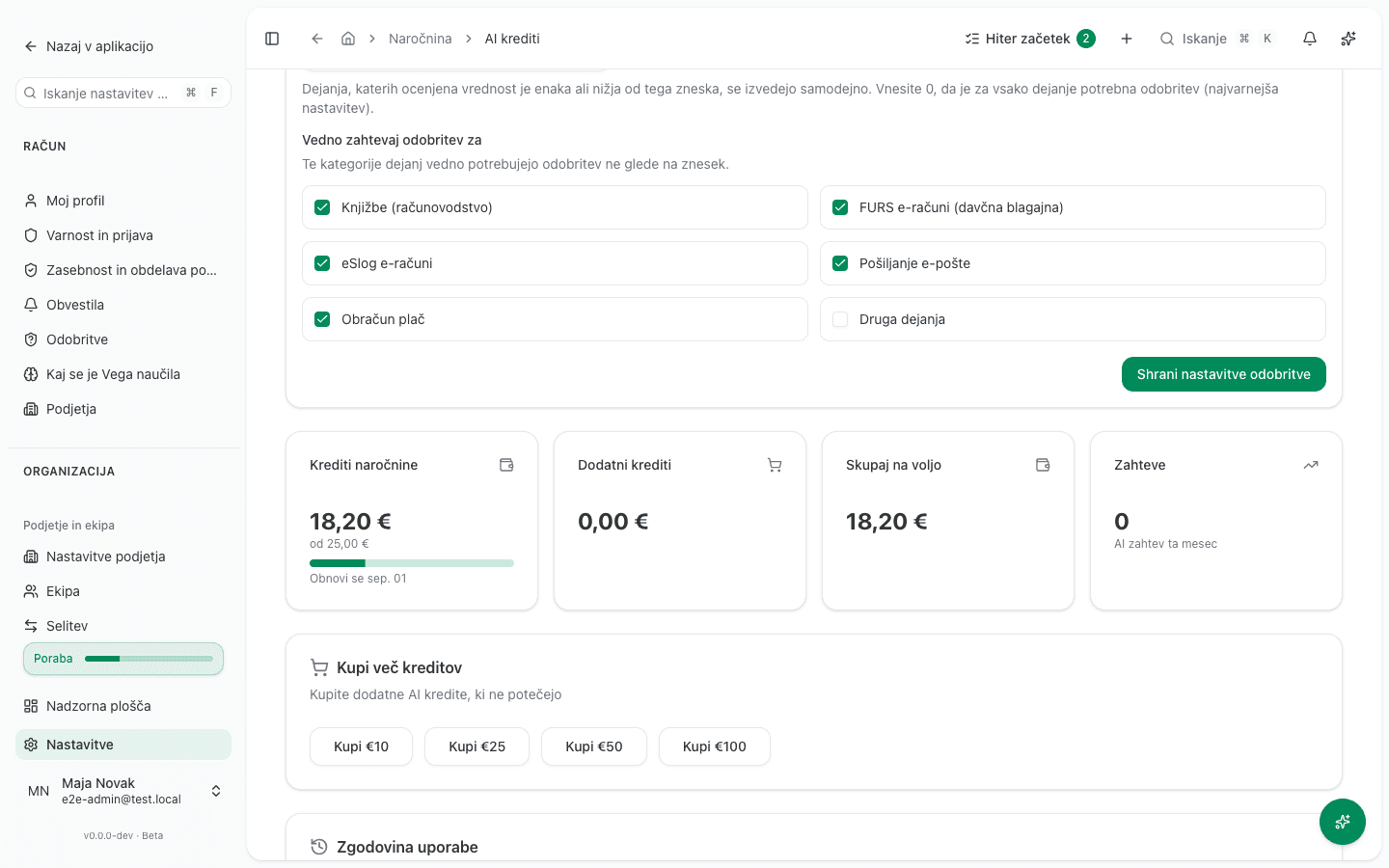
So Vega shows you exactly what it’s about to do, and nothing is saved until you approve it. This holds even when Vega is allowed to act automatically for small, low-risk actions (see below). By default six categories require your explicit approval, regardless of amount:
- Journal entries (bookkeeping)
- Fiscal receipts (FURS)
- e-Invoices (eSlog)
- Sending email
- Payroll runs
- Scheduled tasks
You control the rest of the boundary yourself, under Settings → AI credits : an auto-approve threshold in EUR (actions at or below it run automatically; the default is 0, meaning every action needs approval), and you can pause automatic execution entirely at any time. All six categories above can be changed on that same screen.
Anything pending your decision, from any conversation, collects under Settings → Approvals , so you never have to hunt back through a chat to find something you still need to confirm or reject.
What data leaves your account, and what doesn’t
For an accountant handling client tax numbers, EMŠO, salaries and bank records, this is the question that matters most, so here is exactly what happens:
Personal data, meaning tax numbers, EMŠO, IBANs, emails, phone numbers, and addresses, is masked on our servers before any text is sent to the AI model, and restored only in your answer. Payroll and other sensitive amounts are blurred before they reach the model too. The exact figure never leaves, so it’s never something to “restore”: any real number shown to you comes from your own records, not from the model’s reply. This happens automatically; there’s nothing to configure.
Your conversations are stored in your account, on our infrastructure, and are not shared beyond the individual (masked) request sent to the AI provider. They’re deleted along with your other account data if you exercise your right to erasure.
For the current, authoritative list of who processes data on our behalf, including the AI provider, see Sub-processors . If your firm needs a signed data-processing agreement, you can conclude one from Settings → Privacy & data processing inside the app.
Limits
- It only acts on your own account’s data. Vega can’t see or touch another tenant’s records, and it can’t reach outside VegaERP (no general web browsing, no acting on other systems).
- It can’t skip an approval. Whichever categories are set to always require approval cannot be talked around by how you phrase the request. Be aware, though, that this is not a floor the product enforces: it is a per-company setting, not a law of the app. If someone empties the list, only the amount threshold governs.
- It needs AI credits to run. Each plan includes a monthly credit allowance; once it’s used up, Vega pauses until your next renewal or until you buy more (Settings → AI credits). Reading and answering questions costs credits too, not just actions.
- It’s a draft, not a filing. Treat anything Vega prepares, such as an invoice, a journal entry, or a VAT return, as a draft for you to check, the same way you would check work from a junior colleague, especially anything that touches a tax filing.
Common issue
“No credits remaining” banner, and Vega won’t respond. Your plan’s monthly AI allowance is used up. Check Settings → AI credits . You can buy a one-off top-up (top-ups don’t expire) or wait for your subscription’s monthly renewal, shown on the same page.