Ordering from suppliers (purchase orders)
A naročilnica (“purchase order”) is the document you order goods from a supplier with, before you physically receive them. It follows the whole order flow: from the order, through receiving the goods, to the supplier invoice.
Create a purchase order
- In the left sidebar, go to Skladišče → Naročilnice (“Warehouse → Purchase orders”).
- Click Nova naročilnica (“New purchase order”).
- Choose the Dobavitelj (Supplier), enter the Datum naročilnice (Order date) and, optionally, the Pričakovani datum dobave (Expected delivery date) and Valuta (Currency).
- In the Postavke (Line items) section, pick a product or type a free-text description for each line, and fill in the Količina (Quantity) and Cena (Price).
- Click Shrani (“Save”).
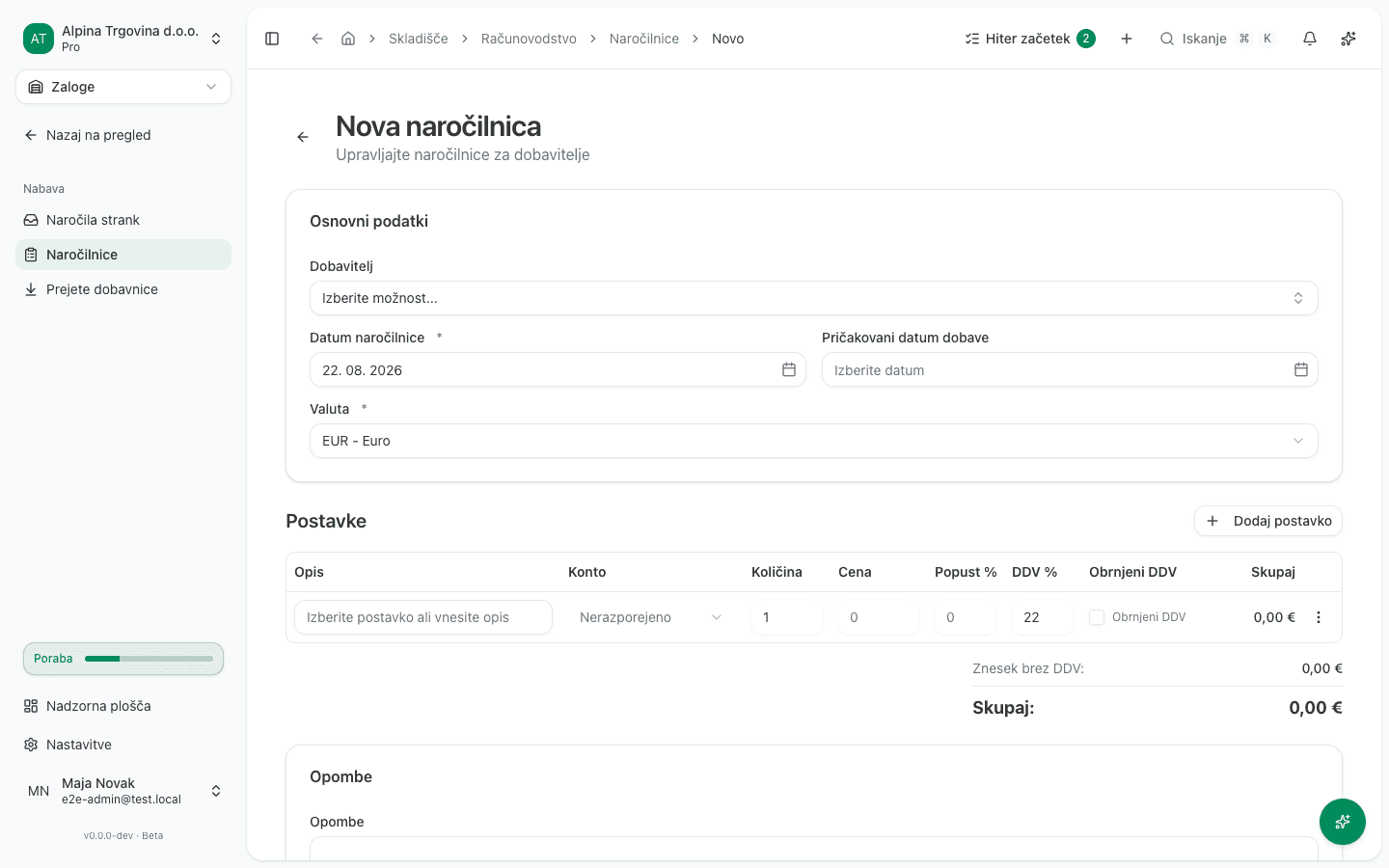
The purchase order is saved in Osnutek (“Draft”) status and appears in the purchase order list.
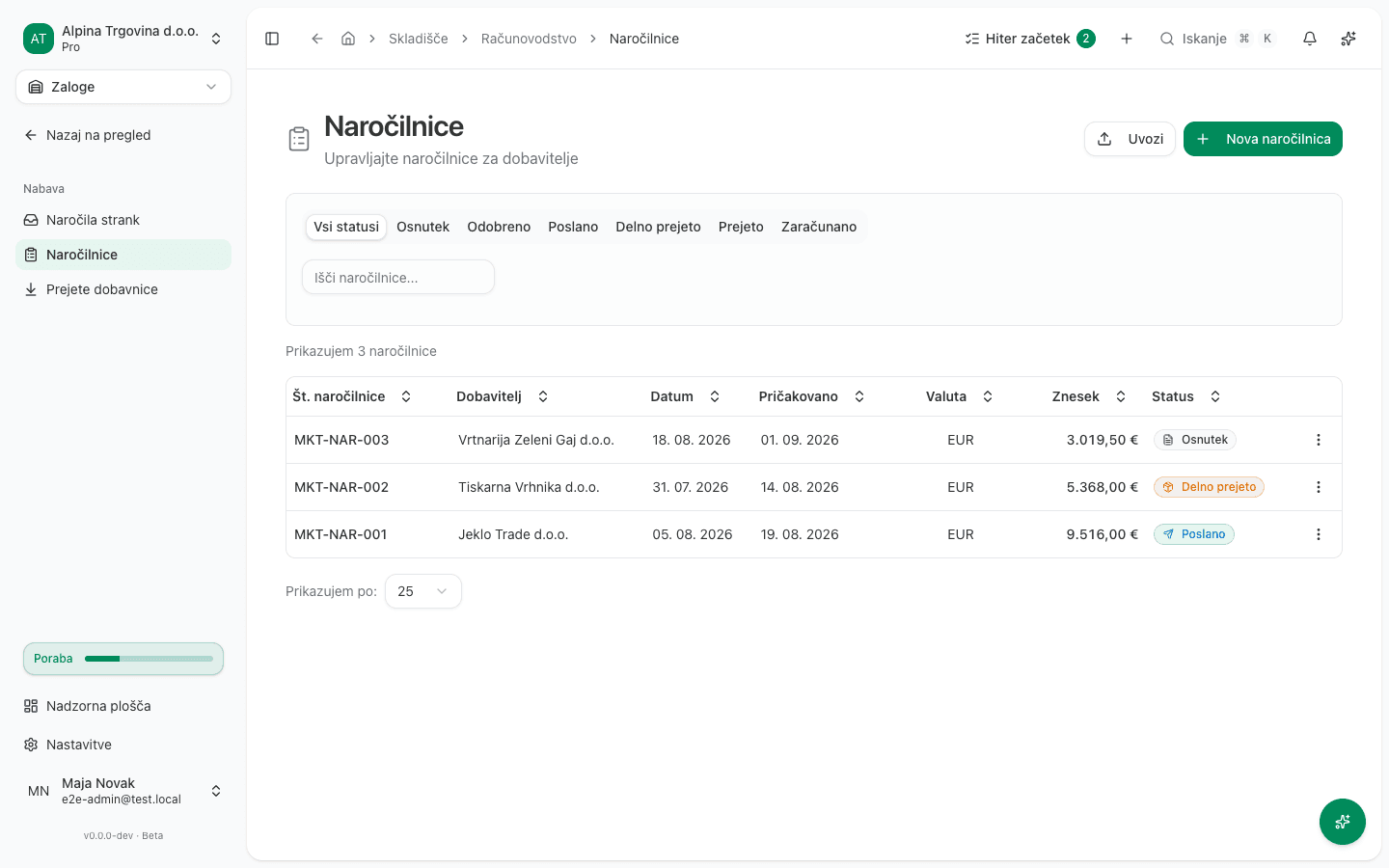
Approve the order and receive the goods
- Open the purchase order from the Naročilnice list.
- Click Odobri naročilnico (“Approve purchase order”). The status changes to Odobreno (“Approved”).
- To send the order to the supplier, click Pošlji e-pošto (“Send email”) in the page header, which opens a dialog to email the PDF to the supplier’s address; a successful send automatically moves the status to Poslano (“Sent”). If you placed the order by phone or through a supplier’s own portal instead, you can record that without emailing anything: click Več (“More”) and then Označi kot poslano (“Mark as sent”). This is available only while the order is still Odobreno (“Approved”).
- When the goods physically arrive, click Prevzem blaga (“Receive goods”) on the purchase order. The button shows the quantity still outstanding. In the dialog, choose the skladišče (warehouse), correct the quantity in the Prevzemi zdaj (“Receive now”) column if needed, then click Ustvari dobavnico (“Create delivery note”).
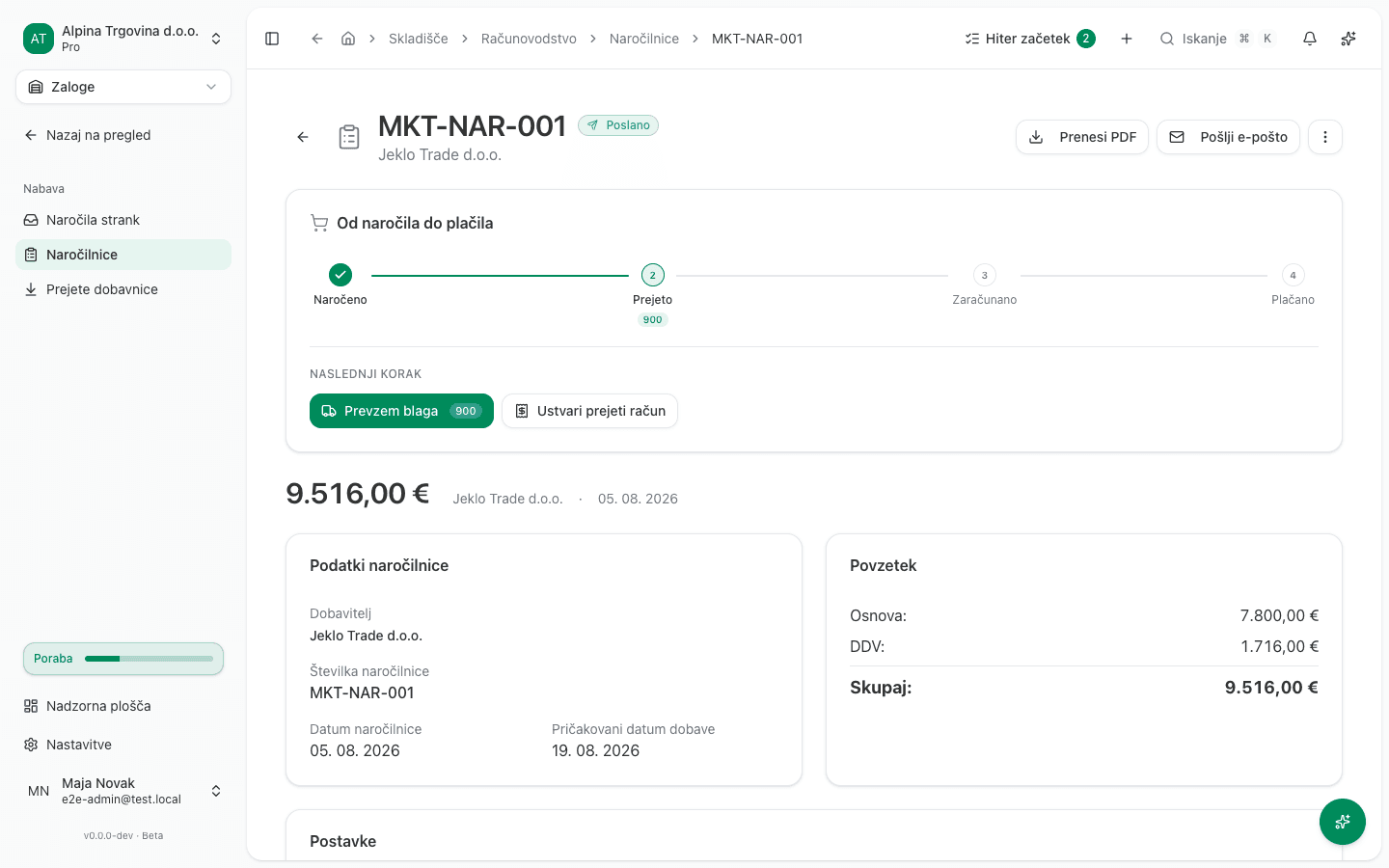
Receiving creates an inbound dobavnica (“delivery note”) and increases stock in the chosen warehouse. The purchase order moves to Delno prejeto (“Partly received”) until you’ve received every line, then to Prejeto (“Received”).
Create the supplier invoice
When the supplier’s invoice arrives, click Ustvari prejeti račun (“Create supplier invoice”) on the purchase order. The app creates a draft (Osnutek) supplier invoice with the line items and amounts from the purchase order. Those are the amounts you ordered, not necessarily the ones the supplier charged: check the draft against the supplier’s invoice and book it with Preveri in knjiži (“Check and book”).
For a supplier in another EU member state, the amounts are not copied across unchanged. A purchase order carries the VAT rate you configured, not a rate the supplier charged. So when the supplier is established in another member state and identified for VAT there, the app books the purchase as an intra-Community acquisition: the lines carry 0 %, you self-assess the VAT (reverse charge), and the amount payable is the net. Check the figures against the supplier’s actual invoice.
Sometimes the app cannot establish how the supply should be taxed. That happens when the supplier’s country is not recorded, when its ID za DDV is missing or has the wrong shape, when the supplier is outside the EU (an import, taxed off the customs declaration), or when a line is a service or has no catalogue item. In that case the app refuses to create the invoice and tells you what is missing. Record the supplier’s country and ID za DDV on its contact card, then convert the order again. Where there is nothing left to record, such as a supplier outside the EU or one that charges no VAT, receive the goods onto a delivery note and create the supplier invoice from the delivery note instead. That route books the lines without VAT and leaves you a draft to check before it reaches the ledger.
Common issue
- There’s no Prevzem blaga button. The purchase order has to be approved first. On an order in Osnutek (Draft) status the only action is Odobri naročilnico (Approve purchase order), or Prekliči (Cancel) and Izbriši (Delete) under Več (More).
- You created the purchase order by mistake. As long as it’s in Osnutek (Draft) status you can delete it: click Več (“More”) and then Izbriši (“Delete”).