Time tracking
Sledenje časa (“Time tracking”) logs how much time you spent on a given contact, deal, or project. You reach it via CRM → Sledenje časa. You can log an entry manually or with the built-in timer, and mark each entry billable or not, with its own hourly rate.
The app’s screen labels below are quoted from its Slovenian UI, since that’s what the product actually shows.
Logging time manually
- On the Time tracking page, click Nov vnos (“New entry”) in the top right.
- Pick a Kategorija (“Category”) value, for example Razvoj (Development), Svetovanje (Consulting), Oblikovanje (Design), Sestanek (Meeting), Administracija (Admin), Podpora (Support), Raziskave (Research), or Drugo (Other).
- Fill in Trajanje (minute) (“Duration in minutes”) and pick the entry’s date in the calendar next to it.
- Optionally add an Opis (“Description”).
- Use the Obračunljivo (“Billable”) switch to mark whether this time gets billed to a client, and fill in an Urna postavka (“Hourly rate”) if it does.
- Click Shrani (“Save”).
The entry shows up in the Časovni vnosi (“Time entries”) list below, where the three-dot menu on its row lets you open it again with Uredi (“Edit”) or remove it with Izbriši (“Delete”).
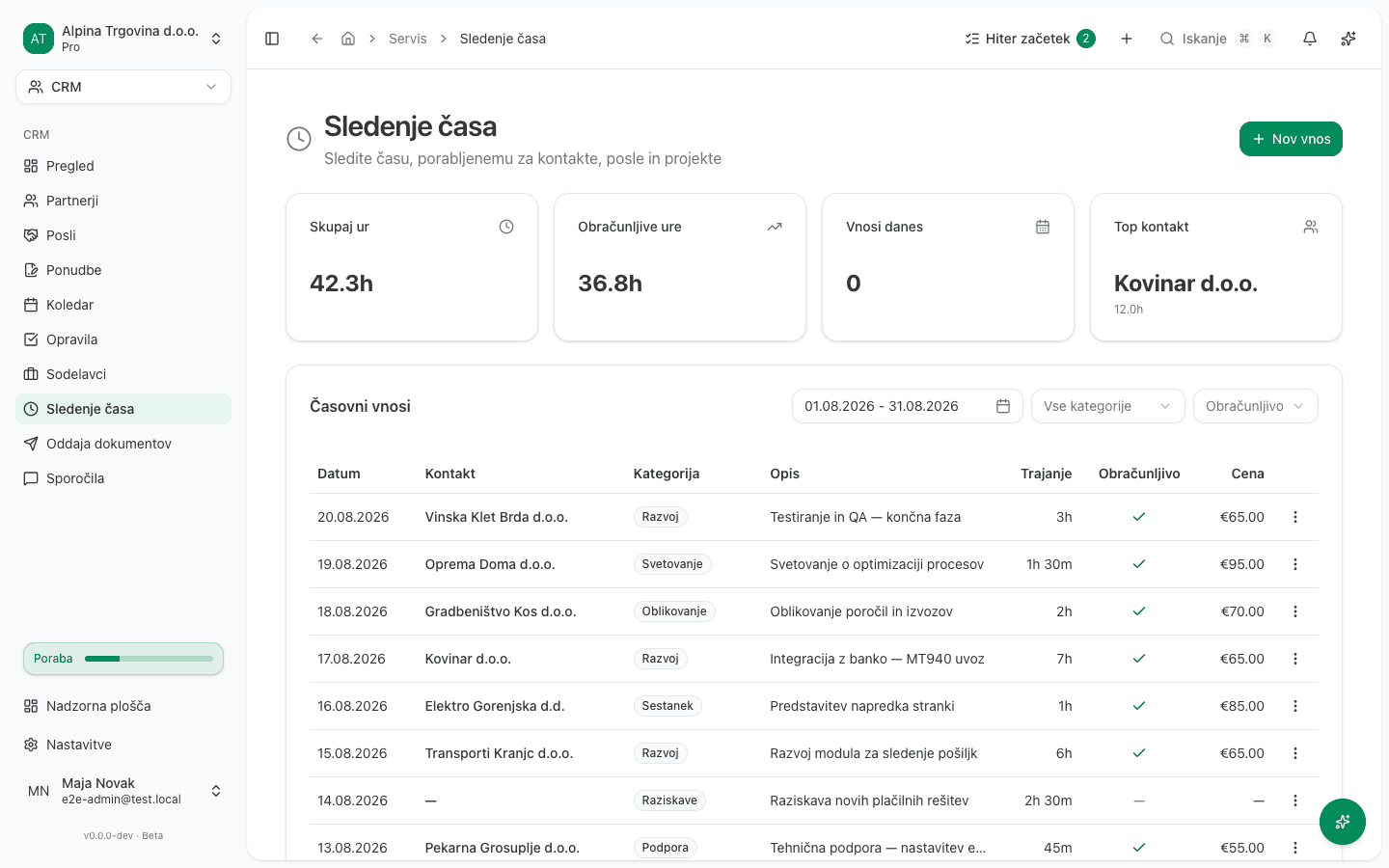
Timing work live with the timer
The timer does not start from the Time tracking page. It starts from the Hitre akcije (“Quick actions”) menu, the plus icon in the top right of the app header, available on every page.
- Click the Hitre akcije icon and choose Začni štoparico (“Start timer”).
- Pick a Kategorija, optionally add an Opis, and set Obračunljivo.
- Click Začni štoparico.
While the timer is running, a green pill in the app header shows the elapsed time and category. The square icon in it is the Ustavi štoparico (“Stop timer”) button, which saves the entry into your time entries; the X next to it is Zavrzi (“Discard”), which throws the entry away without saving.
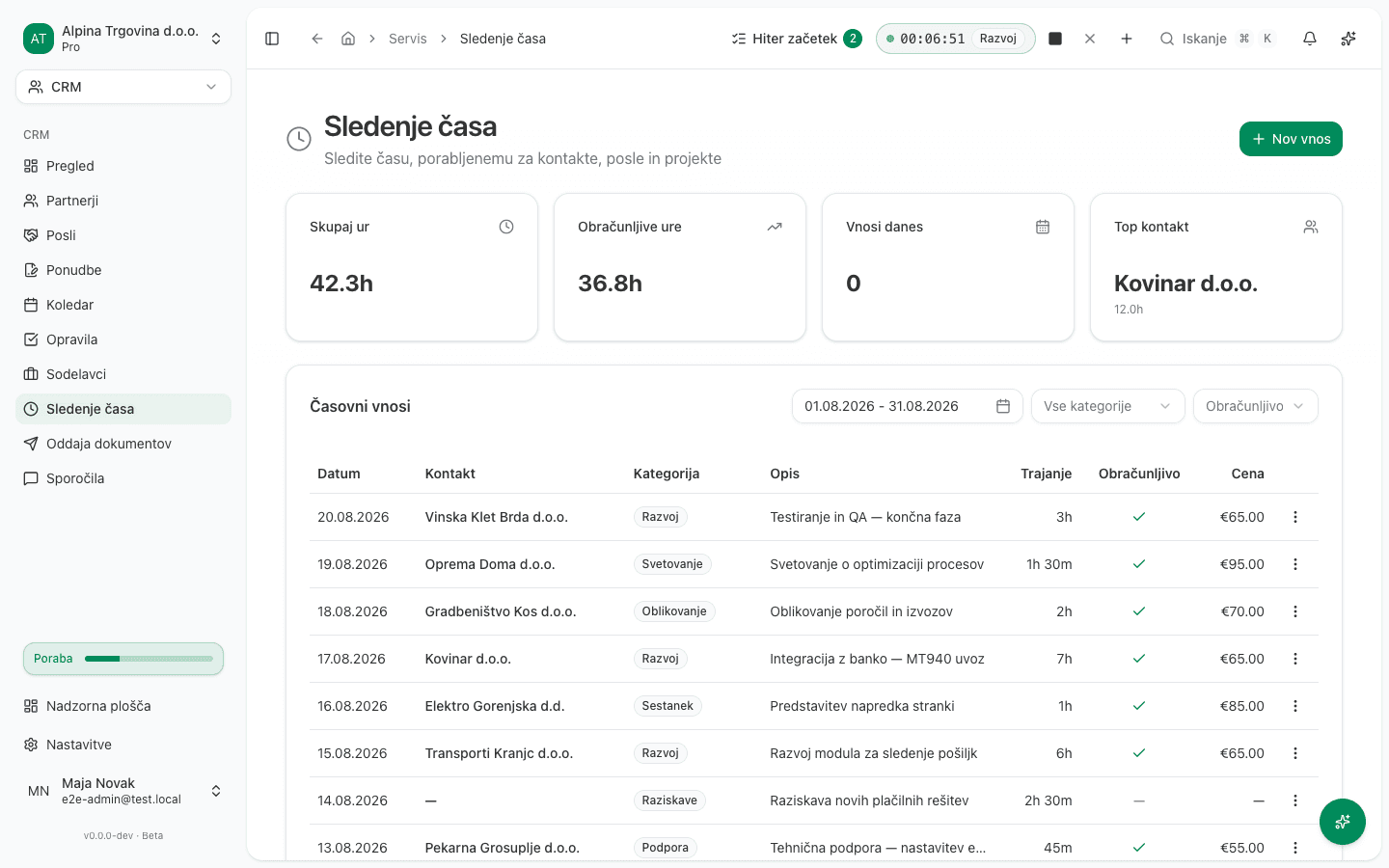
If you forget to stop the timer
If a timer has been running for more than 10 hours, the app asks “Still working?” the next time it loads, showing when the timer started. You can Keep running, Discard the entry, or set a specific stop time and click Stop at to save it with that time instead of “now”. If the timer has been running for more than 16 hours, you must pick a stop time. The app refuses to save that many hours as one entry without one.
Billing that time to a client
Time tracking does not turn time entries into invoice lines. The Obračunljivo and Urna postavka on an entry are only there for reviewing billable hours in this page’s own summaries, not for automatically issuing an invoice. If you want to bill billable time to a client, read the hours and hourly rate off this page and add them yourself as a line item when you issue that contact’s invoice.
Common issue
The timer won’t start a second time. Only one of your timers can run at once, and no setting unlocks a second. Stop or discard the running timer in the app header first, then start the new one.