Why does a QR attendance check-in fail?
Attendance is recorded in two places: the employee scans the QR code at the entrance on their phone, and HR manages sites and enters events by hand on the Prisotnost (Attendance) page. When something is refused, nothing is recorded. A failed scan does not stop payroll: you enter the missing arrival or departure by hand.
What the screen says
On the employee’s phone
After Prijavi prihod (Check in), the page shows Prijava ni uspela (Check-in failed) and one of these messages below it:
Ta koda QR ni veljavna. Sporočite kadrovski službi, da vam prihod vpiše ročno. (“This QR code is not valid. Tell HR and they will record your arrival by hand.”)
Ta koda QR je bila deaktivirana. Sporočite kadrovski službi, da vam prihod vpiše ročno. (“This QR code has been deactivated. Tell HR and they will record your arrival by hand.”)
Vaš e-poštni naslov ni povezan z zaposlenim. Sporočite kadrovski službi, da vam prihod vpiše ročno. (“Your e-mail address is not linked to an employee record. Tell HR and they will record your arrival by hand.”)
Prijavljeni ste že od 08:02. Najprej se odjavite. (“You are already checked in since 08:02. Check out first.”)
If the employee opens the page without scanning, they see Za prijavo skenirajte kodo QR (Scan the QR code to check in) instead of the button.
On the Prisotnost (Attendance) page
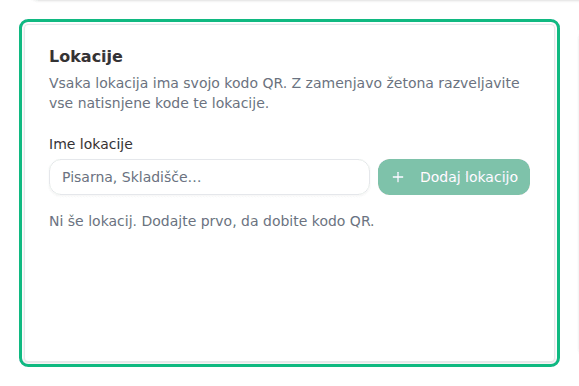
On Dodaj lokacijo (Add site) or Preimenuj (Rename) with a name another site already has:
Lokacija s tem imenom že obstaja. (“A site with this name already exists.”)
On Dodaj dogodek ročno (Add event manually) for an employee who is no longer active in the company:
Zaposleni ne obstaja ali ni aktiven v tem podjetju. (“The employee does not exist or is not active in this company.”)
The messages saying a site or an attendance event does not exist appear when someone removed it in the meantime. Refresh the page.
Why this happens
The QR code carries the site’s token. On a scan, the app first finds the employee by the e-mail address they are signed in with, then the site by its token. A code is not valid if the site’s token was replaced with Zamenjaj žeton (Replace token), which stops every previously printed code at once, or if the code belongs to another company. A deactivated site accepts scans again only once you reactivate it. A second check-in is refused while the previous one is still open and not older than one shift, so a day does not get two arrival and departure pairs.
What to do
- Enter the missing arrival or departure by hand: on the Prisotnost page click Dodaj dogodek ročno, choose Zaposleni (Employee), Vrsta (Type), Datum (Date) and Ura (Time), and click Zabeleži (Record).
- For an invalid code, in the Lokacije (Sites) card click Pokaži kodo QR (Show QR code) next to the site, print the code again and replace the old one at the entrance.
- For a deactivated code, click Aktiviraj (Activate) next to the site if it should record again.
- For an unlinked e-mail address, check that the employee’s coworker record under Payroll has the same e-mail address they sign in with on the phone. See Coworkers and employees.
- For a check-in that is still open, the employee clicks Zabeleži odhod (Check out). If the arrival was recorded at the wrong time, overwrite it in the daily hours grid, where a manually entered time always wins.
- For a duplicate site name, choose another name or use the existing site.
Sites, QR codes and the transfer into hours are described in detail in Attendance (QR check-in).
If you can’t fix this yourself
Only the Administrator and Računovodja (Accountant) roles can edit sites and attendance settings. If you do not see them, ask someone with one of those roles.
The employee cannot fix a failed check-in themselves, so the page always tells them to contact HR. A manually entered event is marked as entered on your side.