Evidence of transport for EU goods supplies
A supply of goods to a customer identified for VAT in another EU country is VAT-exempt under Article 46(1) of ZDDV-1 when you can prove that the goods left Slovenia. Under Article 45a of Implementing Regulation (EU) 282/2011 the dispatch is presumed when you hold two documents from two different issuers that are neither you nor the customer: for example the carrier’s signed CMR and the insurer’s policy.
The Evidence of transport section appears on its own on an issued invoice that has a 0 % goods line for a customer in another EU country. Domestic invoices and invoices for services do not have it.
The app never stops you issuing the invoice and never removes the supply from the VAT return or the RP-O. It only shows what is still missing.
Collect the evidence on the invoice
- In the left menu select Invoices and open the issued invoice.
- In the Evidence of transport section, under Transport organised by, choose Seller (us) or Customer. The app does not choose for you.
- Click Add evidence and pick the file.
- In Type of evidence choose what the document is, for example a signed CMR or the carrier’s invoice.
- In Issued by choose who issued it. For a carrier, insurer, bank or other independent party, also enter Issuer’s name.
- Click Save evidence.
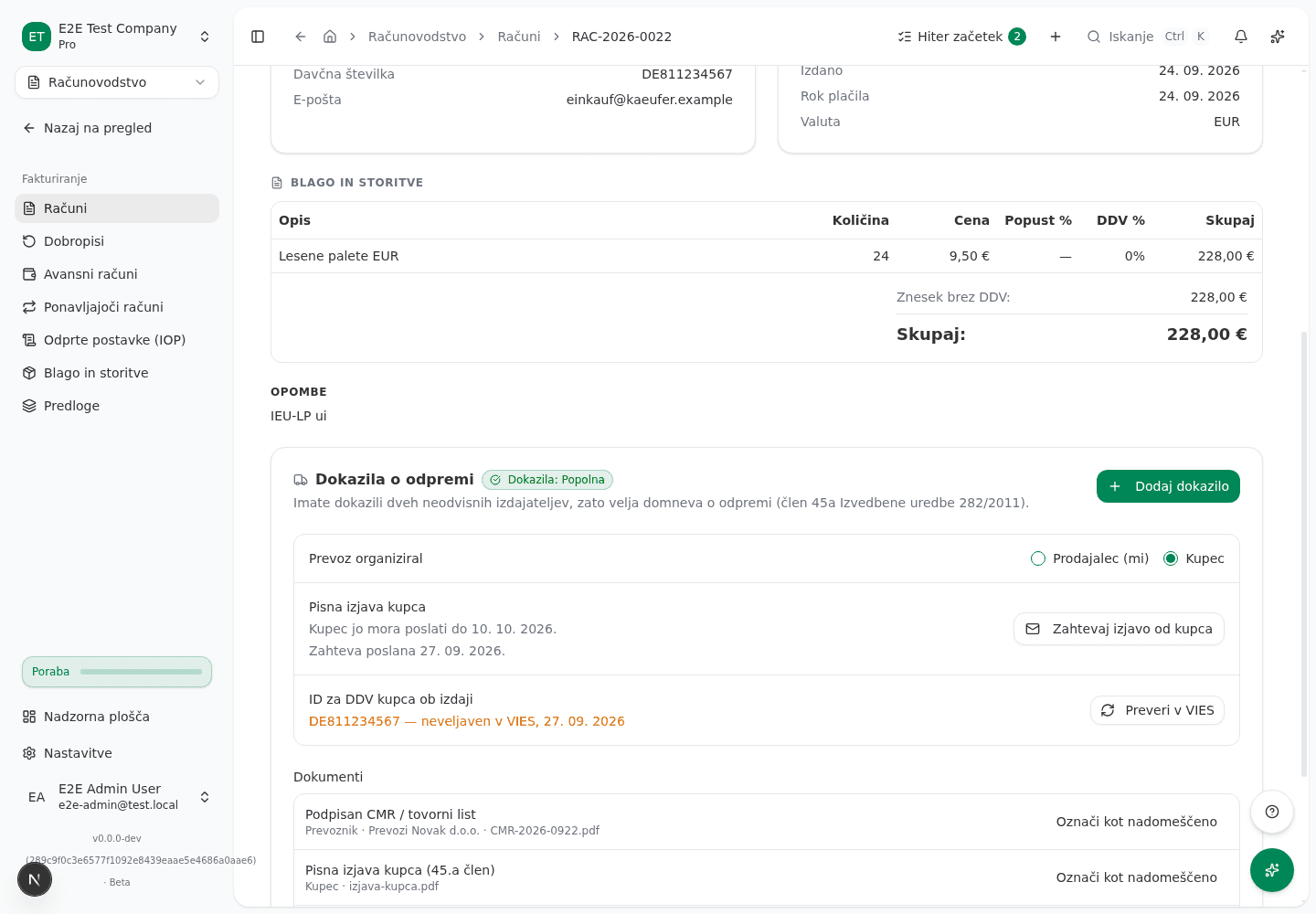
The badge next to the title shows the state:
- Complete: you hold two documents from two independent issuers (and the customer’s statement when the customer organised the transport).
- Incomplete: you have started collecting evidence. The list under the title says what is still missing.
- Needs review: the documents are not a full set for the presumption. You can still prove the dispatch with the invoice and other evidence (Article 79 of the ZDDV-1 implementing rules), but a person must review it.
- Missing: there is no evidence yet.
Request the customer’s statement
When the customer organised the transport you also need the customer’s written statement. The customer must send it by the 10th day of the month after the supply (Article 45a of Implementing Regulation 282/2011).
- Under Transport organised by choose Customer. The statement deadline appears below.
- Click Request statement from customer. The customer receives a bilingual e-mail with the invoice details filled in and a form to sign and return.
- When the statement arrives, add it with Add evidence as the customer’s written statement, issued by Customer.
The request is written to the invoice’s history. Do not collect copies of drivers’ identity documents: the rules do not require them for ordinary goods.
Correct a wrong entry
You keep evidence for ten years (Article 86 of ZDDV-1), so it cannot be deleted. If you recorded a document wrongly, click Mark as superseded and add it again. A superseded document stays stored but no longer counts.
Find supplies without evidence
- On the Invoices list open Filters.
- Under Evidence of transport choose Evidence missing.
The DDV-O return and the RP-O report show a note with the numbers of the invoices that lack full evidence when you prepare them. The Open invoices without evidence link opens the same filter. The note does not stop the return.
What success looks like
The badge in the section and on the invoice list shows Complete, and the list of missing items under the title is gone.
Common issues
The section is not on the invoice. It appears only on an issued invoice with a 0 % goods line for a customer whose partner record names an EU country other than Slovenia. It does not appear for services, triangular supplies, call-off stock, new means of transport, excise goods, distance sales (OSS) or transfers of own goods, because those need different evidence.
The save button cannot be clicked. Choose the type of evidence and the issuer. For an independent issuer also enter the name, because two documents count only when two different parties issued them.
The customer’s VAT ID was not confirmed at issue. When the invoice is issued the app checks the customer’s VAT ID in VIES and stores the answer on the invoice. If VIES did not answer then, click Check in VIES.