Client portal: what they see and what they can do
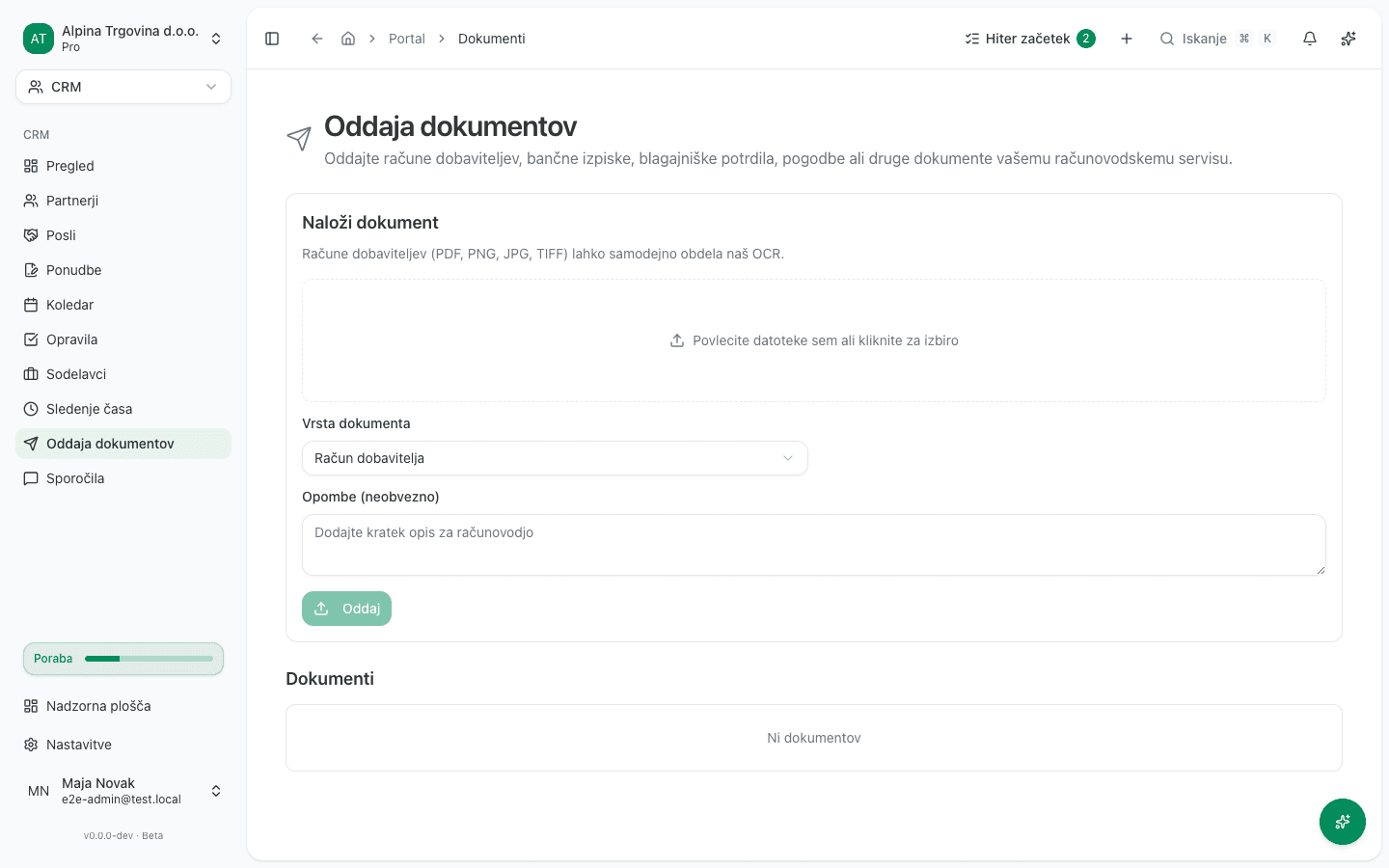
The Portal is a simplified part of the app for someone at your client who does not need access to the full books, only a place to submit documents and read your messages. A user with this role (the Samo ogled (“View only”) role in the app) sees only two links in the sidebar: Oddaja dokumentov (“Document submission”) and Sporočila (“Messages”). They have no access to the rest of the app; trying to open any other page sends them straight back to Document submission.
The portal only works once the client is connected to your accounting firm (see Accounting firms & multi-client access). Without a connected firm, the upload area is replaced by a message with an Odpri nabiralnik dokumentov (“Open document inbox”) button that sends the client to their general document inbox instead of the portal.
The app’s screen labels below are quoted from its Slovenian UI, since that’s what the product actually shows.
What the client can do
Submitting a document
- The client signs in. They land directly on the Oddaja dokumentov (“Document submission”) page.
- In the Naloži dokument (“Upload document”) area, they drag a file in or click it to pick one.
- Under Vrsta dokumenta (“Document type”) they pick what it is, for example Račun dobavitelja (“Supplier invoice”), Bančni izpisek (“Bank statement”), Blagajniški račun (“Cash receipt”) or Pogodba (“Contract”).
- Optionally they add Opombe (neobvezno) (“Notes, optional”), a short note for you.
- They click Oddaj (“Submit”).
Supplier invoices in PDF, PNG, JPG or TIFF are read automatically by OCR, so they will already be partly filled in when they reach your queue. Under Dokumenti (“Documents”) the client sees the status of every submitted file: Prejeto (“Received”), V pregledu (“Under review”), Obdelano (“Processed”) or Zavrnjeno (“Rejected”). As long as a document has not been picked up for review, the client can withdraw it with Prekliči oddajo (“Cancel submission”) and resubmit.
Sending documents by e-mail
Under the upload area, the Vaš e-poštni naslov za dokumente (“Your e-mail address for documents”) box shows the address the client forwards invoices and receipts to. The client clicks Kopiraj (“Copy”) and pastes it into their mail program. Mail sent there reaches your review queue with this client’s name on it, with no upload. It is the same address you copy from the client list with Kopiraj naslov za prejem e-pošte. The client cannot change the address.
Messages
- The client opens Sporočila (“Messages”) and picks a conversation from the list.
- They type a reply in the box below and click Pošlji odgovor (“Send reply”).
- If your message is asking for a missing document, an upload area appears right below the conversation too. The client uploads the file there directly, without switching to Document submission, and the message is automatically marked as answered.
What the client does NOT see
Besides Document submission and Messages, the client has no access to CRM, Accounting, Warehouse, Payroll, or any other setting in your app; those links simply are not in their menu. They cannot see your other clients, cannot post documents to the books, and do not decide which account a document lands on; that stays your job.
In the sidebar the client currently also sees Nadzorna plošča (“Dashboard”) and Nastavitve (“Settings”) links, plus the module name at the top. Clicking either one sends them straight back to Document submission, because they have no access to those pages. If a client asks why clicking those two links “does nothing,” you can tell them that’s expected; they genuinely have no access there.
How a client gets portal access
You grant portal access with an invitation. It can be sent by an administrator of the accounting firm linked to the client, or by an administrator of the client’s company.
- Switch to the client’s company and open Nastavitve (“Settings”) → Podjetje in ekipa (“Company and team”) → Ekipa (“Team”).
- Click Povabi uporabnika (“Invite user”).
- Enter the E-pošta (“Email”) of the person at the client and, under Vloga (“Role”), choose Samo ogled (“View only”).
- Click Pošlji povabilo (“Send invitation”).
The person receives the invitation by email, in Slovenian. Once they accept it they sign straight into the client’s company and land on Oddaja dokumentov (“Document submission”). On the Ekipa page a firm administrator can only send the Samo ogled role and only sees portal invitations; they cannot edit or remove the client’s members. A firm accountant who is not a firm administrator cannot send the invitation.
The invitation you send from the Stranke (“Clients”) page of your firm workspace gives the same access. It opens only the portal, not full access to the company.
The Samo ogled role is only offered for a client linked to an accounting firm. For a company without a firm it does not appear under Vloga. The server enforces the portal itself: a person with this role cannot change anything, even with a request sent outside the app.
Common issue
- The client doesn’t see the upload area, only a warning. Their tenant is not connected to any accounting firm. The client should use the Odpri nabiralnik dokumentov (“Open document inbox”) button in the warning, which sends them to their general document inbox instead of the portal. Check the firm connection under Accounting firms & multi-client access.