Fixed assets and depreciation
A fixed asset (osnovno sredstvo) is equipment, machinery, a vehicle, or a property that a business uses over a longer period and that loses value over time. VegaERP keeps a register of these assets and records depreciation, which it then posts to the general ledger itself.
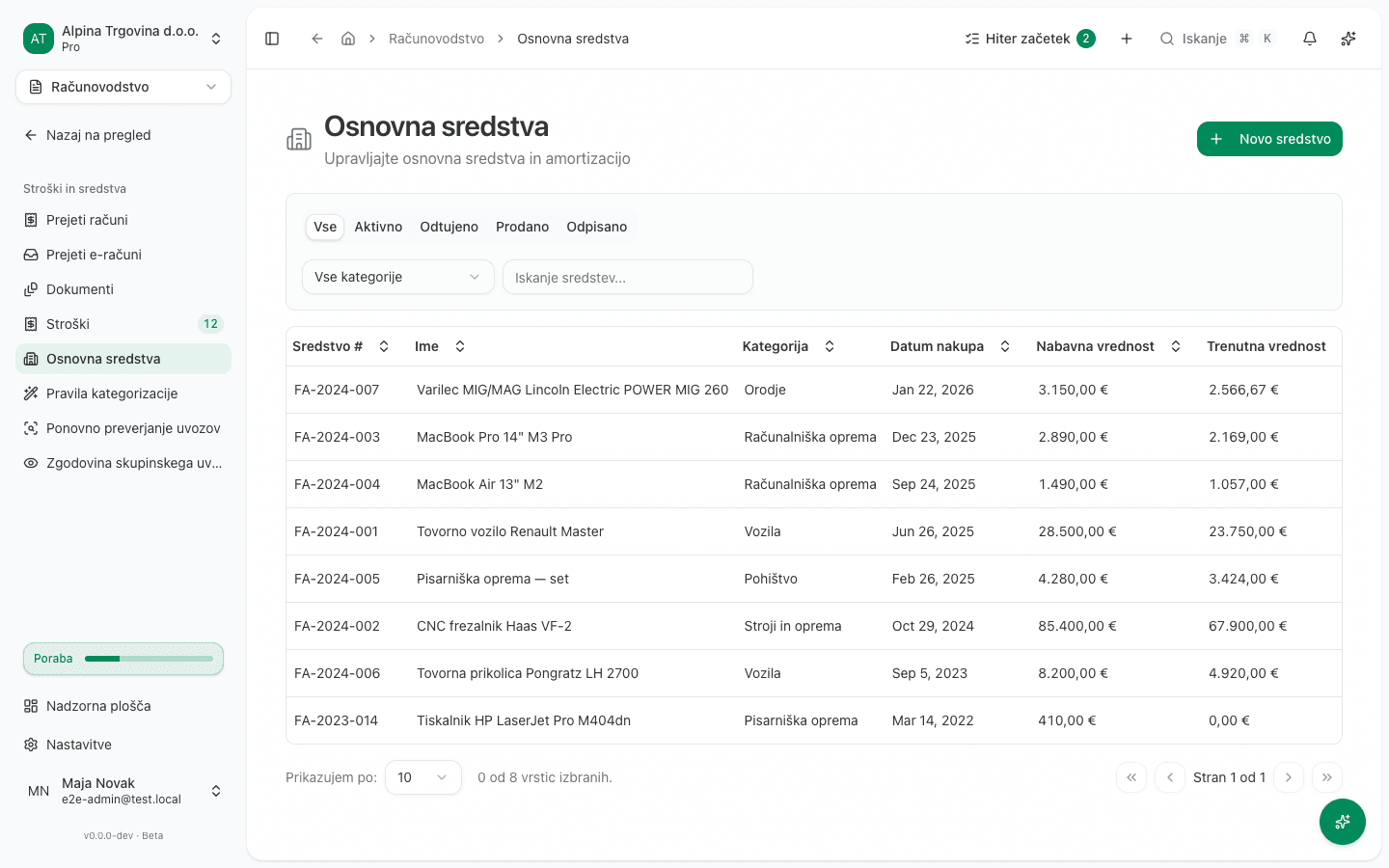
Open it from the left menu: Računovodstvo → Stroški in sredstva → Osnovna sredstva (Accounting → Costs and assets → Fixed assets).
1. Registering a new asset
- On the Osnovna sredstva (fixed assets) list, click Novo sredstvo (new asset) in the top right.
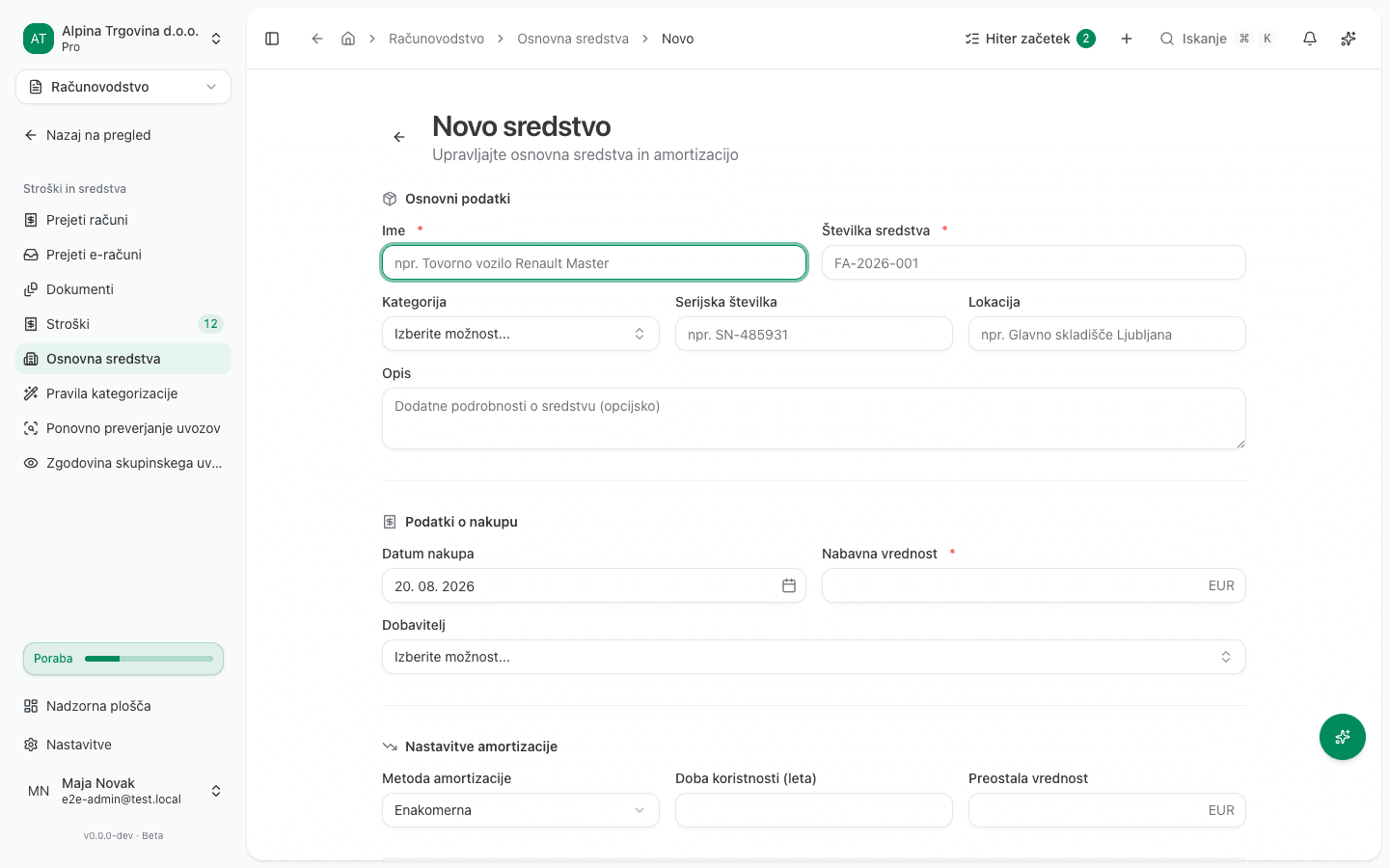
- Enter Ime (name) and Številka sredstva (asset number). Both fields are required; the number must be unique within the tenant.
- Optionally choose a Kategorija (category): Nepremičnine, Zgradbe, Stroji in oprema, Vozila, Računalniška oprema, Pisarniška oprema, Pohištvo, Orodje, Drugo (Real estate, Buildings, Machinery and equipment, Vehicles, IT equipment, Office equipment, Furniture, Tools, Other), and fill in Serijska številka (serial number), Lokacija (location) and Opis (description).
- Under Podatki o nakupu (purchase information) check Datum nakupa (purchase date, defaults to today) and enter Nabavna vrednost (purchase cost). Optionally choose a Dobavitelj (supplier).
- Under Nastavitve amortizacije (depreciation settings) choose a Metoda amortizacije (depreciation method, default Enakomerna (straight-line); also available: Padajoča (declining balance), Po enotah proizvodnje (units of production) and Brez (none)), Doba koristnosti (leta) (useful life in years) and optionally Preostala vrednost (salvage value).
- Click Shrani (save).
What success looks like
The asset page opens with status Aktivno (active). At the top, Trenutna vrednost (current value) shows the same figure as the Nabavna vrednost (purchase cost) field, because no depreciation has been recorded yet.
2. An asset partly depreciated by a previous provider
If you are bringing an asset over from another system and it was already partly depreciated there, you do not enter that as new depreciation in VegaERP. Instead, when you register or edit the asset, you tell the app how much was already written off.
- On the asset form (Novo sredstvo or Uredi), open the Prenos od prejšnjega izvajalca (transfer from previous provider) section.
- Enter Prenesena nabrana amortizacija (transferred accumulated depreciation). If the asset was not depreciated before, enter 0, because a blank field withholds depreciation entirely.
- Enter Amortizirano do (depreciated up to), the date up to which the previous system had charged depreciation. This date cannot be before Datum nakupa (purchase date). The depreciation schedule continues from this point, not from the purchase date.
- Optionally enter Prenesena davčno priznana amortizacija (transferred tax-recognised depreciation) if it is lower than the book figure. Leave it blank if the tax depreciation equals the book depreciation.
- Click Shrani (save).
Without this step, the app refuses to record depreciation for the asset, reporting that its opening carry-forward is missing, and posts nothing.
3. Recording depreciation
VegaERP does not calculate depreciation for you every month. You enter the amount for each period by hand, and the app records and posts it.
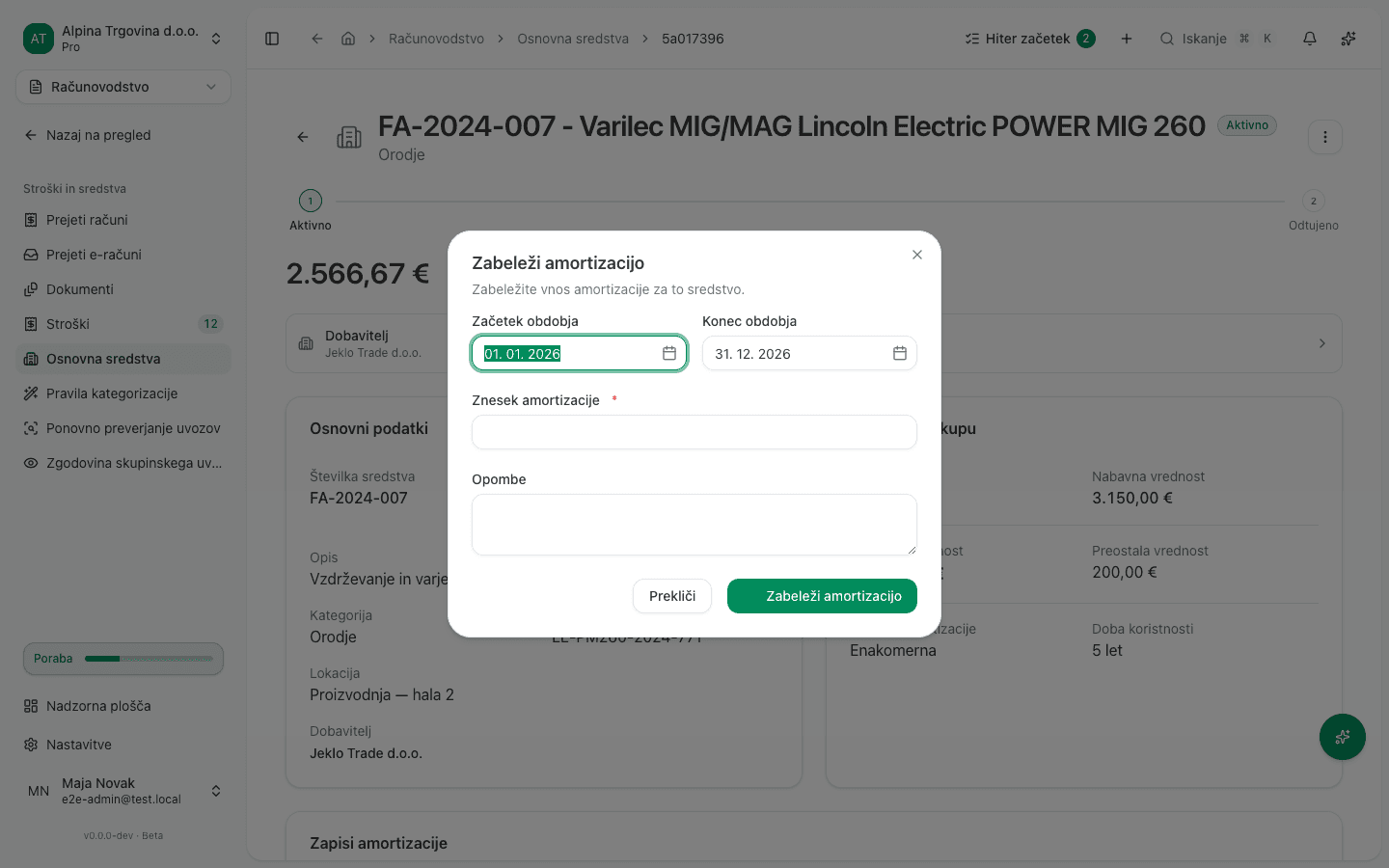
- On the asset page, click Več (more) and then Zabeleži amortizacijo (record depreciation).
- Check Začetek obdobja and Konec obdobja (period start and end). They are pre-filled with the next period from the depreciation schedule, which never starts before the asset’s depreciation start.
- Enter Znesek amortizacije (depreciation amount). This field is required and is not calculated for you.
- Optionally add Opombe (notes).
- Click Zabeleži amortizacijo (record depreciation).
What success looks like
A Amortizacija uspešno zabeležena (depreciation recorded successfully) toast appears. Trenutna vrednost (current value) on the asset page drops by the amount you entered, and a new row appears in the Zapisi amortizacije (depreciation records) table, with columns Obdobje, Znesek, Kumulativno and Knjigovodska vrednost (period, amount, cumulative, book value).
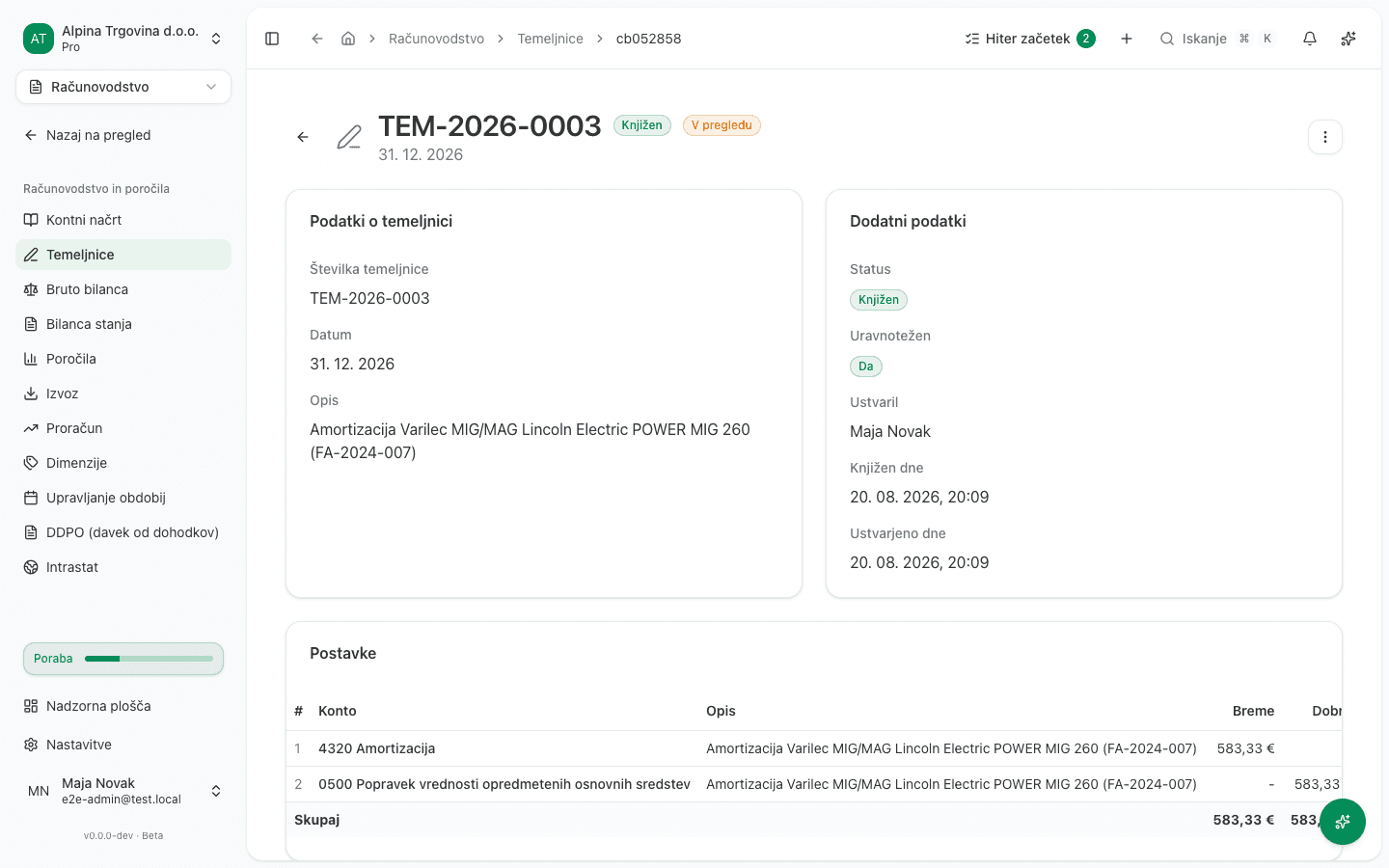
This also creates a new journal entry under Temeljnice, described as Amortizacija {asset name} ({asset number}), with status Knjižen (posted). It debits the depreciation account (chosen by the asset’s category by default) and credits the accumulated-depreciation account. You can check or change these accounts in the Računovodstvo (accounting) section of the asset form, in the Konto sredstva (asset account) and Konto amortizacije (depreciation account) fields; they default by category.
4. Schedule and tax depreciation
Below the Zapisi amortizacije table, the page also shows a Razpored amortizacije (depreciation schedule), a projection of future periods based on Doba koristnosti (useful life) and Preostala vrednost (salvage value), adjusted for depreciation already recorded.
If you set Davčna metoda, Davčna doba uporabe (let) and Davčna stopnja (letno, delež) (tax method, tax useful life, and tax rate) in the asset form’s Davčna amortizacija (ZDDPO-2) (tax depreciation) section, the asset page adds a comparison table with columns Leto, Knjigovodska, Davčna and Razlika (year, book, tax, difference). This section also has a button that fills the Davčna stopnja (letno, delež) field automatically with the statutory maximum rate for the asset’s category, next to a hint labelled Zakonska najvišja stopnja (ZDDPO-2 §33) (statutory maximum rate). Confirm the rate with your accountant, since VegaERP does not substitute for tax advice here.
If you do not set up a tax overlay, the asset uses the same depreciation for books and for tax, and the section reports Nastavite davčno prekrivanje, da vidite primerjalni načrt. (set up a tax overlay to see the comparison plan).
Common issues
- “Znesek amortizacije” won’t take a suggested figure. The field is not calculated from Doba koristnosti (useful life); you enter the amount for each period yourself.
- The app reports on “Zabeleži amortizacijo” that the asset was not depreciated in these books, and posts nothing. The asset was acquired before VegaERP’s books were opened, and has no opening carry-forward recorded. Open the asset, edit the Prenos od prejšnjega izvajalca section, and enter Prenesena nabrana amortizacija (0 if the asset was not depreciated before) and Amortizirano do. See section 2 above.
- The app reports that the period starts before depreciation does, and posts nothing. Depreciation starts on the first day of the month after V uporabi od (in use from), or after Datum nakupa when that is empty; for a transferred asset it starts the day after Amortizirano do. The message names the earliest allowed date; set Začetek obdobja to that date or later. The period also cannot end before it starts.
- The app reports that depreciation is already recorded through a date, and posts nothing. Periods follow each other without gaps: each new period must start on the day after the latest period already posted for this asset ends, so no month is depreciated twice and none is skipped. The message names the latest posted period and the date the next period must start on.
- The app reports that the period would leave days uncharged, and posts nothing. The period starts later than it may: the first period must start on the asset’s depreciation start, and every later period on the day after the latest posted period ends. Set Začetek obdobja to the date the message names; the form pre-fills it for you.
- Saving the transfer from a previous provider reports an error. Amortizirano do cannot be before Datum nakupa, Prenesena nabrana amortizacija cannot exceed Nabavna vrednost less Preostala vrednost, and the tax figure cannot exceed the book figure.
- Entering a new asset number is rejected. An asset with that Številka sredstva
already exists in the tenant. Open the existing record instead of creating a new one.
The asset cannot be edited. Only assets with status Aktivno (active) can be edited. A disposed, sold, or written-off asset is locked, and no control on this page unlocks it. If it was disposed of by mistake, contact support.