Recapitulative statement (RP-O)
RP-O (rekapitulacijsko poročilo) is the EC sales list for supplies of goods and services to VAT-registered business customers in other EU countries. VegaERP builds it from your issued invoices and files it to eDavki.
Which invoices land on the RP-O
The report includes issued invoices (status Izdano/“Issued” or Plačano/“Paid”, not a draft and not a predračun) to a customer in another EU country where you did not charge Slovenian VAT, either because the line was issued at a 0% VAT rate for a cross-border supply of goods or services, or because you ticked Obrnjeni DDV (“Reverse charge”) on the line. Domestic supplies and supplies to customers outside the EU never appear on the RP-O.
You choose the report’s period (month or quarter) independently of your configured DDV-O filing period, each time you generate one. Which invoices fall inside that period is decided by the invoice’s service date (or its issue date, if no service date is recorded), the same date your KIR/KPR VAT books use.
Generating an RP-O
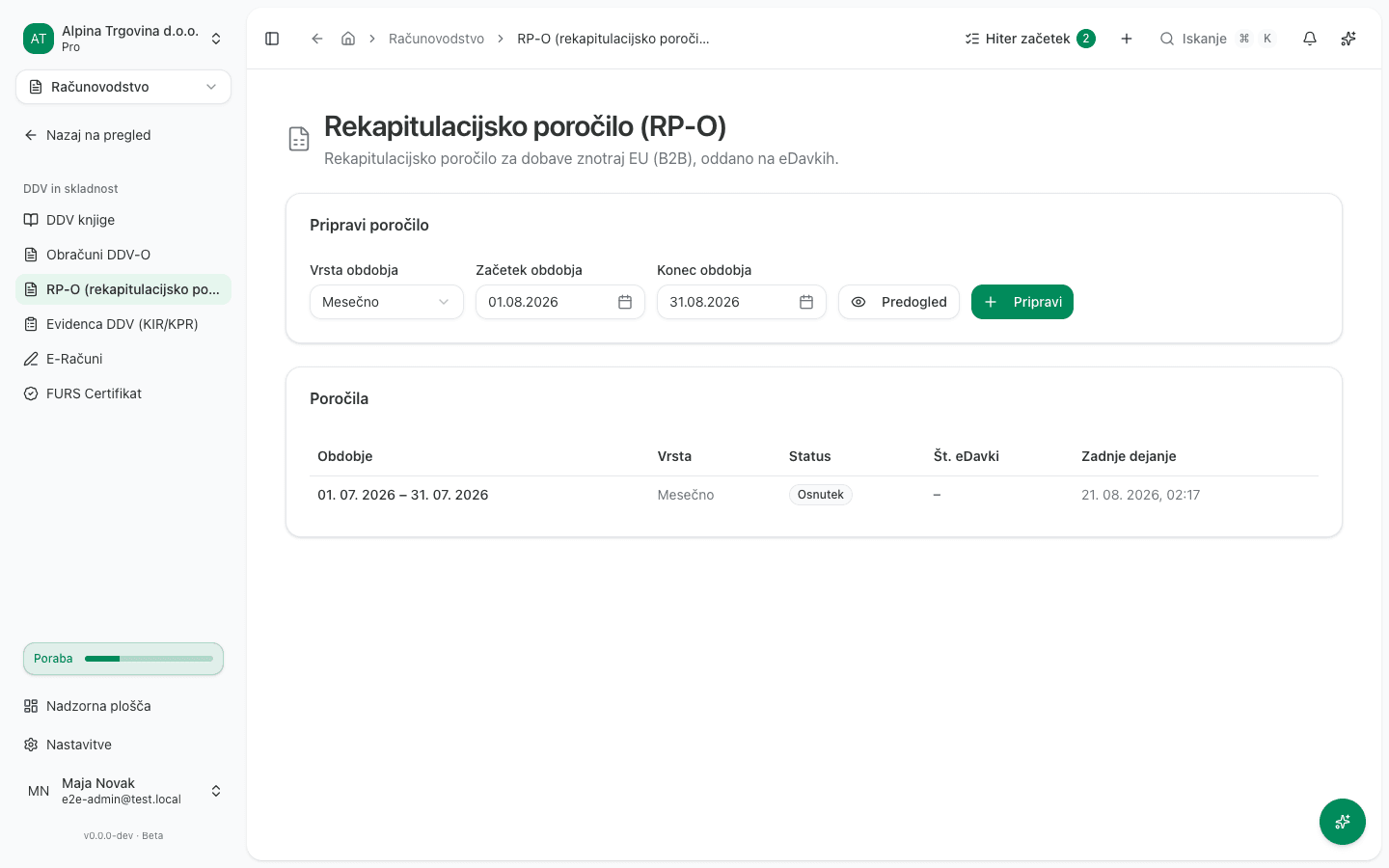
- Go to Računovodstvo → DDV in skladnost → RP-O (rekapitulacijsko poročilo) (“Accounting → VAT & Compliance → RP-O (EC sales list)”).
- Under Pripravi poročilo (“Generate report”), choose Vrsta obdobja (“Period type”): Mesečno (“Monthly”) or Četrtletno (“Quarterly”), then set Obdobje (“Period”). The shortcuts offer whole months and whole quarters, because that is the only shape a reporting period can have.
- Click Predogled (“Preview”) to see which partners and amounts would be included, before anything is saved.
- Once the period is right, click Pripravi (“Generate”). VegaERP creates the report as a draft and opens its own page.
Validating and submitting to eDavki
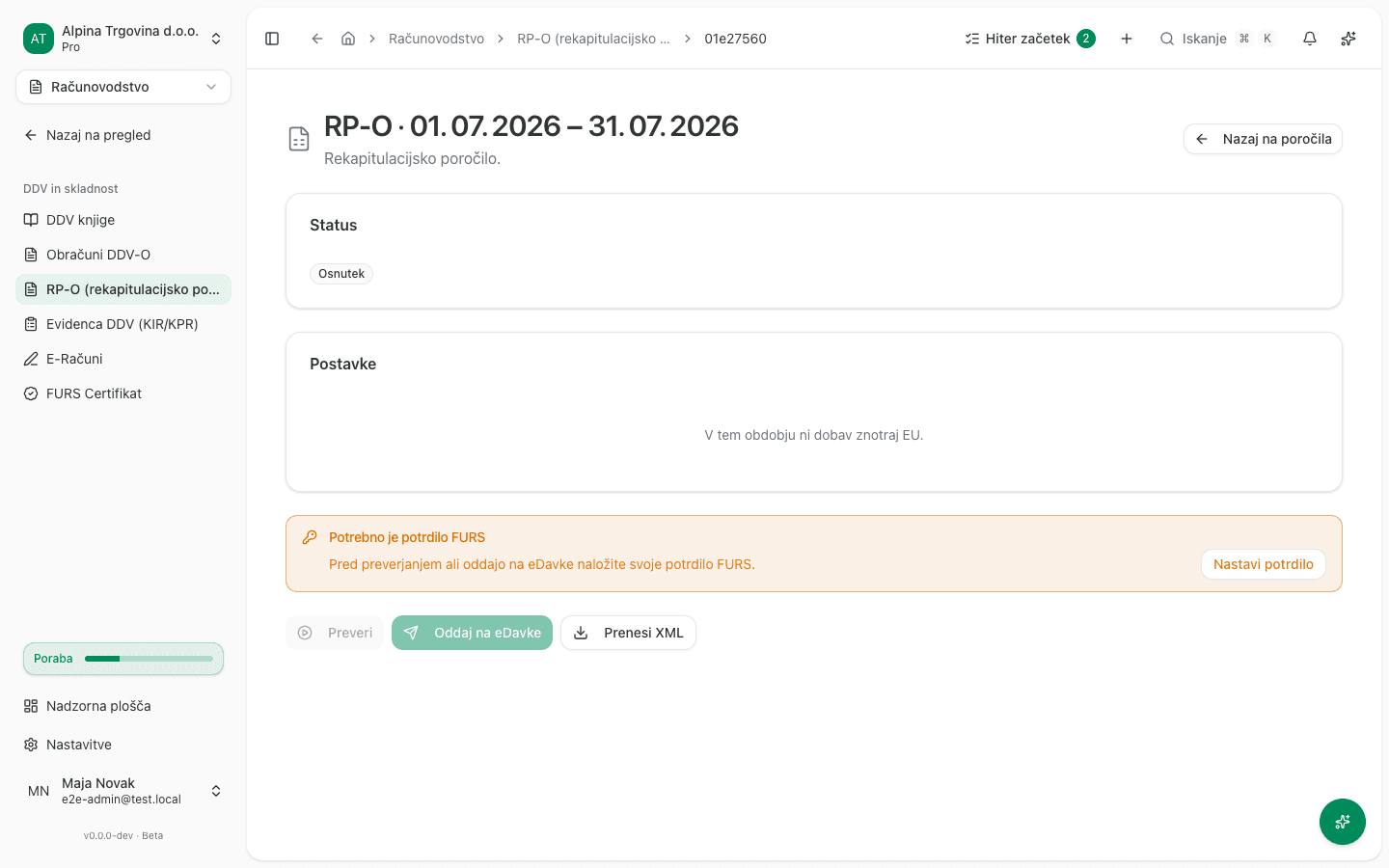
On an individual report’s page, the status moves through Osnutek (“Draft”) → Preverjeno (“Validated”) → Oddajanje… (“Submitting…”) → Oddano (“Submitted”) → Sprejeto (“Accepted”, or Zavrnjeno, “Rejected”). You trigger every step yourself:
-
Click Preveri (“Validate”) to check the report against eDavki without filing it yet.
-
Once validated, click Oddaj na eDavke (“Submit to eDavki”) to actually file it.
This is irreversible. -
Prenesi XML (“Download XML”) downloads the file VegaERP built, ready to upload yourself to eDavki under Dokumenti → Uvoz dokumenta. It is offered while the report is still a draft or validated. Once the report has been submitted the button is disabled and hovering it explains why: the file is a complete RP-O, and filing it a second time would send the tax authority a second original for a period it has already accepted. To fix a submitted RP-O, use a correction (samoprijava) instead.
If eDavki answers a submission without a document number, the report stays in Oddajanje… (“Submitting…”) and can’t be submitted again, because a second submission could file the same period twice. The page keeps checking its status with eDavki and updates it once eDavki answers.
Validating and submitting need an uploaded Server certificate for eDavki and SPOT; the fiscalization certificate does not stand in for it. If the page can’t find one, it shows a warning with a Nastavi potrdilo (“Set up certificate”) button.
A buyer’s data is missing or incomplete
If clicking Predogled (“Preview”) or Pripravi (“Generate”) gives you “Predogleda ni bilo mogoče pripraviti.” (“The preview could not be prepared”) or “Poročila ni bilo mogoče pripraviti.” (“The report could not be prepared”), with no further detail, the most common cause is a missing field on one of that period’s EU customers: Država (“Country”) or Davčna številka (“Tax number”) is blank on the partner record, when the VAT treatment on the invoice (0% or Obrnjeni DDV) says it should not be.
Steps:
- Open Partnerji (“Partners”) and find every customer in another EU country who received an invoice with no Slovenian VAT in this period.
- For each one, check that Država (“Country”) is filled in (the correct EU country, not Slovenia) and that the customer’s VAT identification number is recorded. Put it in the ID za DDV (“VAT ID”) field. That is the field the RP-O reads first. You can paste the number with its country prefix; when you leave the field, the app moves the prefix into Država and leaves only the digits. That is correct: the prefix is recorded once, and the app puts it back together for the report, the invoice and the e-invoice.
- Save the correction and try Predogled (“Preview”) again.
Which field the RP-O reads. It reads ID za DDV (“VAT ID”) first and falls back to Davčna številka (“Tax number”) only when that is empty. So fixing the ID za DDV field does clear this message. It is in fact the right place for the value, because the RP-O reports the VAT identification number by law, not the national tax number. Davčna številka remains valid for a customer who has only that recorded.
This page previously said the ID za DDV field would not help for the RP-O and that the report read only Davčna številka. That is no longer true: from this version the RP-O reads ID za DDV first.
If the message mentions the SHAPE of the number, the customer’s number is not one the member state issues (a German Steuernummer where a USt-IdNr belongs, for example). Check it in VIES and record the number VIES confirms.
Handover from a previous provider
If you have never filed an RP-O for this company through VegaERP before, you must record, before the first original filing, whether anyone else (a previous accounting firm or the company itself) has already filed an RP-O for this company, and up to which period. Without that, filing an original is refused with:
Najprej zabeležite prenos od prejšnjega izvajalca za RP-O. (“First record the handover from the previous provider for RP-O.”)
Once that boundary is recorded, filing an original for a period that boundary already covers is refused with a message that points you at a correction instead of a new original (see below).
Record the handover separately for each form. The REK-O, RP-O, OPSVL, KIR/KPR, and DDPO cards on this page are five separate questions: answering one does not answer another, so filing RP-O stays refused even after you’ve recorded the boundary for REK-O or the VAT books. For the general shape of this refusal, see also Why can’t I file a return for this period?.
Steps:
- Open Nastavitve → Podatki in integracije → Obračuni (“Settings → Data & Integrations → Filings”).
- Under Prenos od prejšnjega izvajalca (“Handover from a previous provider”), find the RP-O card.
- Answer Da (“Yes”) or Ne. To je prva oddaja tega obrazca za to podjetje (“No. This is the first filing of this form for this company”). For Da, enter Zadnje že oddano obdobje (“Last period already filed”, the LAST day of that period).
- Click Evidentiraj (“Record”).
Correcting an already-filed RP-O
If you try to generate a new original for a period whose RP-O is already Sprejeto (“Accepted”), VegaERP refuses with this message, in English:
An RP-O for this period has already been filed. Use the correction (samoprijava) flow to amend it.
The message names a correction (samoprijava) path, but VegaERP currently has no button on screen for it, it cannot be triggered from the RP-O page. If you need to correct an already accepted RP-O period, contact support.
If you can’t fix this yourself
Answering Prenos od prejšnjega izvajalca (“Handover from a previous provider”) and editing a partner record can be done by this company’s administrator or accountant. If Predogled (“Preview”) still reports the same message after you’ve fixed the customer’s data, or if you need to correct an already-accepted RP-O period, contact support with the report’s period and, if you know it, the name of the customer you suspect is missing data.