VAT books & the DDV-O form
VegaERP builds your VAT books (knjiga izdanih računov / knjiga prejetih računov — KIR / KPR) and the DDV-O return directly from booked documents — you don’t maintain them as a separate ledger.
Who this applies to
VAT books and the DDV-O form only apply to companies registered as VAT payers (zavezanci za DDV). If your company is on the flat-rate (normirani s.p.) regime, these screens don’t apply and won’t appear — flat-rate taxpayers don’t file DDV-O. Make sure your VAT-payer status is set correctly on the company profile before you start booking documents (see Getting started).
Viewing the VAT books (KIR/KPR)
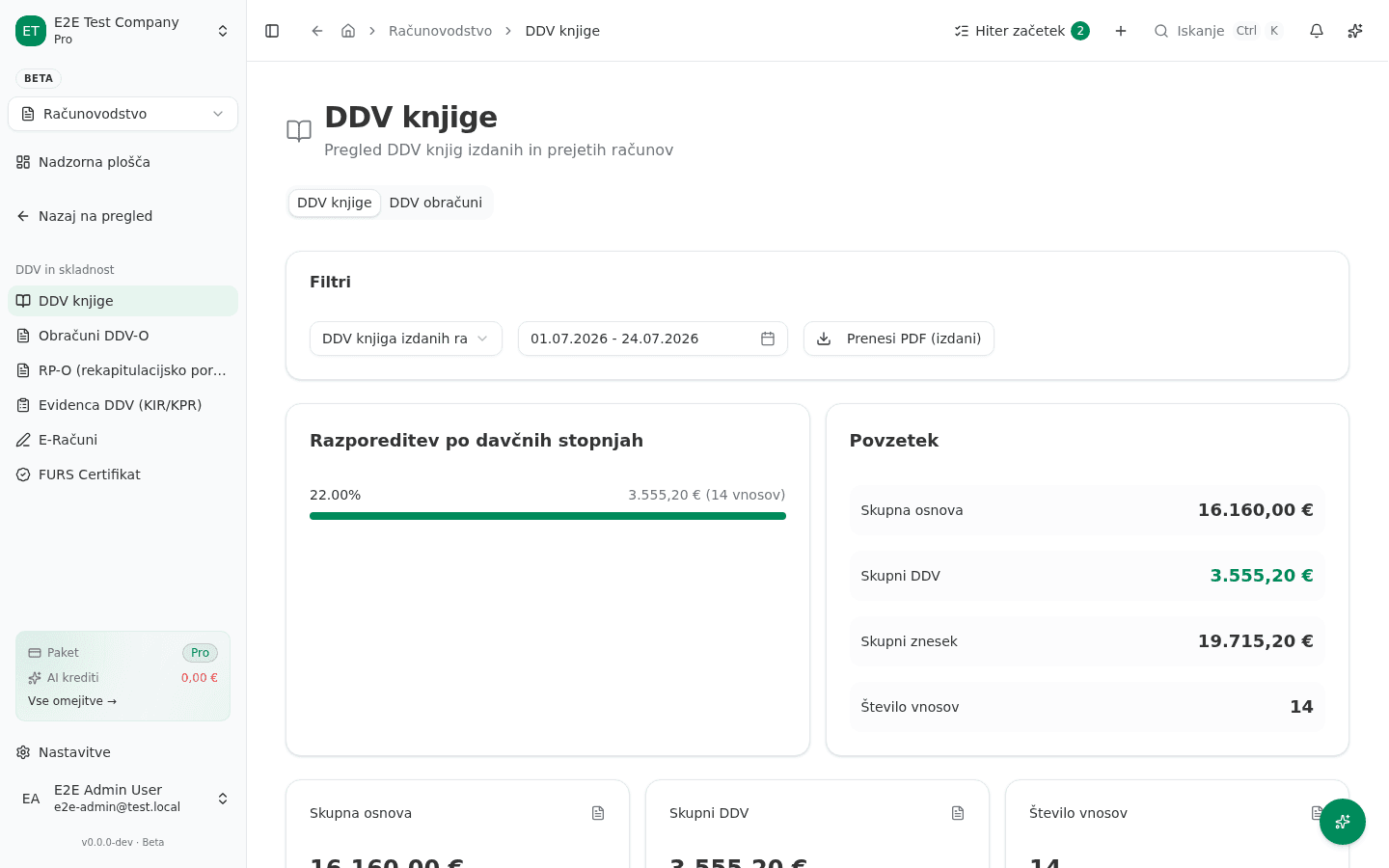
- In the left sidebar, go to Računovodstvo → DDV in skladnost → DDV knjige (“Accounting → VAT & compliance → VAT books”).
- Under Filtri (“Filters”), pick which book to view: DDV knjiga izdanih računov (KIR — sales/issued invoices) or DDV knjiga prejetih računov (KPR — purchases/received invoices), and set the date range.
- The page shows Razporeditev po davčnih stopnjah (“Breakdown by VAT rate”) and a Povzetek (“Summary”) with totals. Use Prenesi PDF (izdani) / Prenesi PDF (prejeti) to export either book as a PDF.
Every invoice, credit note, and eligible expense you book is automatically classified onto the correct VAT book line based on the transaction type, the VAT rate, and whether the counterparty is domestic, EU, or third-country. This classification happens at booking time, not at report time — so a document booked with the wrong VAT treatment needs to be corrected at the source, not patched into the VAT book directly.
Cross-border transactions
Cross-border B2B transactions with EU counterparties get special DDV-O treatment (reverse charge, intra-community supply/acquisition), and this is where an incorrect foreign VAT number on a contact causes the most visible problems — see Importing from Minimax for why getting contact VAT numbers right during migration matters.
Generating the DDV-O return
-
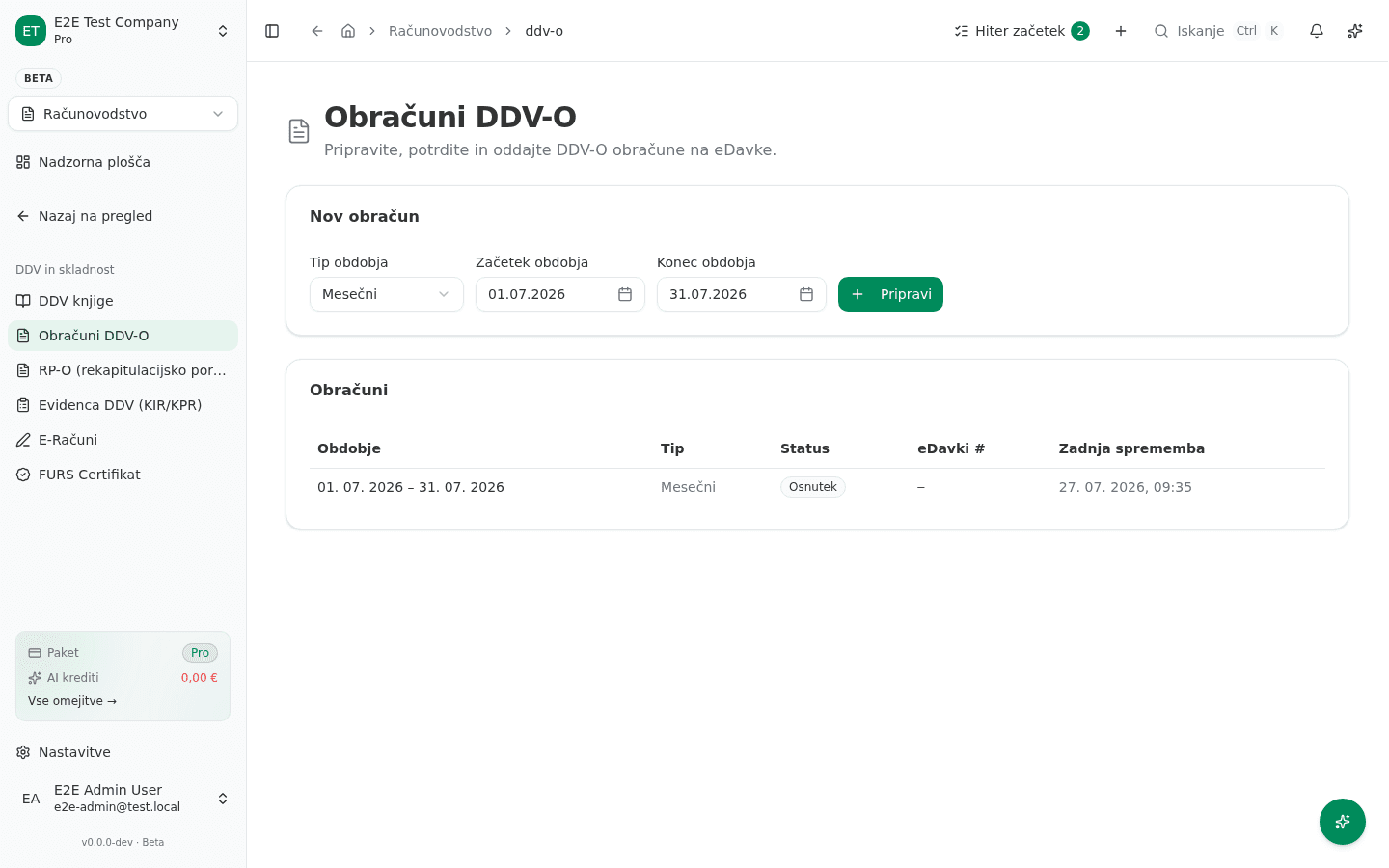
Go to Računovodstvo → DDV in skladnost → Obračuni DDV-O (“VAT returns”).
-
Under Nov obračun (“New return”), pick the Tip obdobja (Mesečni/Trimesečni — monthly/quarterly — set by FURS for your company) and confirm the Začetek obdobja / Konec obdobja (period start/end).
-
Click Pripravi (“Prepare”). The return appears in the Obračuni list below as Osnutek (“Draft”) — every line is pre-filled from the VAT book; you review before submission rather than re-entering totals by hand.
-
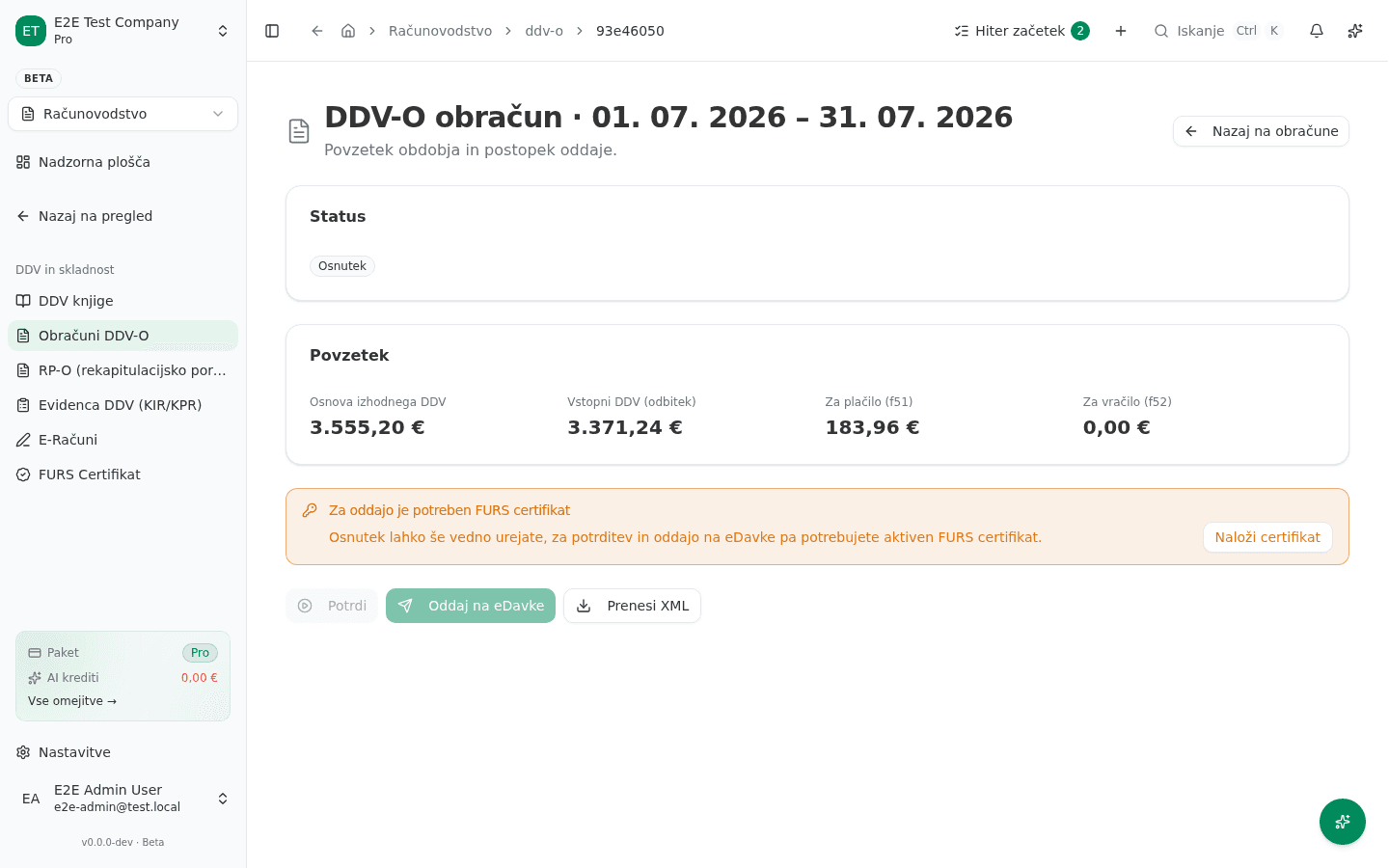
Open the draft to review the summary — Osnova izhodnega DDV (output VAT base), Vstopni DDV (odbitek) (deductible input VAT), and the resulting Za plačilo (f51) / Za vračilo (f52) (payable / refundable).
-
Click Potrdi (“Validate”) to check the return, then Oddaj na eDavke (“Submit to eDavki”) to file it. Both require an active FURS certificate — see Common issues below.
If a number looks wrong
Don’t edit the DDV-O total directly — trace it back to the underlying VAT book line, then to the source document. The most common causes of a wrong total are:
- A document booked with the wrong VAT rate.
- A cross-border document where the counterparty’s VAT-payer flag or country wasn’t set correctly.
- A document booked in the wrong period (VAT books are period-scoped, same as journal entries).
Common issues
- Potrdi / Oddaj na eDavke is disabled. Submitting a DDV-O to eDavki requires an active FURS certificate on the company profile (Nastavitve → FURS Certifikat). You can still prepare and review a draft without one — only validation and submission are gated.
- A period has no data / totals look empty. Check documents for that period were actually booked (not left as drafts) before generating the return — a draft invoice or expense doesn’t appear in the VAT book until it’s issued/approved.