Booking supplier invoices
A supplier invoice (prejeti račun) is your supplier’s document, and it creates a payable. In VegaERP you first enter or upload it as a Osnutek (draft), then post it with a single button. This page covers both intake routes and the one step that actually puts the invoice into your books.
Open them from the left menu: Računovodstvo → Stroški in sredstva → Prejeti računi (Accounting → Costs and assets → Supplier invoices).
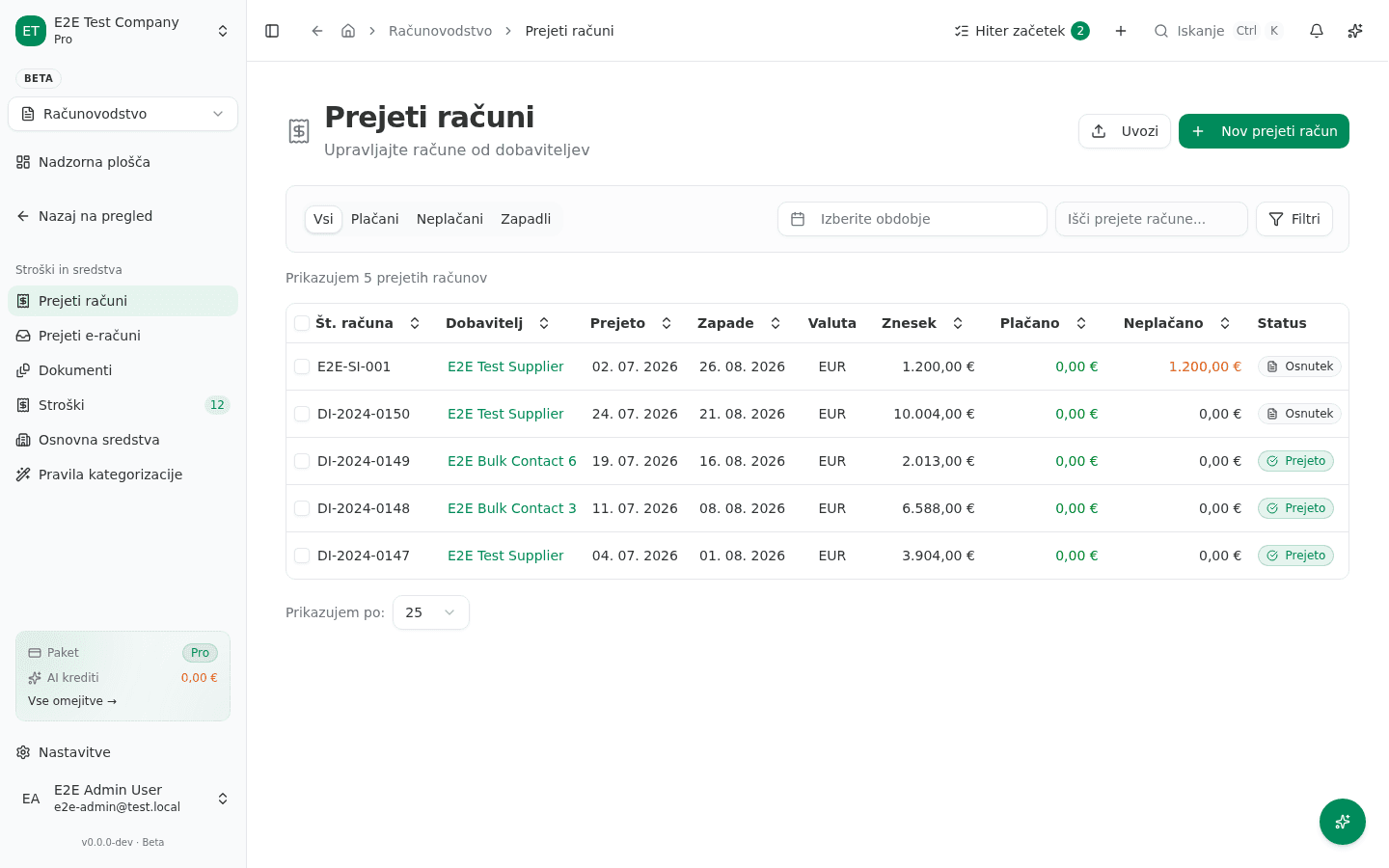
Supplier invoice or expense?
The same Stroški in sredstva group holds two different modules:
- Prejeti računi — a supplier’s document with its own invoice number, a payable and VAT.
- Stroški (Expenses) — a simpler cost record with an approval flow and no line items.
The rule: anything carrying an invoice number from the supplier’s document belongs in Prejeti računi.
Entering an invoice by hand
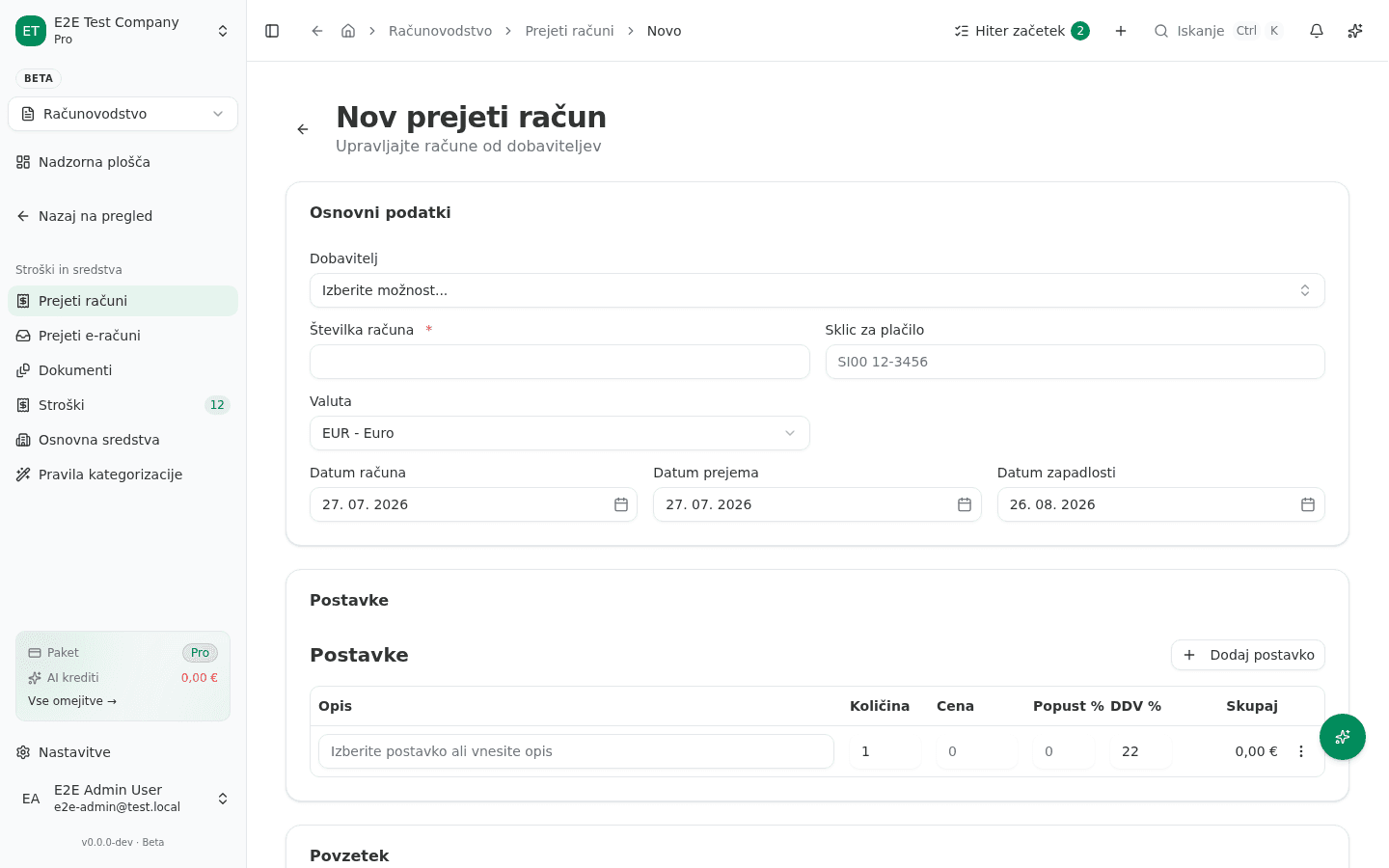
- On the Prejeti računi list, click Nov prejeti račun (New supplier invoice) at the top right.
- Under Dobavitelj (Supplier), pick an existing contact. If there isn’t one yet, add it under partners first — the form only selects among existing contacts.
- Fill in Številka računa (Invoice number). It is marked with an asterisk and is mandatory — copy the number from the supplier’s document, not your own.
- Optionally complete Sklic za plačilo (Payment reference) and Valuta (Currency,
EUR - Euroby default). - Check the three dates, which are pre-filled: Datum računa (invoice date), Datum prejema (date received) and Datum zapadlosti (due date). Each opens with the Izberite datum button.
- Under Postavke (Line items), fill in a row (Opis, Količina, Cena, Popust %, DDV %); add more with Dodaj postavko. Skupaj and Povzetek recalculate as you type.
- Click Shrani (Save).
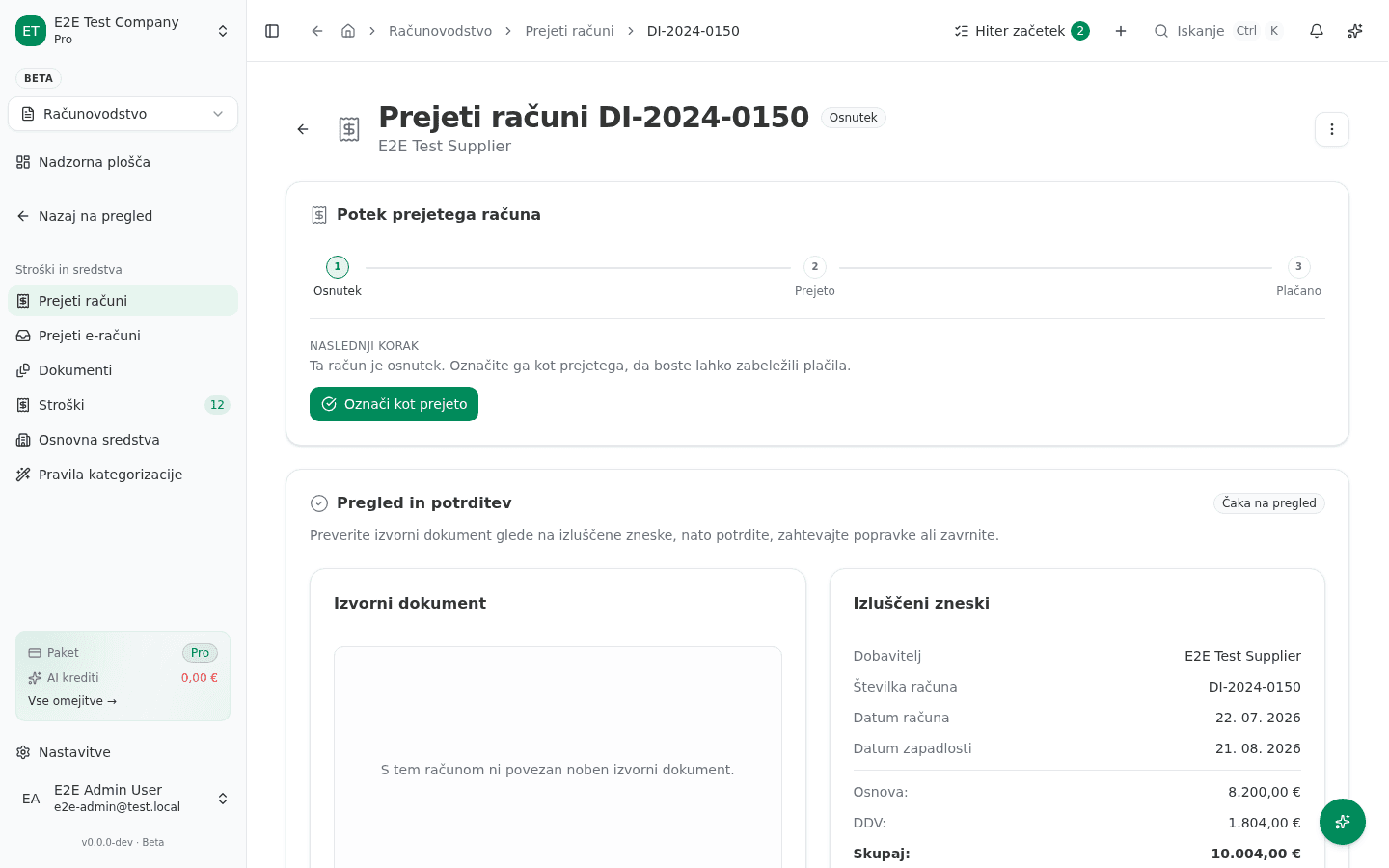
What success looks like
The invoice opens with status Osnutek. Potek prejetega računa at the top of the page shows three steps — Osnutek → Prejeto → Plačano — with the first marked as current. Below them, NASLEDNJI KORAK (Next step) reads “Ta račun je osnutek. Označite ga kot prejetega, da boste lahko zabeležili plačila.” — this invoice is a draft; mark it as received so you can record payments.
Uploading files (one or many)
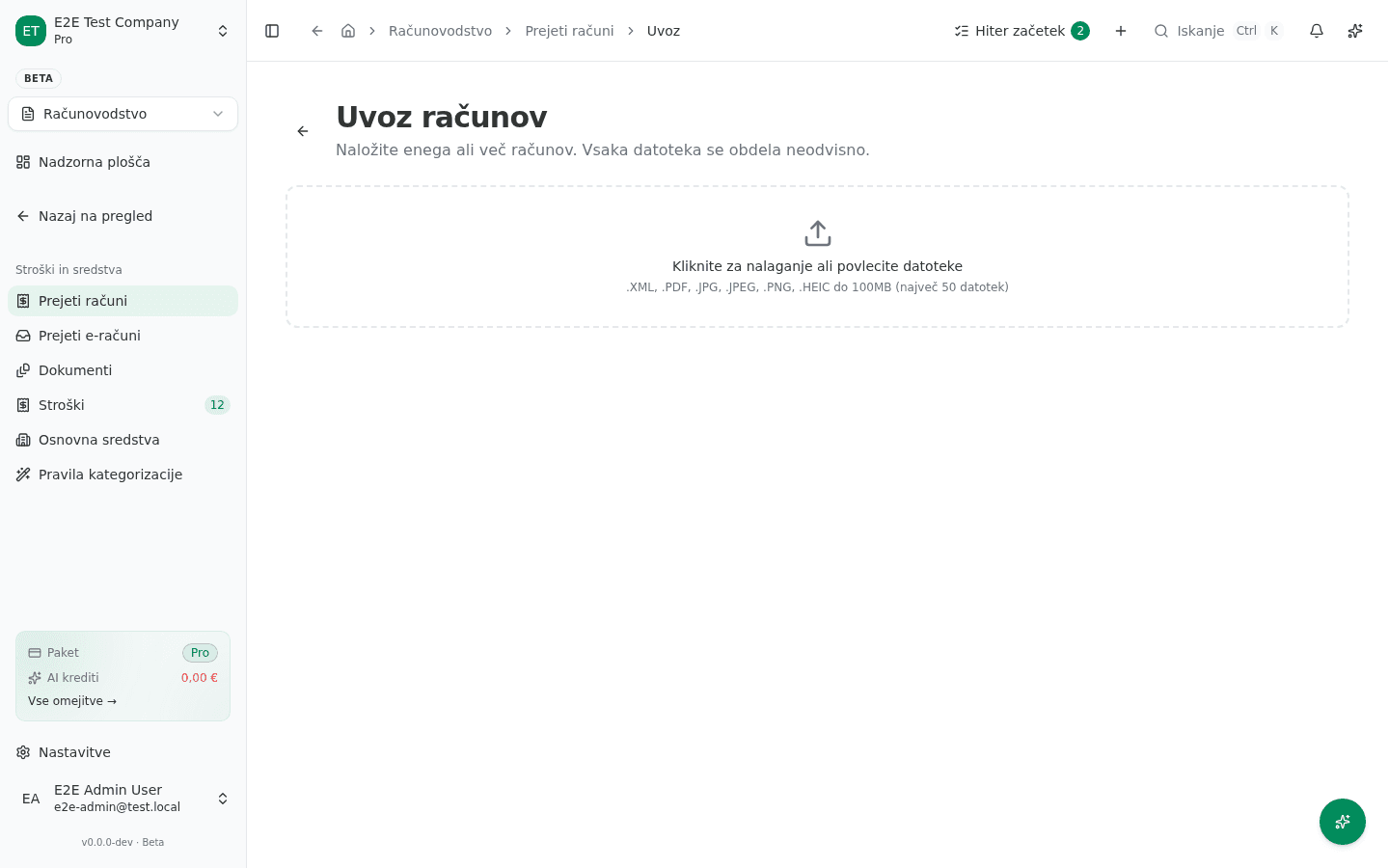
- On the Prejeti računi list, click Uvozi (Import).
- On the Uvoz računov page, click the Kliknite za nalaganje ali povlecite datoteke drop zone and choose your documents. The accepted formats are printed underneath: .XML, .PDF, .JPG, .JPEG, .PNG, .HEIC do 100MB (največ 50 datotek) — up to 100 MB per file, 50 files at a time.
- Each file is processed independently, as the page itself says: “Naložite enega ali več računov. Vsaka datoteka se obdela neodvisno.” One failure therefore doesn’t stop the rest.
- Review the extracted data for each file and correct it before importing.
Uploading images and PDFs consumes AI credit; XML is parsed without it.
Review and approval (when your team works that way)
The draft’s detail page carries a Pregled in potrditev (Review and approve) card. On the left is Izvorni dokument (the source document), on the right Izluščeni zneski (the extracted amounts: Osnova:, DDV:, Skupaj:), with three actions: Potrdi (Approve), Zahtevaj popravke (Request changes) and Zavrni (Reject).
Approval is not posting. The app says so itself, right above the buttons:
To je še osnutek. Potrditev zabeleži vašo odobritev — v glavno knjigo se knjiži, ko ga označite kot prejetega.
(This is still a draft. Approving records your sign-off — it is posted to the general ledger when you mark it as received.)
Posting: Označi kot prejeto
This step, and only this step, puts the invoice into the general ledger.
- Open an invoice in status Osnutek.
- Under NASLEDNJI KORAK, click Označi kot prejeto (Mark as received).
What success looks like
The status changes from Osnutek to Prejeto, the Prejeto step becomes current, and a journal entry is created described as Prejeti račun {number}. The Najprej označi kot prejeto hint next to Plačila disappears, and only now can you record a payment.
If posting fails, you get a Samodejna temeljnica ni uspela (Automatic journal entry failed) warning with a Ponovi (Retry) button instead. The usual causes are a closed accounting period or a missing account in the chart of accounts.
Payment
A payment can only be recorded after Označi kot prejeto — a draft has no posted payable to settle. On an invoice in status Prejeto you get Zabeleži plačilo (Record payment), Plačilni nalog UPN (UPN payment slip) and, by selecting several rows in the list, Plačaj preko SEPA (Pay via SEPA).
Common problems
- “Invoice number” is mandatory even on an uploaded document. If the AI didn’t read it off the scan, type it in — the import cannot complete without it.
- An invoice with that number already exists. The same number for the same supplier is blocked. During import this shows up as a duplicate and the file is skipped — open the existing record instead of creating a second one.
- The import skipped a file that wasn’t actually a duplicate. If an invoice for the same supplier with the same amount and date already exists, the document is treated as a likely duplicate (a purchase receipt for an already-booked invoice, for example).
- A payment can’t be recorded. The invoice is still a Osnutek — use Označi kot prejeto first.
- “Označi kot prejeto” does nothing. Only drafts can be moved this way, so the invoice is already posted or cancelled.
- A posted invoice can’t be deleted. Izbriši still appears in the Več menu on a posted invoice, but the app only refuses once you confirm the deletion: a Ta račun je že vknjižen (“This invoice is already posted”) dialog explains that deleting it would leave the general ledger out of balance, and offers Storniraj račun (Reverse the invoice) instead. The reversal sets the status to reversed and records the opposite entry, so your books stay balanced. The same rule for outgoing invoices is covered in Fixing an invoice you already issued.
- The amounts on a paid or cancelled invoice can no longer be corrected. Its posting is final; the correction is made with a separate document.